

 Español
 Català
 Deutsch
 Français
 Português
 Italiano
 Nederlands
 Polski
Where the button is and when you see it
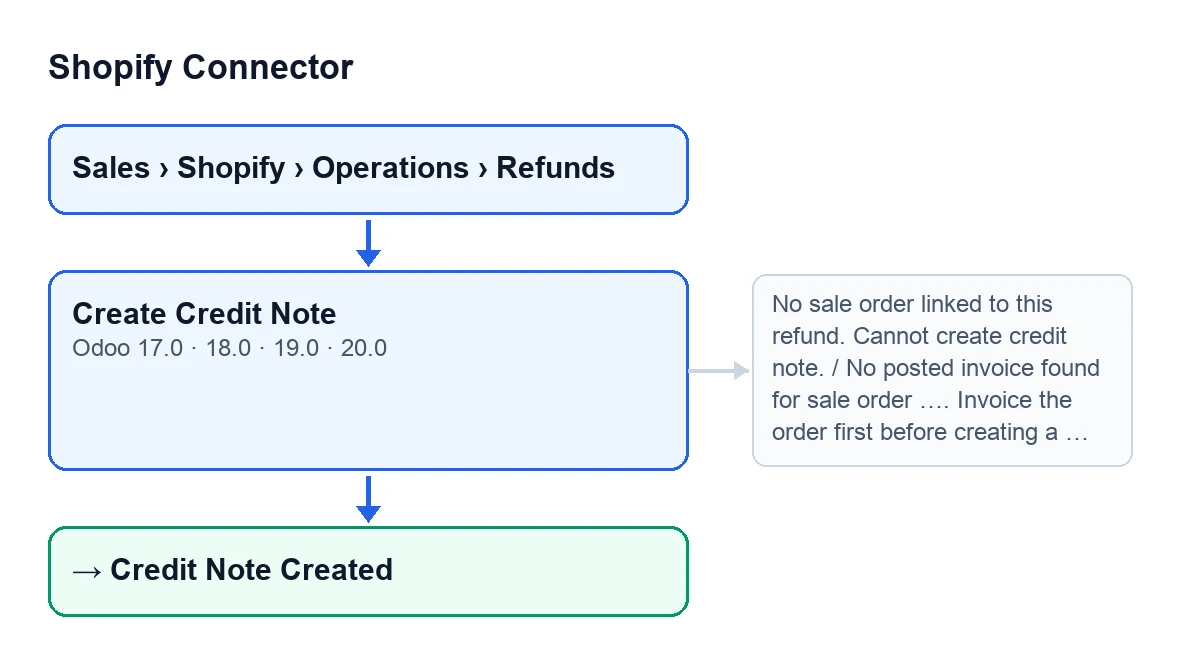
Refunds open from the menu Sales › Shopify › Operations › Refunds, on the Shopify Refunds screen. The Create Credit Note button is there, in Odoo 17, 18, 19 and 20.
With the default values the button is visible. It is hidden in two cases, the same in those four versions: when the refund is in the ignored state, and when it is in Credit Note Created and the Credit Note field has a value. That field sits in the Amounts group of the form, is read-only and stays hidden while empty: the button itself fills it in.
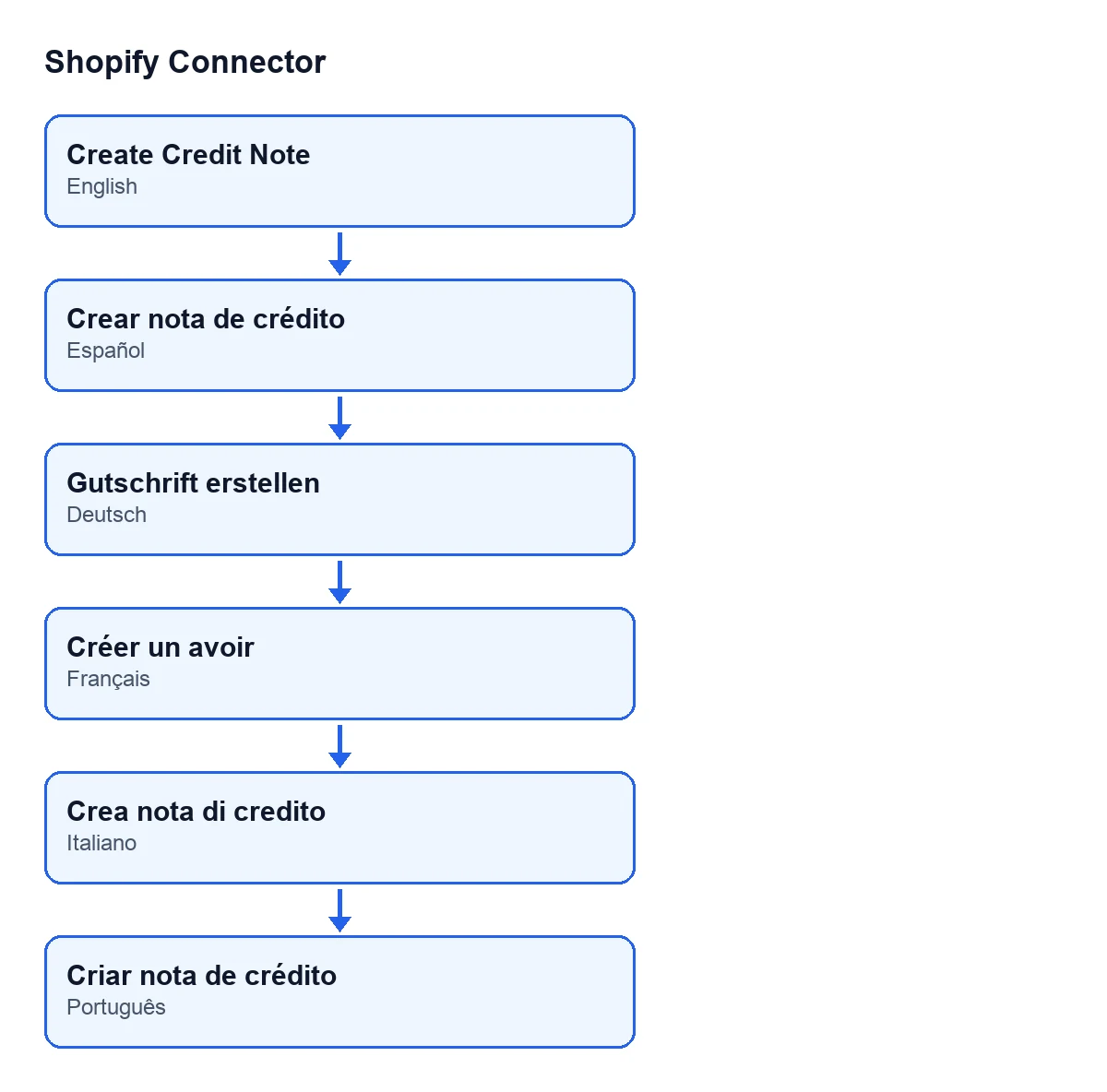
With Odoo in English the button is called Create Credit Note; the second diagram shows its label in other languages.

Step by step: what the button does and what you check
- Open the refund in
Sales › Shopify › Operations › Refunds. On the form you will seeNameandRefund Datein theShopifygroup, andAmount Refundedin theAmountsgroup; all three are read-only. - Check that the refund has a linked sale order. If it does not, the button stops with the first message in the table below.
- Check that the order has a customer invoice that is already posted. The method only looks at the order's posted customer invoices; a draft invoice does not count.
- Press
Create Credit Note. If the refund was already inCredit Note Createdand has itsCredit Note, the button is not shown and there is nothing more to press. - The method takes the items Shopify refunded, whatever happened to their stock. It looks each product up by its Shopify variant identifier and, if that finds nothing, by its SKU, among the products of the store's company. Then, in the lines of the order's posted invoices, it works out how much is left to credit for each product, starting with the oldest invoice, and takes only what Shopify refunded. If the same product sits on order lines with different terms (for example, with a discount on one), it uses the unit price Shopify refunded to pick the line; if that price does not identify one, it refuses the refund rather than choose. A unit cancelled before shipping is credited only if it was invoiced and not delivered.
- With those lines it creates the draft credit note, based on the first invoice that supplies lines: customer, journal, currency and fiscal position are that invoice's, and the note is linked to it as the invoice it reverses. Each line copies the price, discount, taxes and account from the invoice, with the quantity to credit. The note's date is the local day of the
Refund Datefield, and its reference carriesShopify Refund …with the refund's name. - It checks the money: for each order line it compares the note's amount with what is left invoiced, with a margin for each line's rounding. If the note would credit more, the method stops with the last message in the table and the draft is not kept.
- If the currency or the note's total does not match
Amount Refunded, it leaves a message on the note so you check it before posting. - It writes the state
Credit Note Createdon the refund, fills inCredit Note, clears the error text and opens the note. - Review the draft note and post it once everything adds up.
The messages the button can give
When the button stops with a message, the action does not reach its end: the Credit Note field is not filled in and the refund does not move to Credit Note Created.
| Message | When it appears | What to do |
|---|---|---|
No sale order linked to this refund. Cannot create credit note. | The refund has no linked sale order. | Check the refund and its order before pressing again. |
No posted invoice found for sale order …. Invoice the order first before creating a credit note. | The order has no posted customer invoice; the order name appears where «…» is. | Invoice the order and post the invoice, as the message itself says. |
Refund …: Odoo cannot credit for sure … of … (not a product of the store's company, not on a posted invoice of the order, already credited or taken off by an invoice or credit note of the order still in draft, a unit cancelled before shipping that nobody invoiced, or the same product on order lines with other terms when Shopify's price does not tell which one it refunded). Create the credit note by hand, or ignore the refund. | Odoo cannot credit for sure some of the refunded items; the message names the products affected and the order. | Create the note by hand or ignore the refund, as the message says. |
Refund … has no refunded items in Shopify (an amount or the shipping only: … …). Create the credit note by hand. | In Shopify the refund is only an amount or the shipping, with no items; the refund's amount and currency appear in place of the dots inside the brackets. | Create the note by hand. |
Failed to create credit note: … | Creating the note failed; the error text follows the colon. | Read the text after the colon: it is the error that stopped the note from being created. |
Refund …: Odoo cannot credit for sure … of …: more money than is left invoiced of the order line (an invoice line at another price or tax, a later invoice that took units off, a credit note made by hand or from the order). Create the credit note by hand, or ignore the refund. | The note would credit more money than is left invoiced on an order line. | Create the note by hand or ignore the refund, as the message says. |
Price and help with implementation
Shopify Connector costs €9 per Odoo version, for 17, 18, 19 and 20, as a one-off payment excluding VAT. It also needs the FlexigoTech Cloud subscription: the Connector plan is €49 a month or €490 a year, excluding VAT.
If you are implementing Odoo and want to review how invoices, refunds and your shop fit together, FlexigoTech implements Odoo 17, 18, 19 and 20 and builds custom connectors and integrations.
Keep reading
Checked in the connector's source code (version 20.0) and the linked sources
Sources
- Module source code: flexigobe_shopify_connector 20.0 (c7078cd8): views/shopify_refund_views.xml
- Module source code: flexigobe_shopify_connector 20.0 (c7078cd8): models/shopify_refund.py
- apps.odoo.com/apps/modules/17.0/flexigobe_shopify_connector
- apps.odoo.com/apps/modules/18.0/flexigobe_shopify_connector
- apps.odoo.com/apps/modules/19.0/flexigobe_shopify_connector
- apps.odoo.com/apps/modules/20.0/flexigobe_shopify_connector
- flexigotech.com/precios.html
- flexigotech.com/en/services.html