

 Español
 Català
 Deutsch
 Français
 Português
 Italiano
 Nederlands
 Polski
The button is in versions 17, 18, 19 and 20 of the module.
What the window shows before you export
In the export window you choose the Shopify Instance and the Initial Status; the Product field is read-only. The options in Initial Status are Active (visible in store) and Draft (hidden), and the default is Draft (hidden). The button in that window is Export to Shopify.
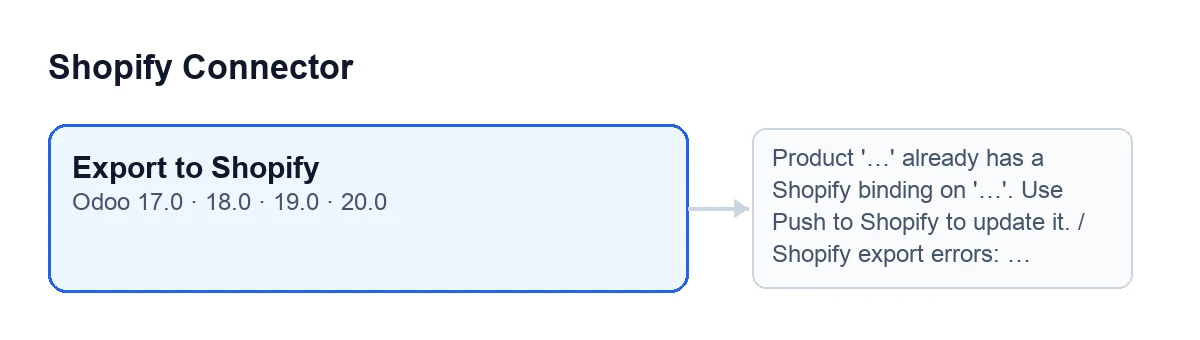
Export to Shopify button and, beside it, two of the messages that can stop it, with their original English labels.
Wrong ideas about the button
Myth: if the product is already in Shopify, the button updates it
Reality: the first thing it does is look for an existing binding between the product and the instance you chose. If there is one, it stops with Product '…' already has a Shopify binding on '…'. Use Push to Shopify to update it. The dots are the product name and the shop domain. At that point nothing has been sent to Shopify. The check is per product and instance.
Myth: the button sends the whole product record to Shopify
Reality: it sends what the code gathers, and some of it only if filled in. Every product sends its name (as the title), the initial status you chose and the product's Shopify tags, separated by commas. Only if they are filled in does it also send the Shopify vendor, the Shopify product type and the sales description. Then comes each variant of the product:
- the variant's sales price, rounded to two decimals (if the variant has none, the product's price);
- the internal reference as SKU, if it has one;
- the barcode, if it has one;
- the attribute values as options, with the attribute name and the value name.
Myth: after exporting, the product is on sale
Reality: it depends on Initial Status. With the default, Draft (hidden), the product is created hidden; with Active (visible in store) it is created visible in the shop. The field's help recommends draft as the safer option, so you can review the product in Shopify before making it active. The final notice repeats, in capitals, the status it was created with.
Myth: if Shopify rejects something, Odoo is left with a half-done export
Reality: the action stops as soon as one of these messages appears, and nothing the export was going to change in Odoo is saved. Some of the messages the button can give:
Shopify access token is missing for instance …: the instance is missing its access token.Shopify GraphQL call failed (…): …: Shopify answered with an error; the message carries the response code and the start of the text it returned. If Shopify answers that the request limit has been exceeded, the code retries, waiting between attempts; if the last attempt still gets the same answer, this message appears with code 429.Shopify GraphQL returned errors: …: Shopify's response contained errors.Shopify GraphQL call exhausted retries.: Odoo ran out of attempts to call Shopify without reaching a result.Shopify export errors: …: Shopify returns errors about the product; the message joins them, each as a field and a text, separated by semicolons.Shopify did not return a product ID after export.: Shopify answered without a product identifier.
Myth: after exporting, nothing changes in Odoo
Reality: when Shopify returns the product, Odoo saves the links. For each variant Shopify returns, it looks for the Odoo variant with that internal reference; if it finds none, it takes the one in the same position, and if there is none either, it skips it. Each matched variant gets the instance, the Shopify identifiers (product, variant and inventory item) and the sync date written to it, and a binding is created with SKU, title, status, price and the sync and last push dates. On the product it saves the status and the last push date.
At the end a sticky success notice appears, Exported to Shopify, with the text Product '…' was created in Shopify (…) as …., where the last gap is the status in capitals.
Myth: the button only appears depending on the version or on a condition
Reality: in Odoo 17, 18, 19 and 20 the button is always visible in its window, with no condition. With Odoo in English it is labelled Export to Shopify; the schema below shows how the label reads in other languages.
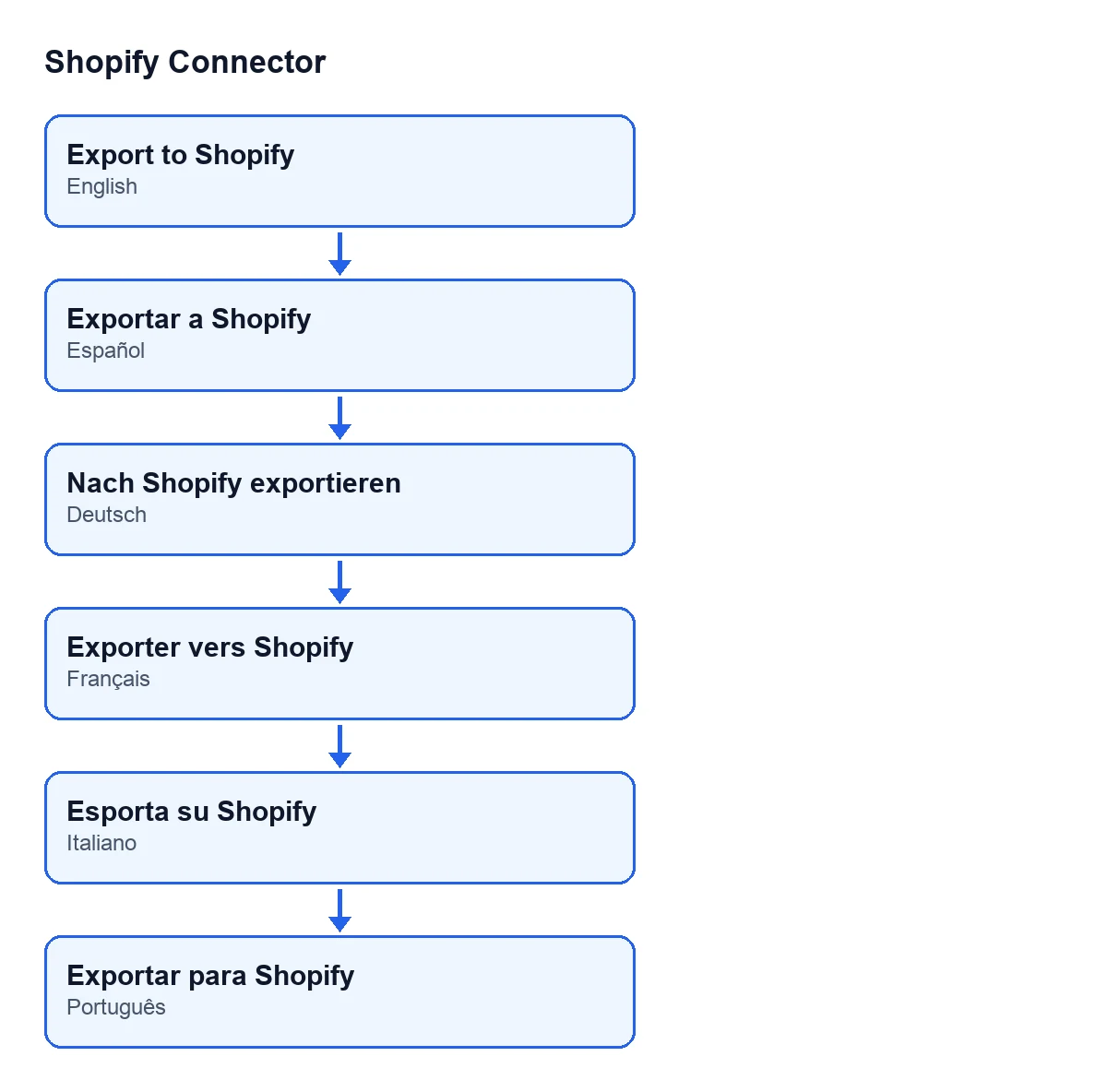
Export to Shopify in Spanish, Nach Shopify exportieren in German, Exporter vers Shopify in French, Esporta su Shopify in Italian and Exportar para Shopify in Portuguese.Price and help
Shopify Connector costs €9 per Odoo version, for 17, 18, 19 and 20, excluding VAT, as a one-off payment (Odoo Apps listing). It also needs a FlexigoTech Cloud subscription: the Connector plan is €49 a month or €490 a year, excluding VAT. The connection goes through FlexigoTech Cloud, which stores the credentials encrypted and emails you if synchronisation fails.
At FlexigoTech we implement Odoo 17, 18, 19 and 20 and build custom connectors and integrations. If your shop's catalogue needs something the button does not do, we can look at it with you.
Keep reading
Checked in the connector's source code (version 20.0) and the linked sources
Sources
- Module source code: flexigobe_shopify_connector 20.0 (c7078cd8): wizard/shopify_export_product_wizard_views.xml
- Module source code: flexigobe_shopify_connector 20.0 (c7078cd8): wizard/shopify_export_product_wizard.py
- Module source code: flexigobe_shopify_connector 20.0 (c7078cd8): models/shopify_instance.py
- apps.odoo.com/apps/modules/20.0/flexigobe_shopify_connector
- apps.odoo.com/apps/modules/17.0/flexigobe_shopify_connector
- apps.odoo.com/apps/modules/18.0/flexigobe_shopify_connector
- apps.odoo.com/apps/modules/19.0/flexigobe_shopify_connector
- flexigotech.com/en/services.html
- flexigotech.com/precios.html