

 Español
 Català
 Deutsch
 Français
 Português
 Italiano
 Nederlands
 Polski
The records open from Sales › Shopify › Control Center › Carrier Mappings. Each field is explained below like a glossary: first where things are, then what you fill in, and finally what is read-only.
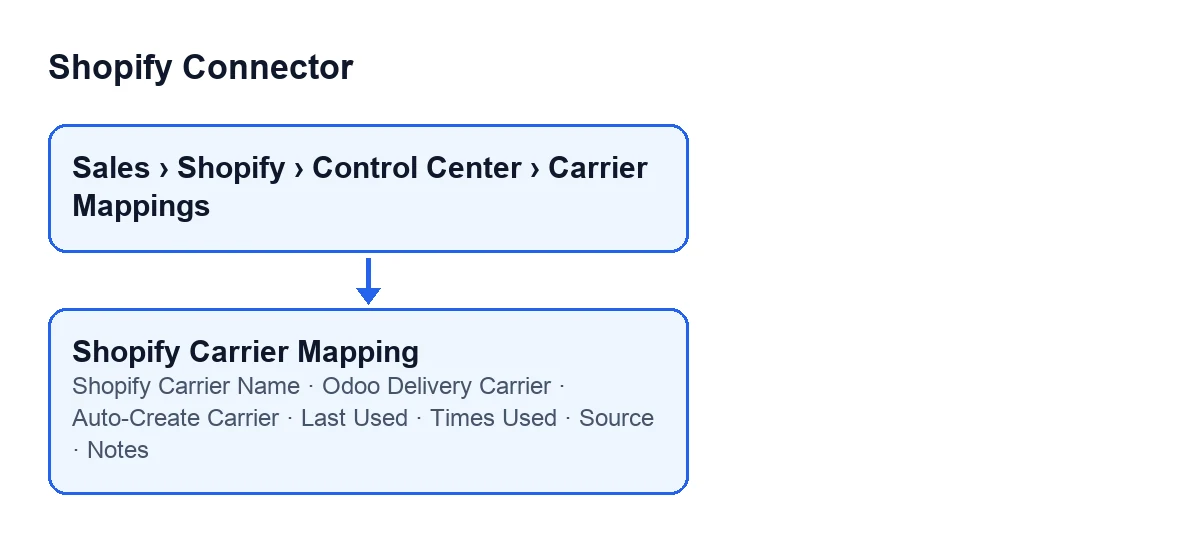
Where everything sits on the record
Carrier Mappingsmenu- The entry from which the records open, with the path
Sales › Shopify › Control Centerin front of it (Salesis standard Odoo text).
- Groups on the record
- The record spreads the fields over groups.
Mappingholds, among others,Shopify Carrier NameandSource.Odoo CarrierholdsOdoo Delivery Carrier,Auto-Create CarrierandNotes.UsageholdsLast Usedand the counter, which is labelledOrder Countin that group.
Carrier Mappingstab- The record also has a tab of that name with a table of the same name, where
Shopify Carrier Name,Odoo Delivery Carrier,Auto-Create Carrier,Last Used,SourceandNotesalso appear.

The fields you fill in
Shopify Carrier Name- Its help text reads:
Exact carrier name as it appears in Shopify shipping lines (case-insensitive match).In other words, the carrier name exactly as it shows in Shopify's shipping lines, and the match ignores upper and lower case. What to enter: copy the name as you see it in the shipping lines of a Shopify order; you do not need to worry about capitals.
Odoo Delivery Carrier- Its help text reads:
Odoo delivery carrier to assign when this Shopify carrier name is found on an order.It is the Odoo delivery carrier that gets assigned when the name above turns up on an order. It sits in theOdoo Carriergroup. What to enter: the Odoo carrier that corresponds to that Shopify name.
Auto-Create Carrier- A checkbox which, according to its help text, does this:
If no carrier is mapped, automatically create a new Odoo delivery carrier with this name.The code leaves it unticked by default. What to enter: tick it only if you want a new Odoo delivery carrier created with the Shopify name when no carrier is mapped; otherwise leave it as it comes.
Notes- A short text field with this help text:
Optional notes about this mapping.It is optional and sits in theOdoo Carriergroup. What to enter: whatever you want to note about that mapping.
The fields you read rather than write
Source- Its help text reads:
Source of discovery: 'order_payload', 'delivery_profile', or 'manual'.It tells you where the mapping came from. By default the code gives it the value the help text calls 'manual'. It is in theMappinggroup and in the tab's table, where it shows as read-only. What to do: read it to know where the mapping came from.
Last Used- Its help text reads:
Last time this mapping was resolved during an order sync.The code writes it, not the user: it is filled in when the carrier is resolved, which is reached from theCreate Sale Orderbutton. Another method of the module can clear it along with the counter. It is in theUsagegroup and, read-only, in the tab's table. What to do: look at it to check when the mapping was last resolved.
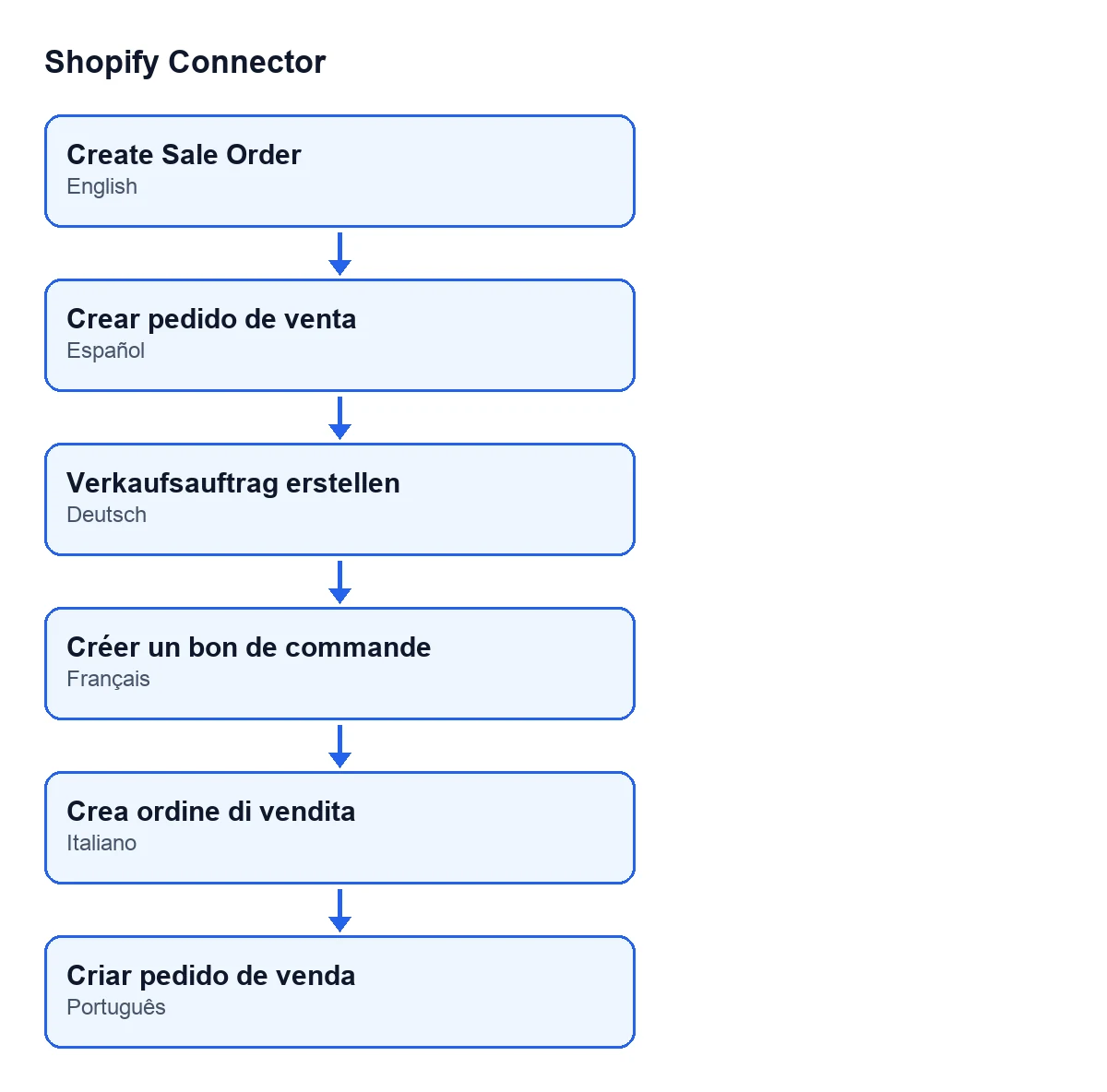
With Odoo in English the button is called Create Sale Order; in Spanish, Create Sale Order; in German, Verkaufsauftrag erstellen; in French, Créer un bon de commande; in Italian, Crea ordine di vendita; and in Portuguese, Criar pedido de venda.
Times Used- Its help text reads:
Number of times this carrier name has been matched during order syncs.It is a read-only counter that starts at 0 by default. The code fills it in when the carrier is resolved, also from theCreate Sale Orderbutton, and another method of the module can reset it. On the record it is labelledTimes Used, and inside theUsagegroup it is labelledOrder Count. What to do: use it to see how many times that carrier name has matched.
What to enter when you add a mapping
You decide two fields. The first is Shopify Carrier Name, with the exact name from Shopify's shipping lines. The second is Odoo Delivery Carrier, with the Odoo carrier you want assigned when that name turns up on an order.
Leave Auto-Create Carrier as it comes, unticked, unless you want a new carrier created with that name when none is mapped. Notes is optional: use it to write down why you chose that carrier.
The other fields you see on the record, such as Source, Last Used and Times Used, are read-only in the places listed above: they tell you where the mapping came from and when and how many times it has been resolved during order syncs.
How to see how a mapping is used
Go back to the record after the carrier of an order has been resolved and look at the Usage group: Last Used and the Order Count counter (on the same record, outside that group, it is labelled Times Used) are the fields the code fills in when it resolves the carrier.
What you need to use it
Shopify Connector costs €9 per Odoo version (17, 18, 19 and 20), one-off payment, excluding VAT. It also needs a FlexigoTech Cloud subscription, Connector plan: €49 a month or €490 a year, excluding VAT, with up to 3 platform accounts. The connection goes through FlexigoTech Cloud, which stores the credentials encrypted, watches the synchronisation and emails you if it fails.
How FlexigoTech can help
FlexigoTech implements Odoo 17, 18, 19 and 20 and builds custom connectors and integrations. If you are unsure which Shopify carriers to map to which Odoo ones, or you need something the mapping does not cover, tell us about your case.
Keep reading
Checked in the connector's source code (version 20.0) and the linked sources
Sources
- Module source code: flexigobe_shopify_connector 20.0 (c7078cd8): models/shopify_carrier_mapping.py
- apps.odoo.com/apps/modules/20.0/flexigobe_shopify_connector
- apps.odoo.com/apps/modules/17.0/flexigobe_shopify_connector
- apps.odoo.com/apps/modules/18.0/flexigobe_shopify_connector
- apps.odoo.com/apps/modules/19.0/flexigobe_shopify_connector
- flexigotech.com/en/services.html
- flexigotech.com/precios.html