

 Español
 Català
 Deutsch
 Français
 Português
 Italiano
 Nederlands
 Polski
When it shows and what it needs
The Pull Stock button is on the Shopify Instances form, opened from the menu Sales › Shopify › Control Center › Instances. It exists in the 17, 18, 19 and 20 branches of the module and is always visible, with no condition.
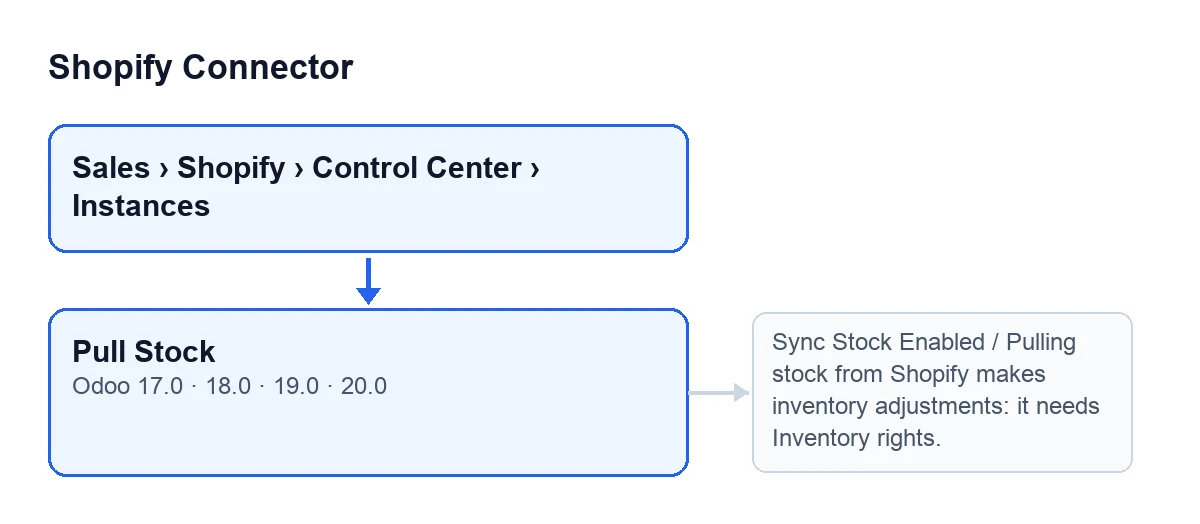
Pull Stock button and what can stop it.For it to do anything, the instance needs Pull stock from Shopify switched on: Shopify then becomes the stock master. According to its help text, it cannot be on together with the stock push (Sync Stock Enabled), nor with another store pulling into the same Odoo location. The help adds that what Shopify holds as damaged, in quality control or as safety stock is part of its on hand: in Odoo it is stock like the rest.

Step by step
- Start with the automatic route. On the
Shopify Instancesform,Operationstab,Sync Settingsgroup, switch onPull stock from Shopify. It is off by default. - Switch on the scheduled action
Shopify Pull Stock (Shopify → Odoo)too: it runs every six hours and is deactivated on install. The checkbox help says it plainly: turning it on does not run the pull. - Press
Pull Stockonly when you want the stock now, without waiting for the scheduled action. It is the manual route and goes through what follows. - Before creating anything, the button checks that the checkbox is on. If it is not, it stops and changes nothing.
- Then it checks that whoever presses has Inventory rights, because the pull makes inventory adjustments. If not, it stops with the permissions message in the table.
- It creates an entry in the sync log, of the stock pull type, in progress.
- It looks for the active product links of that instance that have a Shopify inventory item, and drops those of a product from another company linked before a fix. If none are left, it closes the log as done, with a note, and changes nothing.
- It works out the Odoo location: the one mapped to Shopify's primary location or, failing that, the stock location of the store's warehouse (of its company). If it finds none, it marks the log as failed and leaves the reason in it.
- It checks that no other active store with the checkbox on pulls into that same location, one inside it or one holding it. If one does, it marks the log as failed and stops without touching stock.
- It uses the Shopify location saved in
Default Location Gid(Webhookstab of the form). If that is empty, it asks Shopify for its first location and saves it there. - It asks Shopify, in batches of one hundred items, how much is at that location (what is in it, committed stock included).
- It skips products tracked by lots or serial numbers, products that are not stored and kits, and notes them. Products for which Shopify returned no quantity are left untouched.
- If the Odoo location (with its children) has a pending count for that product, it does not overwrite it: it leaves the product unadjusted and notes it.
- It works out the difference: Shopify's on hand, less what Odoo delivered from that location (with its children) for the store's open orders and Shopify has not yet fulfilled, less what Odoo has available in the location. It does not count what the connector fulfilled, nor orders Shopify fulfilled some other way.
- If the difference is positive, it creates and applies an inventory adjustment that raises the location's stock. If it is negative, it lowers it by taking from the stock in the location (children and packages included, never what belongs to an owner), in removal order. If Odoo has not enough adjustable stock to lower, it does not adjust that product and counts it as an error.
- Each product is handled on its own: if one fails, it is counted as an error and the run carries on. When it adjusts one, it records the sync date on its link.
- It closes the log with a note: how many quantities it pulled and which products it skipped, left because of a pending count or could not lower. The log ends as successful if there were no errors, partial if there were errors and something was updated, and failed if there were errors and nothing was updated.
Some of the messages the button can give
| Message | When it appears | What to do |
|---|---|---|
Pulling stock from Shopify makes inventory adjustments: it needs Inventory rights. | When you press the button without Inventory rights. | Have a user with Inventory rights press it. |
Shopify stock pull failed for …: … | When something fails during the pull, with the log already created. First comes the shop domain (Shop Domain), then the reason. | Read the reason after the colon: the log is left as failed with that text. |
If FlexigoTech Cloud has paused the service, the code deletes the log entry instead of leaving it as failed, and in that case the failure message in the last row is not generated.
What to check afterwards
Open the log for that run: its state and note tell you how many quantities were pulled and which products were skipped, left because of a pending count or could not be lowered. The adjustments go into the inventory history and are valued like any other. If a product appears in the note because of a pending count, the note itself says to apply or clear it in Odoo.
Cost and help
The module costs €9 per Odoo version, for 17, 18, 19 and 20, excluding VAT, as a one-off payment. It also needs a FlexigoTech Cloud subscription: the Connector plan is €49/month or €490/year excluding VAT.
FlexigoTech implements Odoo 17, 18, 19 and 20 and builds connectors and custom integrations.
Keep reading
Checked in the connector's source code (version 20.0) and the linked sources
Sources
- Module source code: flexigobe_shopify_connector 20.0 (c7078cd8): views/shopify_instance_views.xml
- Module source code: flexigobe_shopify_connector 20.0 (c7078cd8): models/shopify_instance.py
- Module source code: flexigobe_shopify_connector 20.0 (c7078cd8): models/fgt_cloud.py
- apps.odoo.com/apps/modules/17.0/flexigobe_shopify_connector
- apps.odoo.com/apps/modules/18.0/flexigobe_shopify_connector
- apps.odoo.com/apps/modules/19.0/flexigobe_shopify_connector
- apps.odoo.com/apps/modules/20.0/flexigobe_shopify_connector
- flexigotech.com/precios.html
- flexigotech.com/en/services.html