

 Español
 Català
 Deutsch
 Français
 Português
 Italiano
 Nederlands
 Polski
What to have ready before you open Odoo
The module's marketplace account asks for details from Shopee and details from your own organisation. It helps to gather them before you start:
- The
partner_idof your Shopee app and its partner key, found underShopee Open Platform > App list. - The
shop_idof the shop you are connecting. - If you want to test first, your app's test partner ID and key and a Shopee test shop.
- The Odoo company that will own the account and the warehouse you will sync inventory from.
- The email addresses that should receive alerts.
The module is published on Odoo Apps for 17, 18, 19 and 20 and, according to each version's listing, it is free in all of them (one-off payment per version, excluding VAT). You can find it on the Odoo Apps listing and on the module page.
Steps to create the Shopee account
Each step matches a field on the marketplace account. Names are shown exactly as they appear in the module.
- Enter the
Account Name, the name of the account. - Choose the
Company. The module isolates accounts by company: each company owns its own marketplace configurations. - Set the
Default Fulfillment Warehouse. This is the default warehouse for inventory sync and it can be overridden per product. - Select the
Shopee Environment.Sandboxuses your app's test partner ID and key and Shopee test shops. - Fill in
Partner ID / App Keywith Shopee'spartner_idandShop IDwith your shop'sshop_id. - Paste your app's partner key into
Partner Key. According to the field description, it signs every call. - Use the
Connect Shopee shoplink. The module stores inAuthorization Statea random value from the last link generated and checks it when Shopee sends the seller back. The account also has the fieldsOAuth Access Token,OAuth Refresh TokenandAccess Token Expires. - Set
Create Sales Orders From. Orders placed on Shopee before that moment are held (Held Orders) instead of becoming quotations. - Adjust
Sync Frequency (minutes), the polling interval for orders and inventory, between 5 and 60 minutes. - Enter a
Low Stock Threshold (units): below that level the module triggers a low-stock alert. If you also tickAuto-Create PO on Low Stock, it creates a draft purchase order when stock falls below the threshold. - Add to
Alert Email Recipientsthe comma-separated addresses that will receive sync alerts, the digest and error notifications. - Choose the
Auto-Conflict Resolutionstrategy for detected conflicts and theConflict Detection Threshold (%), the percentage difference that triggers conflict detection. - Once everything above has been reviewed, tick
Enable Sync, which enables or disables all syncs for the account.
The API Key field appears on the account, but its own description says Shopee does not use it.
Mapping categories, attributes and products
The account has three relations between Odoo and Shopee: Category Mappings, Attribute Mappings and Product Mappings.
Categories
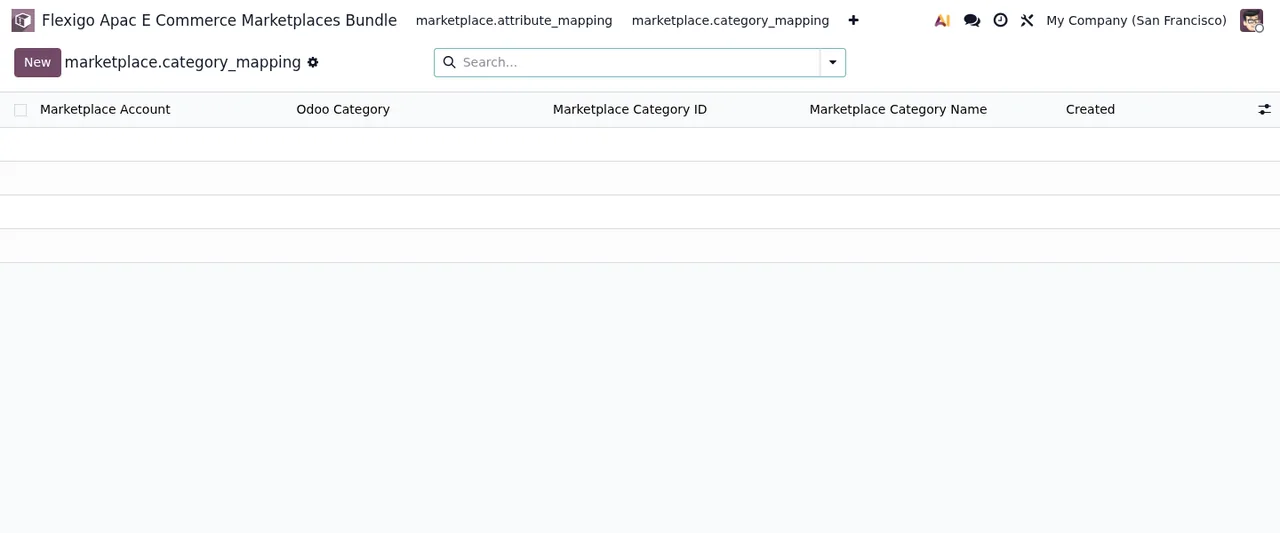
In Category Mappings you link an Odoo category to a Shopee one. Each line carries Marketplace Account, Odoo Category, Marketplace Category ID (Shopee's category_id) and Marketplace Category Name, a readable name the module caches for display. The Created column records when the line was created.
Attributes
In Attribute Mappings you link an Odoo attribute (Odoo Attribute, for example colour, size or brand) to the marketplace attribute key in Marketplace Attribute Key. Each line also carries its Marketplace Account and its Created date.
Products
Product Mappings holds the links between each Odoo product and its marketplace product ID. The sequence below shows a sample record for the Shopee SG account with the status Synced.
If you want to see how these pieces fit together under the bonnet, we cover it in how the connector works inside.
What to check in the first week
With sync switched on, these are the parts of the account worth looking at daily at the start:
Sync Logs: the audit trail of API interactions.Sync Conflicts: detected conflicts awaiting resolution. Review the pending conflicts and adjust theAuto-Conflict Resolutionstrategy or theConflict Detection Threshold (%)if needed.Sync Queue: the internal queue of asynchronous sync tasks.- Held orders: if you see orders in
Held Orders, check that theCreate Sales Orders Fromdate is the one you intended. - Token: check the
Access Token Expiresdate on the account. - Low stock: if you ticked
Auto-Create PO on Low Stock, look for the draft purchase orders and make sure theLow Stock Threshold (units)makes sense for your products. - Email: confirm the addresses in
Alert Email Recipientsare spelt correctly and separated by commas.
The module also includes overview and performance report lists. In the screenshots they have no data yet:
If a message you do not understand shows up during those days, the literal texts and how to fix them are in the connector's error messages.
How FlexigoTech can help
At FlexigoTech we implement Odoo 17, 18, 19 and 20 and build bespoke connectors and integrations. If you would like us to review your Shopee account configuration, your mappings or an integration the module does not cover, you can get in touch from the module page.
Keep reading
Checked in the module's source code (version 20.0) and the linked sources
Sources
- Module source code: flexigo_apac_e_commerce_marketplaces_bundle 20.0 (2cbf6b48): models/marketplace_attribute_mapping.py
- Module source code: flexigo_apac_e_commerce_marketplaces_bundle 20.0 (2cbf6b48): models/marketplace_category_mapping.py
- Module source code: flexigo_apac_e_commerce_marketplaces_bundle 20.0 (2cbf6b48): models/marketplace_config.py
- apps.odoo.com/apps/modules/20.0/flexigo_apac_e_commerce_marketplaces_bundle
- apps.odoo.com/apps/modules/17.0/flexigo_apac_e_commerce_marketplaces_bundle
- apps.odoo.com/apps/modules/18.0/flexigo_apac_e_commerce_marketplaces_bundle
- apps.odoo.com/apps/modules/19.0/flexigo_apac_e_commerce_marketplaces_bundle
- flexigotech.com/en/services.html