

 Español
 Català
 Deutsch
 Français
 Português
 Italiano
 Nederlands
 Polski
Before you start
- The delivery has to come from a sale order imported from Shopify and be validated.
- The products on the delivery have to match the Shopify lines by variant or by SKU.
- The store's app needs permission to manage fulfilments. Without it, Shopify refuses and the message says so.
- Shopify does not email the customer unless you switch it on: both notification boxes ship unticked.
Step by step
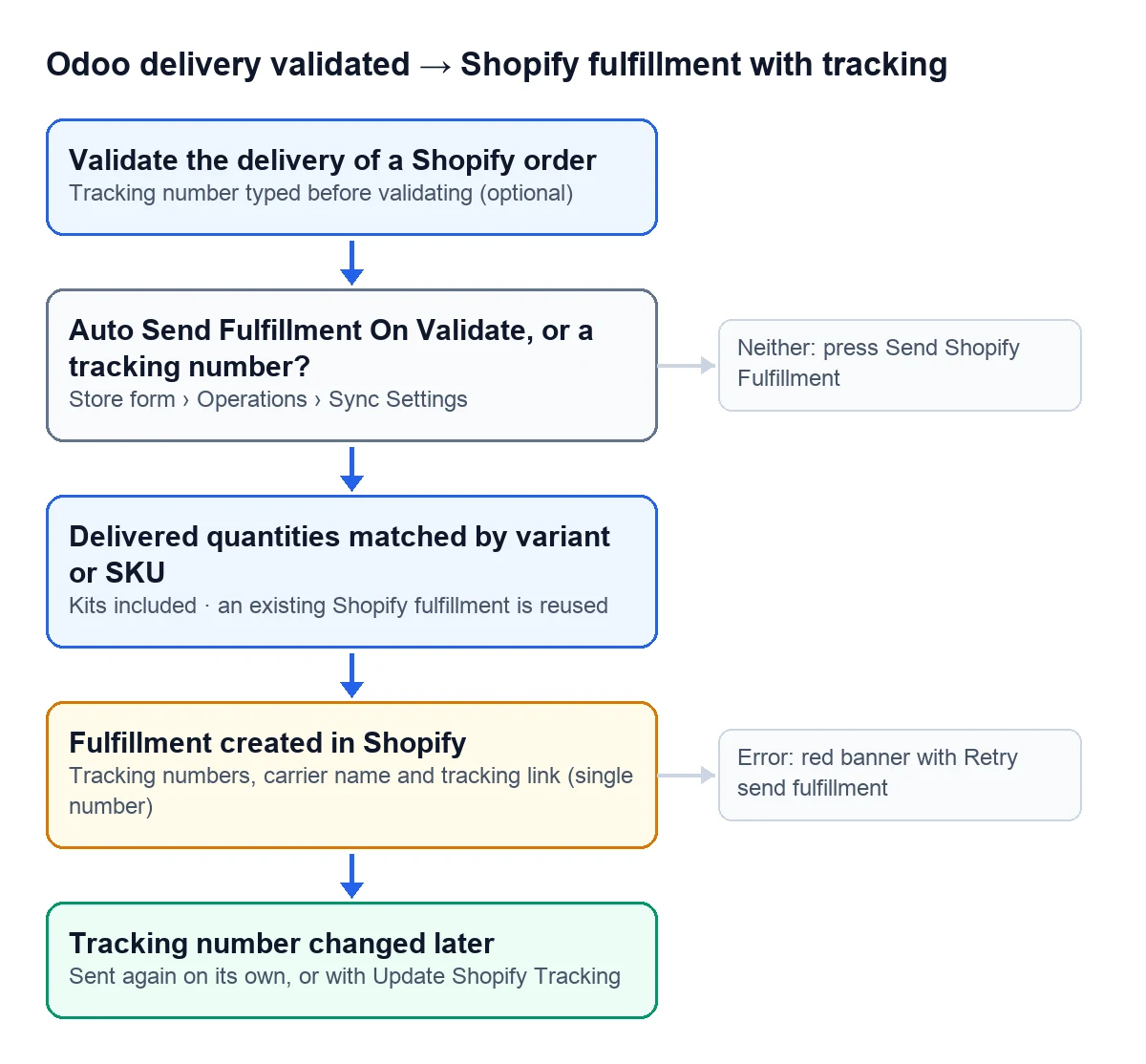
- Open your Shopify store form in Odoo, «Operations» tab, «Sync Settings» group.
- Tick «Auto Send Fulfillment On Validate» if you want every validated delivery sent on its own. It ships unticked.
- For Shopify to send its email to the customer, tick «Notify Customer On Fulfillment» and, for tracking changes, «Notify Customer On Tracking Update».
- Decide whether to tick «Archive Shopify order when fully fulfilled», which archives the order in Shopify once it is fully fulfilled from Odoo.
- On the delivery, type the tracking number before validating. With a number, the fulfilment goes out even if sending on validation is off.
- Validate the delivery. Its «Shopify» group shows the fulfilment ID, the status Shopify returns and the time of the last sync.
What triggers the sending
| What you do in Odoo | What the connector does |
|---|---|
| Validate the delivery with sending on validation switched on | Creates the fulfilment in Shopify |
| Validate the delivery with a tracking number, even with sending on validation off | Creates the fulfilment with that tracking |
| Validate with no number and sending on validation off | Nothing; the «Send Shopify Fulfillment» button stays |
| Change the tracking number of a delivery already validated | Creates the fulfilment if there was none or updates its tracking |
| Press «Update Shopify Tracking» | Sends the tracking of the existing fulfilment again |
How the fulfilment is built
Quantities
The fulfilment carries the quantities delivered on the delivery order, matched with the Shopify order lines by variant or by SKU, kits included. If Shopify already has a fulfilment covering those lines, the connector reuses it and adds the tracking instead of creating another one.
Tracking
You can type several numbers on the delivery, separated by commas, semicolons, spaces or line breaks: they reach Shopify as several numbers. The carrier name Shopify shows is the carrier of the sale order. The tracking link is the delivery's own or the one the carrier provides, and it is only sent when there is a single number.
If something fails
A failure does not undo the validation: the delivery stays validated, the error is stored and shows in a red banner with the «Retry send fulfillment» link. In the delivery list, those rows turn red. These are the messages and what to do about each:
Shopify auto-fulfillment failed: %s- Sending on validation did not go through. Read the reason and press «Retry send fulfillment».
No delivered Shopify-linked quantities found in this picking.- No delivered quantity belongs to a product linked with Shopify. Check the products on the delivery.
No fulfillable Shopify lines matched this picking quantities. Check Shopify variant mapping and remaining fulfillment quantities.- The quantities do not match what is left to fulfil in Shopify, or the variant is not linked.
Shopify denied fulfillment access. Add scopes read_merchant_managed_fulfillment_orders and write_merchant_managed_fulfillment_orders, then re-authorize the app.- The app lacks those permissions. Add them in Shopify and authorise it again.
This picking already has a Shopify fulfillment. Use Update Shopify Tracking.- The fulfilment exists already. Use the other button to send the tracking.
Not sent to Shopify: %s- FlexigoTech Cloud has paused the sending. The delivery stays validated and is not marked as failed.
When you send it with the buttons and it works, the delivery's chatter records it with the fulfilment number.
Does Shopify notify the customer when I ship from Odoo?
Only if you tick the store's notification boxes: one for the fulfilment and another for tracking changes. While they stay unticked, Shopify sends no email.
Is it in every Odoo version?
Yes. The delivery buttons, sending on validation and the tracking update are in the connector published for Odoo 17, 18, 19 and 20.
Keep reading
Checked in the connector's source code (version 17.0, 18.0, 19.0 and 20.0) and the linked sources
Sources
- Module source code: flexigobe_shopify_seller_connector · 17.0 2c06264 · 18.0 0272d17 · 19.0 19422d4 · 20.0 2950bdc: views/stock_picking_views.xml, models/stock_picking.py
- Module source code: flexigobe_shopify_seller_connector · 17.0 2c06264 · 18.0 0272d17 · 19.0 19422d4 · 20.0 2950bdc: models/stock_picking.py, models/shopify_instance.py, views/shopify_instance_views.xml
- Module source code: flexigobe_shopify_seller_connector · 17.0 2c06264 · 18.0 0272d17 · 19.0 19422d4 · 20.0 2950bdc: models/stock_picking.py (write, _split_tracking_numbers, _shopify_tracking_info_payload)
- Module source code: flexigobe_shopify_seller_connector · 17.0 2c06264 · 18.0 0272d17 · 19.0 19422d4 · 20.0 2950bdc: models/shopify_instance.py (_create_fulfillment_from_picking), models/stock_picking.py
- Module source code: flexigobe_shopify_seller_connector · 17.0 2c06264 · 18.0 0272d17 · 19.0 19422d4 · 20.0 2950bdc: models/stock_picking.py
- Module source code: flexigobe_shopify_seller_connector · 17.0 2c06264 · 18.0 0272d17 · 19.0 19422d4 · 20.0 2950bdc: models/shopify_instance.py, views/shopify_instance_views.xml, views/menu_views.xml
- apps.odoo.com/apps/modules/20.0/flexigobe_shopify_seller_connector