

 Español
 Català
 Deutsch
 Français
 Português
 Italiano
 Nederlands
 Polski
Why it needs a look
Shopify sends, on every line, the tax title the customer sees, for example «IVA 21%» or «VAT», and its rate. Odoo needs a specific tax from the company's chart of accounts. If the sale order comes in with a different tax, its total and its invoice will not match what Shopify charged.
The mapping table stores, per store, which Odoo tax goes with each Shopify name. It also counts how many times each one has been used and when it was last used, in the «Statistics» group.
Step by step
- Go to Shopify › Configuration › Mappings › Taxes.
- Use the Unmapped filter to see the mappings that still have no Odoo tax.
- On each one, check «Shopify Tax Name» and «Shopify Tax Rate (%)», and pick the right sales tax in «Odoo Tax». Only sales taxes are offered.
- If the tax does not exist in Odoo yet, press «Auto-Create Odoo Tax» on the form or «Auto-Create» in the list. It creates a sales tax with that rate and links it.
- Open the store form, «Operations» tab, «Order Settings» group, and decide whether «Lock pricing & tax to Shopify» stays ticked.
- Import a test order and compare its tax with Shopify's.
How it picks the tax for each line
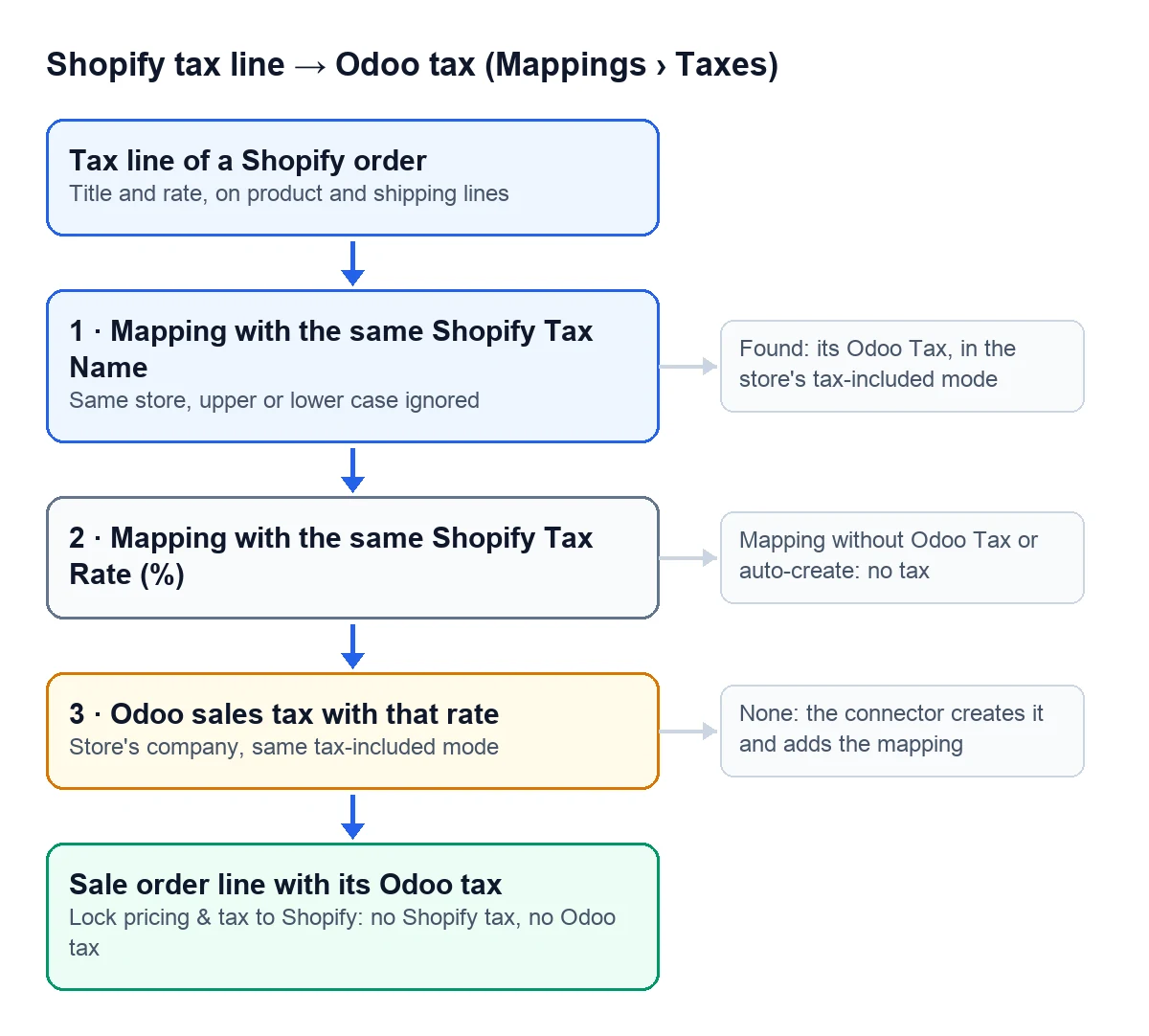
It does this for every tax on every line, the shipping line included:
| What it finds | Which tax it sets |
|---|---|
| A store mapping with the same name, case ignored | Its «Odoo Tax» |
| Otherwise, a mapping with the same rate | Its «Odoo Tax» |
| A mapping with no tax and no auto-create | None |
| No mapping at all | A sales tax of the store's company with that rate; if there is none, it creates it and adds the mapping under the Shopify name |
That last row is why the table fills itself: every new tax that comes in leaves its mapping in view, ready for you to check or change. The same name cannot appear twice in one store; if you try, the message is Shopify tax name must be unique per instance.
Tax-inclusive prices
Each Shopify order says whether its prices include tax. If they do, the Odoo tax has to be price-included so the sale order total matches Shopify. When the mapping points to a tax in the other mode, the connector finds or creates the right variant with the same rate and stores it on the mapping.
The taxes the connector creates take the name that comes from Shopify. If no name comes, they are called «Shopify Tax» plus the rate and, when price-included, end in «(incl.)». Search for those names in your tax list to review them.
One thing about «Auto-Create Odoo Tax»: it creates the tax as not included in the price. If your store works with tax-inclusive prices, the next order that uses that mapping swaps it for the included variant.
Lock pricing & tax to Shopify
This store checkbox ships ticked and decides who rules prices and taxes:
- Ticked
- Each line's price comes from the Shopify order, the sale order gets no fiscal position and a line with no tax in Shopify comes in with no tax in Odoo. What Shopify charged is what Odoo keeps.
- Unticked
- The order takes the store's default pricelist and fiscal position, and a line that arrives with no tax keeps the ones Odoo sets on the product.
Common mistakes
- Orders with the wrong tax. Find the mapping for that name in the table and change its «Odoo Tax». Orders imported from then on use the new tax.
- Two taxes with the same rate. It happens when you only had that rate as excluded (or only as included) and the store works in the other mode: the connector creates the missing variant. It needs it for the total to match, so do not delete it while the store keeps that mode.
- «Auto-Create» does nothing. With no rate on the mapping you get
Set a tax rate before auto-creating.Fill in «Shopify Tax Rate (%)» and press it again. - Old statistics. «Reset Stats» sets the usage count to zero and clears the last date, handy after a clean-up.
Does it work the same in Odoo 17, 18, 19 and 20?
Yes. The tax table, the search order and the lock checkbox are in the connector published for all four versions.
Keep reading
Checked in the connector's source code (version 17.0, 18.0, 19.0 and 20.0) and the linked sources
Sources
- Module source code: flexigobe_shopify_seller_connector · 17.0 2c06264 · 18.0 0272d17 · 19.0 19422d4 · 20.0 2950bdc: models/shopify_tax_mapping.py, views/shopify_tax_mapping_views.xml, views/menu_views.xml
- Module source code: flexigobe_shopify_seller_connector · 17.0 2c06264 · 18.0 0272d17 · 19.0 19422d4 · 20.0 2950bdc: models/shopify_tax_mapping.py (_resolve_tax, _get_or_create_tax), models/shopify_order.py
- Module source code: flexigobe_shopify_seller_connector · 17.0 2c06264 · 18.0 0272d17 · 19.0 19422d4 · 20.0 2950bdc: models/shopify_order.py, models/shopify_tax_mapping.py
- Module source code: flexigobe_shopify_seller_connector · 17.0 2c06264 · 18.0 0272d17 · 19.0 19422d4 · 20.0 2950bdc: models/shopify_instance.py, models/shopify_order.py, views/shopify_instance_views.xml
- Module source code: flexigobe_shopify_seller_connector · 17.0 2c06264 · 18.0 0272d17 · 19.0 19422d4 · 20.0 2950bdc: models/shopify_tax_mapping.py, views/shopify_tax_mapping_views.xml
- apps.odoo.com/apps/modules/20.0/flexigobe_shopify_seller_connector