

 Español
 Català
 Deutsch
 Français
 Português
 Italiano
 Nederlands
 Polski
What changes in Settings once the module is installed
Scrive Connector extends the Odoo Settings screen with two fields and a button: Default Account, Request Timeout and Dismiss. The two fields are general configuration values, not per-record ones. The button is different: it only shows when a condition is met.
The module is published for Odoo 17, 18, 19 and 20, and the condition that shows or hides the Dismiss button is the same in all four versions.
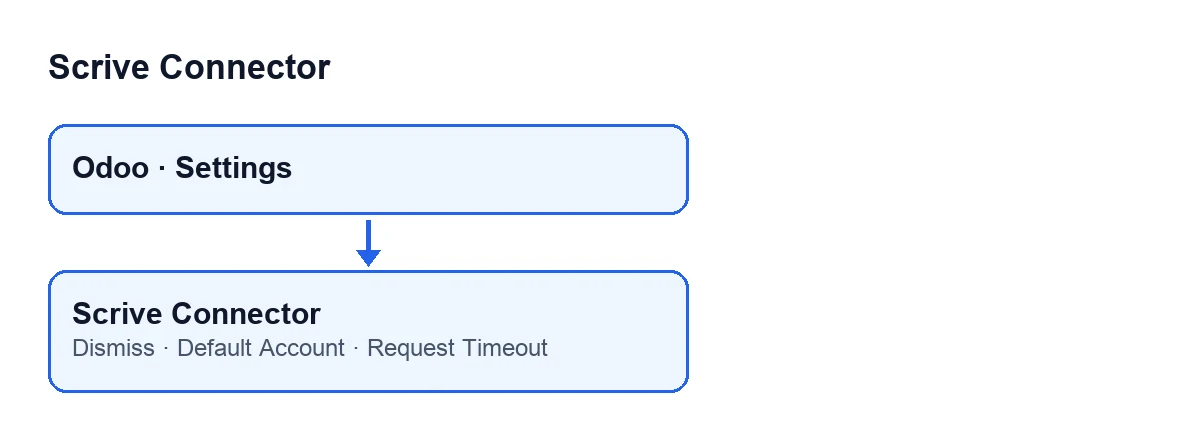

The additions, compared
Default Account | Request Timeout | Dismiss | |
|---|---|---|---|
| What it is | A field to pick a Scrive account | A numeric field (seconds) | A button |
| Where it is | In Settings, in the Scrive section, Scrive e-Signature block | In Settings, in the Scrive section, Scrive e-Signature block | In the Settings view |
| Who sees it | Only users with the module's Scrive manager permission | Only users with that same permission | Only shown when the condition Purchase Orders Lost Their Scrive Button is met |
| When it acts | When sending without explicitly choosing an account | On the direct call to Scrive's login | When you click it |
| Value | Each company has its own | 30 seconds, the default in the code | Not applicable |
Quick reading: the two fields are saved configuration; the button is a one-off action that, once run, empties the value that kept it visible.
Default Account: what it decides
The Default Account field sits in the Scrive e-Signature block of the Scrive section in Settings. It is a general configuration value, not a per-record one, and only users with the module's Scrive manager permission can see it.
The setting reads: "Account used when sending without choosing one explicitly.". Its help text completes it: "Account used when sending without choosing one explicitly. Each company has its own default.". In other words, it acts when someone sends without having chosen an account, and each company has its own.
The send button is covered separately in What the Send button of Scrive Connector does, step by step.
Request Timeout: what it limits exactly
Request Timeout is a general system parameter, also in the Scrive e-Signature block and also visible only with that permission. Its help text reads: "Seconds before the direct call to Scrive's login (fetching the personal access credentials) is aborted (1-300). Every other call goes through FlexigoTech Cloud, with its own timeout.".
That settles its real scope:
- It only affects the direct call to Scrive's login, the one that fetches the personal access credentials.
- Every other call goes through FlexigoTech Cloud and has its own timeout, which this field does not control.
- The help text gives a range of 1 to 300 seconds, and the default in the code is
30.
Raising it, therefore, does not change how the other calls behave.
Dismiss: the button that is not always there
The Dismiss button is in the Settings view and is hidden unless Purchase Orders Lost Their Scrive Button is met. That field is not shown in any view: it is the internal condition that decides whether the button appears.
According to the code, that condition can only be met if the module has an active warning stored; if that value is empty, the button is not shown.
When you click Dismiss, the module does this, in this order:
- It checks that whoever clicks has write access to Settings, so that only someone who may change the settings can hide the administrator's warning.
- It empties the stored value that kept the warning active, so the button stops being shown.
- It reloads the screen.
What to check in your Odoo
- If you cannot see the
Scrive e-Signatureblock in theScrivesection of Settings, check whether your user has the module's Scrive manager permission: only people who have it see the two fields. - Before changing
Request Timeout, remember that it only governs the direct call to Scrive's login, and that its range is 1 to 300 seconds. - If you run several companies, bear in mind that each one has its own
Default Account. - Do not expect to see
Dismissall the time: it only appears when the conditionPurchase Orders Lost Their Scrive Buttonis met.
Cost and implementation help
Scrive Connector is a one-off payment per Odoo version and needs a FlexigoTech Cloud subscription, Connector plan: €49/month or €490/year excluding VAT, with up to 3 platform accounts. The connection goes through FlexigoTech Cloud. Without a subscription, or with the service suspended, whatever the subscription provides stops; your data stays in your Odoo. You can see the module page and the Odoo Apps listing.
FlexigoTech implements Odoo 17, 18, 19 and 20 and builds custom connectors and integrations. If you would like to go through your Settings configuration together, get in touch.
Keep reading
Checked in the connector's source code (version 20.0) and the linked sources
Sources
- Module source code: flexigobe_scrive_connector 20.0 (21b3b940): models/res_config_settings.py
- Module source code: flexigobe_scrive_connector 20.0 (21b3b940): views/res_config_settings_views.xml
- apps.odoo.com/apps/modules/20.0/flexigobe_scrive_connector
- flexigotech.com/en/services.html
- flexigotech.com/precios.html
- Module source code: flexigobe_scrive_connector 20.0 (21b3b940): wizard/scrive_send_wizard.py