

 Español
 Català
 Deutsch
 Français
 Português
 Italiano
 Nederlands
 Polski
When exactly it appears
It appears when you press Import from Scrive Archive, the button on the Scrive account form. You reach that form from the menu Scrive › Configuration › Accounts. The Scrive level asks for the User permission and the Configuration level asks for Manager: if you lack either, you do not see that level. The button is always visible in Odoo 17, 18, 19 and 20, and the message is in the published code of all four versions.
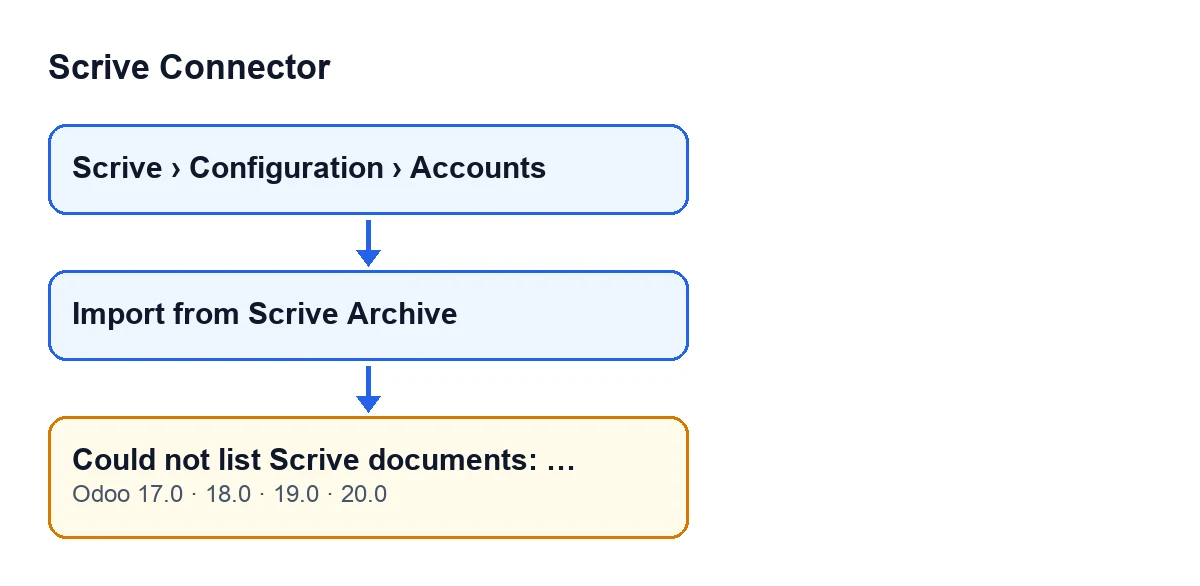
In Odoo 20.0 the action does this, in order:
- It checks that you have Scrive manager permission to run it.
- It asks Scrive for the account's document list, page by page, with these filters: no templates, none from the trash, only those the account is the author of, and a status filter that names every status (so documents still waiting to start are included, which the list does not return without that filter).
- It stops asking for pages when one comes back empty or with no new document, or when the page limit of a single import is reached.
- If Scrive returns an error when the list is requested, the action stops and raises
Could not list Scrive documents: …. - Only if no request for the list fails does it start creating or updating documents in Odoo. If the page limit was reached, it imports the documents read up to that point and shows a warning: the archive is larger than one import can handle, so you should run
Import from Scrive Archiveagain to continue.
The practical consequence: with Could not list Scrive documents: … on screen, nothing was imported or updated by that click, because the failure happens before any document is processed.

What follows the colon
The ellipsis in the message stands for a value: the module pastes in the text of the error that occurred when the list was requested from Scrive. The message itself only says the list could not be read; the specific reason is in that tail, so copy it in full before closing the notice.
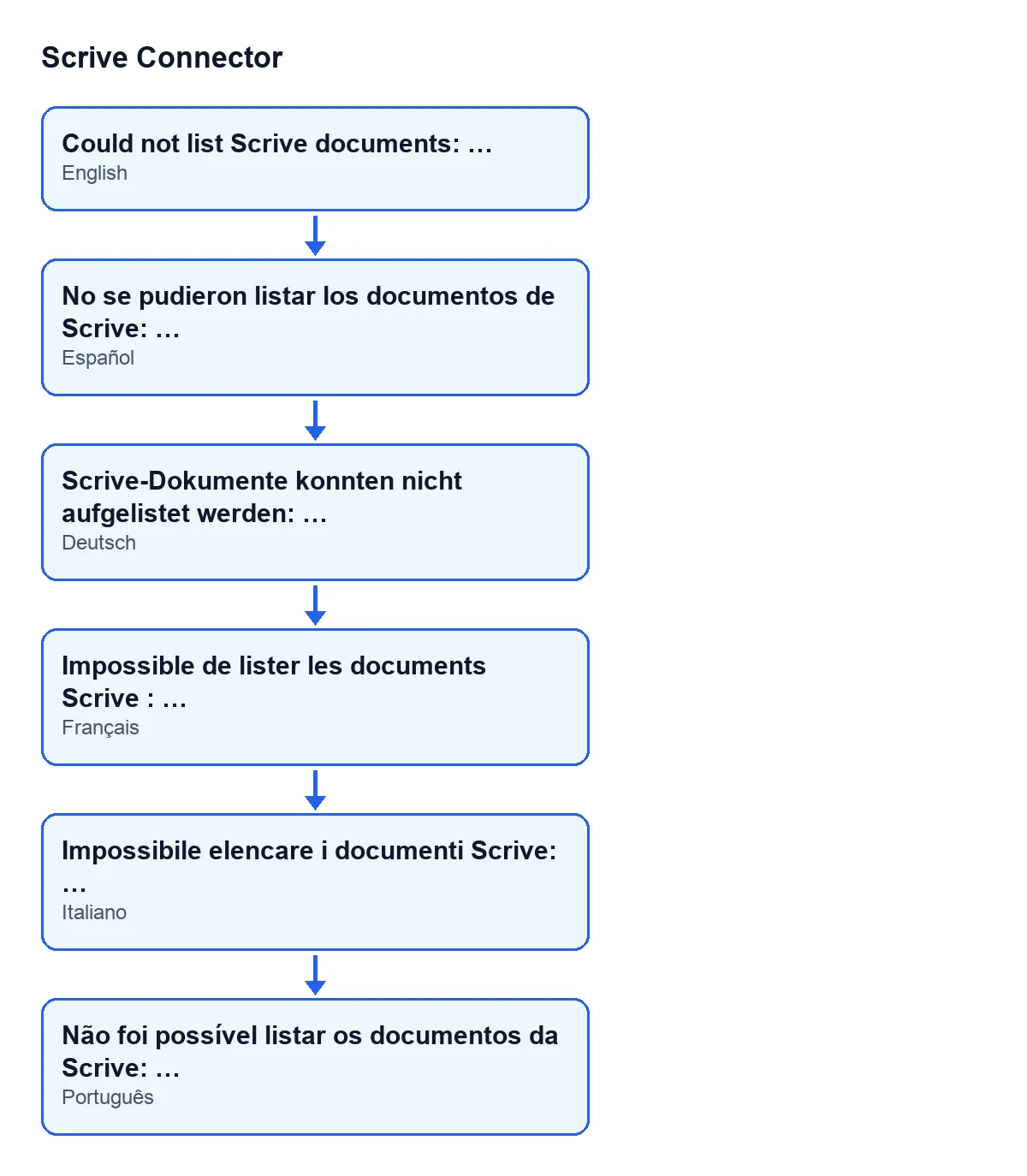
The same text, with Odoo in other languages, looks like this:
| Odoo language | Message text |
|---|---|
| English | Could not list Scrive documents: … |
| Spanish | Could not list Scrive documents: … |
| German | Scrive-Dokumente konnten nicht aufgelistet werden: … |
| French | Impossible de lister les documents Scrive : … |
| Italian | Impossibile elencare i documenti Scrive: … |
| Portuguese | Não foi possível listar os documentos da Scrive: … |
Illustrative case: an import that gets cut short
Example Illustrative case: the company and its figures are made up to explain the flow.
Maderas Ribera is an invented joinery that already uses Scrive Connector. Marta, who has the manager permission, goes to Scrive › Configuration › Accounts, opens the company's account and presses Import from Scrive Archive to bring into Odoo the documents that were created directly in Scrive.
The screen shows Could not list Scrive documents: …, with some text after the colon. From how the module behaves, Marta draws two conclusions:
- Nothing was left half-imported: the failure came while reading the list, before any document was created or updated.
- The text after the colon is the detail of the failure when querying Scrive, so it is what to keep for diagnosis.
Marta presses the button again. If documents from that account were already imported earlier, the action refreshes them instead of creating them again. If the list reads correctly this time, the import carries on with the documents. If the message appears again, Marta keeps that text as well and sends both to FlexigoTech.
What to do, step by step
- Copy the whole message, including what follows the colon.
- Press
Import from Scrive Archiveagain on the account form. - If it appears again, keep that text as well.
- Write to us with the full messages, the account name and your Odoo version.
- Once the error is gone, run the import again and check that it no longer stops with this message.
Other messages from the module have their own guide, for example the one about callbacks.
What this message does not cover
This error only guards the reading of the list. Once the list has been read, each document is imported separately, and a problem with one particular document neither stops the others nor raises this message.
Module cost and how FlexigoTech can help
Scrive Connector is a one-off payment per Odoo version (the amount for each version is on the listing) and needs the FlexigoTech Cloud subscription, Connector plan: €49/month or €490/year excluding VAT, up to three accounts on the platform. The connection goes through FlexigoTech Cloud, which stores the credentials encrypted, monitors synchronisation and emails you if it fails. Without a subscription, or with the service suspended, what the subscription provides stops, and your data stays in your Odoo. You can see the module on its page.
FlexigoTech implements Odoo 17, 18, 19 and 20 and builds custom connectors and integrations. If the text after the colon leads nowhere, send it to us as it is.
Keep reading
Checked in the connector's source code (version 20.0) and the linked sources
Sources
- Module source code: flexigobe_scrive_connector 20.0 (21b3b940): models/scrive_account.py
- Module source code: flexigobe_scrive_connector 20.0 (21b3b940): views/scrive_account_views.xml
- apps.odoo.com/apps/modules/20.0/flexigobe_scrive_connector
- flexigotech.com/en/services.html
- flexigotech.com/precios.html