

 Español
 Català
 Deutsch
 Français
 Português
 Italiano
 Nederlands
 Polski
Where the message appears and when, according to the code
You meet it while working with a Scrive account, whose records open from the menu Scrive › Configuration › Accounts. Permissions matter on the way there: the Configuration step asks for Manager and the Scrive step asks for User. If you lack one of them, that step of the menu is not shown.
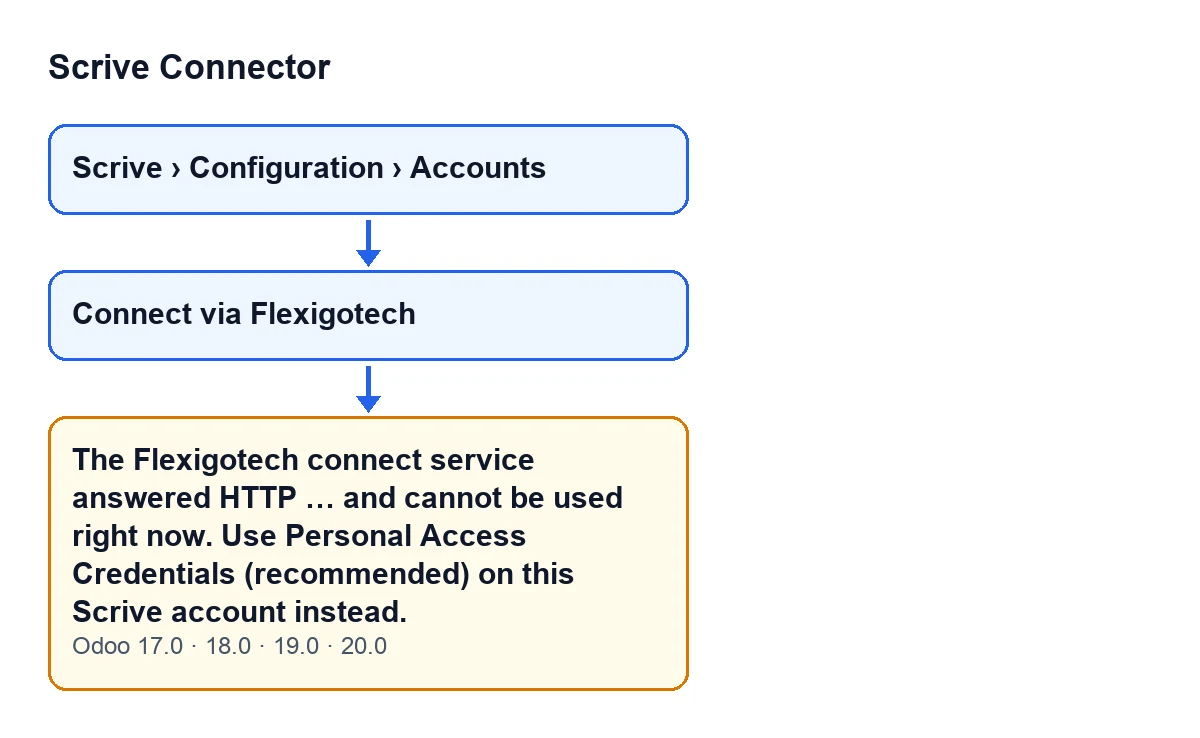
The full message reads The Flexigotech connect service answered HTTP … and cannot be used right now. Use Personal Access Credentials (recommended) on this Scrive account instead. The dots stand for the HTTP code the service returned.
It appears when you press the Connect via Flexigotech button on the account form. The button is hidden when Authentication Mode is not set to the Flexigotech connection option, or when Flexigotech Connected is already ticked. That view condition is the same in Odoo 17, 18, 19 and 20.
Once pressed, the module checks that the service answers. The code itself says why: without that check, a misconfigured or retired service left the customer on a 404 page of a foreign website, with no way back to Odoo.
The check sends a request to the health path of the Flexigotech service and does not follow redirects, so what is judged is whatever the configured address answers, and a redirect response is not a 200 either. The condition for the message is a single one: the service has answered and the HTTP code of the response is not 200. Only 200 passes.

What happens when it appears
With any code other than 200, the module leaves a warning in the Odoo log (with the code and the address it queried) and raises the message. When it is raised, the action stops. With a 200, the check ends successfully and this message does not appear.
What it means
The message says that the Flexigotech connect service did answer, but not with the expected response, and that it cannot be used right now. The number you see is the code exactly as the service returned it, and it is the detail worth noting down.
The text is about the connect service, not about your Scrive account, which is why the way out it proposes is different: use Personal Access Credentials, which the message marks as the recommended option.
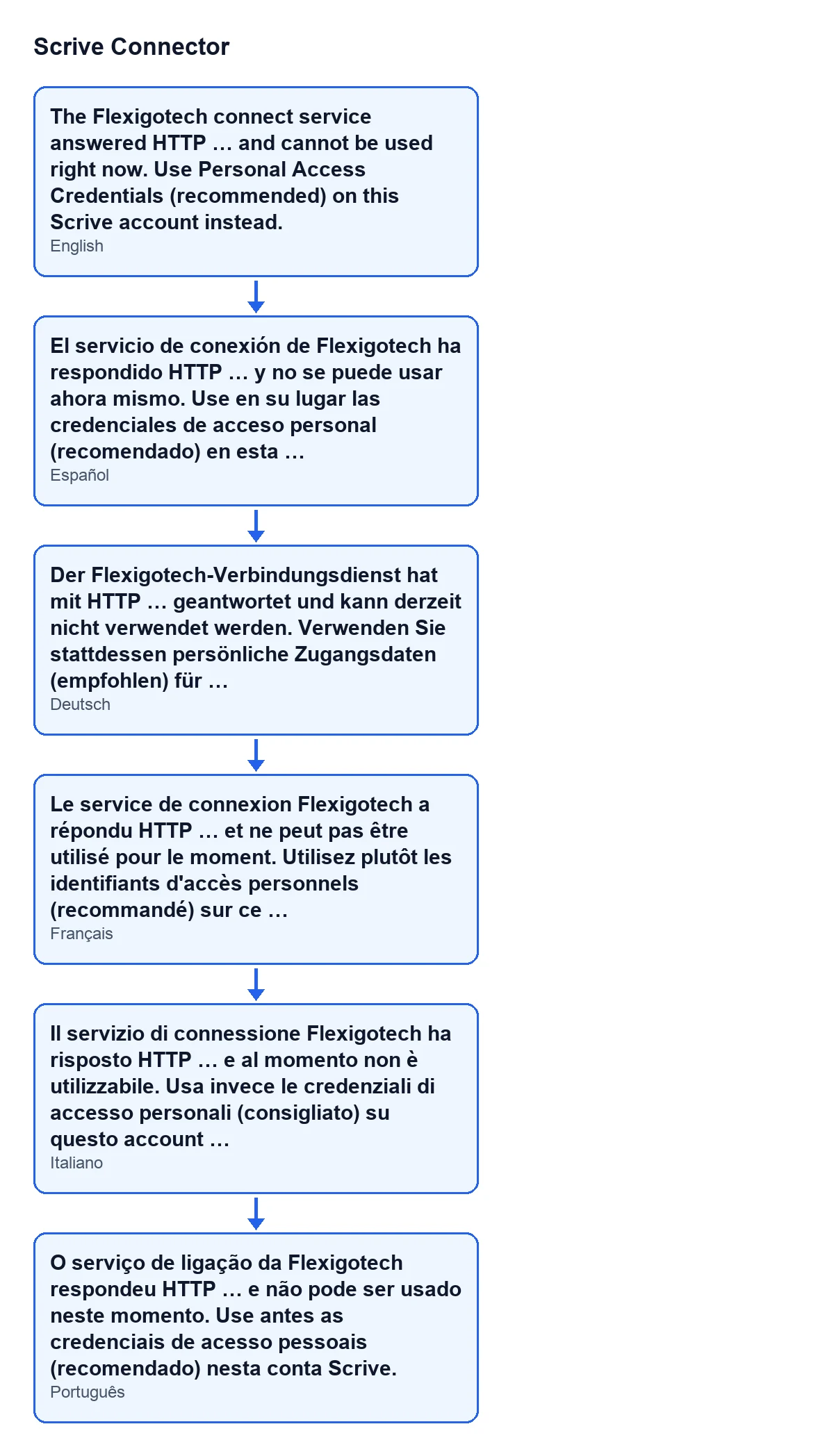
With Odoo in English you see it as above. The next diagram gathers the same text in Spanish, German, French, Italian and Portuguese.
How to fix it, step by step
- Open
Scrive › Configuration › Accountsand go into the account where you pressedConnect via Flexigotech. If you cannot see the menu, you lack one of the permissions above. - Note the number that appears where the message has the dots. It is the HTTP code the service returned.
- Repeat the test by pressing the button again, as long as it is still visible. The result depends on what the service answers at that moment: if it answers 200, the check passes and this message does not appear.
- If the message keeps coming back, do what the text itself says: use Personal Access Credentials (recommended) on that Scrive account instead of the connection through Flexigotech.
- If you want the service looked at, pass on the code you noted and the approximate time of the test. The Odoo log keeps a warning with the code received and the address queried.
The message is in the published code of all four branches, 17, 18, 19 and 20.
Versions, cost and help
Scrive Connector is published on Odoo Apps for Odoo 17, 18, 19 and 20. It is a one-off payment per version and needs the FlexigoTech Cloud subscription; the Connector plan costs €49 per month or €490 per year, excluding VAT, with up to 3 accounts of the platform. The connection goes through FlexigoTech Cloud, which stores the credentials encrypted and emails you if synchronisation fails.
FlexigoTech implements Odoo 17, 18, 19 and 20 and builds custom connectors and integrations. If you want to review how to connect your Scrive accounts to your Odoo, see the module page.
Keep reading
Checked in the connector's source code (version 20.0) and the linked sources
Sources
- Module source code: flexigobe_scrive_connector 20.0 (21b3b940): models/scrive_account.py
- Module source code: flexigobe_scrive_connector 20.0 (21b3b940): views/scrive_account_views.xml
- apps.odoo.com/apps/modules/20.0/flexigobe_scrive_connector
- flexigotech.com/en/services.html
- flexigotech.com/precios.html
- Module source code: flexigobe_scrive_connector 20.0 (21b3b940): wizard/scrive_send_wizard.py