

 Español
 Català
 Deutsch
 Français
 Português
 Italiano
 Nederlands
 Polski
Where the button is and when it shows
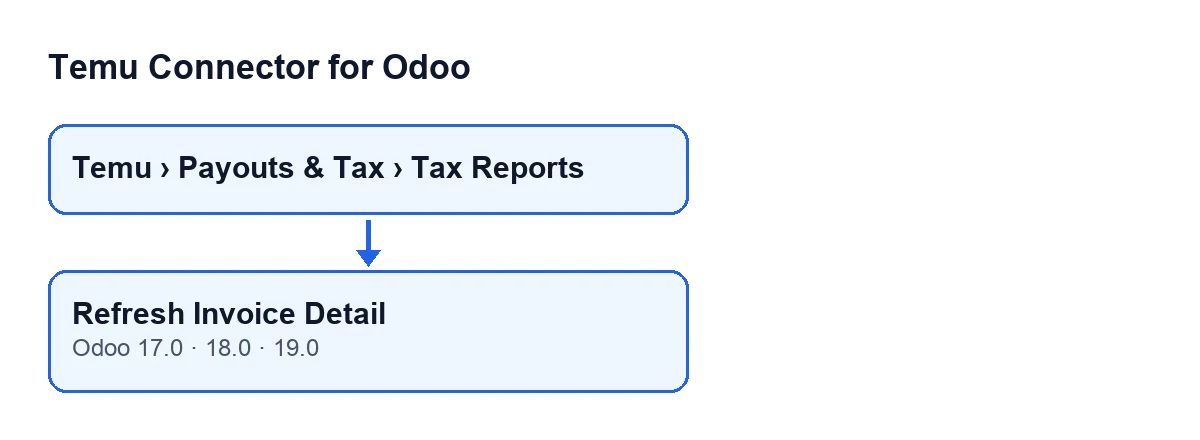
Tax invoice records open from the menu Temu › Payouts & Tax › Tax Reports. The Tax Invoices screen has the Refresh Invoice Detail button. It has no visibility condition: in Odoo 17, 18 and 19 it is always shown, and it exists in those three branches.
With Odoo in Spanish, the button is called Refresh Invoice Detail.

The case: an invented shop and one tax invoice
Example Illustrative case: the company and its figures are made up to explain the flow.
Tienda Aurora is an invented company that sells on Temu and runs Odoo 19. Someone in administration opens Temu › Payouts & Tax › Tax Reports, goes into a Tax Invoices record and finds two fields: Instance and Parent Order Sn, both visible on the record and in the Tax Invoices list. They press Refresh Invoice Detail. This is what the button does, in the order of the code:
- It queries Temu. This comes first. It asks the record's instance (
Instance) for the invoice detail, using whateverParent Order Snholds at that moment as the parameter. The query uses the invoice-detail method configured on the instance, and a list of alternative methods for that same query is passed along with it. - It looks for the lines in the reply. If Temu's reply is an object with fields, it takes the first non-empty list among several possible list names, tried in order. If the reply has any other shape, or none of those lists has content, the result is an empty list.
- It keeps the first line. From that list it takes the first element. If the list is empty, it works with an empty element.
- It writes to the record. In one go it saves the full reply together with the method used, the list of lines, the invoice type, the invoice detail type, the currency and the date and time of the sync, and it clears the last error stored on the record.
- It fills in the parent order if it was missing. If the first line is an object with fields and
Parent Order Snis empty, it looks at the order information carried in that line. If a parent order number is there, it saves it inParent Order Snas text.
After those steps, the action ends.
What changes exactly, and what does not
Seen from Tienda Aurora's record after pressing the button:
- Reply and lines. Temu's full reply is saved with the method used, together with the list of lines. Each press replaces whatever the previous one left.
- Invoice type and invoice detail type. They are saved as whole numbers, and only if the value in the first line is made up solely of digits. Otherwise they are left without a value.
- Currency. It is taken from the first line when that line is an object with fields. If the line does not carry it, it is left without a value.
- Date and time of the last detail sync. The moment of the press is recorded.
- Last error. It is cleared.
Parent Order Sn. It is only touched if it was empty and the reply carries the parent order number. If it already had a value, the button does not change it.
One detail of order is worth keeping in mind: the query is made before Parent Order Sn is filled in. In other words, the query goes out with whatever value the record held when you pressed, and the number that comes back in the reply is saved afterwards. That is why it is worth looking at that field before you press.
What to look at if the detail does not appear or is incomplete
To diagnose it, look at the record and keep the order of the steps in mind:
- Query first, writing after. The query to Temu comes first and the writing to the record comes after.
- Type and currency without a value. This can happen because the reply did not contain any of the lists the button looks for, because the first line does not include those values, or because the type is not made up solely of digits. In those cases the fields are left without a value even though the action finishes.
- Check
InstanceandParent Order Sn. They are the two pieces of data the query is built from: the instance that sends it and the parent order being asked about. - Pressing again is possible. Each press queries again and writes again, leaving the date of the last detail sync at the moment of that press.
What you need to use it
Temu Connector for Odoo is a one-off purchase per version and needs a FlexigoTech Cloud subscription. The Connector plan costs €49/month or €490/year excluding VAT (the Pro plan, €98/month or €980/year). The connection goes through FlexigoTech Cloud, which stores the credentials encrypted, monitors the synchronisation and emails you if it fails. Without a subscription, or with the service suspended, whatever the subscription provides stops; the data stays in your Odoo.
The module is published on Odoo Apps for 17.0, 18.0, 19.0 and 20.0. With the subscription, the module for newer Odoo versions is included if you bought it on flexigotech.com; on the Odoo App Store, each Odoo version is bought there. You can see the Odoo Apps listing and the module page.
How FlexigoTech can help
FlexigoTech implements Odoo 17, 18, 19 and 20 and builds connectors and custom integrations. If you are setting up Temu in your Odoo and want someone to go through the instance and the tax records with you, get in touch.
Keep reading
Checked in the connector's source code (version 19.0) and the linked sources
Sources
- Module source code: flexigobe_temu_connector 19.0 (455b3f0f): views/temu_tax_invoice_views.xml
- Module source code: flexigobe_temu_connector 19.0 (455b3f0f): models/temu_tax_invoice.py
- apps.odoo.com/apps/modules/19.0/flexigobe_temu_connector
- flexigotech.com/precios.html
- flexigotech.com/en/services.html