

 Español
 Català
 Deutsch
 Français
 Português
 Italiano
 Nederlands
 Polski
What happens without pressing anything
With the default settings, Odoo already re-reads Shopify orders on its own. The scheduled task Shopify Process Webhooks runs every minute and is active from installation. When it processes an order event and the Webhook Sync Orders checkbox is ticked, it asks Shopify for that order using the same request the button uses. That checkbox is ticked by default and sits on the Shopify Instances form, on the Webhooks tab.
The same task also handles product and stock events, but through other checkboxes, all unticked by default: Webhook Sync Products (Webhooks tab), and Webhook Sync Stock together with Sync Stock Enabled (Operations tab, Sync Settings group). The help text of the stock checkbox reads: “Receive Shopify inventory_levels/update webhooks to update Odoo stock in near real time (requires Sync Stock enabled).” For orders, only the orders checkbox counts.
Every event the task processes is marked as processed or, if something fails, as failed with the error text stored.

Checklist before you press it
Where you are and what you see
- Go in through
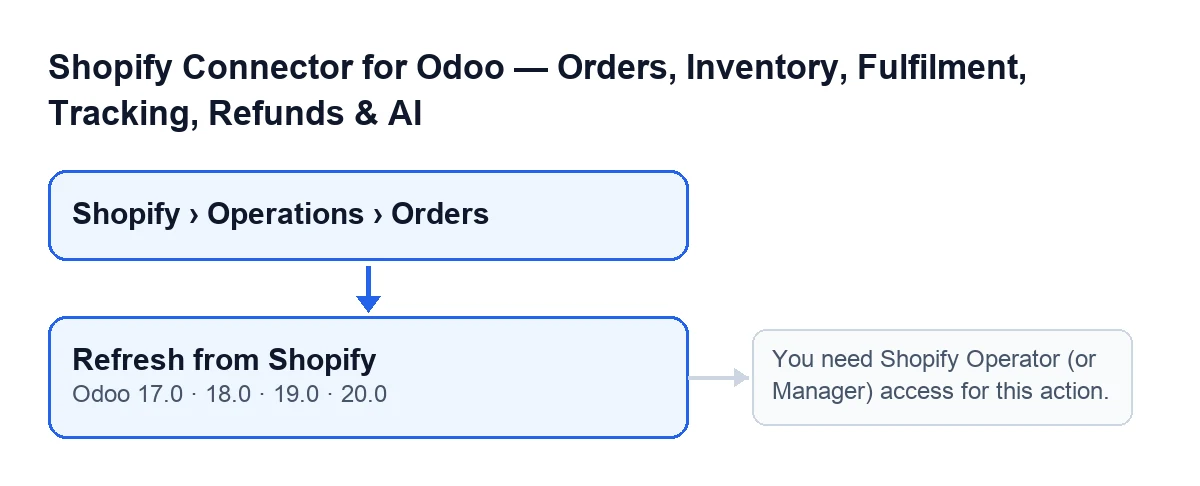
Shopify › Operations › Orders. TheShopifyandOperationslevels of the menu ask for theViewerpermission; if you do not have it, you do not see that level.
- Open the order: the
Refresh from Shopifybutton is on theFulfilment Funnelscreen. Its view condition says it is always visible, in Odoo 17.0, 18.0, 19.0 and 20.0.
- Find the
Shopify OrderandInstancefields on the form, both read-only. They are the data the button queries with: the order identifier to ask Shopify, and the order's instance to do the asking.
Permissions
- Confirm that your user has Shopify Operator (or Manager) access. The menu asks for
Viewer, but the button checks that access before doing anything.
- If you do not have it, pressing the button shows
You need Shopify Operator (or Manager) access for this action.and the action stops: nothing it was going to change is saved. Ask whoever administers your Odoo for that access and try again.
The automatic route
- On the
Shopify Instancesform,Webhookstab, see whetherWebhook Sync Ordersis ticked. If it is, an order event already triggers the same request without you pressing anything.
What the button does, in order
This is the path according to the Odoo 20.0 code:
- First, the permission check described above. If it fails, nothing is requested from Shopify.
- Then, for each order it runs on, the module takes that order's instance and asks it to fetch the order from Shopify using the identifier stored in
Shopify Order. - If there is no valid identifier, or Shopify does not return the order, the module skips that order and moves on to the next.
- If Shopify returns it, the module hands what came back to its import process and counts that order as synchronised.
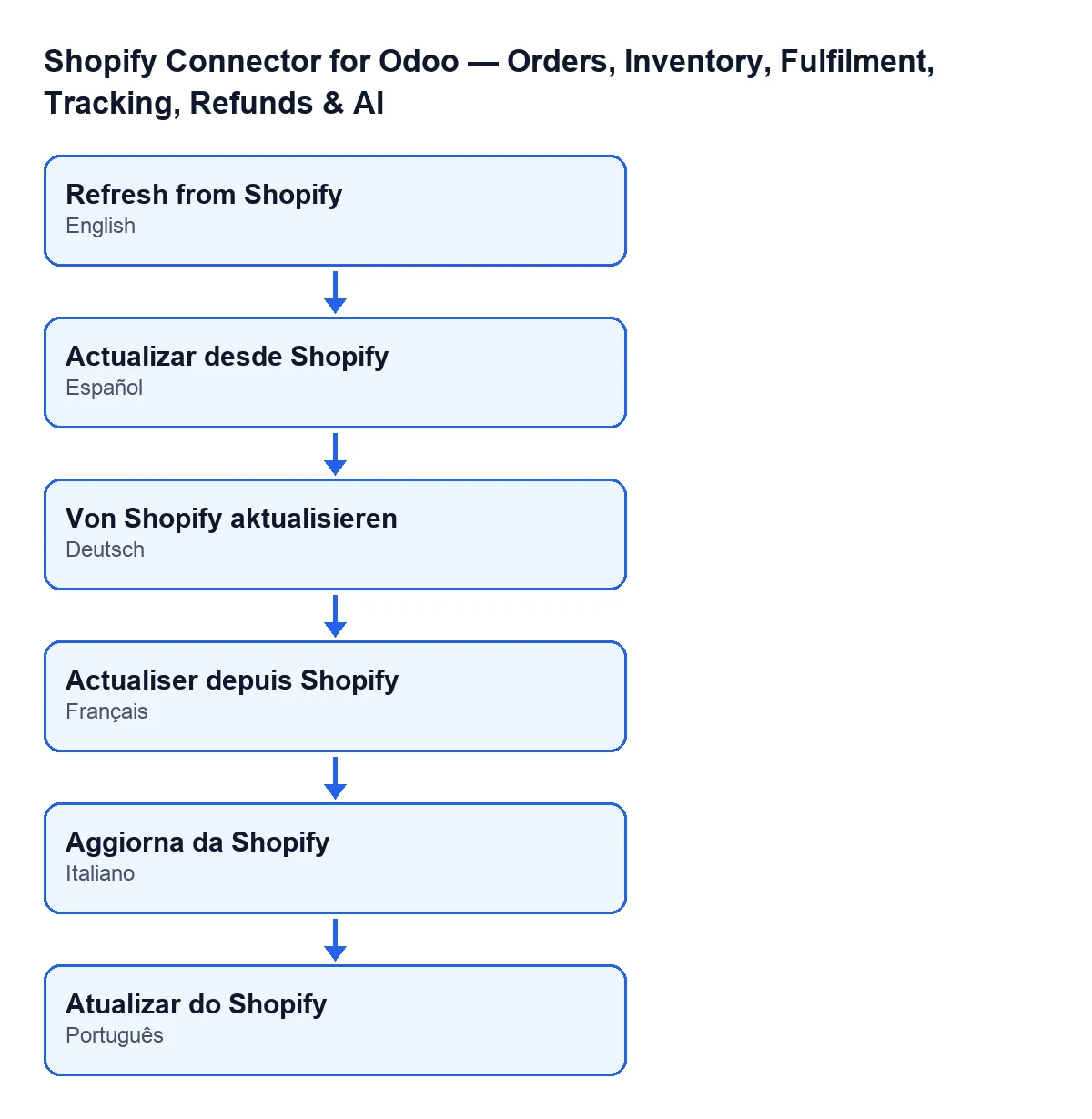
Refresh from Shopify; in German, Von Shopify aktualisieren; in French, Actualiser depuis Shopify; in Italian, Aggiorna da Shopify; in Portuguese, Atualizar do Shopify.After you press it
- If nothing happens with an order, bear in mind that the button skips orders Shopify does not return: check that
Shopify OrderandInstance, which are the data the button queries with, match the shop you expect.
- If the permission message appeared, note which user received it and get the access sorted before trying again.
- If what you want is for orders to update by themselves, go back to the
Webhookstab of the instance and check the orders checkbox.
Pressing it by hand versus the automatic route
The normal route is the automatic one: the order event arrives, the task processes it every minute and fetches the order. The button is left for asking again, by hand, for one specific order. Some differences show in the code:
- The button first checks for Shopify Operator (or Manager) access.
- The button does not look at the
Webhook Sync Orderscheckbox: it sends the request whether that checkbox is ticked or not. - On the automatic route, if the request fails, the error is caught and stored on the event as failed. The button calls the request directly, without that wrapper.
- The automatic route starts from the identifier carried by the event; the button starts from the one stored in
Shopify Order.
If another button of the module interests you, see Cancel in Shopify.
Versions and subscription
The button exists on the 17.0, 18.0, 19.0 and 20.0 branches, and the module is published on Odoo Apps for those four versions.
The module is a one-off purchase per version and needs the FlexigoTech Cloud subscription, Connector plan: €49/month or €490/year excluding VAT, up to 3 accounts on the platform. The connection goes through FlexigoTech Cloud, which stores the credentials encrypted, watches the synchronisation and emails you if it fails. You can see the module on its Odoo Apps page or on its page at flexigotech.com.
If you are implementing Odoo and want permissions, instances and webhook checkboxes reviewed before going live, FlexigoTech implements Odoo 17, 18, 19 and 20 and builds bespoke connectors and integrations.
Keep reading
Checked in the connector's source code (version 20.0) and the linked sources
Sources
- Module source code: flexigobe_shopify_seller_connector 20.0 (2950bdc0): views/shopify_order_views.xml
- Module source code: flexigobe_shopify_seller_connector 20.0 (2950bdc0): models/shopify_order.py
- Module source code: flexigobe_shopify_seller_connector 20.0 (2950bdc0): models/shopify_instance.py
- apps.odoo.com/apps/modules/20.0/flexigobe_shopify_seller_connector
- flexigotech.com/precios.html
- flexigotech.com/en/services.html