

 Español
 Català
 Deutsch
 Français
 Português
 Italiano
 Nederlands
 Polski
Where the button is and when you see it
The Poll Status button is on the Cancellations screen, opened from the menu Octopia › Orders › Cancellations. The Octopia part of the menu requires the Octopia User permission. The button is in the published branches of the module: Odoo 17, 18, 19 and 20.
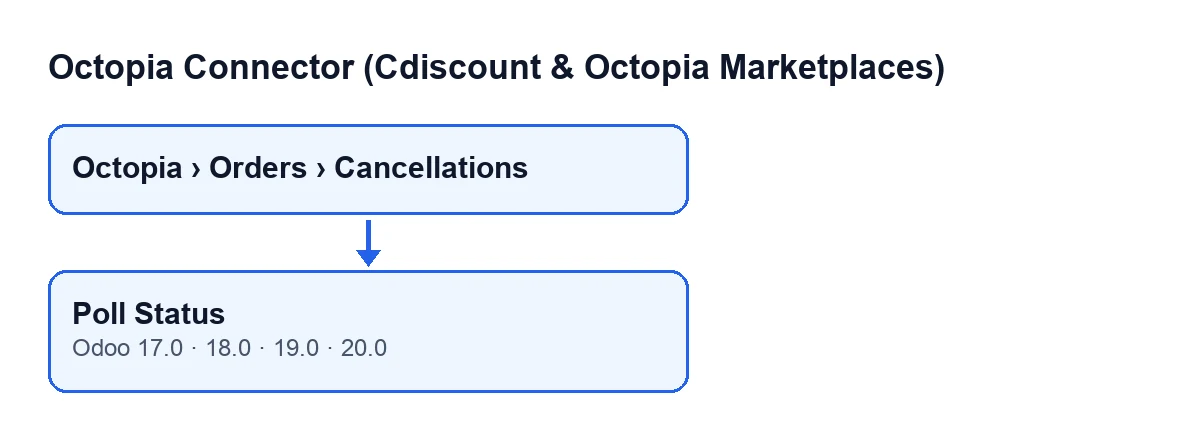
It only shows when the State field of the request says it is in progress or blocked. With the default values the button does not appear.
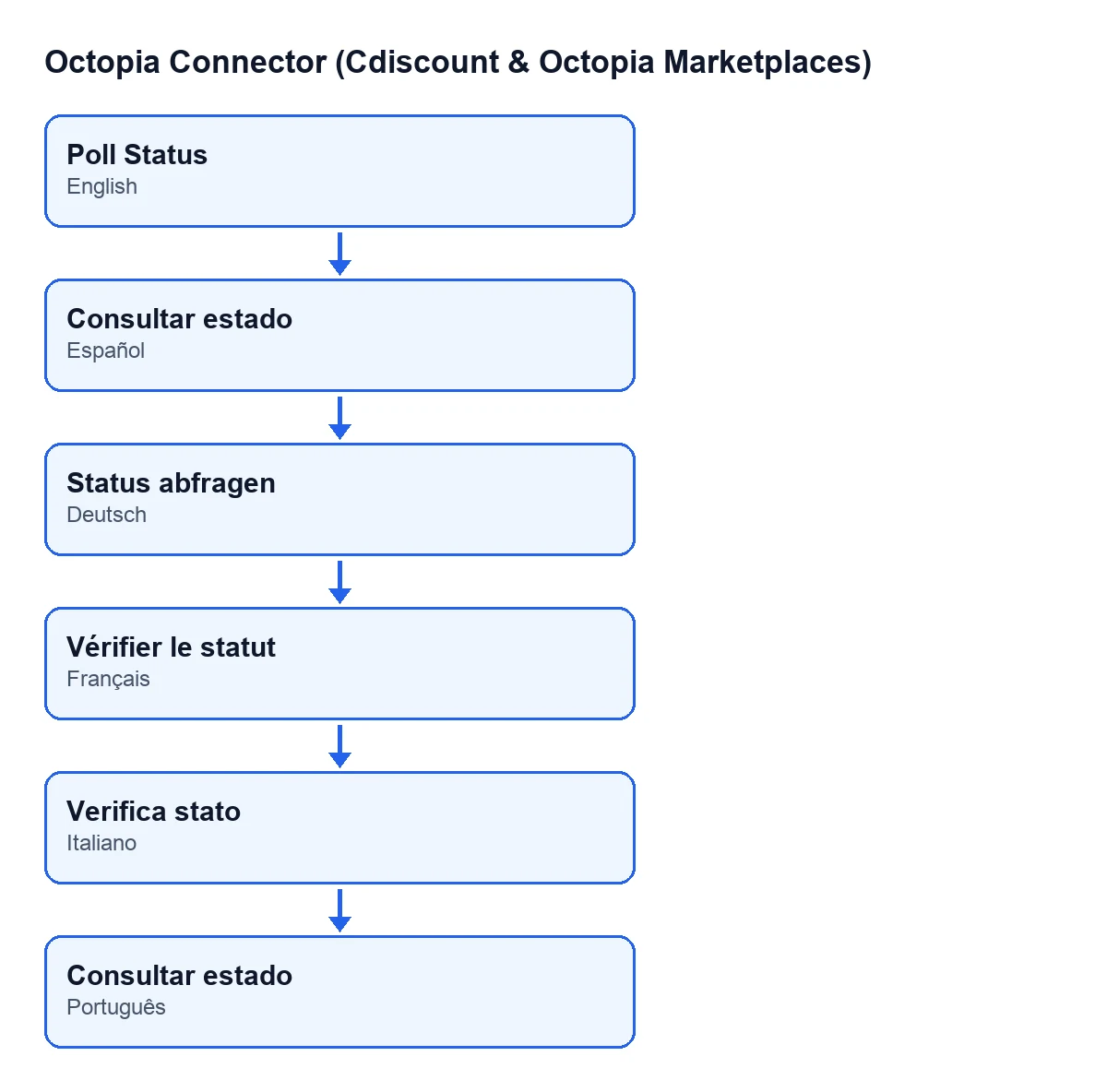
Consultar estado; in German, Status abfragen; in French, Vérifier le statut; in Italian, Verifica stato; in Portuguese, Poll Status.
Five misconceptions about Poll Status
Myth: "The button is available on any cancellation request"
Fact: it only shows with the request in progress or blocked. And even if it were run on several requests at once, in Odoo 20 the code processes only those in those two states and leaves the rest as they are.
Myth: "Every click changes the state"
Fact: for each request, the button uses the request's account to ask Octopia for the cancellations of that order. If the request holds a single reference, the query is narrowed to it. Of what comes back, the module keeps the items whose status it recognises. If none are left, the only thing that changes is Last Poll Date: the State is untouched.
That field is on the Cancellations form, read-only: the button fills it in, not the user.
Myth: "If one line of a partial cancellation is done, the request is done"
Fact: the outcome is decided from all the recognised items together.
- If any is blocked, the request becomes blocked at once.
- If all are done, it becomes done.
- In any other case, it stays in progress.
When the request does not hold a single reference, the module discards items whose type (full or partial cancellation) differs from the request's Event Type, which can be Full Order or Specific Lines. If it does hold one, the query is already filtered and whatever Octopia returns is taken as belonging to it. Then the new State and the poll date are written.
Myth: "You only find out about a block by opening the request"
Fact: when the outcome is blocked, the module schedules a to-do activity on the request's Octopia order. It is assigned to the account's responsible user or, if the account has none, to whoever clicked the button. The summary is Octopia cancellation BLOCKED and the note reads:
The cancellation request for order … is Blocked at Octopia -- contact Octopia support (quote the sync log traceId).
If scheduling the activity fails, the code only records the failure in the technical log and carries on.
Myth: "When Octopia accepts, Odoo cancels the order or creates the credit note unconditionally"
Fact: when the request becomes done, the module tries to mirror the cancellation in Odoo, but with conditions set by the code:
- If the Octopia order has no linked sales order, nothing more happens.
- If the sales order has no posted customer invoices, the request is
Full Orderand the sales order is not already finished or cancelled, it cancels the sales order. - If there are posted customer invoices, the account has automatic credit note creation switched on (it is opt-in) and the request has no credit note yet, it creates one.
- For a
Full Order, the credit note reverses the first posted invoice, with the referenceOctopia cancellation … (…). - For
Specific Lines, the credit note includes only the cancelled lines, so it does not credit too much. Each line is titledCancellation - …and the reference isOctopia partial cancellation … (…). If there are no lines with their sales line, nothing is created.
What to check after clicking
- On the
Cancellationsform, theStateandLast Poll Date. - On the
Cancellationslist, theOrder,AccountandEvent Typecolumns, to find the request. - If it ended up blocked, the to-do activity on the order.
- If it ended up done, the sales order and, where the conditions above apply, the credit note.
Subscription and help
The module is a one-off purchase per Odoo version (published for 17, 18, 19 and 20) and needs the FlexigoTech Cloud subscription: the Connector plan costs €49/month or €490/year excluding VAT. The connection goes through FlexigoTech Cloud, which stores the credentials encrypted, watches the synchronisation and emails you if it fails.
If you are implementing Odoo and want to adapt this cancellation flow or tie it into other processes, FlexigoTech implements Odoo and builds custom connectors and integrations. To see how another button in the module works, read What the Import button does.
Keep reading
Checked in the connector's source code (version 20.0) and the linked sources
Sources
- Module source code: flexigobe_octopia_connector 20.0 (4848da6a): views/octopia_order_actions_views.xml
- Module source code: flexigobe_octopia_connector 20.0 (4848da6a): models/octopia_order_actions.py
- apps.odoo.com/apps/modules/20.0/flexigobe_octopia_connector
- flexigotech.com/precios.html
- flexigotech.com/en/services.html