

 Español
 Català
 Deutsch
 Français
 Português
 Italiano
 Nederlands
 Polski
Before you press Send
The Send button sits in the reply window of an Octopia discussion and is visible in Odoo 17, 18, 19 and 20 with no condition. What follows describes the published code of Odoo 20.0: the checks that can stop it come first and, only if it passes them, the sending.
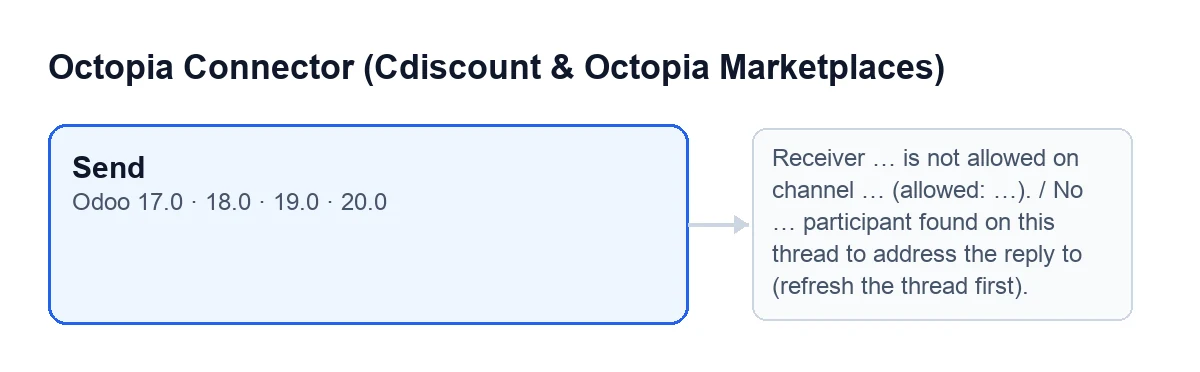
Send button and, beside it, the messages that can stop it.The next diagram shows how the button label reads in different Odoo languages.
Enviar in Spanish, Senden in German, Envoyer in French, Invia in Italian and Send in Portuguese.Check this before you press it:
- Look at
Discussion: it is read-only and it is the thread you are replying to. - Write your reply in
Body. - If you need to send files, add them in
Attachment. If there are any, they travel with the message. - Decide what to do with
Mark as Treated. It is ticked by default and its help text reads:Close the ToTreat flag locally after answering. - Bear in mind that the send is addressed to a receiver type: the code looks in the thread for a participant of that type, and the message to Octopia carries that participant's identifier and type.
- Keep the deadline in mind: the Cdiscount Marketplace CGMAD (25/08/2025, p. 49) ask for replies to messages within 48 working hours.

What Send does when you press it, in order
This is what the code does, in this order. You can tick each point off while you test a reply.
- It looks at the channel. Within the discussion's account, it finds the sales channel of that thread. Only if that channel already has its Octopia configuration read and a list of allowed receivers does it check that the receiver type is on that list. If it is not, it stops with the not-allowed-receiver message described below.
- It processes the attachments. It takes those in
Attachment; if there are any, it includes them in the message. - It looks for the counterpart. Among the thread's messages, it selects those from a participant of the receiver type that carry an identifier, and uses the last one it finds. If there is none, it stops with the participant-not-found message. This check is always made.
- It builds the message. It carries the discussion, the sales channel, the text of
Body, the receiver (identifier and type) and, if there are any, the attachments. - It sends it to Octopia through the account's connection.
- It records the success in the sync log: an entry of the discussions type, with a success result, mentioning the discussion's identifier.
- It asks for the discussion again. It asks Octopia for the full discussion, with all its messages.
- It marks the discussion as treated, only if
Mark as Treatedis still ticked. It does this after asking for the discussion again: the server may keep reporting ToTreat for a short while, and the local mark has to survive that read. - It closes the window.
If Odoo stops the send
The checks before sending raise an error and stop the action: nothing is sent to Octopia and nothing the button was about to change is saved.
- If you see
Receiver … is not allowed on channel … (allowed: …).: the receiver type is not among those the channel accepts. The message itself gives you the list afterallowed:. This check only applies if the channel has its configuration read and a list of allowed receivers. - If you see
No … participant found on this thread to address the reply to (refresh the thread first).: among the thread's messages there is none from a participant of that type with an identifier. The message says the thread has to be refreshed first: until the thread has a message from a participant of that type with an identifier, the send cannot be addressed to anyone. The dots stand for the receiver type.
After sending
When all goes well, the window closes by itself. Check the following:
- The button asks Octopia for the full discussion again after sending.
- The treated mark: if you left
Mark as Treatedticked, the discussion is treated in Odoo, locally. - The success entry in the sync log, of the discussions type.
- Do not mix up entries: that same kind of entry is also written by the scheduled task
Octopia: pull discussions (ToTreat queue), which runs every 15 minutes and is active on install; in its case it carries the number of ToTreat threads downloaded. - The channel configuration: the task
Octopia: refresh referentials (categories, brands, carriers, typologies), every 7 days and active on install, includes a channel configuration step. That read stores the allowed receivers and the date it was done. The task skips accounts that go through FlexigoTech Cloud without saved credentials or without service.
How FlexigoTech can help
The module is a one-off purchase per Odoo version and needs the FlexigoTech Cloud subscription, Connector plan: €49/month or €490/year excluding VAT. The connection goes through FlexigoTech Cloud, which stores the credentials encrypted and emails you if synchronisation fails. Without a subscription, or with the service suspended, what the subscription provides stops; your data stays in your Odoo. The module is published on Odoo Apps for 17, 18, 19 and 20 (listing); on the Odoo App Store, each version is bought there.
Other buttons in the module have their own article, such as the one on opening a discussion or the one on sending to Octopia. If you need to adapt this flow to the way you work, FlexigoTech implements Odoo 17, 18, 19 and 20 and builds custom connectors and integrations.
Keep reading
Checked in the connector's source code (version 20.0) and the linked sources
Sources
- Module source code: flexigobe_octopia_connector 20.0 (4848da6a): views/octopia_discussion_views.xml
- Module source code: flexigobe_octopia_connector 20.0 (4848da6a): wizard/octopia_discussion_wizards.py
- Module source code: flexigobe_octopia_connector 20.0 (4848da6a): models/octopia_referential.py
- apps.odoo.com/apps/modules/20.0/flexigobe_octopia_connector
- marketplace.cdiscount.com/wp-content/uploads/2025/08/2025.08.25-CGMAD-FR.pdf
- flexigotech.com/en/services.html
- flexigotech.com/precios.html