

 Español
 Català
 Deutsch
 Français
 Português
 Italiano
 Nederlands
 Polski
When the button appears on the delivery
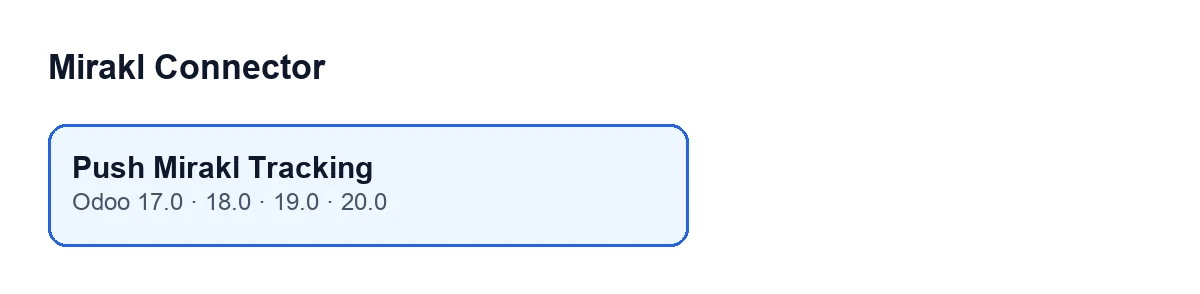
The button is on the delivery (an Inventory transfer) and exists in the 17.0, 18.0, 19.0 and 20.0 branches of the module. It is hidden when the delivery does not belong to a Mirakl order or when its state is not Done. Put positively: you only see it on a Mirakl delivery that has already been validated. The Mirakl part of the condition relies on an internal field, Is Mirakl Order, which does not appear in any view.
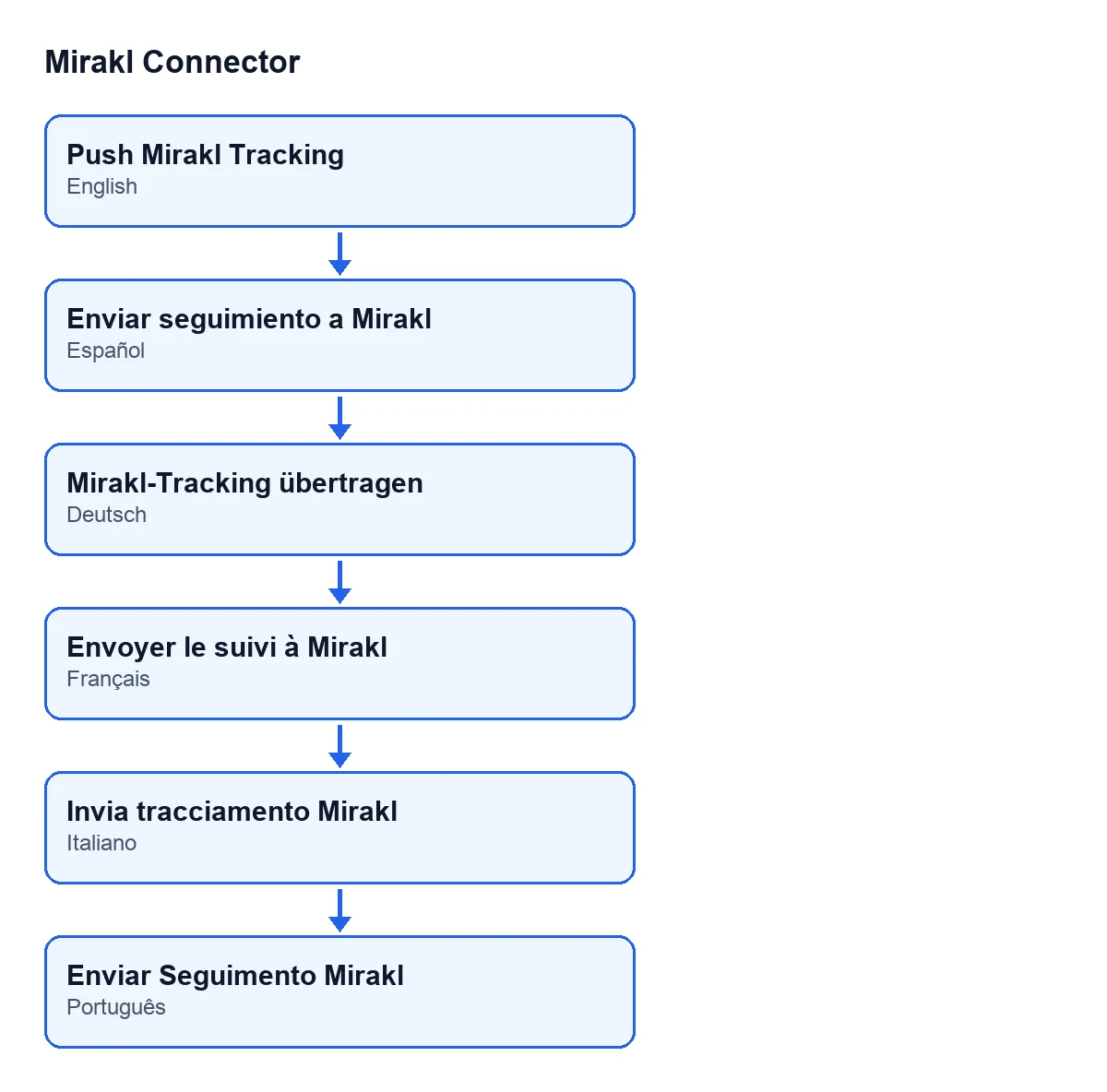
The label depends on the language of your Odoo: in English it is Push Mirakl Tracking, in Spanish Enviar seguimiento a Mirakl, in German Mirakl-Tracking übertragen, in French Envoyer le suivi à Mirakl, in Italian Invia tracciamento Mirakl and in Portuguese Enviar Seguimento Mirakl.

A case from start to finish
Example Illustrative case: the company and its figures are made up to explain the flow.
Picture an invented shop, Almenara Hogar, selling on a Mirakl marketplace through the connector. Here are three deliveries, following what the Odoo 20.0 code does.
First delivery: the automatic route
The Mirakl instance of Almenara Hogar has the setting that sends the tracking when the delivery is validated switched on. The warehouse leaves the carrier's number on the delivery and validates. When validation finishes, Odoo checks that the delivery is Done, that it belongs to a Mirakl order, that the instance has that setting on and that there is a tracking number. It then sends the tracking to Mirakl without anyone pressing anything. This is the normal route: the button is not needed.
If the push fails on that route, validating the delivery is not interrupted: the module leaves a note on the delivery with the reason for the failure.
Second delivery: no tracking number
The warehouse validates another delivery without a carrier number. Because the setting is on, the module sends nothing and leaves a note on the delivery explaining that the tracking number is missing and that you need to add it to the delivery and press Push Mirakl Tracking.
The warehouse adds the carrier's number to the delivery and presses the button. That is the button used as the exception: retrying by hand a push that did not go out by itself.
Third delivery: the push fails when you press the button
On another delivery, when the button is pressed, the call to Mirakl fails. The module leaves a note on the delivery with the reason for the failure, and the button shows you the error on screen. On the automatic route, by contrast, the note is left on the delivery and validation carries on.
What the button checks, and in what order
- That the delivery is
Done. - That the delivery hangs from a sale order that has a Mirakl order.
- That there is a tracking number. The module reads it from the carrier tracking reference on the delivery (provided by the optional
stock_deliverymodule; if that is not installed, the connector does not crash). If the reference has several lines, it takes the first one, and from that line whatever comes before the first comma or semicolon. - That the sale order has a Mirakl instance linked.
- If everything is in order, it sends the tracking to Mirakl through that instance.
- If the push succeeds, it leaves a note on the delivery reading
Mirakl tracking pushed successfully.If it fails, you see the error on screen.
If any of the first four checks fails, the action stops with a notice before the push in step five is attempted.
What happens without the subscription
When the marketplace runs through FlexigoTech Cloud and this database does not have the connector's service, validating the delivery carries on as normal in Odoo and nothing goes to Mirakl: the tracking and the invoice stay pending, to be sent later. If you press the button in that state, the tracking stays pending, with nothing marked as sent, and the action is interrupted.
What else happens in the same validation
In the same validation the module can also create the invoice if the instance has the Auto-create invoice on delivery validation box ticked. You will find it on the Mirakl Instances form, Orders and Returns tab, Sales Bridge group, and it is off by default. It is a separate matter from the tracking. If the invoice interests you, see the message about posting the invoice before sending it to Mirakl; and if you need to undo an order, the Cancel on Mirakl button.
What to take from the case
- The tracking goes out automatically on validation if the instance has that switched on; the button is for retrying by hand.
- The button only appears with the delivery
Doneand belonging to a Mirakl order. - With no tracking number there is no push: add the carrier's number to the delivery and press again.
- After pressing, if the push succeeds a note is left on the delivery; if it fails, you see the error on screen.
Cost and help
Mirakl Connector is a one-off payment per Odoo version (published on Odoo Apps for 17.0, 18.0, 19.0 and 20.0) and needs the FlexigoTech Cloud subscription: Connector plan, €49 a month or €490 a year excluding VAT, up to 3 marketplace accounts. The connection runs through FlexigoTech Cloud, which stores the credentials encrypted and emails you if synchronisation fails. Without a subscription, or with the service suspended, what the subscription provides stops; your data stays in your Odoo. You can see the Odoo Apps listing and the module page.
If you are implementing Odoo and want logistics and tracking properly connected, FlexigoTech implements Odoo 17, 18, 19 and 20 and builds connectors and custom integrations.
Keep reading
Checked in the connector's source code (version 20.0) and the linked sources
Sources
- Module source code: flexigobe_mirakl_connector 20.0 (aa05e537): views/stock_picking_views.xml
- Module source code: flexigobe_mirakl_connector 20.0 (aa05e537): models/stock_picking.py
- Module source code: flexigobe_mirakl_connector 20.0 (aa05e537): models/mirakl_instance.py
- apps.odoo.com/apps/modules/20.0/flexigobe_mirakl_connector
- flexigotech.com/precios.html
- flexigotech.com/en/services.html