

 Español
 Català
 Deutsch
 Français
 Português
 Italiano
 Nederlands
 Polski
Where these fields are
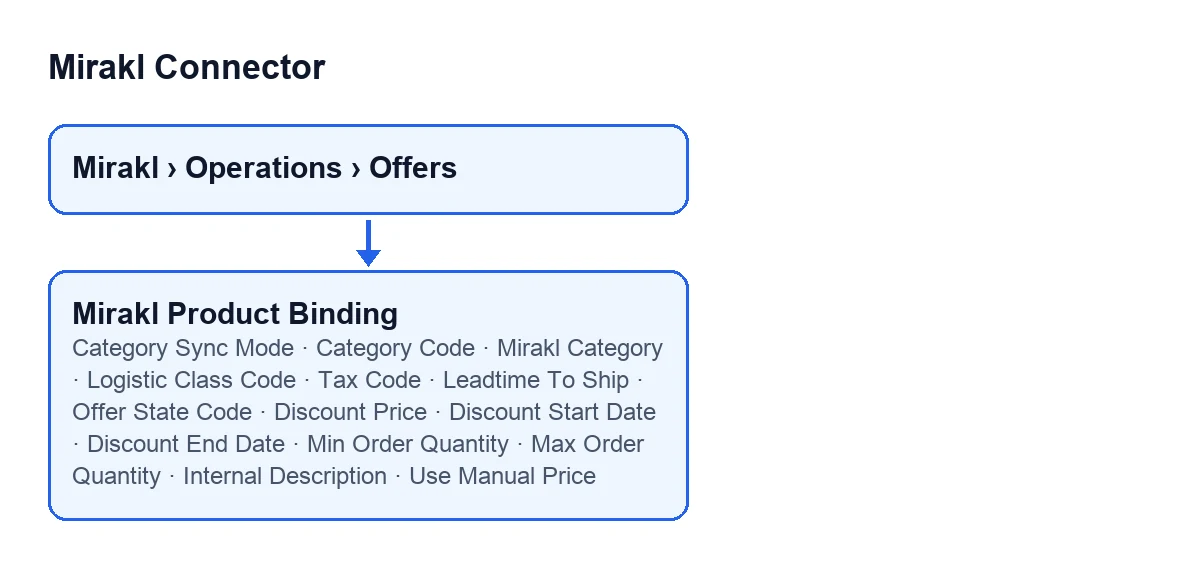
The product binding fields are on the Mirakl Offers form, which opens from the menu Mirakl › Operations › Offers. If you cannot see the Mirakl part of the menu, you are missing the permission that part asks for. The form splits the fields between two tabs, Classification and Offer, and the Mirakl Offers list shows some of them. The diagram below puts them together with their original labels.

Before you open the form
- Find the menu
Mirakl › Operations › Offersand open a record. If theMiraklpart is missing, ask for the permission before going on.
- Keep the instance category mapping and the instance pricing strategy in view: the help texts of
Category Sync ModeandUse Manual Pricerefer to them. The instance fields are explained in Mirakl Instance fields.
- Find out whether the channel you sell on asks for a logistics class code or a tax code: the help texts of those two fields say they are used when the channel requires it.
The Classification tab
Category Sync Mode. Its help says: "Use the instance category mapping by default, or force a binding-specific manual category." It has two values,Category Mapping, which is the default, andManual Override. What to enter: leave it onCategory Mappingand switch toManual Overrideonly on the specific binding whose category you want to force. It also appears in the list.
Category Code. Its help says: "Mirakl category code used by offer validation and catalog payload." What to enter: the Mirakl category code that matches that product. It also appears in the list.
Mirakl Category. Its help says: "Synced Mirakl category used as the primary source when available." What to enter: if the synced Mirakl category is available, choose it here, because the help describes it as the primary source. It also appears in the list.
Logistic Class Code. Its help says: "Mirakl logistics class code used when required by the channel." What to enter: the code only if your channel demands it.
Tax Code. Its help says: "Mirakl tax code used when required by the channel." What to enter: as above, only if the channel asks for it.
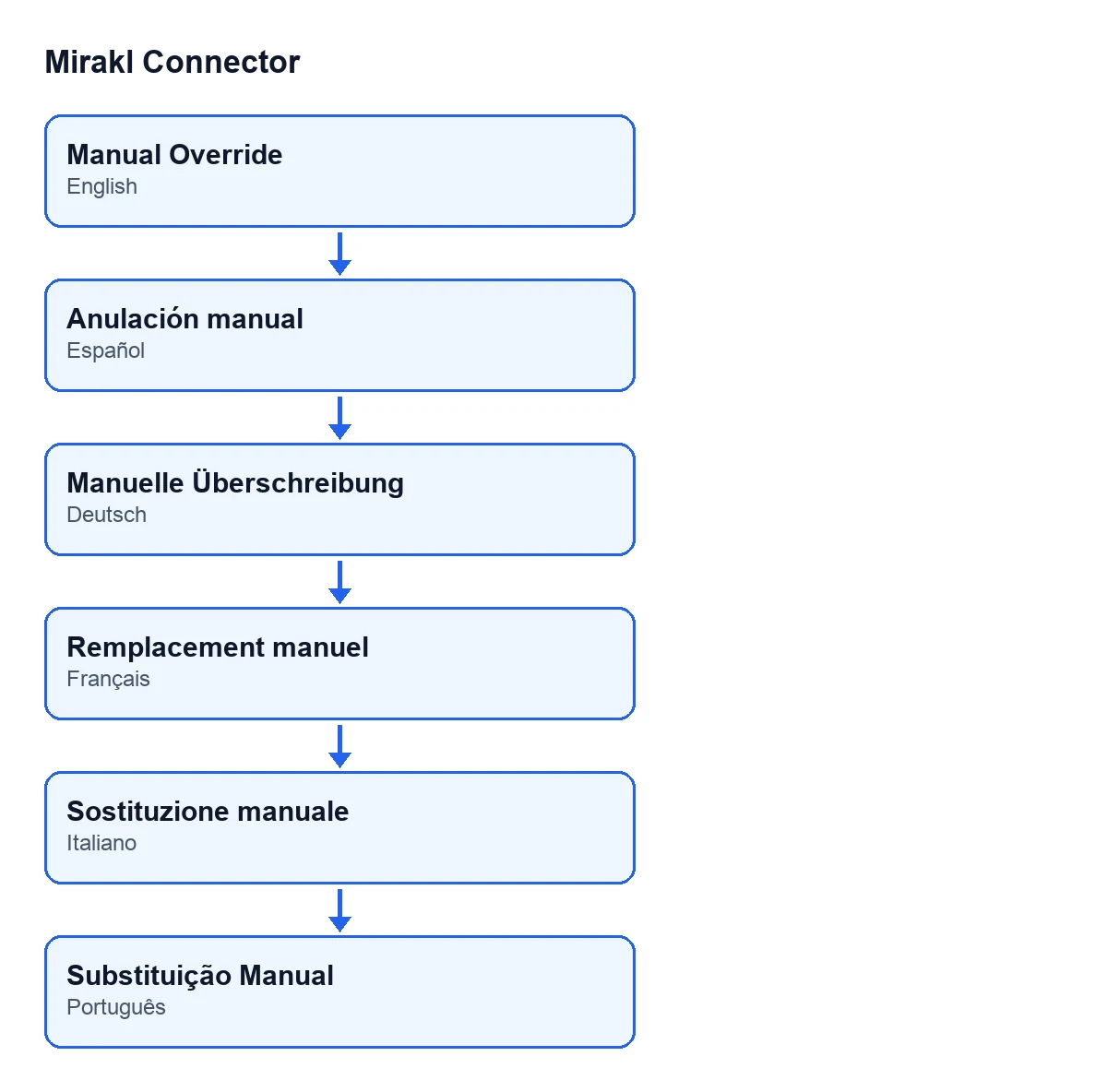
If your database has users in several languages, the value Manual Override reads differently for each of them, as the diagram below shows.
The Offer tab
Leadtime To Ship. Its help says: "Lead time to ship in days (Mirakl leadtime-to-ship). 0 means use marketplace default." The default is 0. What to enter: a number of days if that product has its own lead time; otherwise leave 0.
Offer State Code. Its help says: "Mirakl offer state: 11=Active, 12=Inactive." The options are calledActiveandInactive, andActiveis the default. What to enter: leave it onActiveunless you want the inactive Mirakl state for that offer. It also appears in the list.
Discount Price. Its help says: "Discounted price. Leave 0 to not apply discount." What to enter: the reduced price, or 0 if there is no discount.
Discount Start DateandDiscount End Date. Their help texts say: "Start date for discount price." and "End date for discount price." With the default values you cannot see them: they appear onceDiscount Pricehas a value. What to enter: the dates of the discount, once the discount price is set.
Min Order Quantity. Its help says: "Minimum order quantity. 0 means no minimum." The default is 0.
Max Order Quantity. Its help says: "Maximum order quantity. 0 means no maximum." The default is 0. What to enter in these two: leave 0 unless you want to impose a minimum or a maximum on that product.
Internal Description. Its help says: "Internal description visible only to the seller." What to enter: notes for your team about that offer.
Use Manual Price. Its help says: "When disabled, offer price is computed using the instance pricing strategy." It is disabled by default. What to enter: leave it off if you want the price to follow the instance strategy, and switch it on only for offers whose price you do not want that strategy to calculate. It also appears in the list.
Final review of the list
- Open the
Mirakl Offerslist and check, offer by offer,Category Sync Mode,Category Code,Mirakl Category,Offer State CodeandUse Manual Price, which also appear in the list.
- On the
Offertab, check that every 0 is intentional: for the lead time it means using the marketplace default, and for the minimum and maximum quantities it means no minimum and no maximum.
- If you have set a
Discount Price, check the discount dates inDiscount Start DateandDiscount End Date.
What it costs and how we help
Mirakl Connector is a one-off purchase per version and needs the FlexigoTech Cloud subscription: the Connector plan costs €49/month or €490/year excluding VAT (Pro: €98/month or €980/year) and covers up to 3 accounts on the platform (Pro: 10). The connection goes through that subscription: credentials are stored encrypted, synchronisation is monitored and you get an email if it fails. The module is published on Odoo Apps for 17.0, 18.0, 19.0 and 20.0; see the Odoo Apps listing for the price of each version and the module page to buy it.
If you are implementing Odoo and want someone to go through these forms with you, FlexigoTech implements Odoo 17, 18, 19 and 20 and builds custom connectors and integrations.
Keep reading
Checked in the connector's source code (version 20.0) and the linked sources
Sources
- Module source code: flexigobe_mirakl_connector 20.0 (aa05e537): models/mirakl_product_binding.py
- apps.odoo.com/apps/modules/20.0/flexigobe_mirakl_connector
- flexigotech.com/precios.html
- flexigotech.com/en/services.html