

 Español
 Català
 Deutsch
 Français
 Português
 Italiano
 Nederlands
 Polski
The case: a catalogue in Odoo and a brand-new instance
Example Illustrative case: the company and its figures are made up to explain the flow.
Ferretería Costa Norte has its catalogue in Odoo, with an internal reference on its products, and has just created its marketplace instance. Now it needs offer bindings for the products it wants on Mirakl, and it does not want to create them one by one. That is what the Generate Bindings button is for. We follow its route and, at each step, what the Odoo 20.0 code does.

Where the button is and when it appears
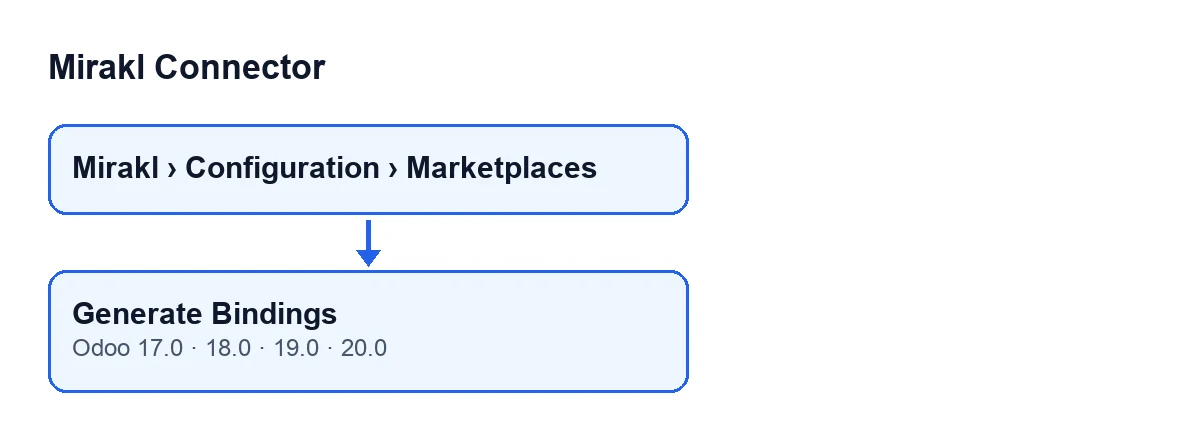
Open Mirakl › Configuration › Marketplaces and go into the form of Mirakl Instances. The Generate Bindings button sits in the view of that screen and is always visible: no view condition hides it. It is in the 17.0, 18.0, 19.0 and 20.0 branches of the module.
Two fields that shape the result
Before pressing, look at these two:
Company: visible on theMirakl Instancesform and also in the list. By default it takes the active company. The button uses it to decide which products come in (see the steps below).Offer Binding Generate Limit: on the form,Manual Operationstab,Offersgroup. It is 500 by default. Its help reads: «Maximum products scanned when auto-generating missing offer bindings.»
What it does when you press it, step by step
- It works only on the instance whose form is open.
- It takes the value of
Offer Binding Generate Limit; the limit never goes below one. - It searches for active products with the internal reference filled in and either no company or the instance's company. When the product has the sales option, only those that can be sold are included. It orders them by identifier, oldest first, and keeps as many as the limit allows.
- It checks which products already have a binding on this instance.
- It goes through the products found. Those that already have a binding are skipped and counted as existing; those without a reference are skipped and counted as skipped without a SKU. For the rest it prepares a new binding: the instance, the product, the internal reference as the SKU, the product's display name as the title and the category synchronisation mode set to mapping.
- If anything is prepared, it creates all the bindings in one go.
- It builds the result, posts it as a message on the instance form and shows it in a notice.
For products that already had a binding, the code creates nothing new: it only counts them as existing.
What you see at the end
A notice titled Mirakl appears, of success type, which does not stay fixed on screen, with this text: Generated … offers. Existing: …. Skipped without SKU: …. The three gaps are the counts from step five. The same text is left as a message on the instance form.
If your Odoo runs in another language, the button label changes:
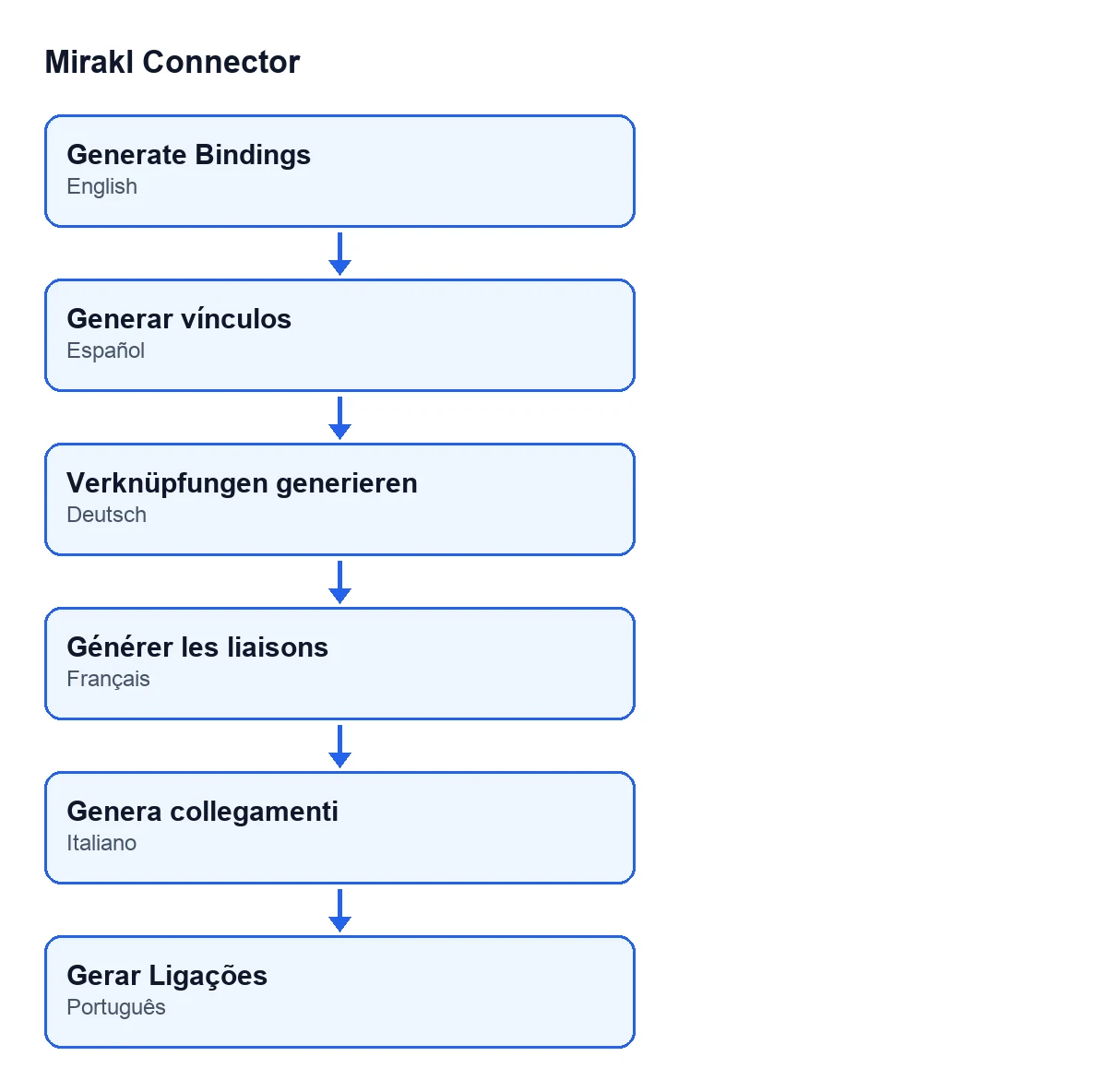
Generar vínculos, in German Verknüpfungen generieren, in French Générer les liaisons, in Italian Genera collegamenti and in Portuguese Gerar Ligações.When the result is not what you expected
Costa Norte presses the button and, on checking, finds products missing. This is what the code says about what gets into the scan:
| Product in Odoo | Does it enter the selection? |
|---|---|
| Archived | No |
| No internal reference | No |
| Sales option switched off | No, when the product has that option |
| Belonging to a company other than the instance's | No |
| No company | Yes |
| Already bound on this instance | Scanned, but skipped and counted as existing |
There is a consequence of the order of the steps: the limit applies to the products scanned, not to the bindings created. Products that are already bound count towards the limit, so if the catalogue that meets the conditions is larger than the limit, the last products by identifier fall outside that run. If the notice shows few offers generated and many existing, raise the value of Offer Binding Generate Limit in Manual Operations and press again: products that already have a binding are skipped, so no duplicates are created for them.
What to check afterwards
- That the notice and the message on the form match what you expected for generated, existing and skipped without a SKU.
- That the instance's
Companyis the right one if products from a particular company are missing. - That the limit is higher than the number of products you want scanned.
If you would like another button of the module explained the same way, see what the Cancel in Mirakl button does. And for a scheduled task, see the Mirakl - Accept Orders task.
Cost and help
Mirakl Connector is a one-off purchase per Odoo version and needs the FlexigoTech Cloud subscription, Connector plan: €49 a month or €490 a year, excluding VAT. The connection goes through FlexigoTech Cloud, which stores the credentials encrypted. The module is published for Odoo 17.0, 18.0, 19.0 and 20.0 (Odoo Apps listing, module page). FlexigoTech implements Odoo 17, 18, 19 and 20 and builds custom connectors and integrations, in case you want help setting up your catalogue.
Keep reading
Checked in the connector's source code (version 20.0) and the linked sources
Sources
- Module source code: flexigobe_mirakl_connector 20.0 (aa05e537): views/mirakl_instance_views.xml
- Module source code: flexigobe_mirakl_connector 20.0 (aa05e537): models/mirakl_instance.py
- Module source code: flexigobe_mirakl_connector 20.0 (aa05e537): models/mirakl_ai.py
- apps.odoo.com/apps/modules/20.0/flexigobe_mirakl_connector
- flexigotech.com/en/services.html
- flexigotech.com/precios.html