

 Español
 Català
 Deutsch
 Français
 Português
 Italiano
 Nederlands
 Polski
Before you start: versions and what you will touch
Manufacturing AI Work-Instruction Copilot is published on Odoo Apps for Odoo 17.0, 18.0 and 19.0. On all three listings it costs €49 excluding VAT, a one-off payment per version.
Setting it up takes you through four screens: the AI Provider Setup wizard, the module settings, the Prompt Templates list and the AI Work Instructions › AI Providers list. Then, during the first week, AI Work Instructions › Reporting › AI Cost (Estimated) and the state fields on the records come into play. If you would like an overview of the menus and records first, see how the module works under the bonnet.
The case: Albera Machining sets up the copilot
Example Illustrative case: the company and its figures are made up to explain the flow.
Albera Machining is a made-up company that produces machined parts and runs Odoo 18. Marta, its production manager, has installed the module and wants it ready so her team can review the first work instructions. This is the order she follows.
Step one: create the AI provider
Marta opens the AI Provider Setup dialog. She types a name in Name, chooses Ollama (self-hosted) in Provider Type, fills in Model Name (it arrives empty, with placeholder text) and checks Api Url, which points to localhost. She clicks Create Provider.
The provider shows up under AI Work Instructions › AI Providers. In Marta's database there are two rows, one for OpenAI and one called Ollama Local, both of type Ollama (self-hosted).
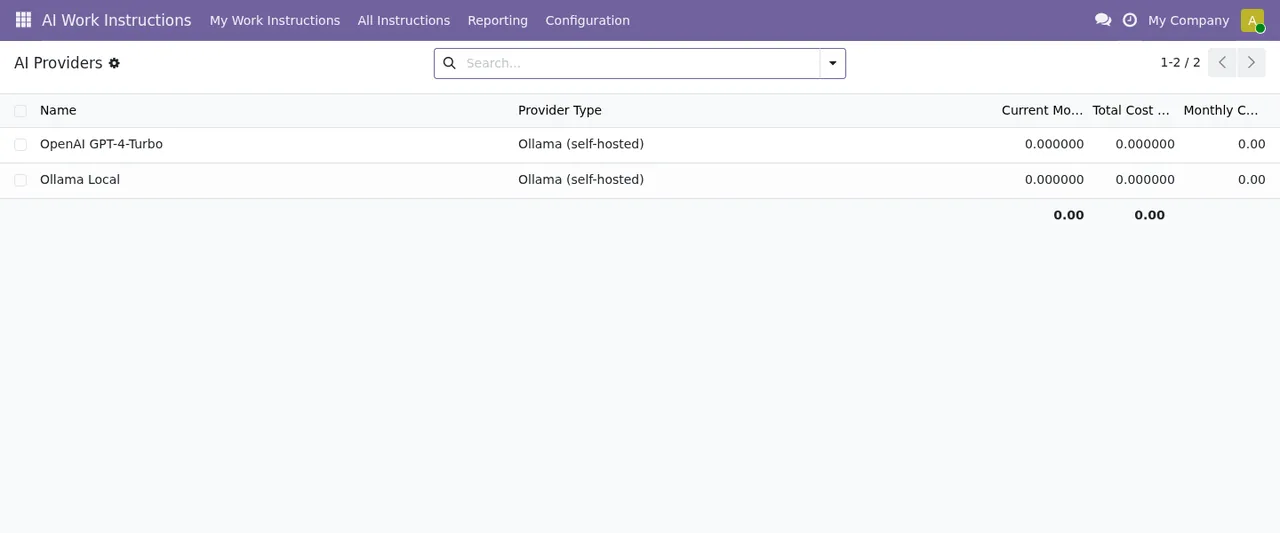
AI Work Instructions › AI Providers with two providers and every cost still at zeroThe module defines a connection status, connection_status, with three values: Unknown, OK and Error. Marta does not consider this step done until she sees OK.
Step two: the module settings
On the settings screen, the module groups its options under Generation & Caching and Data & Privacy. These are the fields, with their label and technical name:
AI Cache TTL (days)(mai_cache_ttl_days), a whole number of days.Pre-Generation Batch Size(mai_pregen_batch), a whole number.Output Content Filter(mai_content_filter_enabled), a tick box.Q&A Retention (days)(mai_retention_days), a whole number of days.Training Cleanup (days)(mai_training_retention_days), a whole number of days.Max Attachment Size (MB)(mai_max_attachment_mb), a whole number.Structured JSON Logs(mai_json_logs), a tick box.
Marta does not make the numbers up on the spot: she agrees the retention days with whoever handles data protection in the company, and the maximum attachment size with whoever prepares the drawings and documents. She ticks Output Content Filter and turns on Structured JSON Logs because her IT team asked for it.
Step three: review the prompt templates
In the Prompt Templates list she finds six sector templates: Assembly, Chemical, Food & Beverage, General, Machining and Packaging. The list has columns for label, default, version and active. As Albera does machining, Marta looks at Machining and uses those columns to check which template is marked as default and which are active.
The states Marta will see on each record
The module works with several state fields. We list them with their values as the module defines them; this page does not assume any transitions the code does not describe.
- Pre-generation (
ai_pre_generation_state):Not Started,Queued,GeneratedandError. - Instruction status (
ai_instruction_status):Not Generated,Draft,Pending Approval,ApprovedandLocked. - Approval (
state):Pending ApprovalandApproved. - Another
statefield, with more values:Draft,Pending Approval,Approved,LockedandReplaced.
What matters for Marta is telling the fields apart: Replaced only exists in the last one, and Queued and Generated belong to the pre-generation field, not to the instruction status. If someone on her team says 'it is approved', she asks which field they saw it in.
What Marta checks in the first week
With the module in use, Marta sets aside a few minutes each morning for these checks:
- The connection status: if it shows
Erroror stays onUnknown, she notes it down before generating anything else. - Records with
ai_pre_generation_stateonErroror still onQueued. - Instructions on
Pending Approval, so someone with technical judgement can review them. - The
AI Work Instructions › Reporting › AI Cost (Estimated)list, where for now she only sees her two providers with costs at zero. - The values of
Pre-Generation Batch SizeandMax Attachment Size (MB), in case she wants to adjust them in light of what she has learnt.
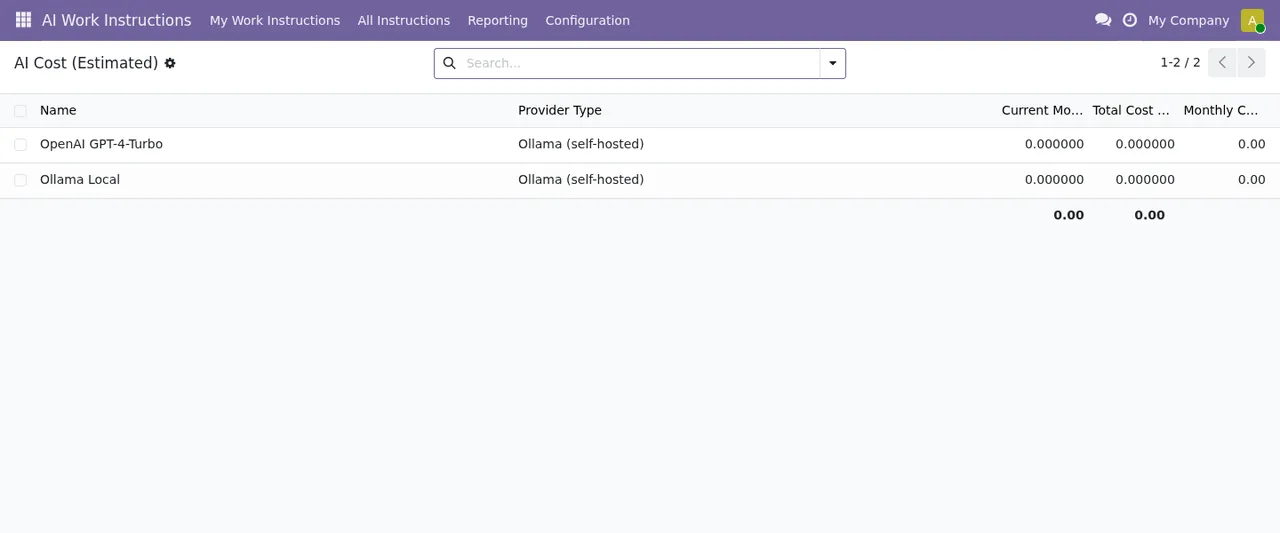
AI Cost (Estimated) in the first week: the two providers and costs at zero, with no usage records yetShe also opens the Manufacturing AI GDPR dialog to see what it asks for before she needs it. She sees the Mode field on Data Subject Access (export), the Data Subject and Limit to Work Order fields, and the Run and Close buttons. She does not run anything: she just gets familiar with it.
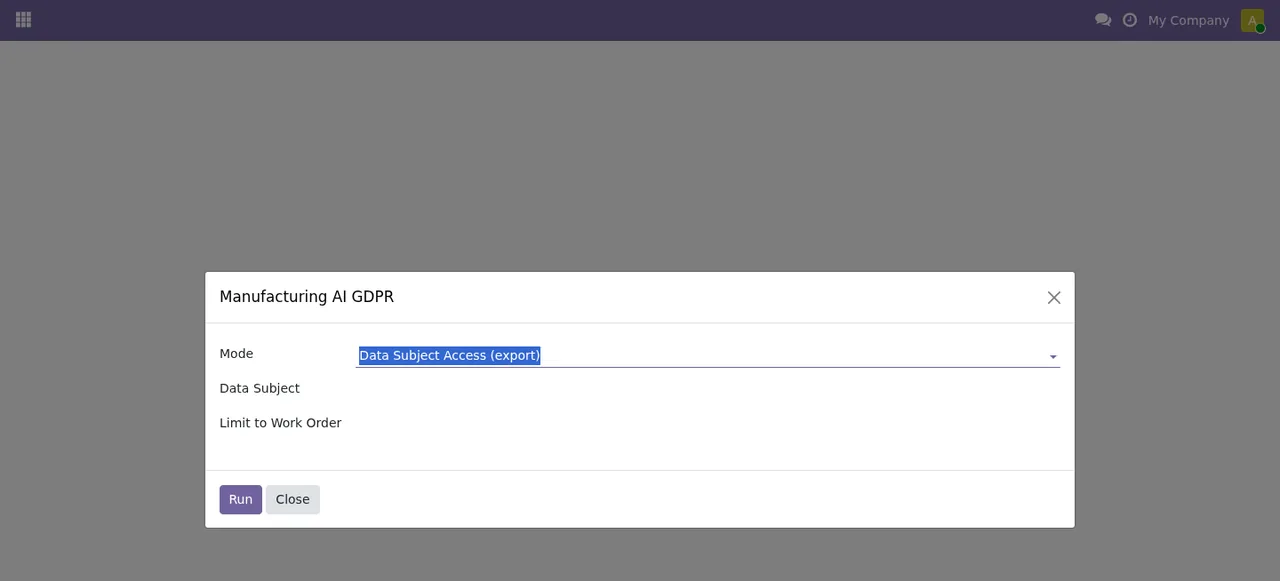
Manufacturing AI GDPR dialog with Data Subject and Limit to Work Order left blank, no records yetWhen something does not add up and a warning appears, Marta turns to the module's error messages explained one by one.
What to take from the case
Setup is tidier if you keep three things separate: the AI provider, the settings and the templates. Each lives on its own screen and can be reviewed on its own.
The numbers in the settings are not purely technical choices: the days in Q&A Retention (days) and Training Cleanup (days) are worth agreeing with whoever is responsible for data in your company.
And the states: the module has more than one state field, with values that repeat (Pending Approval, Approved). Knowing which field you are looking at avoids misunderstandings within the team.
How FlexigoTech can help
At FlexigoTech we implement Odoo 17, 18, 19 and 20 and build bespoke connectors and integrations. If you would like support setting up the copilot or adapting it to your shop floor, you will find the details on the module page at flexigotech.com and on its Odoo Apps listing.
Keep reading
Checked in the module's source code (version 19.0) and the linked sources
Sources
- Module source code: flexigo_manufacturing_ai_work_instruction_copilot 19.0 (40c663bd): models/res_config_settings.py
- Module source code: flexigo_manufacturing_ai_work_instruction_copilot 19.0 (40c663bd): models/mrp_ai_provider.py
- Module source code: flexigo_manufacturing_ai_work_instruction_copilot 19.0 (40c663bd): models/mrp_production.py
- Module source code: flexigo_manufacturing_ai_work_instruction_copilot 19.0 (40c663bd): models/mrp_workorder.py
- Module source code: flexigo_manufacturing_ai_work_instruction_copilot 19.0 (40c663bd): models/mrp_workorder_dependency.py
- Module source code: flexigo_manufacturing_ai_work_instruction_copilot 19.0 (40c663bd): models/mrp_workorder_instruction.py
- apps.odoo.com/apps/modules/19.0/flexigo_manufacturing_ai_work_instruction_copilot
- apps.odoo.com/apps/modules/17.0/flexigo_manufacturing_ai_work_instruction_copilot
- apps.odoo.com/apps/modules/18.0/flexigo_manufacturing_ai_work_instruction_copilot
- flexigotech.com/en/services.html