

 Español
 Català
 Deutsch
 Français
 Português
 Italiano
 Nederlands
 Polski
What the listing does not show before you install
The Odoo Apps listing tells you which versions the app is published for (17, 18, 19 and 20) and what it costs. What you cannot see from there is which fields the records have or what the settings screen contains. Here are those details, as they look in the module straight after installation. If you want the full tour of the menus, read how Legal Tech AI Copilot works inside Odoo.
Audit Logs with no records and Legal Documents with no recordsThe settings go well beyond choosing a provider
In the Legal AI Copilot settings form you choose the AI provider (the animation shows Anthropic selected) and the model. The same screen holds numeric thresholds, an approval mode, the language, the data residency region and the header and footer texts for the PDF. Before you upload the first contract, sit down with whoever will review the analyses and agree on the approval mode, the language, the data region and what the PDF should say.
The company_id field turns up in many models
Among the module's fields, company_id (Many2one to res.company) appears again and again. If your Odoo runs more than one company, check on the first records which company gets assigned and that the reviewers have access to it. If you only have one company, it is enough to know the field is there.
There are links to sale.order and crm.lead
The module's fields include attachment_id (to ir.attachment), document_type_id (to legal.contract.document.type), counterparty_id (to res.partner), uploader_id (to res.users), sale_order_id (to sale.order) and crm_lead_id (to crm.lead). Before creating the first records, decide with your team whether you will link contracts to sales orders and opportunities, and how you will fill in the counterparty and document type, so everyone does it the same way from day one.
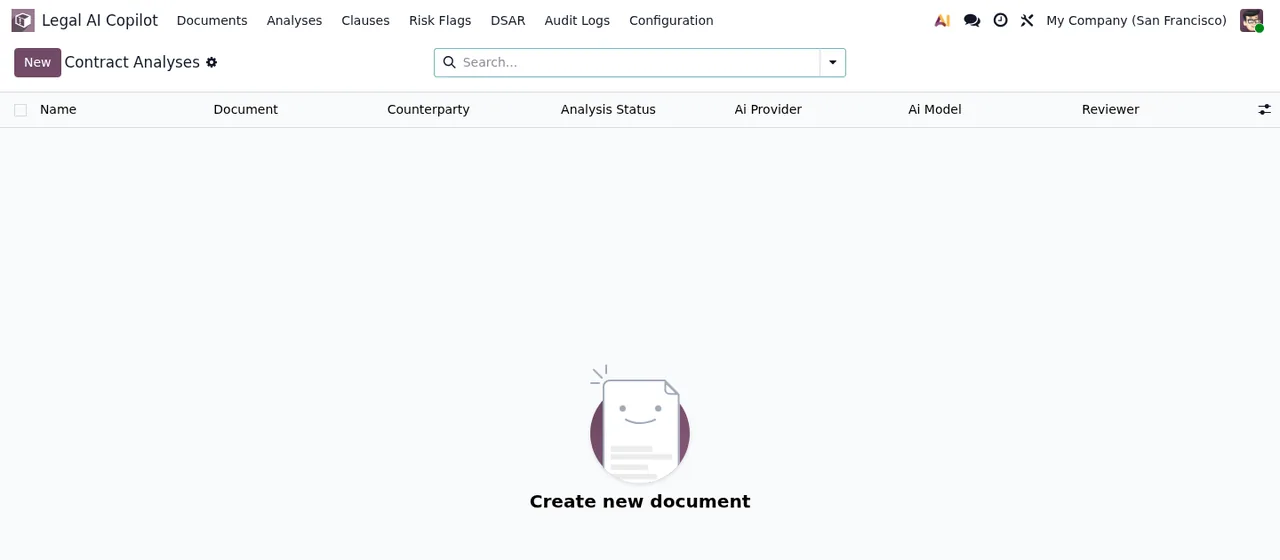
Legal AI Copilot › Contract Analyses, with no records yet: it shows the message Create new documentSeveral One2many fields and the clause types list
The module's fields include several One2many fields: analysis_ids (to legal.contract.analysis), clause_ids (to legal.contract.clause), risk_flag_ids (to legal.contract.risk.flag) and sanctions_match_ids (to legal.contract.sanctions.match). There is also a prompt_template_id field pointing to legal.contract.prompt.template and a clause_type_id field pointing to legal.contract.clause.type. In the animation, the Clause Types list shows clause types such as Payment Terms, Liability Cap and Termination. Go through it before you start: if your contracts use other clause types, now is the time to spot it.
One field stores the job reference in FlexigoTech Cloud
The module works with a local FlexigoTech Cloud service, and among its fields there is a text field, fgt_job_id, labelled FlexigoTech Cloud AI job. On Odoo Apps, the app costs €9 per Odoo version (17.0, 18.0, 19.0 and 20.0), a one-off payment excluding VAT; the local service is separate: €29/month or €290/year excluding VAT (Pro: €58/month or €580/year). Without a subscription, or with the service suspended, whatever the subscription provides stops; your data stays in your Odoo. If something does not respond, the specific messages are covered in Legal Tech AI Copilot errors and warnings.
Reviewer, accepter and uploader: fields pointing to res.users
Several fields point to Odoo users: reviewer_id, uploader_id, accepted_by_id and user_id, all Many2one to res.users. Before opening the app to the team, set up the people who will review and accept as Odoo users. In the analyses list, the Reviewer column shows who has each one.
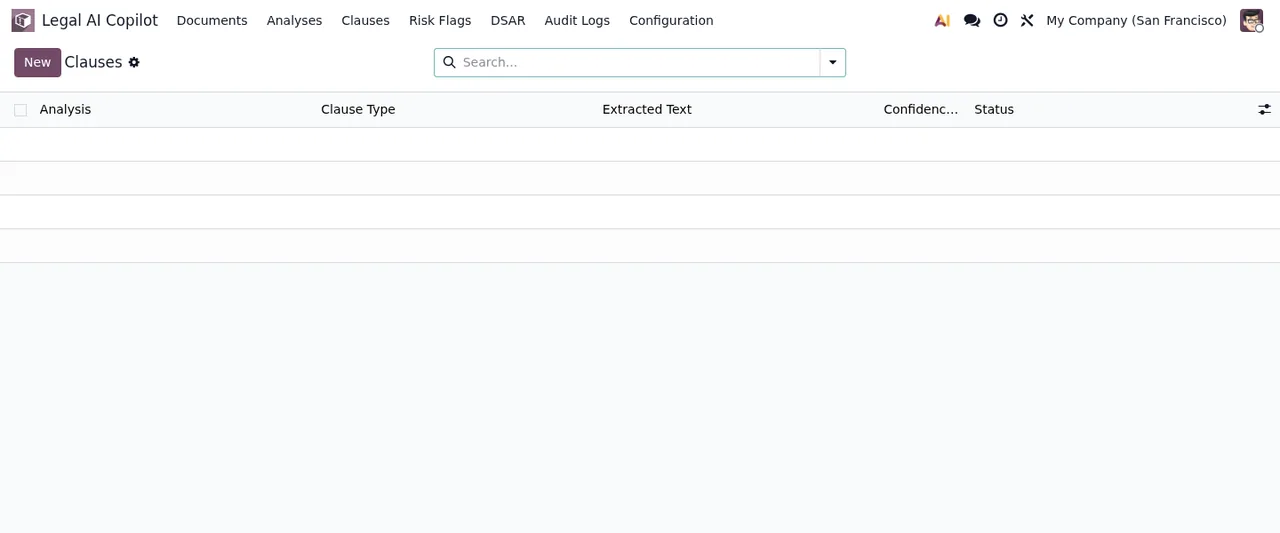
Legal AI Copilot › Clauses, with no records yet, only empty rowsThe lists start empty, Audit Logs included
Straight after installation, Contract Analyses, Clauses, Legal Documents and Audit Logs hold no records. The Audit Logs list only shows the ID column. The analyses and clauses lists have status columns (Analysis Status and Status); you will see there the values each record goes through as soon as you create the first ones, and it is worth the team looking at them together so everyone reads them the same way.
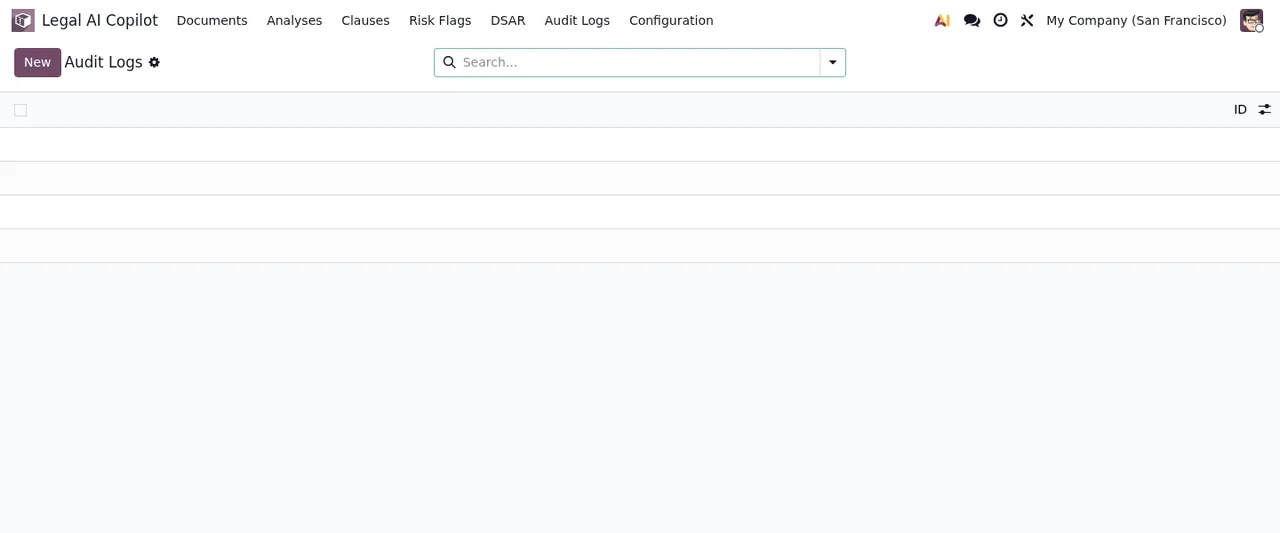
Legal AI Copilot › Audit Logs, with no records: empty rowsWhat to check in the first week
- That the settings (provider, model, approval mode, language, data region and PDF texts) match what you agreed.
- That each new document has the counterparty, the document type and, if you decided so, the linked order or opportunity.
- That the
Reviewercolumn inContract Analysesis not left empty.
- Which values appear in
Analysis Statusand in theStatusofClauses, and whether the team knows what to do with each one.
- That the
Clause Typeslist covers the clauses you care about.
- That you look at what appears in
Audit Logsonce you start working.
If you would like us to set it up with you
At FlexigoTech we implement Odoo 17, 18, 19 and 20 and build bespoke connectors and integrations, so we can help you get the settings and users ready and link contracts to your sales flow. With the subscription, the module for new Odoo versions is included if you bought it at flexigotech.com; on the Odoo App Store, each Odoo version is bought there, from the Legal Tech AI Copilot listing.
Keep reading
Checked in the module's source code (version 20.0) and the linked sources
Sources
- Module source code: flexigo_legal_tech_ai_copilot 20.0 (f1a9082f): models/legal_contract.py
- apps.odoo.com/apps/modules/20.0/flexigo_legal_tech_ai_copilot
- apps.odoo.com/apps/modules/17.0/flexigo_legal_tech_ai_copilot
- apps.odoo.com/apps/modules/18.0/flexigo_legal_tech_ai_copilot
- apps.odoo.com/apps/modules/19.0/flexigo_legal_tech_ai_copilot
- flexigotech.com/en/services.html
- flexigotech.com/precios.html