

 Español
 Català
 Deutsch
 Français
 Português
 Italiano
 Nederlands
 Polski
Where the button is and what you need to press it
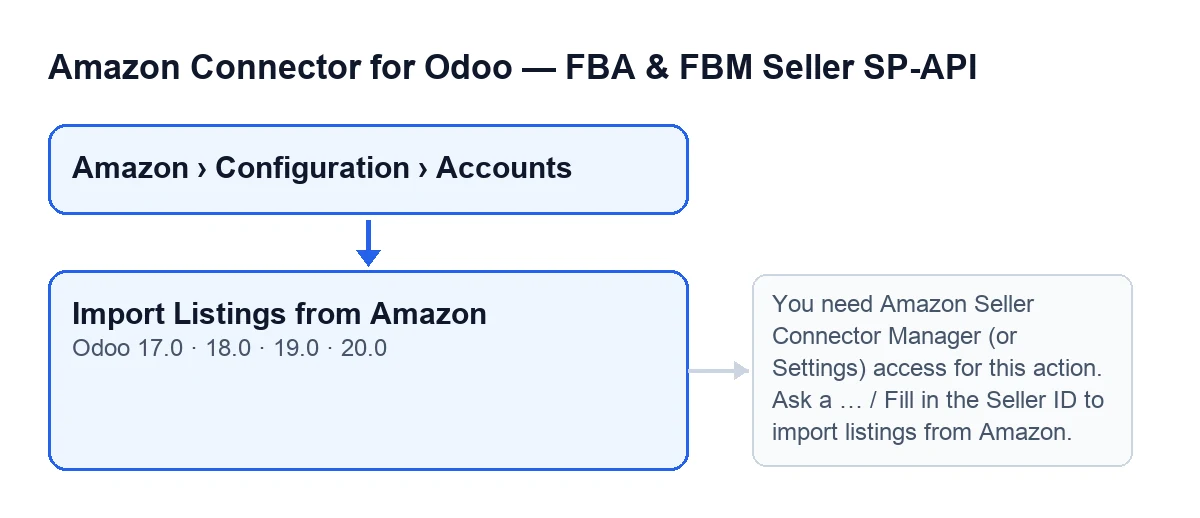
The Import Listings from Amazon button sits on the Accounts screen and is always visible, whatever the state of the record. To get there, go to Amazon › Configuration › Accounts. Each part of the menu asks for a permission, and if you do not have it you do not see that part: Amazon asks for Viewer, Configuration asks for Manager and Accounts asks for Manager. The button exists in Odoo 17, 18, 19 and 20; what follows describes the published code of Odoo 20.0.
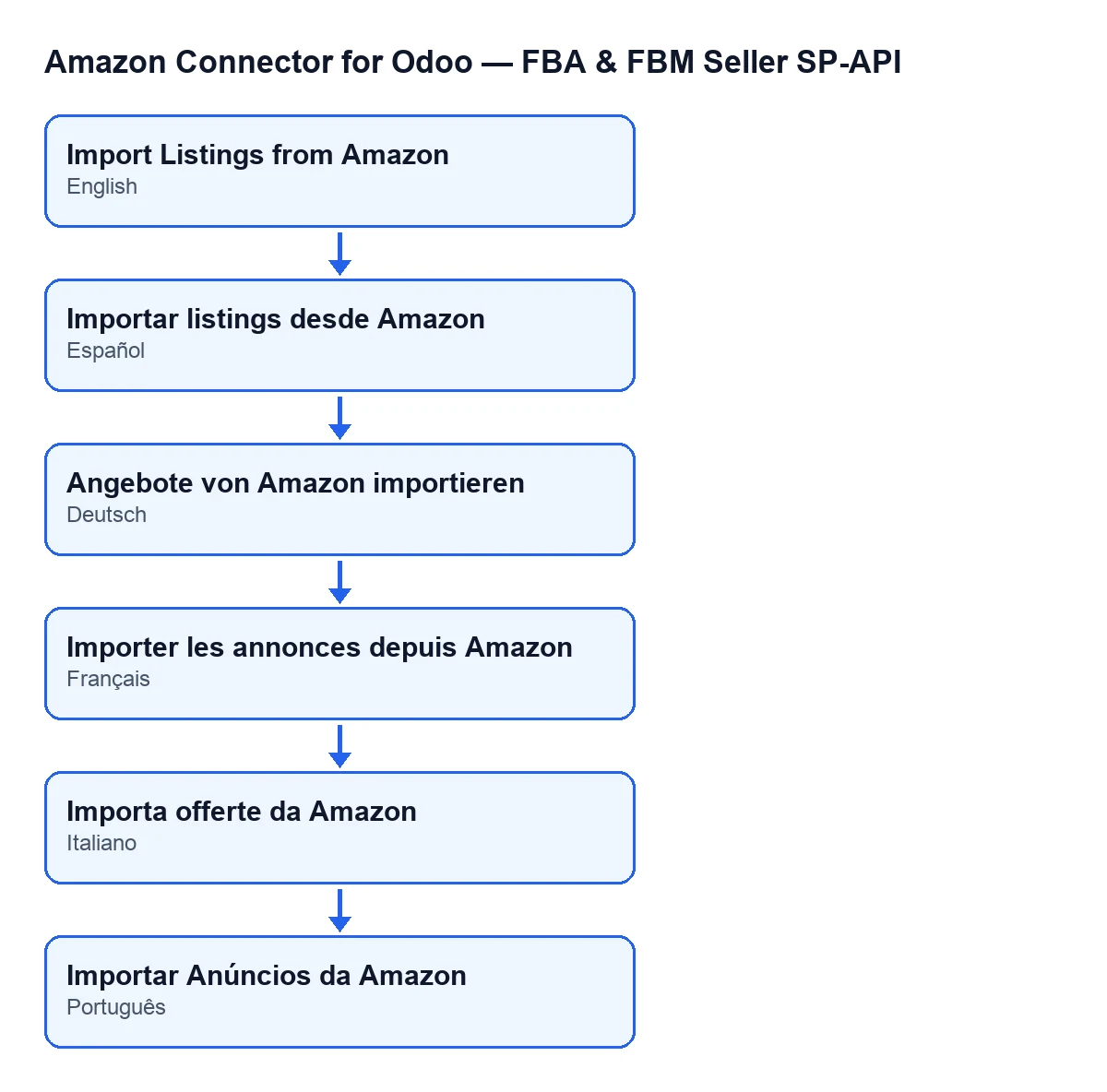
The button label changes with the language of your Odoo. With Odoo in English you see Import Listings from Amazon.
A word on cost before you start: the module is a one-off purchase per Odoo version and also needs a FlexigoTech Cloud subscription. The Connector plan costs €49 a month or €490 a year, excluding VAT, with up to 3 accounts on the platform (the Pro plan, €98 a month or €980 a year, excluding VAT, up to 10). The connection goes through that service, which stores the credentials encrypted.

Step by step: what happens from the moment you press
- Go to
Amazon › Configuration › Accounts, open the Amazon account whose listings you want to bring in and pressImport Listings from Amazon. - The module checks your permissions. If the action runs as the system superuser, it goes straight through. Otherwise your user must belong to the Amazon connector's manager group or to the Settings group, and must also be able to modify that account: the group alone is not enough. If you are in neither group, the import stops here with the missing-access message shown further down.
- For each account the action is launched on, the module checks that
Seller ID (Merchant ID)is not empty (a value of only spaces counts as empty). If it is empty, it stops before asking Amazon for anything. - It builds the index of your local products by SKU: it ignores those without a SKU, compares without telling upper case from lower case and, if two products share a SKU, it counts the duplicate and keeps the first. Next it gathers the bindings that already exist for that account and its marketplace.
- It asks Amazon for the seller's listings in the account's marketplace, page by page. With each listing it requests summaries, offers, fulfilment availability, issues, product types and attributes. The import stops asking for pages, among other cases, when it reaches the maximum number of items to process or when a page comes back empty. If no other value has been set, the code uses at most 300 items and 20 per page.
- For each item received, it skips any without a SKU. For the rest, it looks up by SKU (ignoring case) a local product and an existing binding, and reads the listing's data.
- When each account is finished, the module saves the date and time of the import and the summary text on the account itself, cut to 5000 characters. Unless it has been told to skip it, it also posts that text as a message in the account's chatter.
How to read the summary it leaves
The summary starts with Amazon manual import of listings finished. and Account: … (with the account name). Then comes Manual import from Amazon: and a series of counts, each with its own label:
Local products indexed by SKU: …Duplicate local SKUs ignored: …API pages processed: …API items processed: …Bindings created: …Bindings updated: …Bindings linked to a local product: …Bindings imported without a local product: …Bindings already existing without a local product: …Local SKU/product conflicts: …Odoo products auto-created: …
It is a list of counts, not a listing-by-listing breakdown. If Duplicate local SKUs ignored is not zero, review your products: two of them share a SKU and only one went into the index.
The messages that can stop it
When you press Import Listings from Amazon, the messages below can appear, and the import stops at the point where they do.
Missing access
You need Amazon Seller Connector Manager (or Settings) access for this action. Ask a manager to grant Manager access.
It appears at the permissions step, before anything is touched. It means your user is neither in the connector's manager group nor in the Settings group. Ask someone who already has that access to grant you Manager access, as the message itself says, and press again.
Missing Seller ID
Fill in the Seller ID to import listings from Amazon.
It appears when the account has no Seller ID (Merchant ID). Fill in that field on the Identity tab (Marketplace group) of the account's form and press the button again.
If you want help getting set up
FlexigoTech implements Odoo 17, 18, 19 and 20 and builds connectors and custom integrations. The module page has the purchase details. Other buttons in the same app have their own article: Preview on Amazon and Create the family on Amazon.
Without a subscription, or with the service suspended, what the subscription provides stops; your data stays in your Odoo.
Keep reading
Checked in the connector's source code (version 20.0) and the linked sources
Sources
- Module source code: flexigobe_amazon_seller_connector 20.0 (88c7e241): views/amazon_spapi_account_views.xml
- Module source code: flexigobe_amazon_seller_connector 20.0 (88c7e241): models/amazon_spapi_account.py
- apps.odoo.com/apps/modules/20.0/flexigobe_amazon_seller_connector
- flexigotech.com/en/services.html
- flexigotech.com/precios.html