

 Español
 Català
 Deutsch
 Français
 Português
 Italiano
 Nederlands
 Polski
The case: a T-shirt in sizes and colours
Example Illustrative case: the company and its figures are made up to explain the flow.
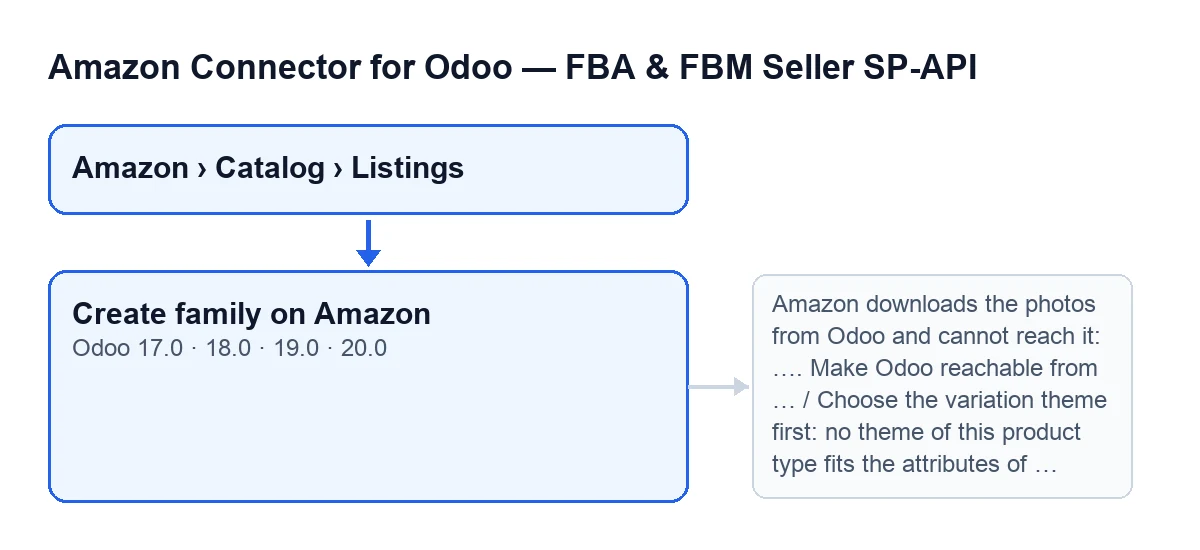
Textiles Marea, an invented company, sells a T-shirt with size and colour variants. In Odoo it is a single product with its variants, and it already has a listing under Amazon › Catalog › Listings. The company wants Amazon to show it as a family: a parent and one child listing per variant. This is what happens when it presses Create family on Amazon.

When the button shows up and who can press it
The button is on the Listings form, in Odoo 17, 18, 19 and 20. It is hidden if any of these conditions holds:
- the product has fewer than two variants (the
Product Variant Countfield); - the
Allow New Product Creationfield is not switched on; - the
Amazon Product Typefield is empty.
With fewer than two variants you will not see the Variation theme field either. To reach the list you need the Viewer permission on each stretch of the menu: Amazon, Catalog and Listings. But seeing the menu is not enough to run the action: the module requires at least Operator access, and if you lack it you get the message in the table below.
What it does when you press it, in order
Textiles Marea opens the T-shirt's listing and presses the button. Here is what the module does, from start to finish:
- It asks for confirmation with this text:
This creates the parent and every variant on Amazon for real. Continue?. Once you accept, this is not a trial run. - It checks your access: at least Operator access to the connector is needed.
- It checks that the account on the listing allows new products to be created on Amazon.
- It checks that Amazon will be able to download the photos from your Odoo. It looks at the website domain if the eCommerce has one and otherwise at
web.base.url. - It prepares the family: it creates a listing for every variant that has a reference and does not have one yet (variants without a reference get no new listing). If the variation theme is empty, the module tries to suggest one.
- It copies the theme, the parent SKU, the product type, the requirements mode and the GTIN exemption to every listing in the family. Attribute values you typed on this listing, apart from the theme ones, are copied to the sibling listings that have them empty.
- It checks that a variation theme is now set. If not, it stops with the matching message.
- It sends the parent to Amazon for real. For its SKU it uses the parent SKU already stored on the listing; if there is none, the product's reference; and if there is none either,
P-followed by the listing's SKU. It records the action under the nameCreate family (parent)with the messageParent …: …, showing the parent SKU and the status Amazon returns. - It goes through the listings in the family that have no ASIN read from Amazon yet and sends each one as a new product: with the values from Odoo and those you typed, and by the same route as
Publish Catalog, with the same log and retries. Each listing checks again that the account allows new products to be created and, in some cases, that Amazon can reach your Odoo to download the photos. - It shows the final notice and reloads the form with the new values.
The messages it can raise
These are messages the button can raise, with when they appear and what to do:
| Message | When it appears | What to do |
|---|---|---|
You need at least Amazon Seller Connector Operator access for this action. Ask a manager to grant Operator or Manager access. | Right after pressing, if your user lacks Operator access. | Ask a manager to grant you Operator or Manager access. |
The listing … has no ASIN from Amazon: sending it would create a new product on Amazon, and the account … does not allow it. If it is already on Amazon, press "Refresh Listing" (your SKU) or "Find ASIN by EAN" (a product others sell) first; to create it, a manager ticks "Allow creating new products on Amazon" on the account. | The account on the listing does not allow new products. | If the product already exists on Amazon, follow the message. If you want to create it, a manager ticks the box on the account. |
Amazon downloads the photos from Odoo and cannot reach it: …. Make Odoo reachable from the Internet (web.base.url or the website domain) before creating the product. | The base address of your Odoo does not resolve only to Internet addresses; the reason replaces the dots. | Make Odoo reachable from the Internet, as the message says, and press again. |
This product has no variants: it goes to Amazon on its own. | While preparing the family, if the product has fewer than two variants. | This button is not for that product. |
Choose the Amazon product type first (button "Suggest type"). | While preparing the family schema, if the listing has no product type. | Choose the type as the message says. |
Choose the variation theme first: no theme of this product type fits the attributes of the variants. | After preparing the family, if the theme is still empty. | Fill in Variation theme on the listing and press again. |
On the listing, the help for Variation theme reads: How the variants differ on Amazon (SIZE, COLOR, SIZE/COLOR…), from the list the product type allows. Empty: the listing goes on its own.
If the variation theme is empty, the module tries to suggest one. If it finds none that fits the attributes of the variants, you get the last message in the table and have to fill in Variation theme by hand. In Textiles Marea's case, that would be the moment to choose the theme on the T-shirt's listing and press the button again.
What changes when it finishes
If everything goes well, you get this notice: Family sent to Amazon (parent and … variants). Press "Refresh Listing" on each later to get the ASIN. The number is the number of listings in the family.
On Amazon, the parent has been sent, followed by each variant without an ASIN. In Odoo there is one listing per variant with a reference, all with the same theme, parent SKU and product type, and the parent's action is recorded as Create family (parent).
Order matters if something fails: the parent goes before the variants. If a variant stops with an error, the parent has already been sent to Amazon.
The account check is not only the button's
The check on whether the account allows new products also applies when the full catalogue of a listing with no ASIN read from Amazon is sent. That includes the scheduled task Amazon SP-API - Auto-repair queue v2, which runs every three minutes and is active once the module is installed.
What to check afterwards
When the sending is done, the notice asks you to press Refresh Listing on each listing in the family, later, to get the ASIN.
Versions, subscription and help
The module is published on Odoo Apps for Odoo 17, 18, 19 and 20, and the button exists in all four. It is a one-off purchase per Odoo version (on its listing or at flexigotech.com) and needs a FlexigoTech Cloud subscription, Connector plan: €49 per month or €490 per year excluding VAT, up to 3 accounts. With the subscription, the module for newer Odoo versions is included if you bought it at flexigotech.com; on the Odoo App Store, each version is bought there.
If you want help implementing Odoo 17, 18, 19 or 20, or with a custom connector or integration, FlexigoTech does that.
Keep reading
Checked in the connector's source code (version 20.0) and the linked sources
Sources
- Module source code: flexigobe_amazon_seller_connector 20.0 (8576afa5): views/amazon_spapi_variation_views.xml
- Module source code: flexigobe_amazon_seller_connector 20.0 (8576afa5): models/amazon_spapi_variation.py
- Module source code: flexigobe_amazon_seller_connector 20.0 (8576afa5): models/amazon_spapi_product_binding.py
- Module source code: flexigobe_amazon_seller_connector 20.0 (8576afa5): models/amazon_spapi_new_product.py
- apps.odoo.com/apps/modules/20.0/flexigobe_amazon_seller_connector
- flexigotech.com/en/services.html
- flexigotech.com/precios.html