

 Español
 Català
 Deutsch
 Français
 Português
 Italiano
 Nederlands
 Polski
When the button shows and what permissions it needs
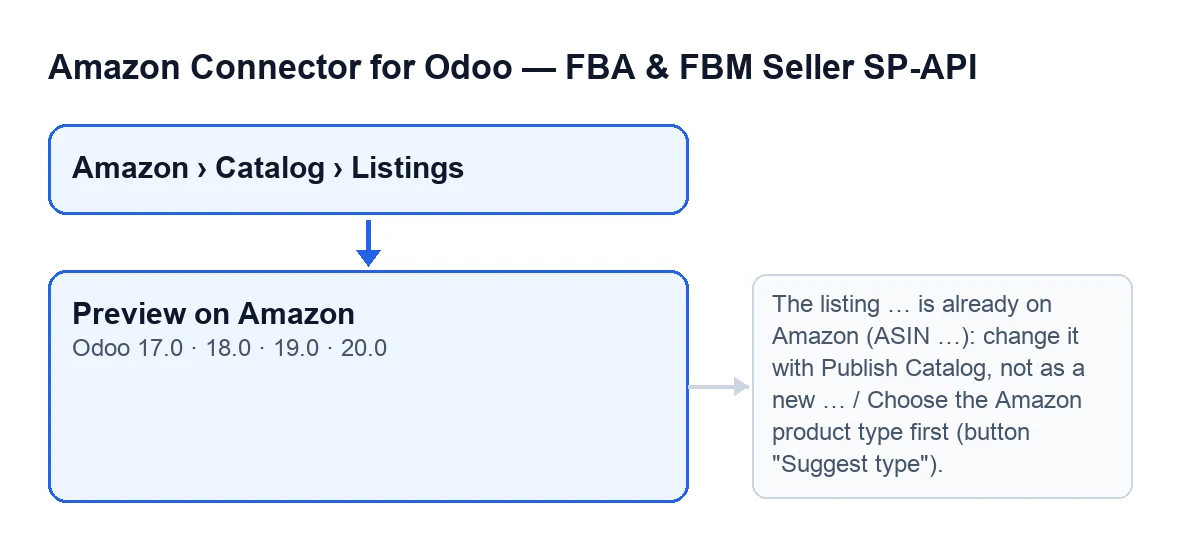
The Preview on Amazon button sits on the Listings form, which you open from the Amazon › Catalog › Listings menu. Every level of that menu asks for the Viewer permission. The button exists in Odoo 17, 18, 19 and 20, with the same visibility condition in all of them. The internal walk-through is the one in the Odoo 20 code.
The condition is this: the button is hidden when the record already has Asin, and also when the Amazon Product Type field is empty. With the default values that field is empty, so on a new record the button stays out of sight until you fill it in.

Step by step: running the preview
- Open
Amazon › Catalog › Listingsand go into the product's record.Vieweris enough to see the menu; to press the button you need at least Operator access. - Fill in
Amazon Product Typein theOverviewgroup. It also appears on theCatalogtab, in theCatalog Statusgroup. Its help text reads: «Required by Listings Items PATCH/PUT.». While it is empty, the button does not appear. - In that same group, look at
AccountandMarketplace: the preview is sent with the record's account, its SKU, that marketplace and that product type. The marketplace help text reads: «Listing marketplace. Example for ES: A1RKKUPIHCS9HS.». - If you need to, check
Requirements Modeon theCatalogtab, in theCatalog Controlsgroup. Its options areLISTING,LISTING_PRODUCT_ONLYandLISTING_OFFER_ONLY, and the default isLISTING. Its help text reads «Mode for putListingsItem (full catalog publication).». The preview sends Amazon whichever mode the record has. - Press
Preview on Amazon. - Read the message that appears at the end. If there are errors it says
Amazon found … errors and … warnings: see "What Amazon says".; if not,Amazon validated the product with no error (… warnings). - Open the
What Amazon saystable, fix what it points out and press the button again. Each press writes the result to the record afresh.
What the button does inside, in order
This is the order in the code, so you know where it can stop and what it leaves written.
- Permissions. It checks that your user has at least
Amazon Seller Connector Operatoraccess and can write to the record. TheViewerpermission is read-only. - Record already on Amazon. If the module has already read this record from Amazon with its ASIN, it stops.
- Linked product. If the record has no linked Odoo product, it stops.
- Product type. If the product type contains only spaces, it stops.
- Photos. Amazon downloads the photos during the preview itself. The module checks whether the Odoo address Amazon would download them from is public (the website's if the eCommerce has a domain; otherwise Odoo's base address). If it is not public and the product has photos, the module does not send them, adds a warning with the reason (to create the product, Odoo has to be reachable from the Internet) and validates everything else. If Amazon still cannot download a photo, the module turns that into one more error in the table, with the reason, rather than cutting the preview short.
- Attributes. It gathers what the module takes from the Odoo product and anything you have typed by hand. What you typed takes priority.
- Call to Amazon. It sends the product to Amazon in validation mode: Amazon reviews it and saves nothing. It also asks for the ASIN the product would match. The module asks Amazon for the issues in your user's language if it looks like a code such as es_ES; otherwise it asks for en_US.
- Sorting. It splits the issues into
Error,WarningandInfoaccording to the severity Amazon gives. Anything that arrives with another severity, or none, counts asInfo. - Writing to the record. It stores what it sent, Amazon's response, the status and the submission identifier, the full issues and the issues by severity with their counts, a summary of errors and another of warnings (the first lines of each, up to five), the attributes sent, the ASIN it would match and the date of the last preview. It also builds the
What Amazon saystable, sorted by severity, with the columnsSeverity,Attribute,What Amazon saysandCode. If Amazon finds nothing, the table shrinks toAmazon found no issue. - Pending attributes. It updates the record's attribute list: one line for each value the product type requires and Odoo does not fill, plus the attributes of the errors Amazon has just given (even when Odoo fills them: that way you see what it sends and can replace it). What you had typed is kept, and an empty line that is no longer asked for goes away.
- Log and message. It records the action under the name
Preview new product, as successful if there are no errors and as an error if there are, with the textAmazon: …, … errors, … warnings, … notes.. Then it shows the final message and reloads the record with the new values.
What changes and what does not
Nothing changes on Amazon: it validates without saving anything. In your Odoo the record changes, with everything in the list above. A preview with Amazon errors is not a failure of the button: it finishes, saves the result and tells you. By contrast, a failure of the call to Amazon itself, other than the photo one, stops the action and nothing it was going to change is saved.
The button's label depends on the language of your Odoo.
Errors that can stop the button
You need at least Amazon Seller Connector Operator access for this action. Ask a manager to grant Operator or Manager access.It appears when you press the button and your user lacksOperatoraccess. Ask a manager to give you Operator or Manager access, as the message itself says.The listing … is already on Amazon (ASIN …): change it with Publish Catalog, not as a new product.It appears when the module has already read this record from Amazon with its ASIN. Do what the message says: change it withPublish Catalog.Choose the Amazon product type first (button "Suggest type").It appears ifAmazon Product Typecontains only spaces: with the field empty the button does not even show. Enter a valid product type.Binding has no linked Odoo product.It appears when the record has no linked Odoo product. The record needs that product before the preview can run.
Going further
The module is published on Odoo Apps for 17, 18, 19 and 20 (Odoo Apps listing) and has its own page on flexigotech.com. It is a one-off purchase per version and needs the FlexigoTech Cloud subscription (Connector plan: €49 a month or €490 a year, excluding VAT). The connection to Amazon goes through FlexigoTech Cloud, which stores the credentials encrypted, watches the synchronisation and emails you if it fails. If you are implementing Odoo and want to connect your Amazon catalogue, FlexigoTech implements Odoo 17, 18, 19 and 20 and builds custom connectors and integrations.
Keep reading
Checked in the connector's source code (version 20.0) and the linked sources
Sources
- Module source code: flexigobe_amazon_seller_connector 20.0 (8576afa5): views/amazon_spapi_new_product_views.xml
- Module source code: flexigobe_amazon_seller_connector 20.0 (8576afa5): models/amazon_spapi_new_product.py
- Module source code: flexigobe_amazon_seller_connector 20.0 (8576afa5): models/amazon_spapi_product_binding.py
- apps.odoo.com/apps/modules/20.0/flexigobe_amazon_seller_connector
- flexigotech.com/en/services.html
- flexigotech.com/precios.html