

 Español
 Català
 Deutsch
 Français
 Português
 Italiano
 Nederlands
 Polski
What to fill in when you add a provider
The provider form is the first thing you touch. Some fields are shared and others depend on whether the provider is DocuSign or Yousign. The field names are in English in the module, so they appear here exactly as you will see them.
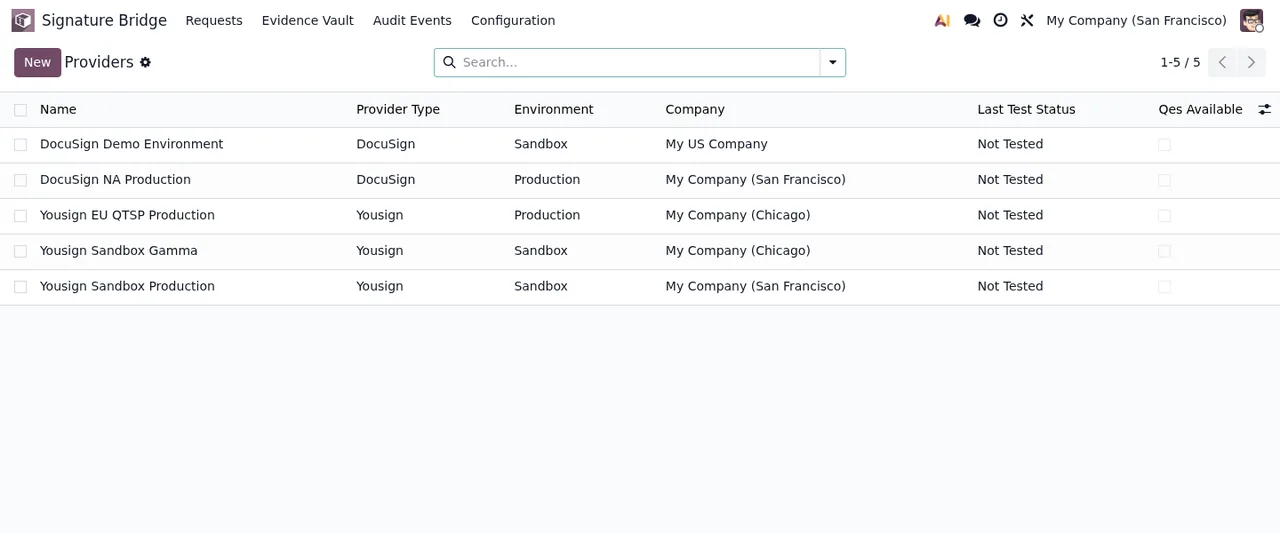
Providers list with demo DocuSign and Yousign providers, all showing Not TestedWhich fields do DocuSign and Yousign share?
Every provider is linked to a company through company_id, a Many2one field to res.company. It also has the Allowed Levels list, whose help text reads Empty = every level the provider supports.: leave it empty and every level that provider supports is allowed; if you want to narrow it down, add only the levels you intend to allow. There is also a DPA Confirmed tick box, an Account / Plan field and an Hourly API Call Limit field, called max_envelope_limit in the code, which holds the limit on API calls per hour.
What does a DocuSign provider form ask for?
The credentials go in Integration Key, API User ID and RSA Private Key. According to its help text, API User ID is the GUID of the user the integration impersonates, and RSA Private Key is stored encrypted. Then come AES Signature Provider and QES Signature Provider: each one holds the signatureProviderName used for AES recipients and for QES recipients respectively.
And a Yousign provider form?
Here the credential is API Key, which is also stored encrypted. The other Yousign-specific field is the QES activated by Yousign tick box. Its help text explains that Yousign keeps QES disabled until its support activates it, so the box should reflect whether Yousign has already switched it on for your account.
What happens if I edit a provider and leave the key blank?
Both RSA Private Key and API Key carry the same help text: Stored encrypted. Leave empty to keep the current one. If you edit the form and type nothing in that field, the key already stored is kept. You only need to fill it in when you want to replace it.
The states you will see in Odoo
The module uses several state fields. It pays to know their values before you start reviewing lists, because they are what appears in the columns and filters.
What does a provider's last test status mean?
It is the last_test_status field, with three values: Not Tested, Success and Failure. In the Providers list in the screenshot above, the demo providers are all on Not Tested.
Which states can a signature record have?
One of the module's state fields accepts these values: Draft, Queued, Sent, Viewed, Partially Signed, Completed, Declined, Voided, Expired and Error. If you want to see what a record goes through internally and which menus are involved, read how the module works under the bonnet.
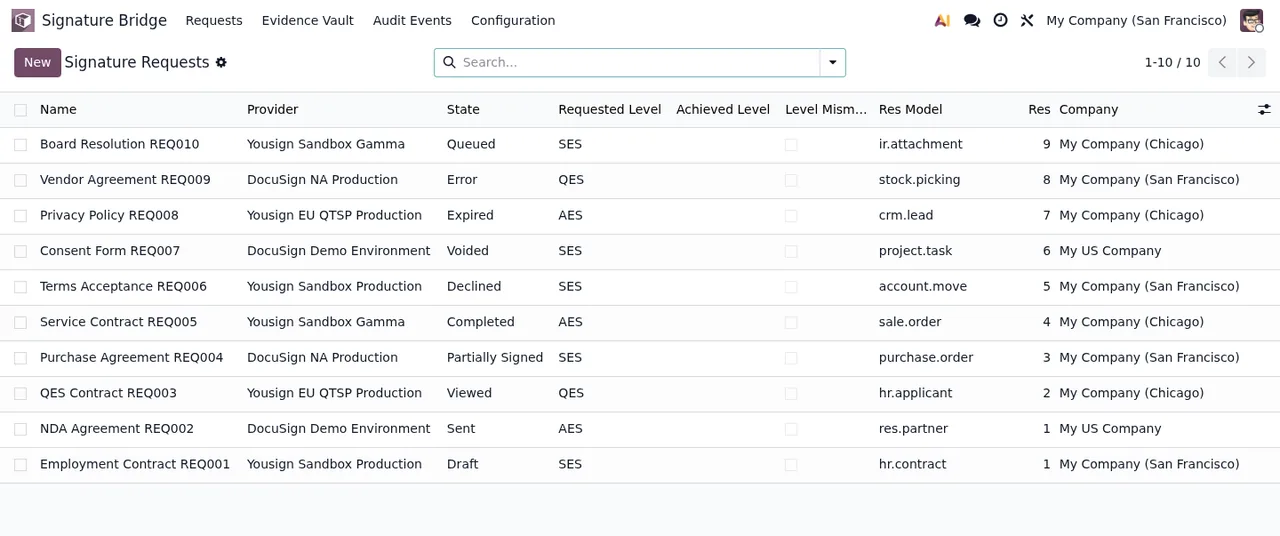
Signature Requests list with demo records and providers from Sandbox and Demo Environment set-upsIs there a second, shorter set of states?
Yes. Another state field in the module has only four values: Pending, Viewed, Signed and Declined. Note that Viewed and Declined exist in both fields, so check which list you are in before drawing conclusions from a filter.
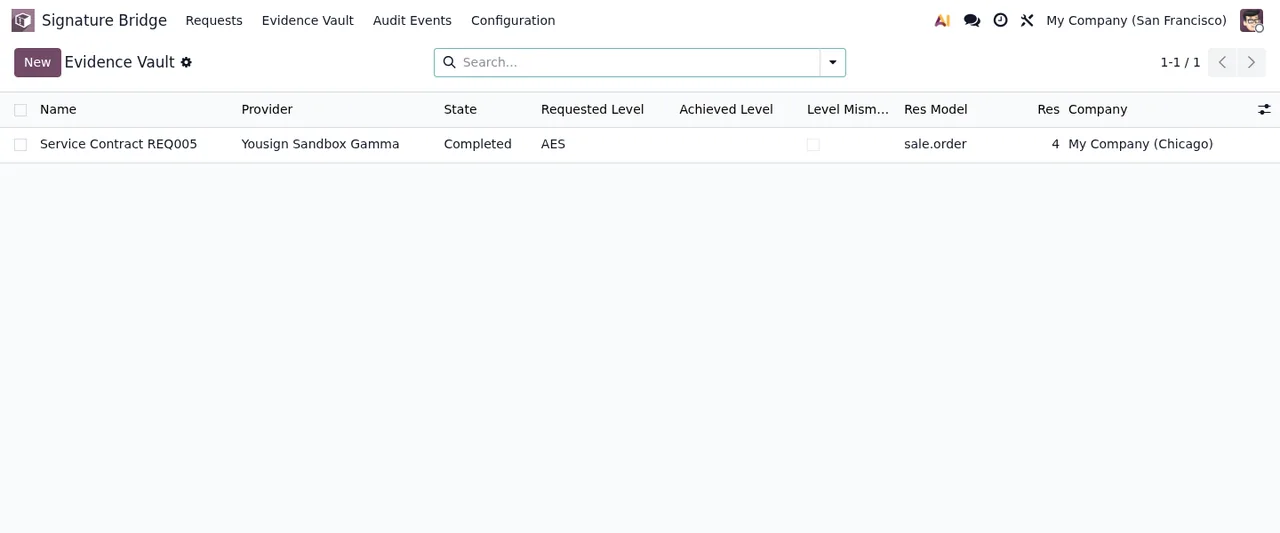
Evidence Vault with a demo record in Completed, requested level AES and linked to sale.orderWhat to check in the first week
Where should I start reviewing?
With the Providers list. Check that the last test status of every provider you plan to use shows Success rather than Not Tested or Failure. Then go through each form and confirm that the company in company_id is right, that Allowed Levels contains what you want to allow (or is empty on purpose), that DPA Confirmed reflects your situation and, for Yousign, that QES activated by Yousign matches what its support has confirmed. For DocuSign, check that AES Signature Provider and QES Signature Provider hold the correct signatureProviderName.
Which signature records deserve a closer look?
Filter the signature records by the Error, Expired, Declined and Voided states and open them one by one. If a record shows an error message, you will find the module's literal texts and what to do about each one in the error messages and warnings. The app has further lists you can go through in the same review: Retention Policies, Webhook Events and Audit Events.
Keep a note of which provider each company uses and which levels you have allowed on each. When someone asks why a level is missing, the answer sits in Allowed Levels on that form.
How FlexigoTech can help
The module is published on Odoo Apps for Odoo 17, 18, 19 and 20, at €9 excluding VAT, a one-off payment per version, on each of them. You can see it on the Odoo Apps listing or on the module page. If you also need Odoo 17, 18, 19 or 20 implemented, or a bespoke connector or integration around your signature workflows, FlexigoTech builds it with you.
Keep reading
Checked in the module's source code (version 20.0) and the linked sources
Sources
- Module source code: flexigo_docusign_yousign_bridge_for_regulated_sign_work 20.0 (d528b22d): models/sign_bridge_provider.py
- Module source code: flexigo_docusign_yousign_bridge_for_regulated_sign_work 20.0 (d528b22d): models/sign_bridge_request.py
- Module source code: flexigo_docusign_yousign_bridge_for_regulated_sign_work 20.0 (d528b22d): models/sign_bridge_signer.py
- apps.odoo.com/apps/modules/20.0/flexigo_docusign_yousign_bridge_for_regulated_sign_work
- apps.odoo.com/apps/modules/17.0/flexigo_docusign_yousign_bridge_for_regulated_sign_work
- apps.odoo.com/apps/modules/18.0/flexigo_docusign_yousign_bridge_for_regulated_sign_work
- apps.odoo.com/apps/modules/19.0/flexigo_docusign_yousign_bridge_for_regulated_sign_work
- flexigotech.com/en/services.html