

 Español
 Català
 Deutsch
 Français
 Português
 Italiano
 Nederlands
 Polski
Where the button is and which fields to keep in view
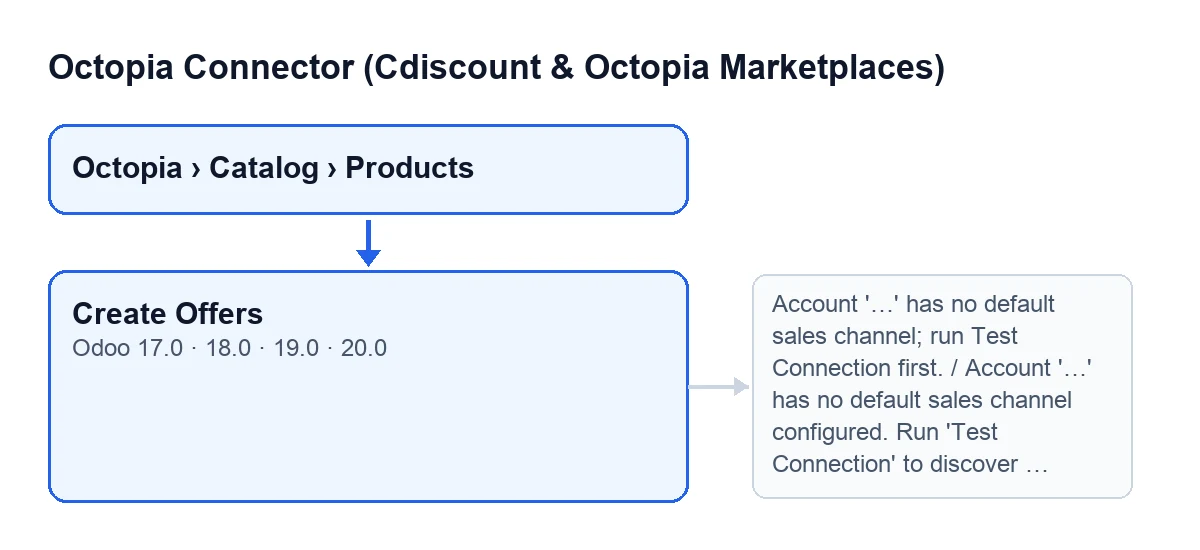
Octopia product records open from Octopia › Catalog › Products. The Octopia part of the menu requires the Octopia User permission: without it you do not see that part of the menu. On that screen, Octopia Products, you will find the Create Offers button. It exists in the 17, 18, 19 and 20 branches of Odoo and is always visible, with no condition.
These fields matter for understanding what the button creates. They are in the Identity group of the form and also in the list: Account, Odoo Product and Seller Product Reference. The help text of the last one reads: Your immutable product reference at Octopia (a support ticket is needed to change it after creation).

What the button does, in the order of the code
For each Octopia product you run the button on, the method follows this order. First it takes the product's account and that account's default sales channel. If the account is in Test Mode, it looks among that account's channels for the one that matches that mode and, if it does not find it, keeps the default channel. If there is still no channel, it stops with a message (you will see them below). If an offer in new condition already exists for that account, that channel and that Octopia product, it moves on to the next product without creating anything. If none exists, it creates the offer. At the end it opens the Offers list.
Wrong ideas about «Create Offers»
«Create Offers publishes my products on Cdiscount»
Fact: the button's method goes through the Octopia products you run it on, creates the offers that are missing and ends by opening the Offers list. That is where the button's job stops. Publishing is a different method in the module, and one of the routes that lead to it without pressing any button is the scheduled task Octopia: push price/stock changes, which runs every 15 minutes and is active on installation. That method picks the channel differently depending on the account's mode, as the last idea explains.
«The button only appears when the account is properly configured»
Fact: the button is always visible. The checks happen when you press it, and these messages can stop it. In them, the … is the account name.
Account '…' has no default sales channel; run Test Connection first.It appears when no sales channel can be found for the product's account.Account '…' has no default sales channel configured. Run 'Test Connection' to discover the subscribed channels, then pick one (or enable Test Mode to target the SELLZZ sandbox channel).It comes from the calculation of the channel the module uses, and the text itself says what to do: runTest Connection, pick one of the channels it discovers, or enableTest Mode.
«If I press it again, I will get duplicate offers»
Fact: before creating anything, the method looks for an existing offer with the same account, the same channel, the same Octopia product and new condition. If one exists, it moves on to the next product without creating anything. The list that opens depends on the outcome: if any offer was created, you see only the created ones; if none was created, you see the offers of the products you ran the button on. With a mixed selection, the list only contains the new ones.
«The offer takes its price and quantity from Octopia»
Fact: each new offer is created with values that come from your Odoo and from the record: the account, the Octopia product you run the button on, the chosen channel, the Seller Product Reference as the offer's reference, the list price of the Odoo product linked on the record and the quantity mode set to stock. From the Odoo product, the button only takes the list price. If that product has no list price, the offer is created with a price of zero.
«It makes no difference which mode the account is in»
Fact: the channel the button uses is the account's default sales channel, except in test mode, where it first tries the SELLZZ sandbox channel. Publishing also makes a distinction: with the account in test mode, every publication goes to the SELLZZ sandbox channel whatever the offer's channel is; outside test mode, the offer's own channel is used. That is why it pays to be clear about which mode the account is in before you create offers.
Subscription and help from FlexigoTech
Octopia Connector is a one-off purchase per version, published on Odoo Apps for 17, 18, 19 and 20, and it needs the FlexigoTech Cloud subscription. The Connector plan costs €49/month or €490/year excluding VAT, for up to 3 accounts on the platform. The price of the module for each version is on its listing. The connection goes through FlexigoTech Cloud, which stores the credentials encrypted, monitors synchronisation and emails you if it fails. Without a subscription, or with the service suspended, whatever the subscription provides stops; your data stays in your Odoo.
If you are implementing Odoo and want the Octopia catalogue set up properly, FlexigoTech implements Odoo 17, 18, 19 and 20 and builds custom connectors and integrations. For another button in the module, there is What the «Send to Octopia» button does.
Keep reading
Checked in the connector's source code (version 20.0) and the linked sources
Sources
- Module source code: flexigobe_octopia_connector 20.0 (4848da6a): views/octopia_completeness2_views.xml
- Module source code: flexigobe_octopia_connector 20.0 (4848da6a): models/octopia_product.py
- Module source code: flexigobe_octopia_connector 20.0 (4848da6a): models/octopia_offer.py
- Module source code: flexigobe_octopia_connector 20.0 (4848da6a): models/octopia_account.py
- Module source code: flexigobe_octopia_connector 20.0 (4848da6a): models/octopia_ffm_setup.py
- apps.odoo.com/apps/modules/20.0/flexigobe_octopia_connector
- flexigotech.com/en/services.html
- flexigotech.com/precios.html