

 Español
 Català
 Deutsch
 Français
 Português
 Italiano
 Nederlands
 Polski
Where the button is and when you see it
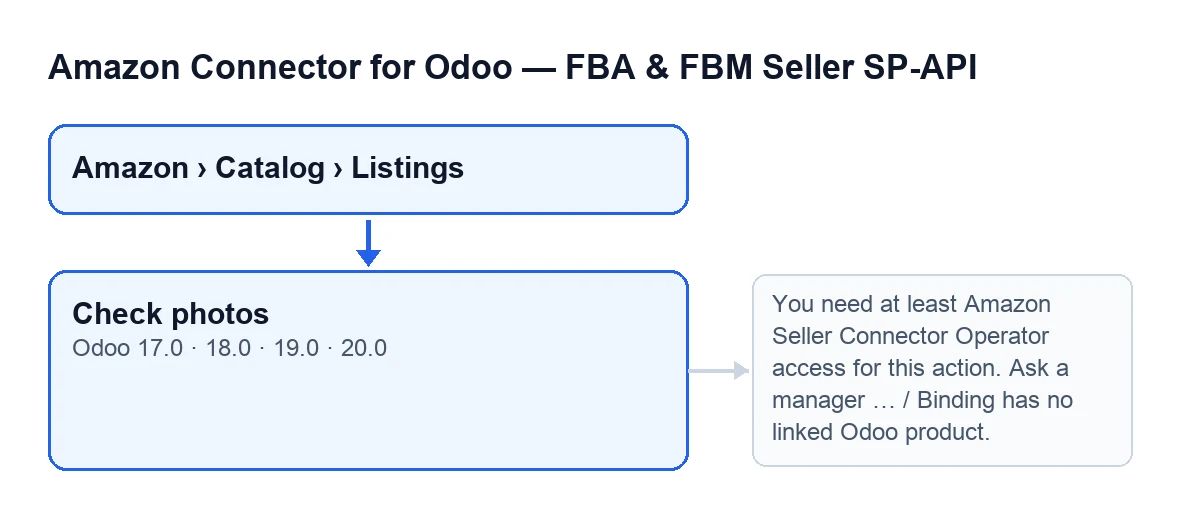
Listing records open from the menu Amazon › Catalog › Listings, and every part of the menu asks for the Viewer permission. The Check photos button is on that screen in Odoo 17, 18, 19 and 20.
It is hidden when the Asin field has a value. With the default values that field is empty, so the button shows. If you open a listing and cannot find the button, first check whether Asin is filled in.

A case to follow from start to finish
Example Illustrative case: the company and its figures are made up to explain the flow.
Casa Norte is an invented homeware shop preparing a new listing on Amazon. The catalogue manager opens Amazon › Catalog › Listings, goes into the record for a frying pan that has no Asin yet and clicks Check photos.
This is what the module does, in this order:
- It checks your permission. You need at least Operator access to the connector (the message mentions "Amazon Seller Connector Operator") and the ability to write to that record. Someone acting as the system superuser passes this check.
- Before looking at any photo, it requires the listing to have a linked Odoo product. If it has none, the action stops and nothing it was about to change is saved.
- It goes through the product's photos one by one and builds a report, with one entry per photo.
- It saves the report and the overall result (good or not) on the record.
- It raises a notice. If everything is fine,
Photos ready for Amazon., as a success notice. If something fails,Some photos are not ready: see "Photo check"., as a warning notice. When it finishes, the web client reloads the record with the new values.
In Casa Norte's case the first photo is fine and the second is too small. The report lists the first with OK and the second with !!, and next to the latter there is text such as …x… px: Amazon asks for at least 500 px on the longest side (1000 px to zoom). The notice comes out as a warning. The manager replaces the small photo, clicks the button again and this time gets Photos ready for Amazon.
What is checked in each photo
The module looks at the photo as Amazon will get it. For each one, in the order the code runs its checks:
- Format: it must be JPEG or PNG. Otherwise the report says
it is …: Amazon takes JPEG or PNG. - Size in pixels: at least 500 px on the longest side (the report reminds you that 1000 px are for zoom).
- Readability: if the image cannot be opened, the report says
the image cannot be read. - Weight: it cannot exceed 10 MB; if it does,
it weighs more than 10 MB. - The photo's URL: it is requested from outside and has to answer properly, return a JPEG or PNG image and be exactly the same photo as the one stored in Odoo.
About the URL, the report texts are the URL does not answer: …, the URL answers HTTP … (when the response is not the right one), the URL returns …, not an image and the URL returns another image (Odoo's placeholder?), not this photo. The code itself explains the last case: an expired or wrong token returns Odoo's placeholder instead of the photo.
Each entry in the report carries OK or !!, the photo's name, the problems separated by semicolons (or ready if there are none) and the URL.
If Odoo is not reachable from the Internet
The module looks for a public address for Odoo. If it finds none, the report starts with Amazon cannot download the photos: …. Odoo has to be reachable from the Internet (set a public web.base.url or the website domain)., where the dots stand for the specific reason. The format, size, readability and weight checks still run, but no URL is requested and the overall result is left as not good.
If the product has no photos
The report is just The product has no photo in Odoo: Amazon needs at least the main image. and the result is left as not good.
The messages that stop the button
When you click Check photos, the action can stop with one of these messages.
You need at least Amazon Seller Connector Operator access for this action. Ask a manager to grant Operator or Manager access.
It appears when you click the button and your user does not have at least Operator access to the connector. The menu only asks for Viewer in each part, so you can reach the screen and still lack the permissions for this action. The fix is what the message says: ask a manager to grant you Operator or Manager access. The action stops there and no report is saved.
Binding has no linked Odoo product.
It appears when you click the button and the listing has no Odoo product linked. Link the listing to an Odoo product and click again.
What the button is called in your language
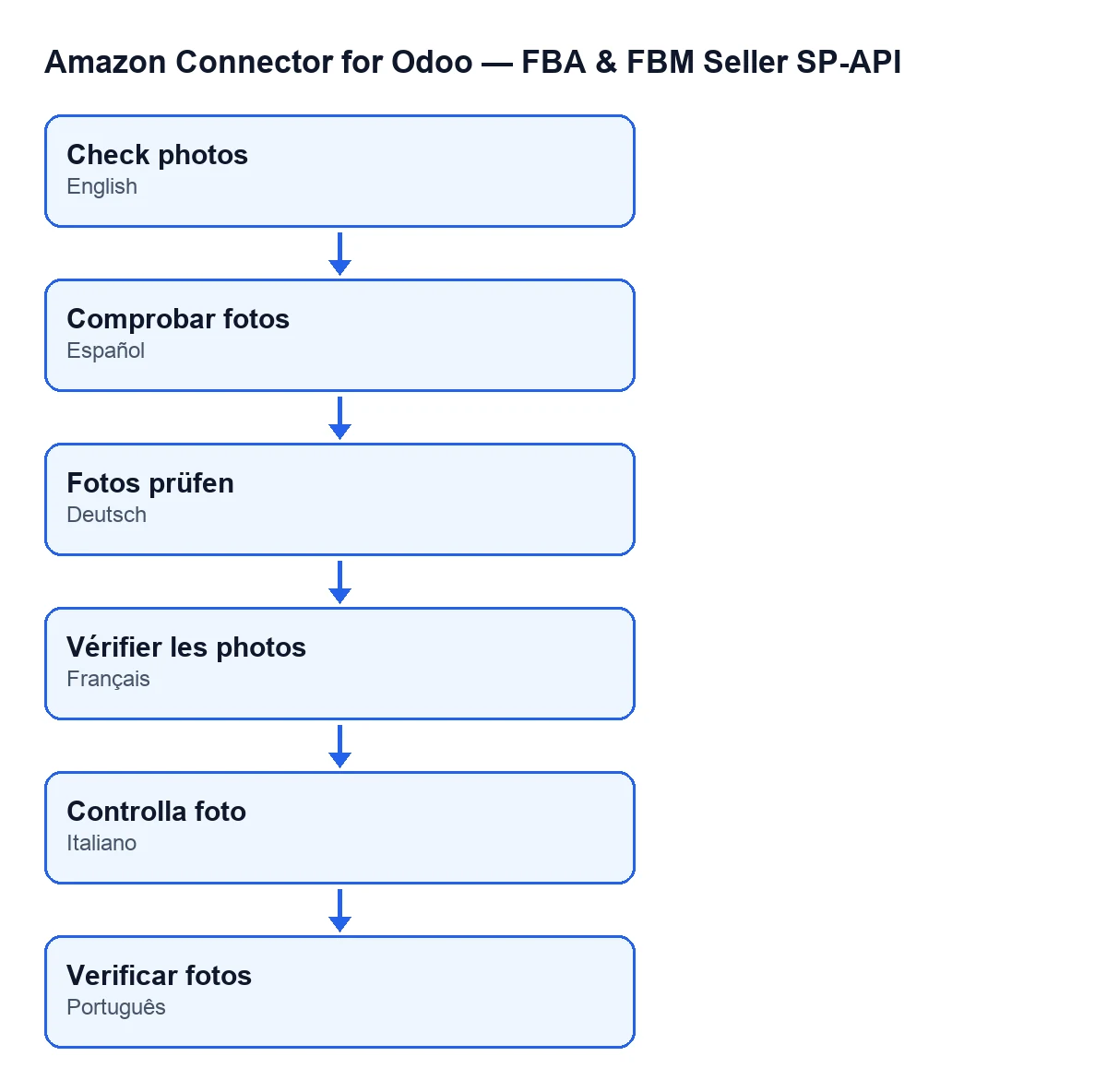
With Odoo in English the button is called Check photos. The module's published translations give it a different label in other languages, as the second diagram shows.
What to remember from the case
- The button is for listings that have no
Asin; onceAsinis filled in, it is no longer shown. - A warning notice is not an error: the detail is in the report saved on the record, photo by photo.
- A listing with no linked product, or a user without Operator access, never gets to a report.
- A working URL is not enough: it has to return the same image that is stored in Odoo.
Cost and help
The module is a one-off payment per Odoo version (published for 17, 18, 19 and 20) and needs the FlexigoTech Cloud subscription, Connector plan: €49 a month or €490 a year, excluding VAT. You can find the listing on Odoo Apps and the module page.
If you are implementing Odoo and want the Amazon connector up and running, FlexigoTech implements Odoo 17, 18, 19 and 20 and builds custom connectors and integrations.
Keep reading
Checked in the connector's source code (version 20.0) and the linked sources
Sources
- Module source code: flexigobe_amazon_seller_connector 20.0 (8576afa5): views/amazon_spapi_new_product_views.xml
- Module source code: flexigobe_amazon_seller_connector 20.0 (8576afa5): models/amazon_spapi_new_product.py
- Module source code: flexigobe_amazon_seller_connector 20.0 (8576afa5): models/amazon_spapi_product_binding.py
- apps.odoo.com/apps/modules/20.0/flexigobe_amazon_seller_connector
- flexigotech.com/precios.html
- flexigotech.com/en/services.html