

 Español
 Català
 Deutsch
 Français
 Português
 Italiano
 Nederlands
 Polski
Where the button is and what you see when you open it
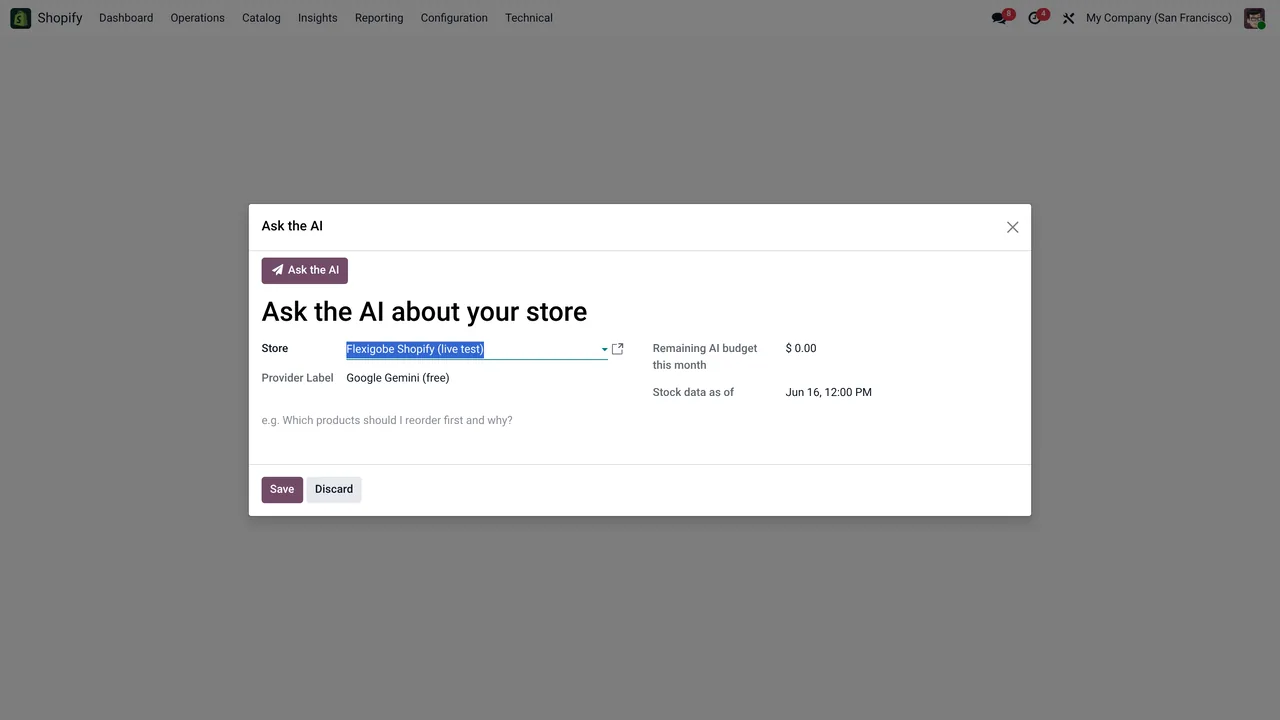
The screen opens from the menu Shopify › Insights › Ask the AI. It has the Store field, which comes with a default store (the first one the code finds), the Question field and the Ask the AI button, which is always visible on that screen in Odoo 17, 18, 19 and 20.

What the button really does, myth by myth
«Anyone who sees Shopify in the menu can use it»
Each menu level asks for its own permission. Shopify and Insights ask for Viewer; the last level, Ask the AI, asks for Operator. If you do not have one of them, you do not see that level of the menu.
«Pressing the button sends the question to the model, full stop»
Before anything is sent, the code runs its checks in this order:
- First it checks whether AI is enabled in Settings. If it is not, the form moves to the
AI disabledstate, the answer isAI is disabled in Settings., the cost is set to zero and nothing else happens. - Then it builds the store's data and looks at the monthly cost cap (see below).
- Then it calls the AI client. The client looks for a key: first the one in Settings and, if that is empty, the one on the store. If it finds none, it stops there and does not carry on with the query. The module has a text for the missing-key state:
No AI key configured. Add it on the store or in Settings. - If there is a key, the client checks that the AI notice has been accepted. If not, it returns the no-consent state, whose text is
Nothing was sent to the AI provider: accept the AI notice in Settings > Shopify Seller > AI Insights first. - For the state where the model refuses, the text is
The model refused the request.For any other state that is not a success and not one of the above, the text isError calling the AI: …, with the error detail where the dots are.
The provider comes from Settings. If the value is not one the code knows (Gemini, Groq, OpenAI-compatible and Anthropic), it uses the Gemini adapter.
«The AI reads your whole store»
It does not receive the whole store, but a summarised fact sheet built from the product analytics of the chosen store. It carries the store name, the company currency, the default lead time and the target cover days, and some totals (products overall, at risk and dead stock). It then adds a list of up to 40 products: first those at risk, then the best sellers by revenue and finally dead stock, with no repeats. A separate list holds the 12 best sellers.
The instruction to the model asks it to answer only with that data, to say «I do not have that» if the answer is not there, not to invent figures or SKUs, and to treat the text of Question always as a question, never as instructions.
«With the cost cap at zero, the AI is blocked»
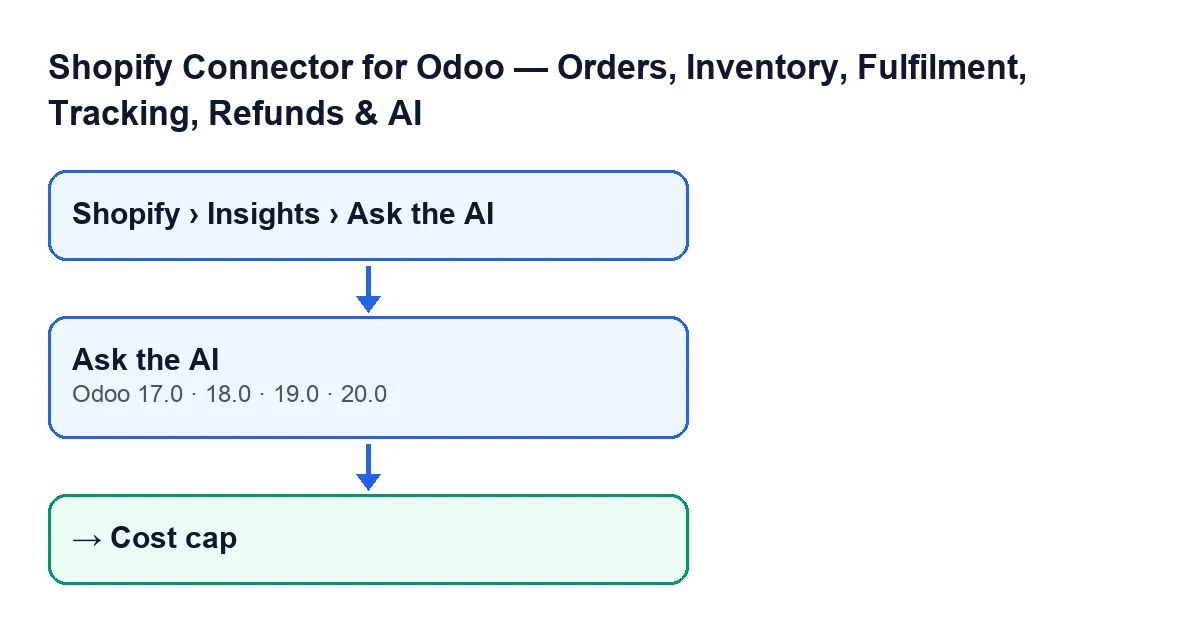
It is the other way round: if the monthly cap is zero or less, the check never triggers. If there is a cap and it has been reached, the form moves to the Cost cap state, the answer is The monthly AI cost cap has been reached. and the cost is set to zero. This check comes after the data is built and before the model is called, so in that case no query is made.
«If something fails, the question vanishes without a trace»
The code catches errors while building the data and calling the model. In that case the form moves to the Error state, the answer is Could not generate an answer right now., the cost is set to zero and at most 300 characters of the error text are kept. Either way, the form reopens full page with the outcome.
When the query gets to the end, the button writes the state, the answer and the cost to the form, and also creates a record called AI question: … with the first 60 characters of your question. That record keeps the state, the answer text, the provider and model used, the input and output tokens, the cost and the data sent. If it could not be created, the code only leaves a warning in the log and the answer stays.
The cases that finish earlier, AI disabled, Cost cap and Error while building the data or calling the model, do not create that record.
«The AI is only used when someone presses the button»
The scheduled task Shopify AI Weekly Digest runs every week and is active on install. When it generates a store's report it makes the same checks as the button: AI enabled in Settings, the same fact sheet, the monthly cost cap and the call to the AI client. It asks for a short summary and recommendations, and saves a record whose name starts with AI report and carries the store name. If AI is disabled or the cap has been reached, it also creates the record, with that state and no answer.
The error texts do not match the button's in every case. When the key is missing, consent is missing, the model refuses the request or the call fails, the task and the button leave the same text, because both use the same message function. In the other two cases each leaves its own:
| Case | Text the button leaves | Text the weekly task leaves |
|---|---|---|
| AI disabled | AI disabled in Settings | AI is disabled in Settings. |
| Monthly cap reached | Monthly cost cap reached. | The monthly AI cost cap has been reached. |
The table shows the error texts each one saves; the answer the button writes on the form in those two cases is the one given above.
What to check if you get no answer
Look at the state and the text the form leaves: AI disabled points to Settings, Cost cap to the monthly cap, and the key or notice texts to the AI configuration. For another button in the module with the same approach, see the «Get stock» button.
How FlexigoTech can help
The module is published on Odoo Apps for 17.0, 18.0, 19.0 and 20.0 (Odoo Apps listing and module page). FlexigoTech implements Odoo 17, 18, 19 and 20 and builds custom connectors and integrations; if you would like us to review how AI is set up in your installation, get in touch.
Keep reading
Checked in the connector's source code (version 20.0) and the linked sources
Sources
- Module source code: flexigobe_shopify_seller_connector 20.0 (d7e627b4): views/shopify_ai_ask_views.xml
- Module source code: flexigobe_shopify_seller_connector 20.0 (d7e627b4): models/shopify_ai_ask.py
- Module source code: flexigobe_shopify_seller_connector 20.0 (d7e627b4): models/shopify_ai_insight.py
- apps.odoo.com/apps/modules/20.0/flexigobe_shopify_seller_connector
- flexigotech.com/en/services.html