

 Español
 Català
 Deutsch
 Français
 Português
 Italiano
 Nederlands
 Polski
Where it is and when it shows
The Sync Sales & Traffic button is on the Accounts screen, which you reach through Amazon › Configuration › Accounts. In Odoo 17, 18, 19 and 20 it is always visible on that screen. What depends on your permissions is the route to it: the Amazon step asks for Viewer, and the Configuration and Accounts steps ask for Manager; if you lack the permission for a step, you do not see that step.
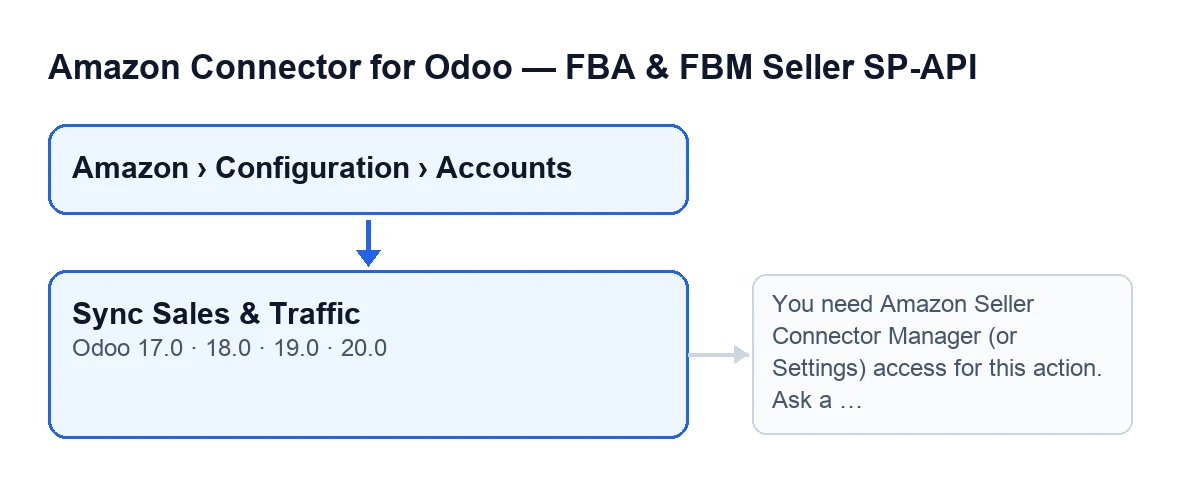
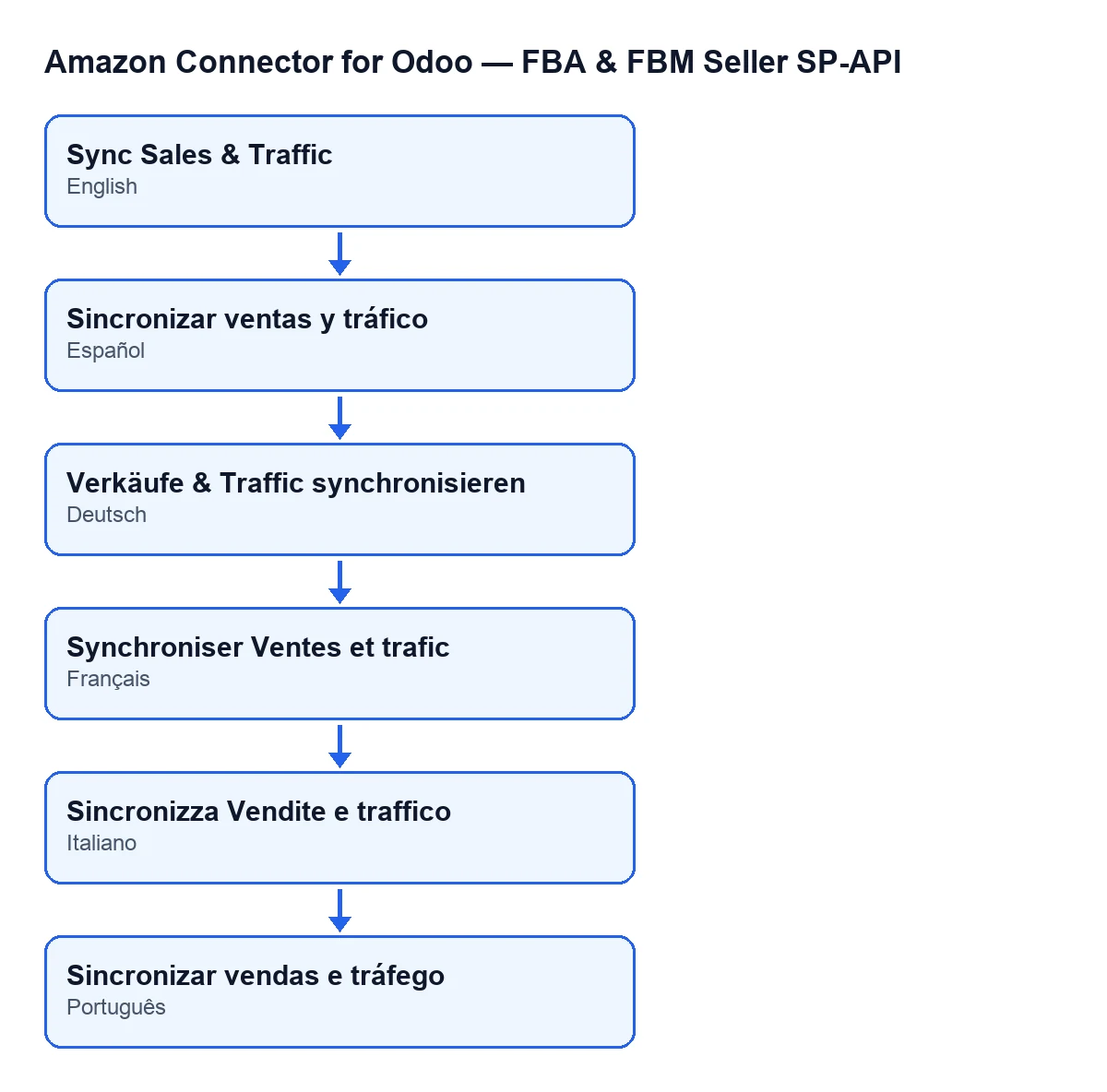
The button label is translated, so it reads differently depending on the language of your Odoo. The second diagram shows how it reads in other languages.

Common misconceptions about the button
“You have to press it every day to keep the data current”
Reality: if the account has the sales and traffic sync switched on, Odoo runs it by itself. The scheduled task Amazon SP-API - Sync Sales & Traffic runs once a day and is active on installation. It goes through the active accounts that have that sync switched on and, for each one, runs the same sync as the button. If one account fails, the task writes it to the server log and carries on with the next. The button is there for running it by hand when you do not want to wait for the next pass; in that case the result text marks the source as manual instead of the scheduled task.
“If the button is visible, anyone with menu access can press it”
Reality: the first thing it does when pressed is check permissions. You must belong to the Amazon connector's manager group or have Settings access. If not, the action stops with this message and asks Amazon for nothing: You need Amazon Seller Connector Manager (or Settings) access for this action. Ask a manager to grant Manager access. The button also checks that you can modify the account, so the group on its own is not enough. The fix is what the message itself says: a manager has to give you manager access. The scheduled task does not go through this check, because it calls the sync directly.
“Pressing it is instant: it asks for the data and it is already in Odoo”
Reality: in Odoo 20.0 the action runs a full cycle and waits inside the click itself. In order:
- Before requesting anything, the code looks for a warning note. If there is one, it adds the note to the result text, saves it, posts it as a message on the account's form and ends there, without requesting the report.
- It works out the period: it ends today and starts as many days back as the account has configured; if that value is empty it uses 30 days, and it never goes below one.
- It asks Amazon for the sales and traffic report, broken down by day and grouped by parent ASIN.
- It asks for the report's status up to 12 times, pausing 10 seconds between attempts, and stops asking as soon as Amazon reports it as finished, cancelled or failed.
- If it is finished, it downloads the document and imports it into the daily sales and traffic summary, counting the days in the report and how many are created, updated or skipped.
“If Amazon does not answer in time, the attempt is lost without a trace”
Reality: if, once the attempts run out, the report is not finished (Amazon cancelled it, marked it as failed, or it is still not done), the code adds the report identifier, its status and an explanation for the case to the result, saves the text and posts it as a message on the account's form. It then ends without importing anything. The same happens if the report arrives finished but without a document to download. The button stays visible, so you can run it again later.
“Errors look the same with the button as with the scheduled task”
Reality: it depends on who launches the sync. With the button, any error is raised again and you see it on screen. In the scheduled task, an error that the module treats as a configuration error adds a configuration-error line to the result, and any other error adds a line with its text and also leaves a warning in the server log.
“Buying the module is all it takes”
Reality: the module is a one-off payment per Odoo version and is published on Odoo Apps for 17, 18, 19 and 20 (see the listing). It also needs a FlexigoTech Cloud subscription, Connector plan: €49 a month or €490 a year, excluding VAT, for up to 3 accounts of the platform. The connection goes through FlexigoTech Cloud, which stores the credentials encrypted, monitors the sync and emails you if it fails. Without a subscription, or with the service suspended, whatever the subscription provides stops; your data stays in your Odoo.
How FlexigoTech can help
FlexigoTech implements Odoo 17, 18, 19 and 20 and builds custom connectors and integrations. If you are setting up the Amazon connector, you will find the module on its page.
Keep reading
Checked in the connector's source code (version 20.0) and the linked sources
Sources
- Module source code: flexigobe_amazon_seller_connector 20.0 (8576afa5): views/amazon_spapi_account_views.xml
- Module source code: flexigobe_amazon_seller_connector 20.0 (8576afa5): models/amazon_spapi_account.py
- apps.odoo.com/apps/modules/20.0/flexigobe_amazon_seller_connector
- flexigotech.com/precios.html
- flexigotech.com/en/services.html