

 Español
 Català
 Deutsch
 Français
 Português
 Italiano
 Nederlands
 Polski
Where the button is and what it is called
The Sync Restock Recommendations button is on the Accounts screen, which you reach through Amazon › Configuration › Accounts. The Amazon level of the menu asks for the Viewer permission; the Configuration and Accounts levels ask for Manager, so with Viewer alone you do not see that screen. The button has no view condition: it is always visible, and it exists in Odoo 17, 18, 19 and 20.
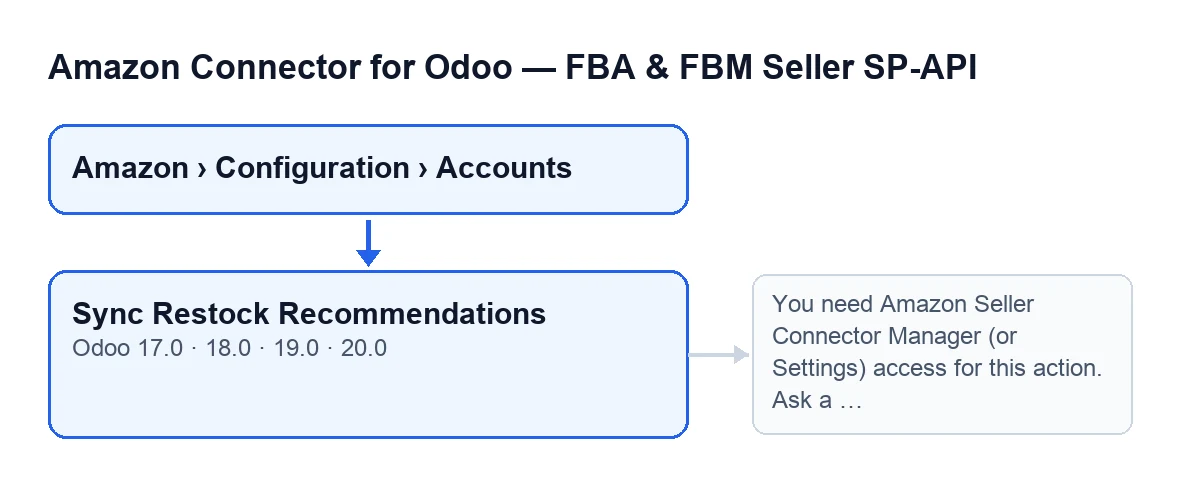
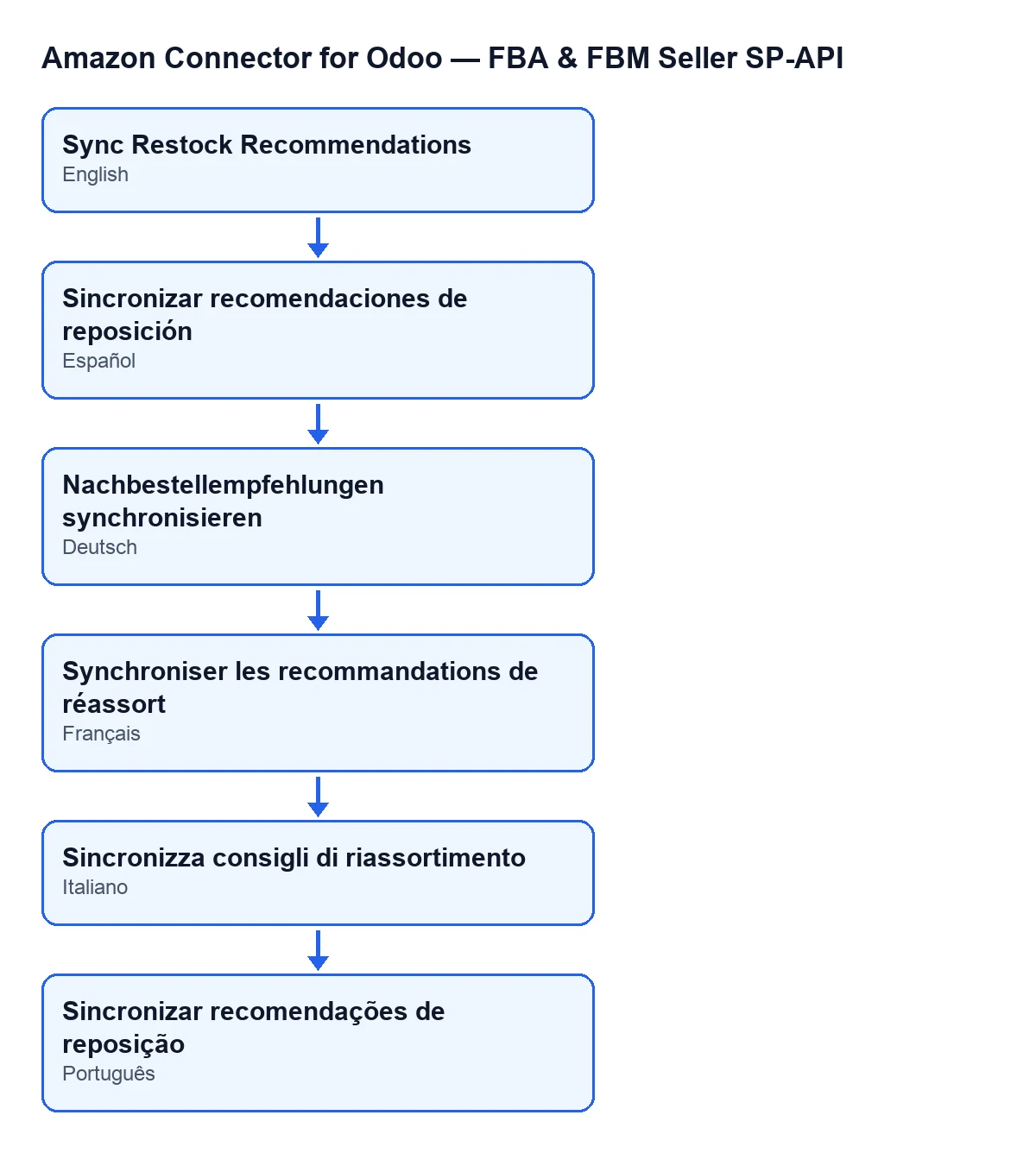
The label depends on the language of your Odoo: with Odoo in English it reads Sync Restock Recommendations, and the module ships translations for other languages.

Step by step: what the button does and what changes
The automatic route is the scheduled task; the button is for running the same sync by hand. Here is the real order, starting with what Odoo does without you pressing anything:
- Let Odoo do it on its own. The scheduled task
Amazon SP-API - Sync restock recommendations report (opt-in)runs every day and is active from the moment the module is installed. It goes through the active accounts that have the restock recommendations sync switched on and runs, for each one, the same sync as the button. If an error reaches the task, it writes a warning in the server log and moves on to the next account. On this route the summary is not posted in the account's chatter. - Open the accounts screen. Go to
Amazon › Configuration › Accounts. You need theManagerpermission to see theConfigurationandAccountslevels. - Press the button to run it by hand.
Sync Restock Recommendationsis visible without any condition in versions 17, 18, 19 and 20. Use it when you want a sync now rather than waiting for the daily task. - The module checks your permissions. This is the first thing the button does, and the check happens on the server, not just in the view: your user must have the connector's
Managerpermission or the Settings one, and must also be able to write to that account. If you lack the group, the action stops with the message you will see below. - It requests the report from Amazon. Odoo asks Amazon to create the restock recommendations report. If Amazon's reply carries no report identifier, the sync goes no further, with no status check and no document request.
- It checks the report status. Odoo asks Amazon for the report's status, pausing between checks and with a limited number of attempts. It stops asking as soon as the report is finished, cancelled or fatally failed, or when the attempts run out.
- If there is no usable report, it stops there. That happens if Amazon cancels it or it fails, if the report does not finish within the attempts, or if it arrives finished but without a document identifier. In those cases the account stores the date of the run and the result text, and the button posts that result in the account's chatter. If the result reads
Report polling timed out. Try again in a few minutes., the text itself suggests trying again in a few minutes; because the button is always visible, you can press it again. - If the report is ready, the document goes to the importer. Odoo requests the report document and hands it to the module's importer. When it finishes, the summary counts the rows in the report (
Report rows), the rows processed (Processed rows), and how many were created (Created), updated (Updated), skipped (Skipped) or ended with an error (With error). - Read the result. With the button, the summary is left as a message in the account's chatter, with the account, the source, the report identifier (
Report ID) and its status (Report status). The account also stores the date of that last run and the result text. Inside that text, theSource: …line saysManualif the sync was started with the button andCRONif the scheduled task started it.
The permissions message: when it appears and what to do
When you press Sync Restock Recommendations, the permissions check can stop the action with this message:
You need Amazon Seller Connector Manager (or Settings) access for this action. Ask a manager to grant Manager access.
It appears when your user has neither the connector's Manager permission nor the Settings one. The fix is the one the message gives: ask for the connector's Manager access to be granted to you. According to the module, only those two groups can write to accounts, and a viewer can only read them; that is why the check does not rely on the button being shown or hidden in the view, but is repeated on the server before Amazon is reached with the account's credentials.
If you do not get the message but cannot see the Accounts screen, the reason is the menu: the Configuration and Accounts levels ask for Manager.
What you need to use it
The module is a one-off payment per Odoo version, is published for 17, 18, 19 and 20, and needs the FlexigoTech Cloud subscription, Connector plan: €49 a month or €490 a year excluding VAT, with up to 3 accounts on the platform. The connection goes through FlexigoTech Cloud, which stores the credentials encrypted and watches the sync. You can find the listing on Odoo Apps and the module page.
If you are implementing Odoo and want to review how Amazon accounts and their permissions fit together, FlexigoTech implements Odoo 17, 18, 19 and 20 and builds custom connectors and integrations. Other buttons of the connector explained the same way: Preview on Amazon and Create the family on Amazon.
Keep reading
Checked in the connector's source code (version 20.0) and the linked sources
Sources
- Module source code: flexigobe_amazon_seller_connector 20.0 (88c7e241): views/amazon_spapi_account_views.xml
- Module source code: flexigobe_amazon_seller_connector 20.0 (88c7e241): models/amazon_spapi_account.py
- apps.odoo.com/apps/modules/20.0/flexigobe_amazon_seller_connector
- flexigotech.com/en/services.html
- flexigotech.com/precios.html