

 Español
 Català
 Deutsch
 Français
 Português
 Italiano
 Nederlands
 Polski
When the button shows and who can press it
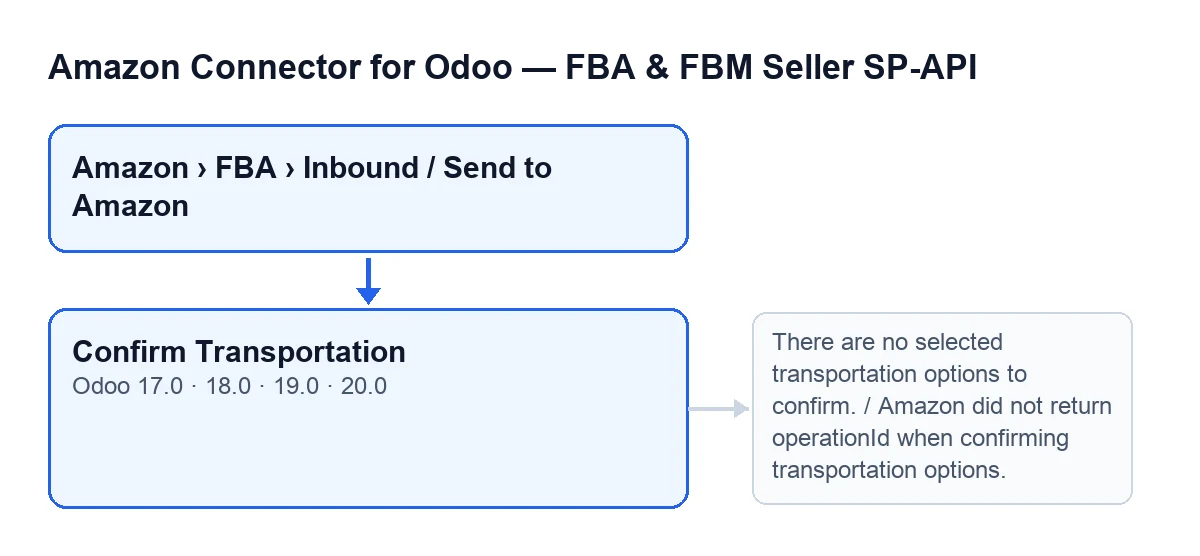
You get there from Amazon › FBA › Inbound / Send to Amazon; every segment of that menu asks for the Viewer permission. On the Send to Amazon form, the Confirm Transportation button stays hidden while the plan has nothing in Shipments, the field on the Placement & Transportation tab. With default values it is not visible. The button exists in Odoo 17, 18, 19 and 20.
Seeing the button is not enough: the first thing it does when pressed is check your permission. If you do not have at least Operator access to the connector, it stops with You need at least Amazon Seller Connector Operator access for this action. Ask a manager to grant Operator or Manager access. The code also checks that you can write to the plan.

What Odoo does on its own and what only the button does
The scheduled task Amazon SP-API - Refresh open FBA inbound plans runs every hour and is active on install. It reads the plan from Amazon and, if Amazon returns shipments, updates the ones in Odoo; if Amazon reports the plan as shipped, it sets the State to Shipped. That task brings information in from Amazon; the button is what sends the transportation confirmation. What they share is the last step: refreshing the shipments from Amazon.
A case to follow: Tienda Lumbre
Example Illustrative case: the company and its figures are made up to explain the flow.
Tienda Lumbre is an invented company that restocks FBA with a Send to Amazon plan. When it opens the form, the Placement & Transportation tab has an empty Shipments field and there is no Confirm Transportation button. Once the plan is refreshed from Amazon and brings shipments, those lines appear and the button shows.
Someone in logistics with Operator access presses the button. The module prepares the selection for each shipment with its contact, sends it to Amazon and receives an operation identifier. It waits until Amazon marks the operation as finished and reads the shipments again. Every active shipment appears as READY_TO_SHIP, so the plan State moves to Ready To Ship.
On another Tienda Lumbre plan there are several shipments and only one has a selected option: the module confirms that one and skips the others. If none had one, the click would stop with a message.
The button, step by step
- It checks your permission, as seen above.
- It goes through the active shipments in
Shipmentsonly, skipping any without a selected transportation option. For each one it prepares the Amazon shipment identifier, the chosen option and a contact with name and phone number (and email, if there is one). The contact comes from the shipment itself and, where something is missing, from the plan's contact details and, failing that, its source details. - If no selection is left, it stops with
There are no selected transportation options to confirm. - It sends Amazon the transportation confirmation for the plan. If the response carries no operation identifier, it stops with
Amazon did not return operationId when confirming transportation options. - It stores on the plan the operation identifier, the request and the response, and the synchronisation date.
- It waits for Amazon: it queries the operation status and repeats the query until it runs out of attempts. If the status is
SUCCESS, it carries on. If it isFAILED,ERRORorCANCELLED, it stops with an error. - It refreshes the shipments from Amazon: it updates each shipment's data, creates any that are missing and makes inactive those Amazon no longer lists.
- If every active shipment is
READY_TO_SHIP, the plan moves toReady To Ship. Otherwise this button does not change theState.
Some messages that can stop it and what to check
There are no selected transportation options to confirm.: no active shipment has a selected transportation option.Amazon did not return operationId when confirming transportation options.: Amazon answered without an operation identifier and the module does not go on.… failed on Amazon (…): …: the operation ended asFAILED,ERRORorCANCELLED. The dots stand for the operation name (Confirm transportation options), the status and the problems Amazon reports; read them, because they are the cause.… is still pending after … attempts. Last status: …: Amazon gave no final answer within the module's attempts. If Amazon gave no status, the message saysno status. In this case and the previous one the request had already reached Amazon; the hourly task refreshes the plan and its shipments from Amazon, so you can look again later.- The permission message above, if you lack Operator or Manager access.
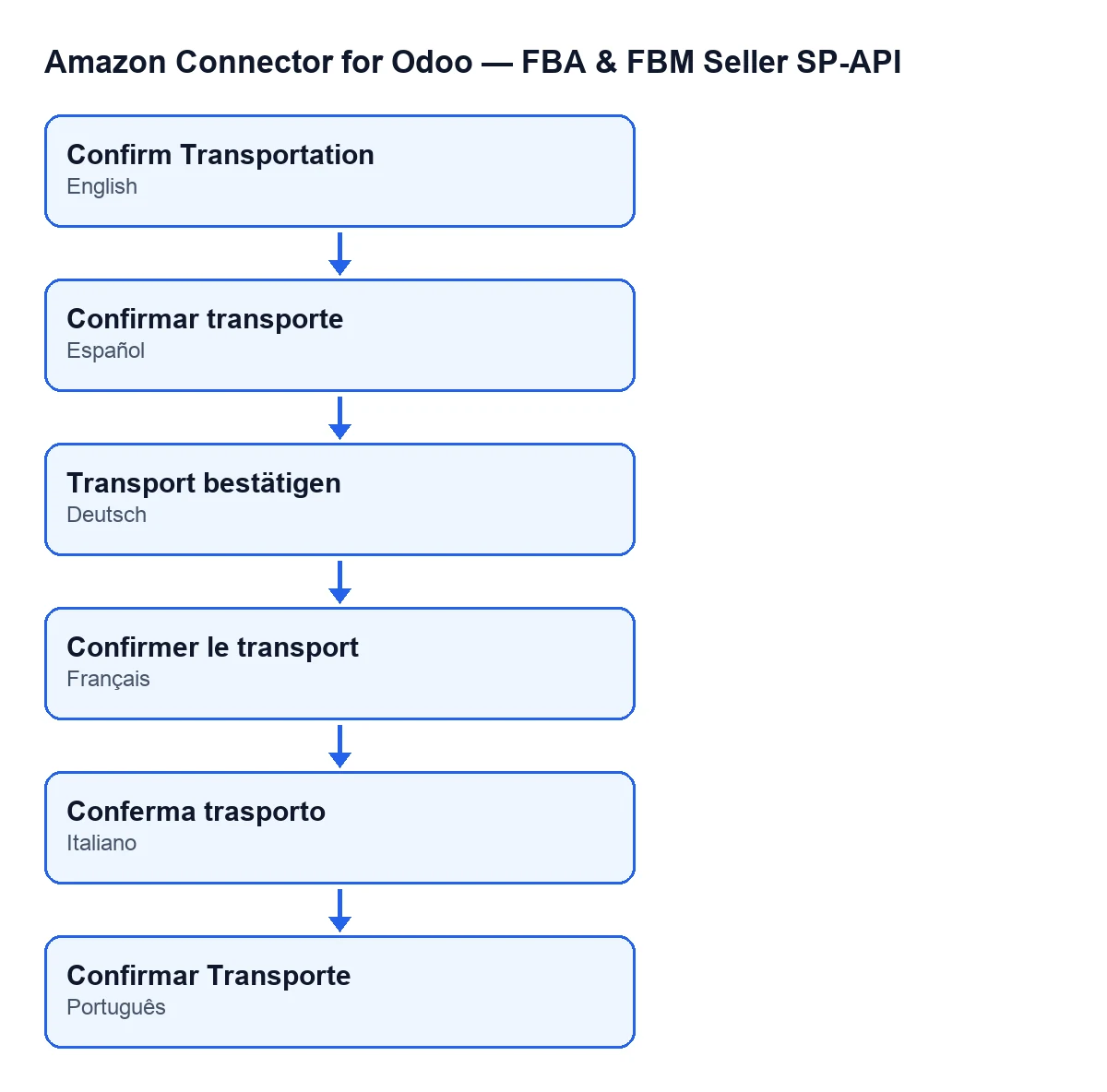
The button's name by language
What the case teaches
- The button only shows when the plan has shipments, and it only works with Operator permission.
- A shipment without a selected option does not block the others: it is skipped.
- The confirmation does not end when it is sent: the module waits for Amazon and reads the shipments again.
Ready To Shipis reached only if every active shipment ends up asREADY_TO_SHIP.
How FlexigoTech helps
The module is a one-off purchase per version and is published for Odoo 17, 18, 19 and 20 (Odoo Apps listing, module page). The connection goes through FlexigoTech Cloud, which keeps the credentials encrypted and emails you if synchronisation fails; the Connector plan costs €49 a month or €490 a year, excluding VAT. If you want to review the account before using the button, see the account SP-API fields. If you want help with an Odoo implementation or a custom integration, FlexigoTech does both for Odoo 17, 18, 19 and 20.
Keep reading
Checked in the connector's source code (version 20.0) and the linked sources
Sources
- Module source code: flexigobe_amazon_seller_connector 20.0 (8c5900d9): views/amazon_spapi_inbound_plan_views.xml
- Module source code: flexigobe_amazon_seller_connector 20.0 (8c5900d9): models/amazon_spapi_inbound_plan.py
- apps.odoo.com/apps/modules/20.0/flexigobe_amazon_seller_connector
- flexigotech.com/en/services.html
- flexigotech.com/precios.html