

 Español
 Català
 Deutsch
 Français
 Português
 Italiano
 Nederlands
 Polski
The exact condition behind the warning
The warning Binding has no Amazon account. appears for a single reason: the Account field of the listing is empty. The code checks exactly that. If the listing has no account, the action stops and the message shows on screen.
This is the first check in the method that performs it. If the field has a value, the method carries on with its other checks, and any different warning that appears afterwards is a separate matter with its own cause.
The message talks about a binding, but the form where it originates is the Listings form. The text is in the published code of every module branch: Odoo 17, 18, 19 and 20.
Binding has no Amazon account.
Which buttons can trigger it
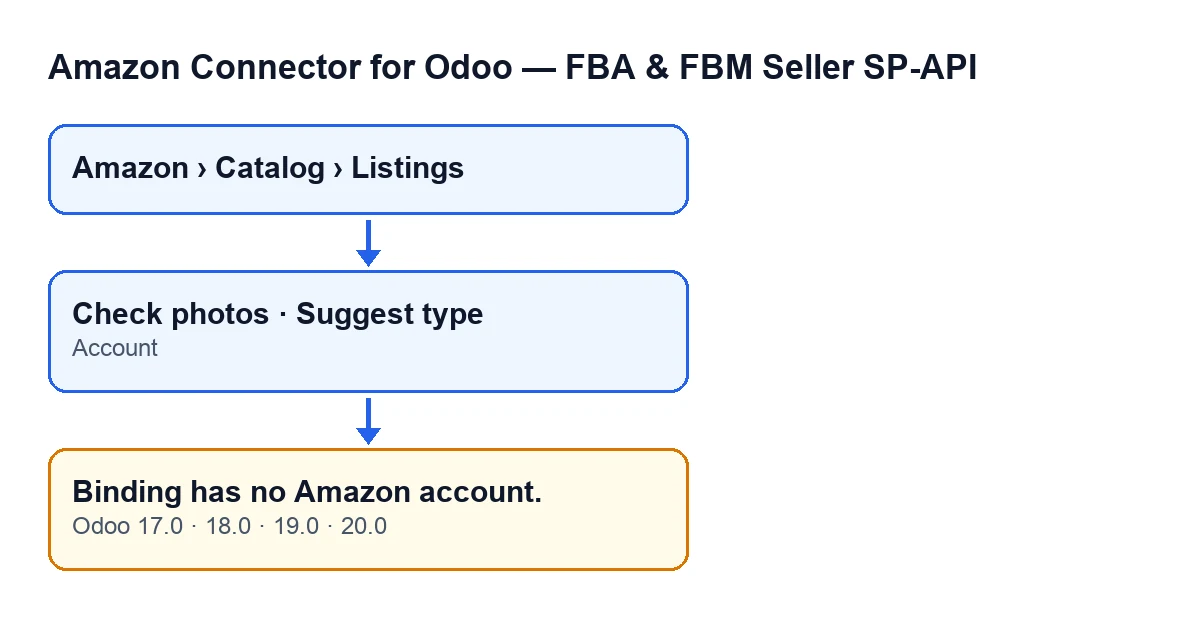
In the Odoo 20.0 code, the warning can appear when you press either of two buttons on the listing form: Check photos and Suggest type. Each one calls a method that goes through that check and, if the Account field is empty, raises the warning.
Both buttons are visible with the default values. In Odoo 17, 18, 19 and 20 they are hidden when the Asin field has a value, so with Asin empty you will see them.
The form opens from the menu Amazon › Catalog › Listings. Each part of the menu requires the Viewer permission: if you lack one of them, you do not see that part.
A worked case
Example Illustrative case: the company and its figures are made up to explain the flow.
Picture an invented plant shop, Viveros Ejemplo, running Odoo with the Amazon connector. The person in charge of the catalogue opens Amazon › Catalog › Listings, enters a listing and presses Check photos. Binding has no Amazon account. appears and the action stops.
Their first thought is that the photos are the problem. But the text mentions an account, not images. To test it they press Suggest type on the same listing and get the same warning. Two different buttons giving the same message point to the listing, not to what each button does.
So they look at the form. In the Overview group the Account field is there, and it is empty. They go back to the Listings list, where that field also appears, and check whether other listings have the same gap. They fill in the Amazon SP-API account that belongs there and repeat the action. If a different warning showed up, it would be another check and would need reading in full.
It does not matter how the listing ended up without an account: the code only looks at whether the field is empty.
How to fix it, step by step
- Open
Amazon › Catalog › Listings. You need theViewerpermission for each part of the menu. - Open the form of the listing that gave the warning.
- Find the
Accountfield in theOverviewgroup. If it is empty, that is the cause. - Fill it in with the Amazon SP-API account that corresponds to that listing.
- Press
Check photosorSuggest typeagain, whichever gave you the warning. - If a different message now appears, read it in full: the account check no longer applies and what you see is another, separate check.
Reviewing several listings at once
If you suspect more than one listing is in the same situation, you do not have to open them one by one. The Account field also appears in the Listings list, so you can run down that column and spot the listings where it is empty before pressing any button.
The check is the same for all of them: the code looks at whether the listing has an account, without looking at which one. That is why the warning tells you nothing about the photos or the product type: it only tells you that this listing is missing its account.
What the case teaches
- The warning points to a field, not to a button: the same message can come from
Check photosand fromSuggest type. - The condition is only that
Accountis empty. Which account you choose is a different question. - If you cannot see the two buttons on a listing, look at the
Asinfield: they are hidden when it has a value. - The warning stops the action: after filling in the account, repeat it.
- If you cannot see the
Listingsmenu, check whether you are missing theViewerpermission on one of the menu parts.
How FlexigoTech can help
If you are implementing Odoo and the Amazon connector, or you want someone to review how your listings and their accounts are set up, FlexigoTech implements Odoo 17, 18, 19 and 20 and builds custom connectors and integrations. You will find the module details on its page at flexigotech.com and on its Odoo Apps listing.
Keep reading
Checked in the connector's source code (version 20.0) and the linked sources
Sources
- Module source code: flexigobe_amazon_seller_connector 20.0 (8576afa5): models/amazon_spapi_product_binding.py
- Module source code: flexigobe_amazon_seller_connector 20.0 (8576afa5): views/amazon_spapi_new_product_views.xml
- Module source code: flexigobe_amazon_seller_connector 20.0 (8576afa5): models/amazon_spapi_new_product.py
- flexigotech.com/en/services.html