

 Español
 Català
 Deutsch
 Français
 Português
 Italiano
 Nederlands
 Polski
A case to walk through the setup
Example Illustrative case: the company and its figures are made up to explain the flow.
Montsant Farms is a made-up company that grows cereals and vegetables and has just installed Agriculture Management Suite on its Odoo 18. Laia, the field manager, is in charge of getting it ready. The case has no figures: what matters is which screens she opens, what she fills in and which statuses she comes across.
Before installing, Laia checked that her version was published: the app is on Odoo Apps for 17.0, 18.0, 19.0 and 20.0. If you are not yet sure whether the module covers what you need, this article helps you decide.
From crop to plan: what Laia set up
The order below is the one in the example. What does belong to the module are the lists and their columns, which we describe as they appear on screen.
Crops
The first thing she opened was the crop list, the agriculture.crop model. Each row shows the name, code, company, type, botanical family and season. Laia checked that every crop had a code and a company, because company appears again as a column in the variety, plan and equipment lists.
Varieties
Next she moved on to varieties, the agriculture.crop_variety model. Each record shows name, code, crop, company, seed supplier and disease resistance profile. Laia took the chance to note the seed supplier for each variety, as it is a column you see straight away in the list.
Crop plans
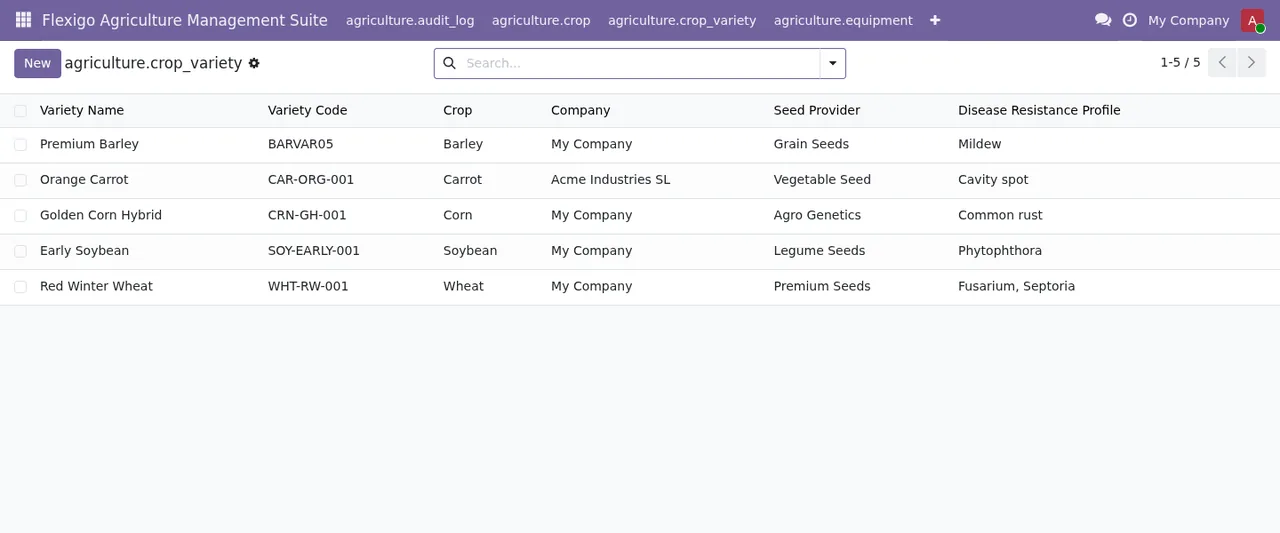
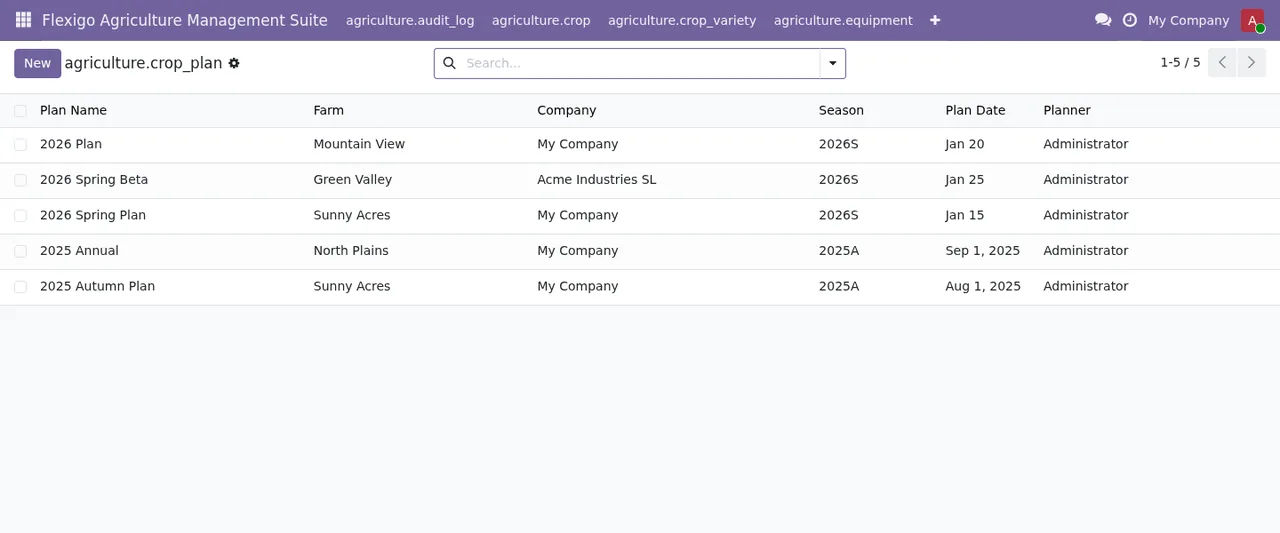
With crops and varieties in place, she opened the crop plans, the agriculture.crop_plan model. The list shows the plan name, farm, company, season, plan date and planner. Laia gave each plan a recognisable name and set herself as planner on her own plans, so she could search for them later.
Equipment
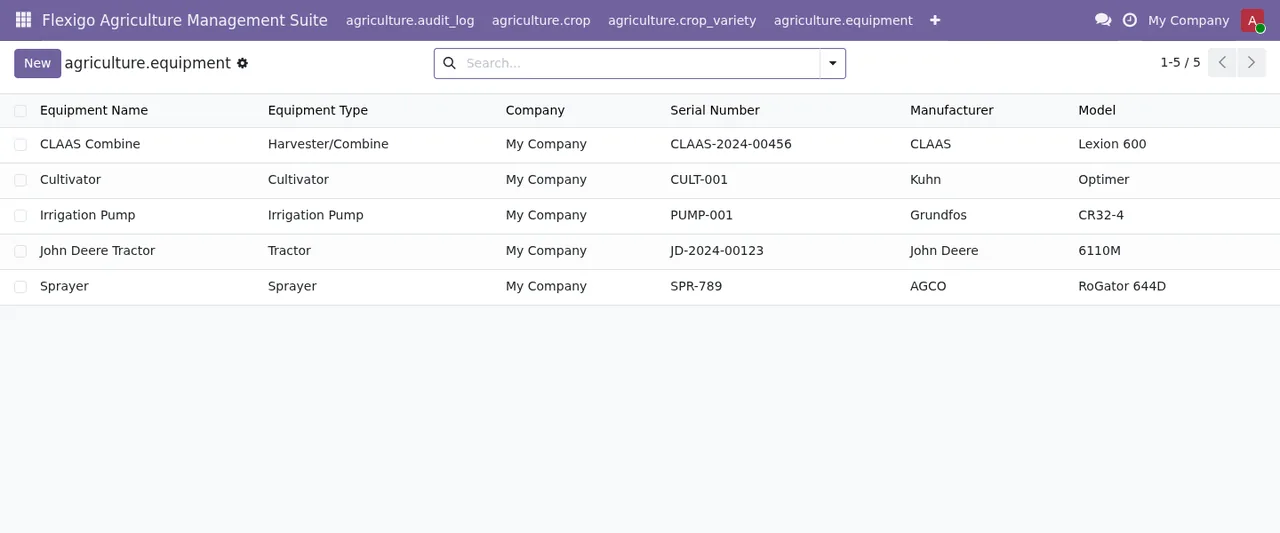
Finally, the machinery. The equipment list, the agriculture.equipment model, shows name, type, company, serial number, manufacturer and model. Laia had the purchase invoices to hand, so she filled in serial number, manufacturer and model for each machine from the outset.
The statuses Laia learnt to read
The module defines several status fields. Here they are with their technical name and labels as they appear in the code; we do not tie each one to a specific screen, so check it on each record's form. If you want to see what a record goes through under the bonnet, we cover it in how the module works.
- A
statusfield withPlanned,Ready,In Progress,CompletedandCancelled. - Another
statuswithDraft,Approved,In Progress,CompletedandArchived. allocation_status, withPlanned,Allocated,PlantedandHarvested.- A
statuswithActive,Fallow,Under DevelopmentandRetired. - A
statuswithActive,Under MaintenanceandRetired. organic_statusandcertification_status, withConventional,In Conversionand eitherOrganicorCertifieddepending on the field.organic_approval_status, withApproved,ProhibitedandPending.- A
statewithCertified,In Conversion,DecertifiedandPending Audit, and acompliance_statuswithCompliant,FlaggedandPending Audit. - A
statewithPlanned,Pregnant,DeliveredandFailed. - A
statewithNew,Monitoring,Action TakenandClosed, and another withPending,Under Review,Completed,RejectedandCancelled. meteo_state, withUp to date,OutdatedandNo data.
The status labels are in English in the module. Search for them as they are in the search bar and filters.
What she checked in the first week
With the core data loaded, Laia spent the first week reviewing rather than adding more. This is what she looked at:
- That the company was right on crops, varieties, plans and equipment, since the column appears in all four lists.
- That every crop plan had a farm, season, plan date and planner.
- That every piece of equipment had a serial number, manufacturer and model.
- Which records were still in
DraftorPlanned, to go through them with her team. - Whether any record showed
FlaggedorPending Auditin its compliance or certification fields. - Whether
meteo_stateshowedUp to date,OutdatedorNo data.
Agriculture Management Suite works with a local service from FlexigoTech Cloud. Without a subscription, or with the service suspended, whatever the subscription provides stops; your data stays in your Odoo. If a message you do not understand pops up during that week, you have the module's error messages explained one by one.
What to take from the case
Laia's setup rests on three ideas you can copy:
- Fill in from day one the columns the lists themselves show (code, company, seed supplier, serial number), because those are the ones you will see every day.
- Read statuses by their literal labels and check on each form which status field that record has.
- Set aside the first week to review statuses and incomplete data before adding more records.
How FlexigoTech can help
FlexigoTech implements Odoo 17, 18, 19 and 20 and builds bespoke connectors and integrations, so we can help you load your crops, varieties, plans and equipment or connect the module to what you already use. The app costs €9 excluding VAT per Odoo version, one-off payment, for 17, 18, 19 and 20; the local service costs €29/month or €290/year excluding VAT (Pro: €58/month or €580/year). With the subscription, the module for new Odoo versions is included if you bought it on flexigotech.com; on the Odoo App Store, each version is bought there. You will find all the details on the module page and on its Odoo Apps listing.
Keep reading
Checked in the module's source code (version 20.0) and the linked sources
Sources
- Module source code: flexigo_agriculture_management_suite 20.0 (577ad9b5): models/equipment.py
- Module source code: flexigo_agriculture_management_suite 20.0 (577ad9b5): models/farm_vertical.py
- Module source code: flexigo_agriculture_management_suite 20.0 (577ad9b5): models/farm_vertical_ext.py
- Module source code: flexigo_agriculture_management_suite 20.0 (577ad9b5): models/field.py
- Module source code: flexigo_agriculture_management_suite 20.0 (577ad9b5): models/harvest.py
- Module source code: flexigo_agriculture_management_suite 20.0 (577ad9b5): models/meteo.py
- Module source code: flexigo_agriculture_management_suite 20.0 (577ad9b5): models/planning.py
- apps.odoo.com/apps/modules/20.0/flexigo_agriculture_management_suite
- apps.odoo.com/apps/modules/17.0/flexigo_agriculture_management_suite
- apps.odoo.com/apps/modules/18.0/flexigo_agriculture_management_suite
- apps.odoo.com/apps/modules/19.0/flexigo_agriculture_management_suite
- flexigotech.com/en/services.html
- flexigotech.com/precios.html