

 Español
 Català
 Deutsch
 Français
 Português
 Italiano
 Nederlands
 Polski
Which records the app holds
The screenshots of Agriculture Management Suite show its lists: farms (agriculture.farm), equipment (agriculture.equipment), growth stages (agriculture.growth_stage), crops (agriculture.crop), crop plans (agriculture.crop_plan) and varieties (agriculture.crop_variety). This is the quickest way to see whether the app speaks your language: compare those columns with what you record today about your farms, your seasonal sowing and your machinery.
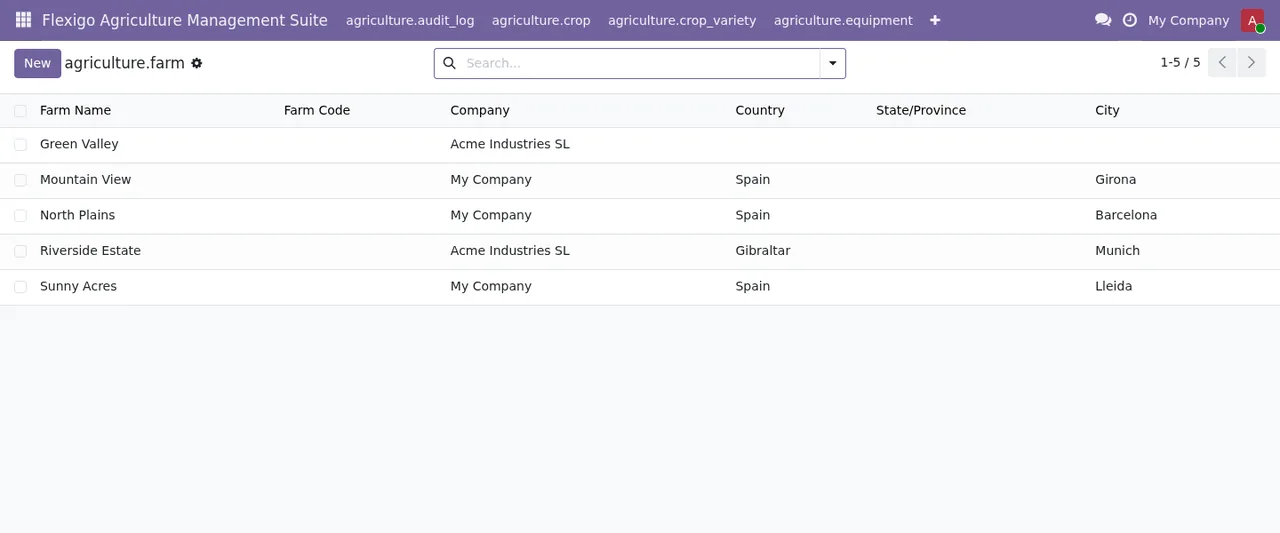
agriculture.farm), with five records and their location by country, province and city.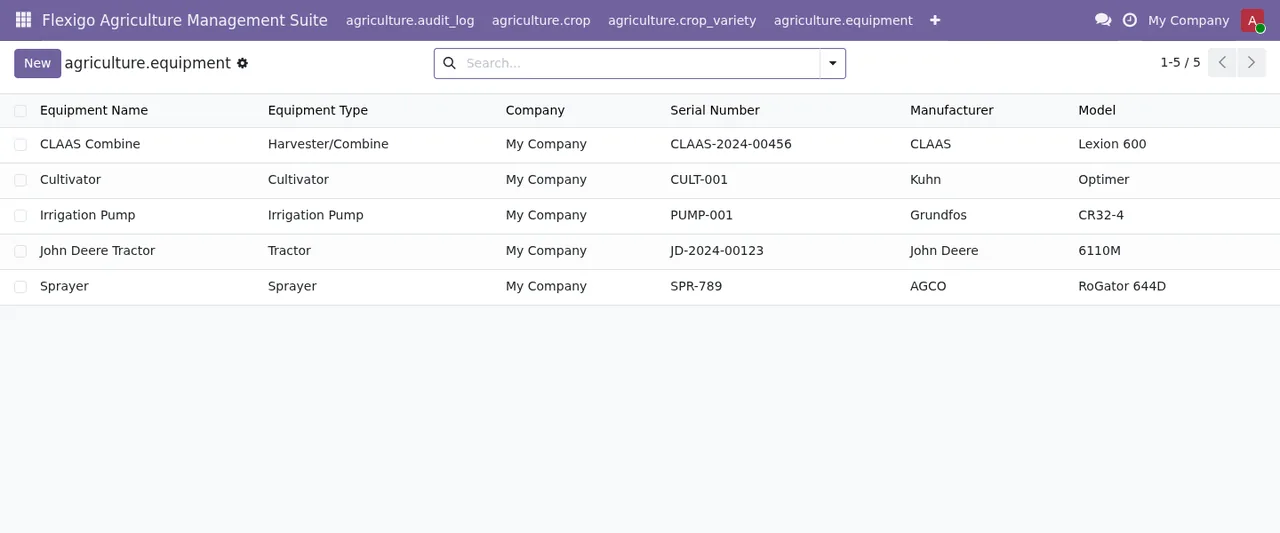
agriculture.equipment): each machine with its type, serial number, manufacturer and model.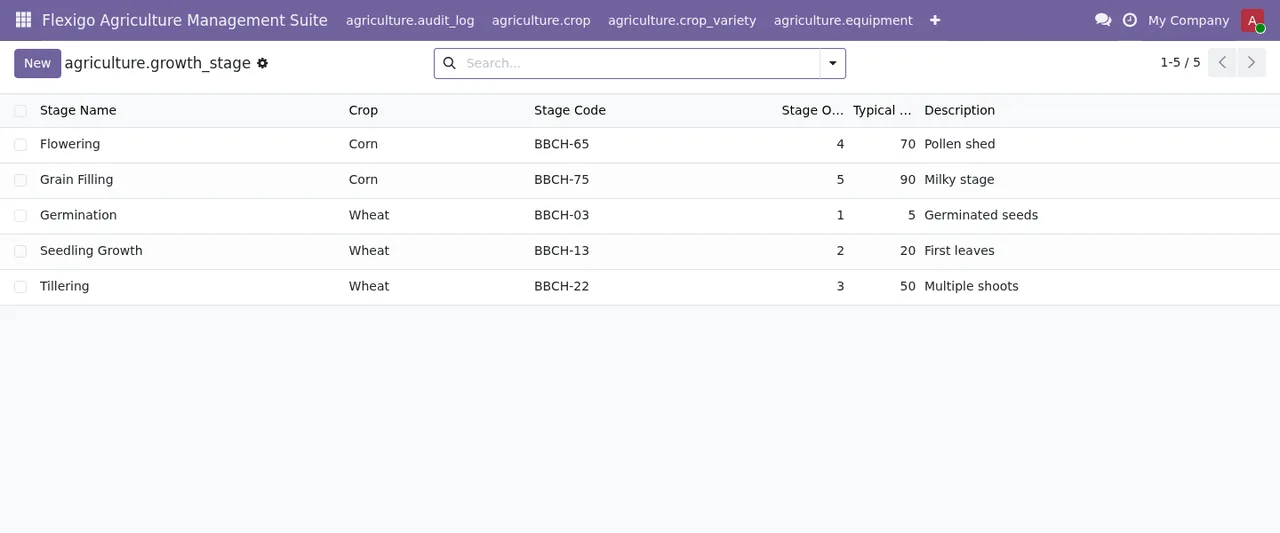
agriculture.growth_stage) for maize and wheat, with their sequence and typical days.
If you want to see which menus it adds and what a record goes through, we cover that in how it works under the bonnet.
What it covers and what it leaves out, side by side
The module listing separates what is included from what stays on your side. Put into a table:
| Topic | What is included | Limits or what is down to you |
|---|---|---|
| Weather for each field | The field weather forecast and agronomic alerts from FlexigoTech Cloud, with a subscription, plus maintenance and monitoring of Field weather | A forecast for the exact spot: it covers a 0.1 degree cell, about 11 km, around each field |
| Odoo versions | With the subscription, the module for new Odoo versions is included if you bought it on flexigotech.com | Migrating your database to a new Odoo version; on the Odoo App Store, each version is bought there |
| Maintenance and support | Module updates and support with a first response within 1 working day | Third-party costs: you contract and pay for your account on each platform, Odoo and your hosting yourself |
| Your data | It stays yours: view and export it anytime, and it stays in your Odoo | Without a subscription, or with the service suspended, whatever the subscription provides stops |
How to read the table
The decision has two layers. The first is the module itself, with its lists of farms, crops, varieties, plans and equipment inside your Odoo. The second is the FlexigoTech Cloud subscription, which is what delivers the field weather forecast and the agronomic alerts. If the weather and the alerts are mainly what you are after, plan for the subscription from day one. If you drop it later, what it provides stops and your data stays in your Odoo.
The other criterion is precision. If you need a forecast for the exact point of each field, the listing is clear: it covers a cell of about 11 km around it.
What the listing places next to migrations
In the same list where the listing states that FlexigoTech does not take care of migrating your database to a new Odoo version, these points also appear:
- Customising the module or custom development.
- Configuring the module for you (the setup).
- Importing historical data.
- Support for modules that are not FlexigoTech's.
The listing gives no further detail on them. If you rely on any of these, ask before you buy. For setup and bespoke development there is the implementation route described at the end of this article.
What data leaves your Odoo for FlexigoTech Cloud
Before installing, it pays to know what gets sent. According to the listing:
- The identifier (uuid) of the database, its address (URL) and the Odoo version.
- The FlexigoTech modules installed, with their version, and whether the database is a neutralised copy (staging or test).
- The company name and the email of the person who accepts, with the date and version of the text accepted.
- A public code to check that requests come from this database, and a proof that it is this database, computed on your server without sending its secret.
- A request for its service permit every 6 hours, and the health of the service: counters and errors (type and code), without the content of your records.
- When you use
Field weather: the position of each field of every company in the database, rounded to about 11 km (0.1 degree), the base temperatures of your crops and your time zone, and nothing else from your records.
The listing also mentions payment from Odoo, a check of the service every 6 hours with health reports, and a notice when you uninstall the module.
Where it is stored and how it is protected
All connections to FlexigoTech's servers are encrypted (HTTPS) and the servers are in Germany. The customer area has its own database, separate from those of other products. For passwords only a hash is stored (Argon2); they must have at least 12 characters and cannot be among the most common ones. Any account can turn on two-step verification with an authenticator app and recovery codes, and it is mandatory for staff who administer the area. Sign-in, password recovery and sign-up attempts are limited, and you get an email when your password, your email or your two-step verification changes.
There is a daily backup of the customer area database; the copy that leaves the server is encrypted and kept on a FlexigoTech computer in Spain. Anything erased may remain in the backups until they expire, at most after 90 days.
What to have in place before installing
- A database on Odoo 17, 18, 19 or 20.
- Your Odoo account and your hosting, which you contract and pay for yourself.
- A decision on weather and alerts: they require a FlexigoTech Cloud subscription. The listing offers a 14-day trial with no card needed.
- Who will accept the terms: their email is stored with the date and version of the text accepted.
- A clear view of which databases are production and which are staging or test copies, because the module reports whether the database is a neutralised copy.
For the settings and fields to fill in at go-live, see the practical set-up guide.
Which Odoo version and what it costs
It is published on Odoo Apps for 17.0, 18.0, 19.0 and 20.0, at €9 per Odoo version in all four, a one-off payment per version, excluding VAT. The FlexigoTech Cloud local service costs €29/month or €290/year excluding VAT (Pro: €58/month or €580/year).
If you plan to upgrade, bear in mind two points from the table: the module for the new version is included with the subscription only if you bought it on flexigotech.com, and the database migration is not done by FlexigoTech. You can review the Odoo Apps listing before deciding.
If you go ahead, how we can help
FlexigoTech implements Odoo 17, 18, 19 and 20 and builds bespoke connectors and integrations. If the initial configuration or your own development is what holds you back, we can discuss it as work separate from the module. For anything about your data, write to comercial@flexigobe.com or call +34 616 809 504. The module and the subscription are on its page at flexigotech.com.
Keep reading
Checked in the module's source code (version 20.0) and the linked sources
Sources
- Module source code: flexigo_agriculture_management_suite 20.0 (577ad9b5): static/description/index.html
- apps.odoo.com/apps/modules/20.0/flexigo_agriculture_management_suite
- apps.odoo.com/apps/modules/17.0/flexigo_agriculture_management_suite
- apps.odoo.com/apps/modules/18.0/flexigo_agriculture_management_suite
- apps.odoo.com/apps/modules/19.0/flexigo_agriculture_management_suite
- flexigotech.com/en/services.html
- flexigotech.com/precios.html