

 Español
 Català
 Deutsch
 Français
 Português
 Italiano
 Nederlands
 Polski
When the button shows and who can press it
The Sync Now button is on the Configure Automatic Amazon Invoicing screen, and only in Odoo 19 and 20. In Odoo 17 and 18 the button is not on that screen, even though the module is published on Odoo Apps for all four versions. In 19 and 20 it does not depend on any view condition: you see it whenever you open the screen.
Seeing it is not the same as being able to use it. The first thing it does when pressed is check permissions, as you will see below.

Step by step: the automatic path first, then the button
- What Odoo does by itself. The scheduled task
Amazon SP-API - Reconcile Amazon-issued invoices (VCS, opt-in)runs once a day and is active when the module is installed. It calls the same review process as the button. It also stores the date and result of the last run on the account and posts a message with lines such asAccount: …andSource: …. That message also counts the invoices skipped because the seller's invoice is still a draft, the late-arriving lines flagged for review and the late-arriving lines relinked. - Open the screen. Go to
Configure Automatic Amazon Invoicingin Odoo 19 or 20 with a user who has Amazon connector Manager access or Settings access. - Press
Sync Nowonly if you want to run the review by hand. The button does not go through the scheduled task: it calls the account's review process directly. - Permission check. Before touching anything, the button requires you to be a connector Manager or in the Settings group. The group is not enough: it also checks that you have write permission on the account. If it fails, the action stops and nothing it was about to change is saved.
- It saves the screen's configuration on the account. The button writes to the account what is on screen: whether syncing of issued invoices is enabled, the journal, the clearing account and whether entries are posted automatically. In other words, pressing it also saves those values.
- It reviews the account's VAT ledger. It takes the lines that have an invoice number and groups them by number. The first pass only picks up numbers that do not yet have a sync row, so pressing the button again does not create duplicates. Each number is processed on its own: a faulty one does not block the rest, and if it fails a row in the error state is kept so the group is visible.
- It decides what each number is. If Amazon issued the invoice, new entries are booked. If the seller issued it, it is linked to the invoice that already exists. If that seller invoice is still a draft, the number is not recorded either way: it is picked up on the next run, once your accountant posts it (it becomes seller-issued) or cancels it (it becomes Amazon-issued).
- Second pass over what is already booked. If the ledger now holds more lines for an already booked entry than it had when it was synced (Amazon published a late-arriving line), that entry is not ignored: it is dealt with again in this second pass.
- Summary and check figures. A summary is written with the invoice numbers reviewed, how many are Amazon-issued, how many seller-issued and how many errors. The check figures for the ledger against what is synced, and the gap, are then recalculated. The same window opens again with all of it.
The error it can give when pressed
When you press Sync Now, the permission check can stop the action with this message:
You need Amazon Seller Connector Manager (or Settings) access for this action. Ask a manager to grant Manager access.
It means your user is neither a connector Manager nor in the Settings group. The fix is the one the text itself gives: ask a manager to grant you Manager access. If you already have it and it still fails, remember that the check also asks for write permission on the account.
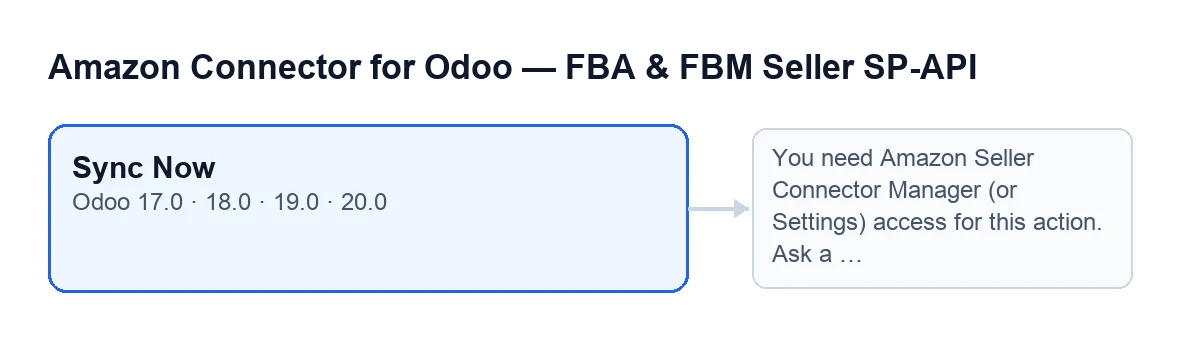
Sync Now button and, next to it, the message about missing Manager (or Settings) access.What the button is called in other languages
The button's label depends on the language of your Odoo. According to the module's published translations, in German it reads Jetzt synchronisieren, in French Synchroniser maintenant, in Italian Sincronizza ora and in Portuguese Sincronizar agora. If your team works with Odoo in another language, look for the button by its position on the Configure Automatic Amazon Invoicing screen.
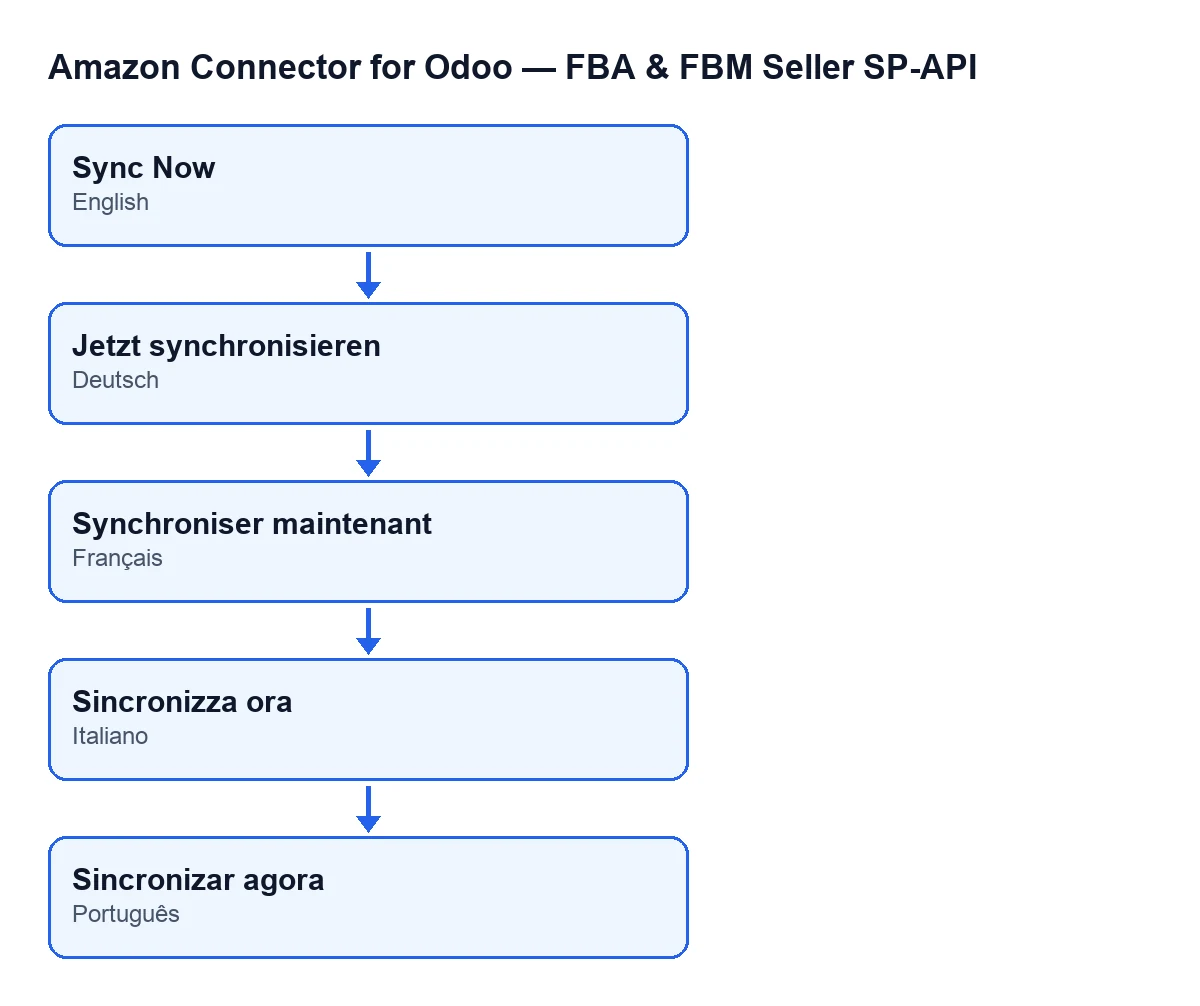
Sync Now is written depending on the language.What to look at after pressing
- The summary. If it shows errors, those numbers have their row in the error state.
- The check figures. They cover the ledger, what is synced and the gap, recalculated right after the review.
- Seller invoices still in draft. They do not appear as a result: wait until they are posted or cancelled and run the review again.
Cost and help
The module is a one-off payment per Odoo version and needs the FlexigoTech Cloud subscription, Connector plan: €49/month or €490/year excluding VAT. The connection goes through FlexigoTech Cloud, which stores the credentials encrypted, monitors synchronisation and emails you if it fails. There is more on the module page.
FlexigoTech implements Odoo 17, 18, 19 and 20 and builds bespoke connectors and integrations.
Keep reading
Checked in the connector's source code (version 20.0) and the linked sources
Sources
- Module source code: flexigobe_amazon_seller_connector 20.0 (8576afa5): views/amazon_spapi_vat_invoice_sync_views.xml
- Module source code: flexigobe_amazon_seller_connector 20.0 (8576afa5): wizard/amazon_spapi_issued_invoice_wizard.py
- Module source code: flexigobe_amazon_seller_connector 20.0 (8576afa5): models/amazon_spapi_account.py
- apps.odoo.com/apps/modules/20.0/flexigobe_amazon_seller_connector
- flexigotech.com/en/services.html
- flexigotech.com/precios.html