

 Español
 Català
 Deutsch
 Français
 Português
 Italiano
 Nederlands
 Polski
The action and its rhythm
Everything here revolves around one scheduled action of the module: the one that sends Odoo's stock to Shopify. These are its terms, with the labels as the module names them.
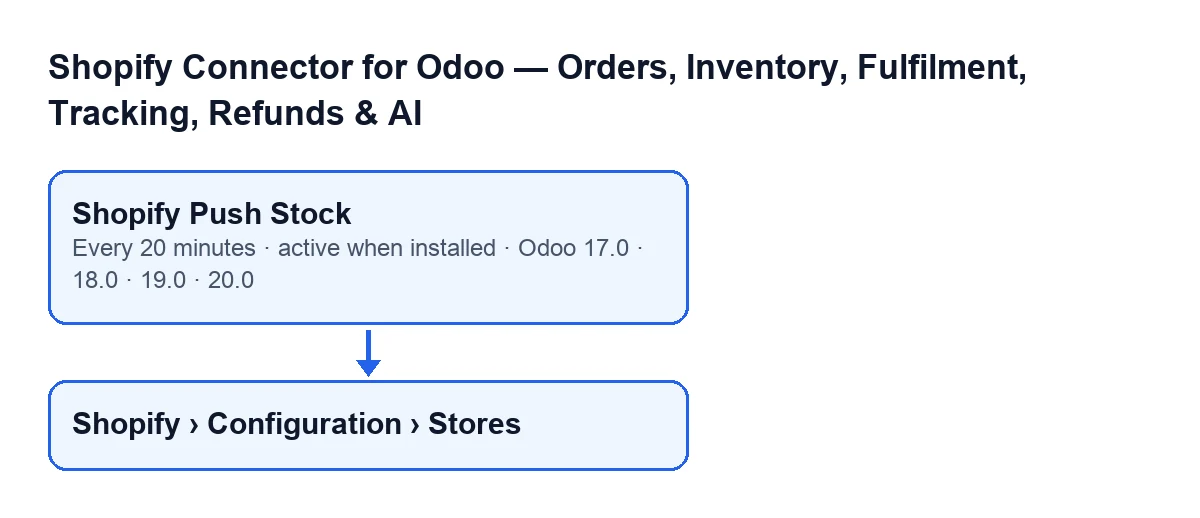
Shopify Push Stock- A scheduled action of the module. On each pass it looks for the stores that meet the conditions in the next section and, store by store, sends Shopify the quantity of each linked product. It exists in the 17.0, 18.0, 19.0 and 20.0 branches.
- Frequency
- The action runs every 20 minutes and is active on install. In Odoo 17.0 it is set to repeat without end. If it does nothing, first check that it is still active.
- Stores (menu)
- The store records open from
Shopify › Configuration › Stores. To see theConfigurationsection you need theOperatorpermission; for theShopifysection, theViewerpermission. If you lack either one, you do not see that section.
- Administrator
- Whoever runs the action must be an administrator. If not, the action stops with
Only an administrator can run this scheduled action.and sends nothing.
The name of the action changes with the language of your Odoo. In English it is Shopify Push Stock; the diagram shows what it is called in other languages.
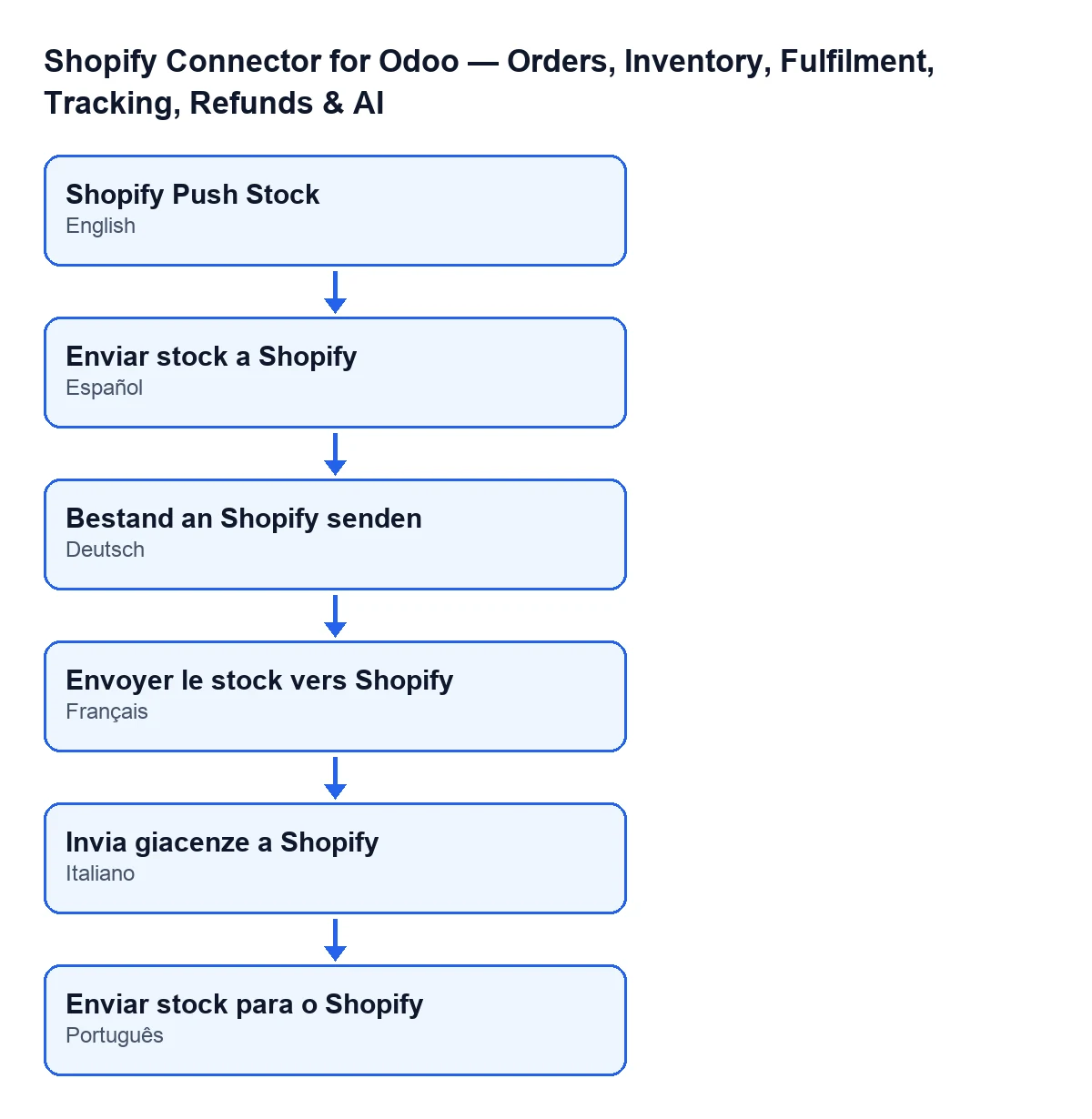
Enviar stock a Shopify; in German, Bestand an Shopify senden; in French, Envoyer le stock vers Shopify; in Italian, Invia giacenze a Shopify; in Portuguese, Enviar stock para o Shopify.
Which stores it reaches
- Active store with stock sync switched on
- The action only picks stores that are active and have stock sync switched on. A store that fails either condition is left out of the pass.
- Stored credentials
- The store must also have a stored access token or the app's API secret. One of the two is enough: a store using client credentials may have no token until its first call creates one, which is why the action also accepts having credentials.
- Error in one store
- Each store is processed separately. If one fails, the error is written to the log and the action carries on with the next store.
Which products and what quantity it sends
- Linked, active product
- For each store it sends the linked products that are active, have a Shopify inventory item assigned and belong to the store's company: it does not send the stock of a product from another company, not even through an old link. If a store has none, the pass only records the send date on the store and moves on to the next one.
- Free quantity
- What is sent is the free stock (what is on hand minus what is already reserved), not the on-hand stock, rounded to a whole number and calculated for the store's company; if there is no value, zero is sent. A Shopify order confirmed in Odoo reserves the unit, but on-hand stock only drops when the delivery is validated: with on-hand stock, Shopify would see the unit already sold as available again.
- Location
- All the quantities of a store in one pass go with the same Shopify location.
- Chunk of one hundred
- A store's products are sent in chunks of 100. After each chunk is sent, the module records the last stock sync date on the products in that chunk. The store's last push date is recorded once all the chunks are done.
- Quantity set without comparing
- Each quantity is sent as the available one, with a correction reason and without comparing it with what Shopify holds at that moment: Odoo's value is set, whatever Shopify's is.
- Send key
- Each pass generates its own key, different for each chunk, which goes with the send. That way, the same quantities sent later are not treated as a duplicate of an earlier send.
What to check if the action does nothing
Follow the order in which the action decides:
- That the
Shopify Push Stockaction is still active. - That whoever runs it is an administrator; otherwise it stops with the message above.
- That the store is active and has stock sync switched on. The records open from
Shopify › Configuration › Stores. - That the store has a stored access token or the app's API secret.
- That there are active linked products, with a Shopify inventory item and belonging to the store's company. With none, the pass only records the date and moves on.
- That the free quantity is what you expect: whatever is reserved has already been subtracted.
The Pull Stock button has its own article: what it does, step by step.
How FlexigoTech helps
FlexigoTech implements Odoo 17, 18, 19 and 20 and builds connectors and custom integrations. The module is published for 17.0, 18.0, 19.0 and 20.0 (Odoo Apps listing, module page). It is a one-off payment per version and needs a FlexigoTech Cloud subscription: the Connector plan costs €49/month or €490/year excluding VAT (the Pro plan, €98/month or €980/year excluding VAT). The connection goes through FlexigoTech Cloud, which stores the credentials encrypted, monitors the sync and emails you if it fails.
Keep reading
Checked in the connector's source code (version 17.0 and 20.0) and the linked sources
Sources
- Module source code: flexigobe_shopify_seller_connector 20.0 (d7e627b4): data/ir_cron_data.xml
- Module source code: flexigobe_shopify_seller_connector 17.0 (437257e3): data/ir_cron_data.xml
- Module source code: flexigobe_shopify_seller_connector 20.0 (d7e627b4): models/shopify_instance.py
- Module source code: flexigobe_shopify_seller_connector 20.0 (d7e627b4): models/fgt_cloud.py
- apps.odoo.com/apps/modules/20.0/flexigobe_shopify_seller_connector
- flexigotech.com/en/services.html
- flexigotech.com/precios.html