

 Español
 Català
 Deutsch
 Français
 Português
 Italiano
 Nederlands
 Polski
Where the settings are and who sees them
The module extends Odoo Settings with its own section, Shopify Seller, which has two blocks: Connection and AI Insights. They are system-wide parameters, not per store form, and only users with the Shopify manager permission that the module adds see them. What follows comes from the code published for Odoo 20; the module is published on Odoo Apps for Odoo 17, 18, 19 and 20.
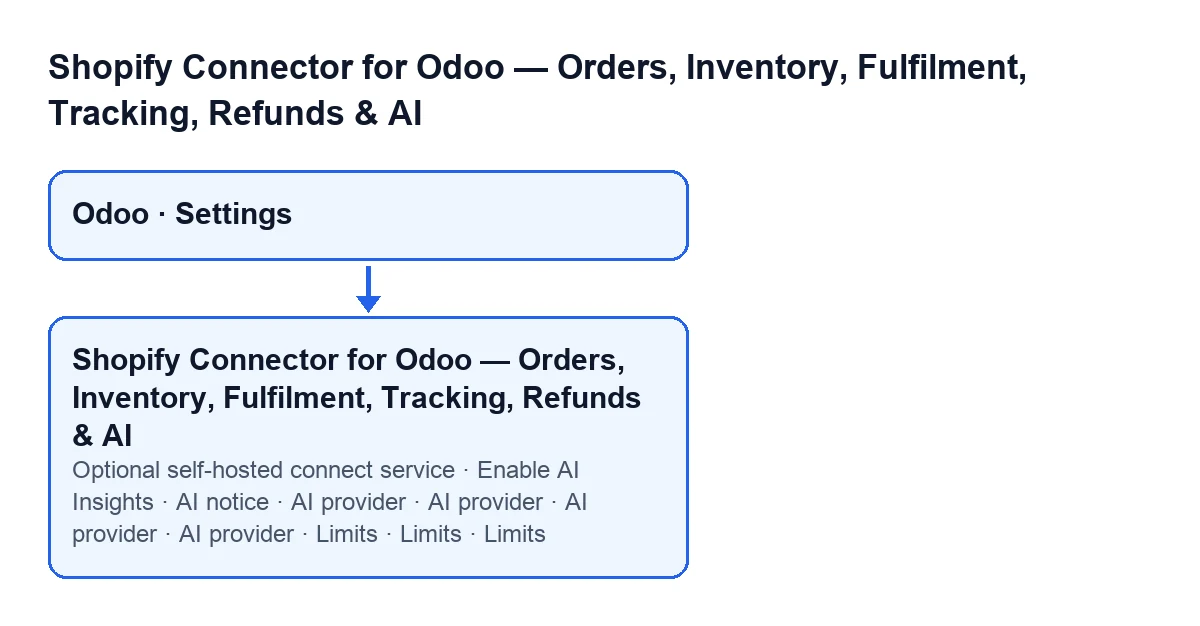

A walk through the fields, block by block
- Open Settings and find the
Shopify Sellersection.
- In
Connection, read the block text: a store you add now connects through FlexigoTech Cloud, which keeps your Shopify app's client secret encrypted, renews the access token and passes each call of the store to your shop's Admin API; a store connected before keeps talking to Shopify directly from this server. Each store is connected from its own form:Shopify Stores> open a store >Connection.
- Leave
Optional self-hosted connect serviceempty. Its help says it is optional and empty by default; the setting adds that it is only for stores connected directly before FlexigoTech Cloud, and that it exists for merchants who run their own OAuth connect service and want the extra shortcut button on the store form.
- Move on to
AI Insightsand decide whether to tickEnable AI Insights. The block says: ‘Opt-in. Generates restock/sales reports and Ask-AI answers from your data. Off by default.’ The help adds that AI is optional and the connector works without it: dashboards, analytics, finance and sync keep giving you data. Turn it on only if you want the AI to narrate your numbers and suggest restocks.
- Choose
AI provider. The options areGoogle Gemini (free, recommended),Groq (free),OpenAI-compatible (OpenRouter/Ollama)andAnthropic Claude (paid); Gemini is the default. The setting points out that Groq (console.groq.com) and Google Gemini (AI Studio) are free options that need no credit card.
- Paste the key into the text field that carries the same label,
AI provider. Its help says it is the API key for the selected provider (for example a free Groq or Google Gemini key), that it applies to all stores and that, if you leave it empty, the per-store key on the store form is used instead.
- If you choose
OpenAI-compatible (OpenRouter/Ollama), another text field labelledAI providerappears; with Gemini, the default, it is not shown. The notice in the next step mentions the OpenAI-compatible URL you enter (OpenRouter by default).
- Tick
AI noticeonly if you accept what its text says (details in the next section). An administrator is the one who ticks it, and unticking it stops the sending.
- Review the
Limitsfields. WithAnthropic Claude (paid), the monthly cost cap (default20.0) and another field with a default of0.92appear; with the other providers they are not shown. AnotherLimitsfield, with a default of4000, does not depend on the provider. The setting says the cost cap only applies to paid providers and that free providers report 0.
- Look at
Spend this monthto see how much has been spent so far (the section further down explains how it is calculated).
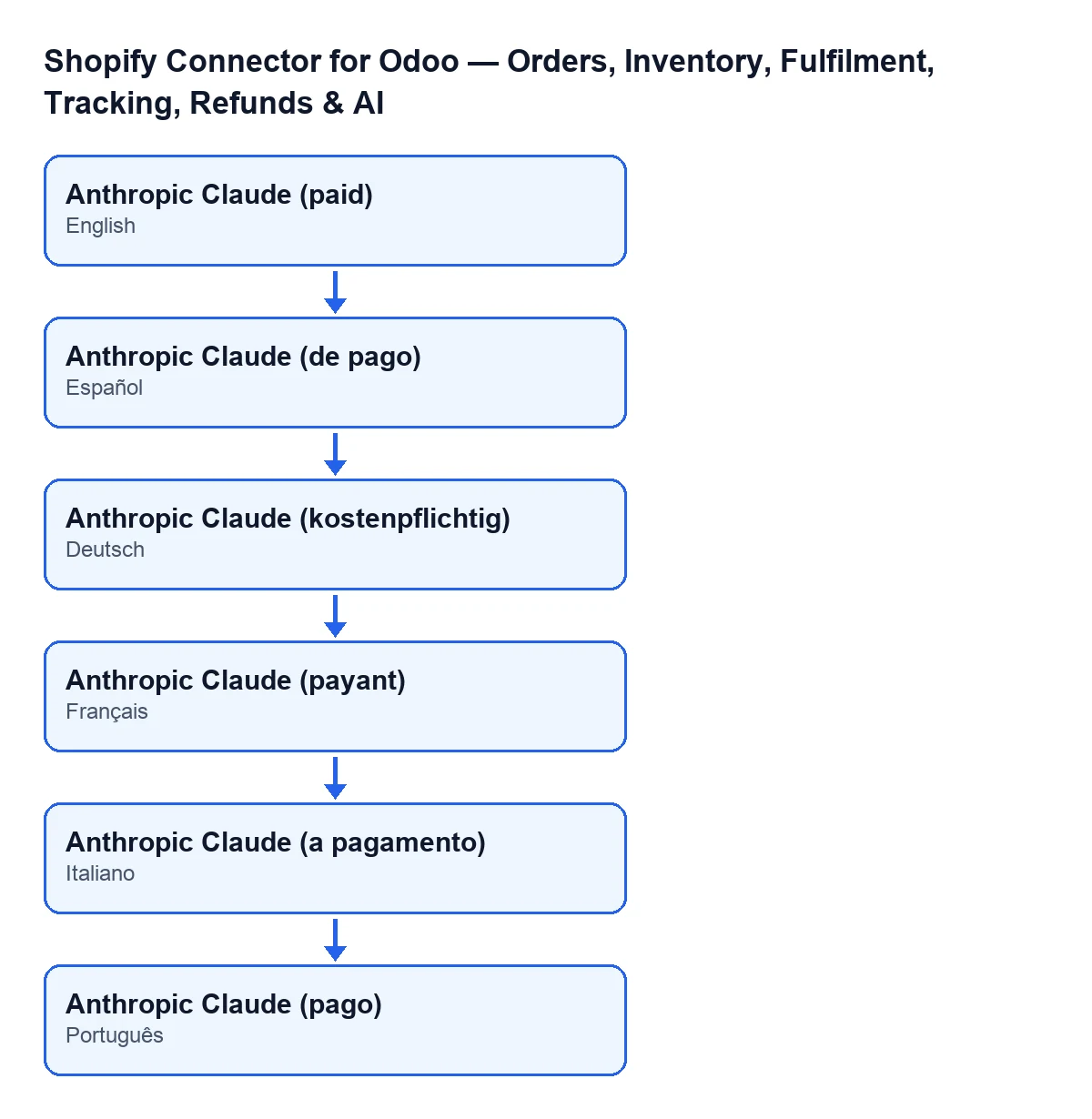
The wording of the options depends on your Odoo language: with Odoo in English the last option reads Anthropic Claude (paid), and the diagram below shows the same text in other Odoo languages.
What the AI sends and when
The AI notice text explains that each AI report and each Ask AI answer sends data, with your own key and under the chosen provider's terms, to Google (Gemini), Groq or Anthropic (companies based in the United States) or to the OpenAI-compatible URL you enter (OpenRouter by default). According to that text, what is sent includes:
- the store name and currency, its lead time and its cover days;
- its SKU counts;
- for up to 40 products: SKU, product name, stock on hand, sales velocity, days of cover, projected stock-out date, recommended quantity, stock class and 30-day revenue;
- for Ask AI, also the question you type.
The field's help states that FlexigoTech receives none of it and that nothing is sent until an administrator ticks the box.
How the monthly spend is worked out
The two Spend this month fields are read-only and their help says: ‘AI spend in the current month versus your cap.’ According to the code, when it calculates them the module adds up the cost of the AI entries created since the first day of the current month, without distinguishing stores. The first field shows that total. The second shows it as a percentage of the monthly cost cap; if that cap is empty or zero, the percentage stays at zero.
What to check afterwards
- The
Shopify Sellersection appears in Settings for the user who is meant to manage it.
Optional self-hosted connect serviceis still empty, unless you run your own connect service.
Enable AI Insightsis set the way you decided.
AI noticeis only ticked if you accept the data sending described above.
- With
Anthropic Claude (paid), the monthly cost cap holds the amount you want andSpend this monthmoves within it.
Subscription, price and help from FlexigoTech
The module is a one-off payment per Odoo version and needs the FlexigoTech Cloud subscription: the Connector plan costs €49 a month or €490 a year, excluding VAT (Pro: €98 a month or €980 a year), with up to 3 accounts of the platform (Pro: 10). The module's price for each version is on the Odoo Apps listing and direct purchase is on the module page. With the subscription, the module for newer Odoo versions is included if you bought it on flexigotech.com; on the Odoo App Store, each version is bought there.
The connection goes through FlexigoTech Cloud, which keeps credentials encrypted, watches the sync and emails you if it fails. Without a subscription, or with the service suspended, whatever the subscription provides stops; your data stays in your Odoo.
If you are implementing Odoo and want someone to go through these settings with you, FlexigoTech implements Odoo 17, 18, 19 and 20 and builds custom connectors and integrations.
Keep reading
Checked in the connector's source code (version 20.0) and the linked sources
Sources
- Module source code: flexigobe_shopify_seller_connector 20.0 (2950bdc0): models/res_config_settings.py
- apps.odoo.com/apps/modules/20.0/flexigobe_shopify_seller_connector
- flexigotech.com/en/services.html
- flexigotech.com/precios.html