

 Español
 Català
 Deutsch
 Français
 Português
 Italiano
 Nederlands
 Polski
When it appears and who can press it
When is the Send button visible?
It sits in the window where you write your reply to an Amazon message thread, and it is always visible, with no condition on a state or a field. It exists in Odoo 17, 18, 19 and 20.
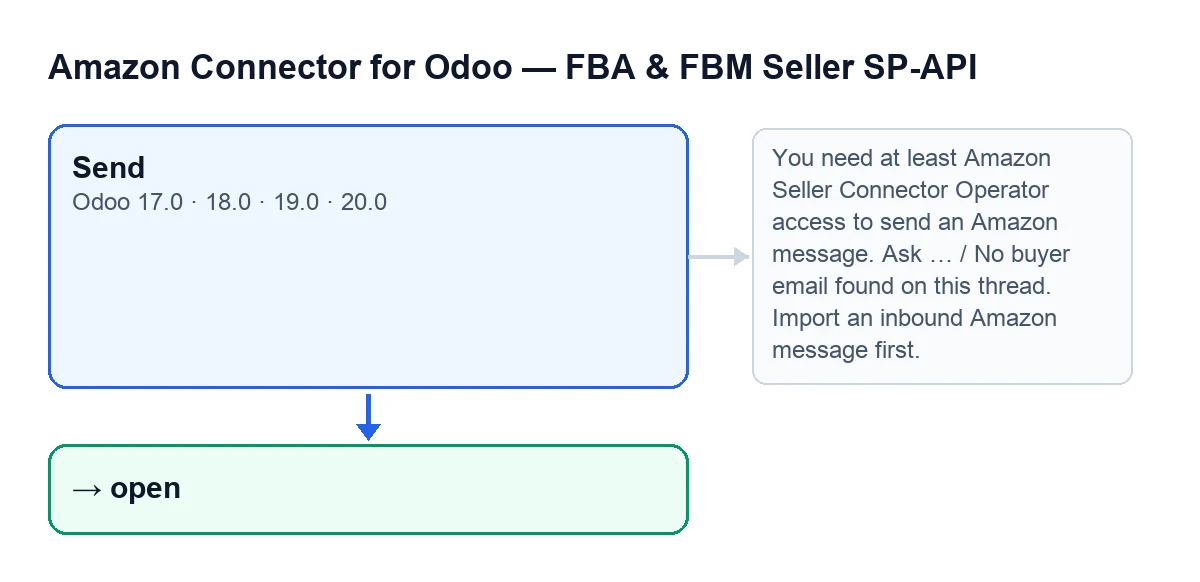
Send button, some of the messages that stop it and the open state of the thread. Labels are in English, as in the code.Who can press it?
The first thing the button does is check access. You need at least Amazon Seller Connector Operator access, otherwise you get this message: You need at least Amazon Seller Connector Operator access to send an Amazon message. Ask a manager to grant Operator or Manager access. Processes running with system superuser rights skip that check. The module also checks that you have write permission on the thread, because the groups alone are not enough.

What it sends, depending on the mode
What does the Mode field decide?
What the button sends and how. Its values are Reply via Amazon Email, which is the default, and SP-API Action. With the second, the button sends through SP-API; with the first, it sends by email.
What does the button do with Reply via Amazon Email?
First it checks that the thread has a buyer email; if not, you get No buyer email found on this thread. Import an inbound Amazon message first. Then it looks for a sender address; if it finds none (not even your user's email or the company's), you get Configure a sender email to reply to Amazon. With that it creates and sends an email to the buyer with the subject and text you wrote; if no other reply address is obtained, it uses the sender's. Finally it adds an outgoing message line to the thread, marked as sent, with your name, your email, the subject and the text.
And with SP-API Action?
It checks that the thread has an Amazon Order ID (if not, This thread has no Amazon Order ID.) and that you have chosen an action (if not, You must select an SP-API action.). It then submits the chosen action and its content to Amazon through the account, for the thread's marketplace or, if the thread has none, the account's. Afterwards it adds the outgoing line to the thread, with the chosen action, the content sent and the response Amazon returned.
What is left on the thread and which messages can appear
What state is the thread in after sending?
It depends on the checkboxes in the window. With Mark as resolved the thread becomes resolved; with Mark as notified, unresolved it becomes notified but unresolved; with neither ticked, it stays open. Whichever state it ends up in, the thread is left with no reply pending and its unread counter at zero. If you tick both boxes, the code looks at the resolved box first, so that one wins. When it finishes, the window closes.
What happens to the thread if a message appears?
The button stops at the message and never reaches the part that changes the thread's state. Fix the cause and press Send again.
Which messages can it show and what should I do about each?
These are some of the messages the button can raise:
| Message | When it appears | What to do |
|---|---|---|
You need at least Amazon Seller Connector Operator access to send an Amazon message. Ask a manager to grant Operator or Manager access. | At the start, if your user lacks Operator access | Ask a manager to grant you Operator or Manager access |
No buyer email found on this thread. Import an inbound Amazon message first. | With Reply via Amazon Email, if the thread has no buyer email | Import an inbound Amazon message first |
Configure a sender email to reply to Amazon. | With Reply via Amazon Email, if no sender address is found | Check that your user or the company has an email address, then press Send again |
This thread has no Amazon Order ID. | With SP-API Action, if the thread has no order ID | Check the thread |
You must select an SP-API action. | With SP-API Action, if no action is chosen | Choose the action and press Send again |
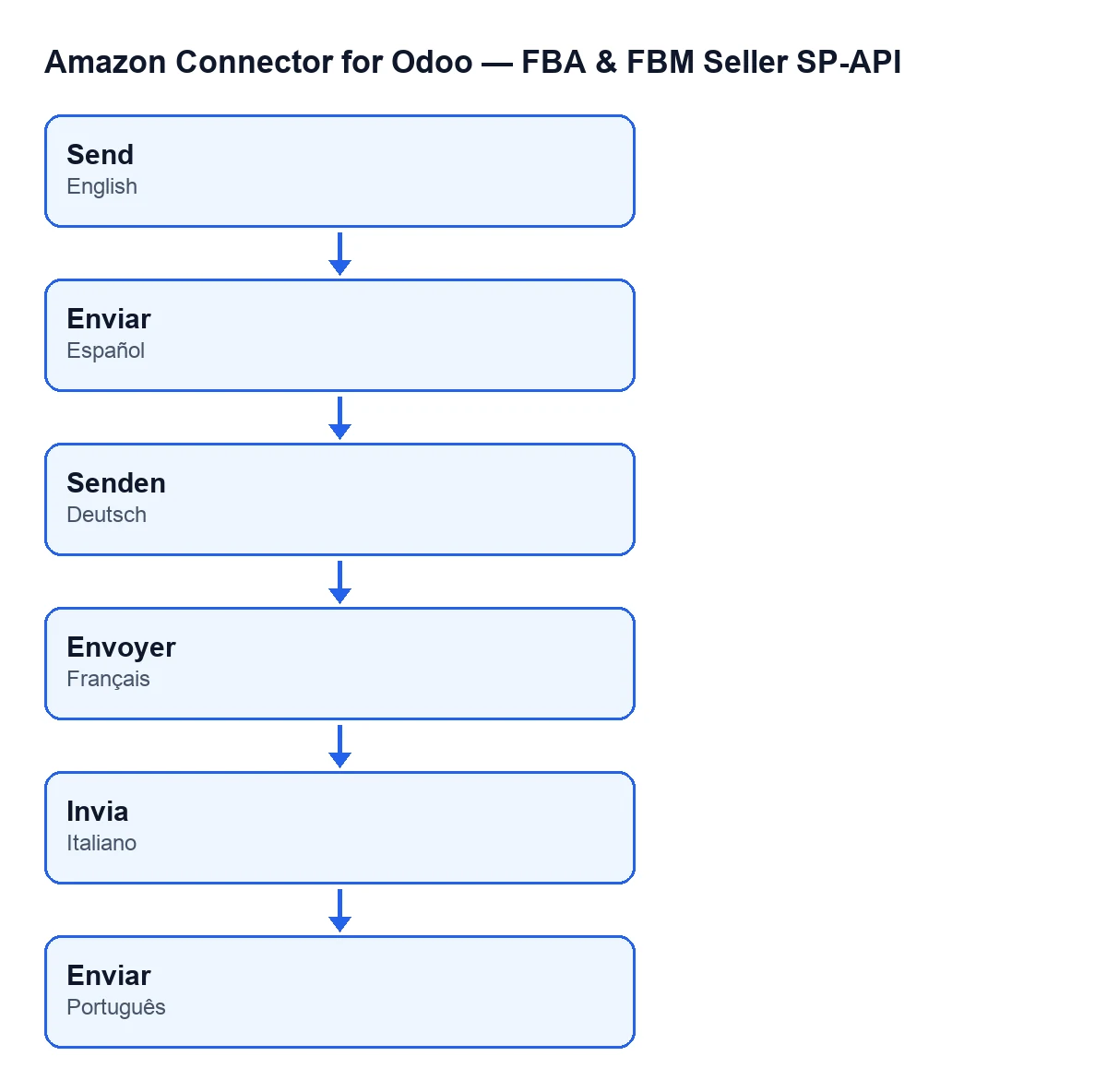
What is the button called if my Odoo is in another language?
In English it is Send; the diagram below shows how the user sees it in each language.
How FlexigoTech can help
The module is published on Odoo Apps for Odoo 17, 18, 19 and 20 (listing, module page). It is a one-off payment per Odoo version and needs a FlexigoTech Cloud subscription: the Connector plan costs €49 a month or €490 a year excluding VAT, with up to 3 accounts. If you are implementing Odoo or want to adapt how you reply to buyers, FlexigoTech implements Odoo 17, 18, 19 and 20 and builds custom connectors and integrations.
Keep reading
Checked in the connector's source code (version 20.0) and the linked sources
Sources
- Module source code: flexigobe_amazon_seller_connector 20.0 (8576afa5): views/amazon_spapi_message_views.xml
- Module source code: flexigobe_amazon_seller_connector 20.0 (8576afa5): wizard/amazon_spapi_message_compose_wizard.py
- apps.odoo.com/apps/modules/20.0/flexigobe_amazon_seller_connector
- flexigotech.com/en/services.html
- flexigotech.com/precios.html