

 Español
 Català
 Deutsch
 Français
 Português
 Italiano
 Nederlands
 Polski
When the message appears and what it means
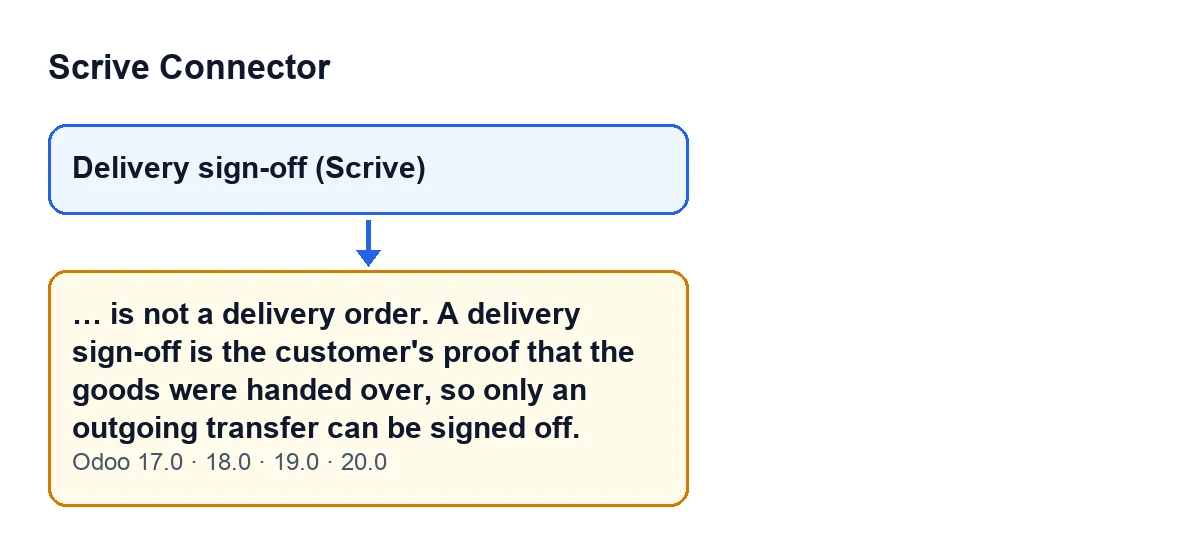
The full text is: … is not a delivery order. A delivery sign-off is the customer's proof that the goods were handed over, so only an outgoing transfer can be signed off. The dots at the start are replaced by the name of the transfer.
It is an error that stops the action. It can appear when you press the Delivery sign-off (Scrive) button in the transfer view: the button calls a method of the module, and that method raises the message when the transfer is not an outgoing one. Put simply, the module does not want a customer to be asked to sign for something that is not a delivery.
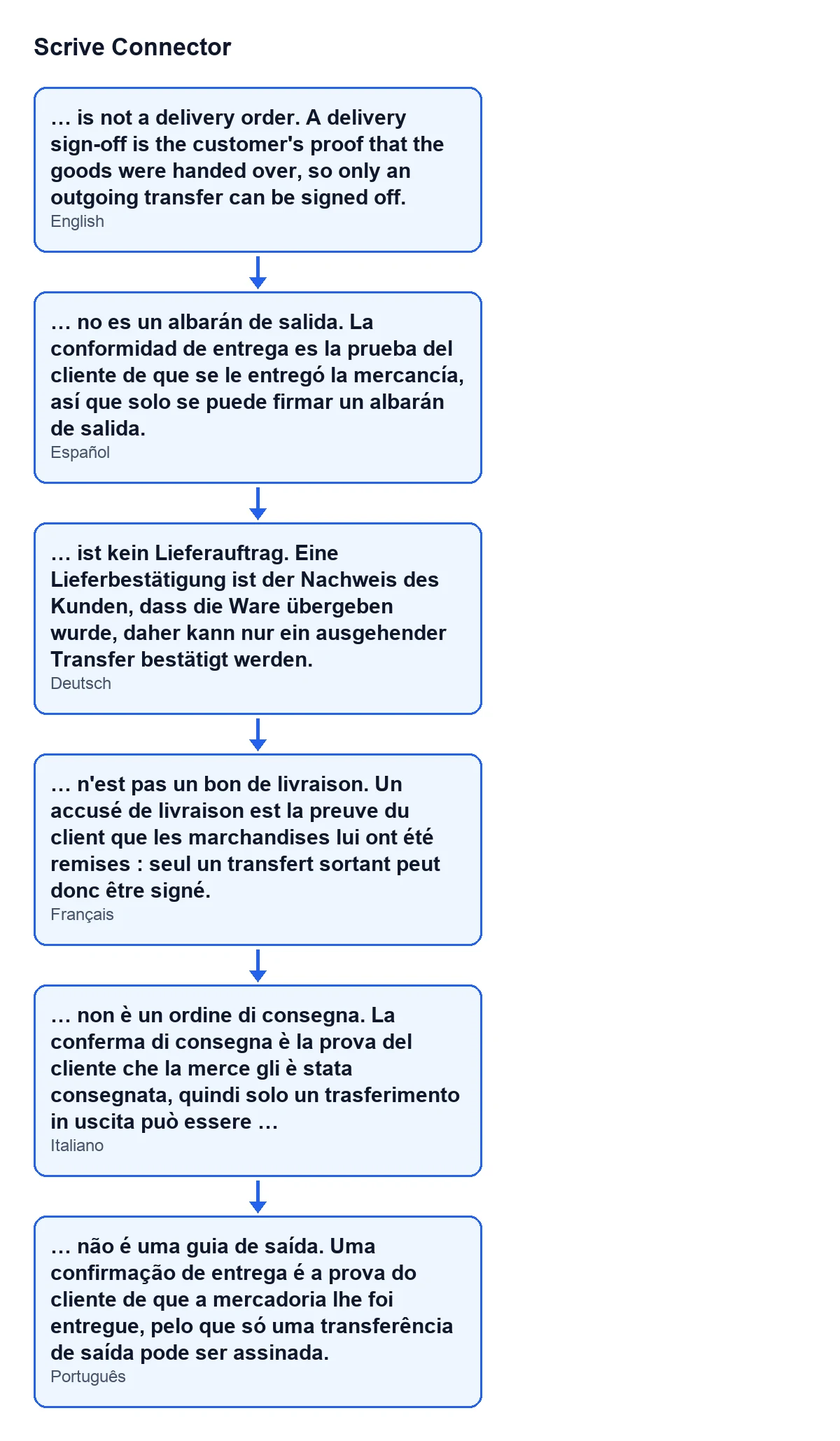
The second diagram shows the same message in Spanish, German, French, Italian and Portuguese, as the user sees it depending on the language of their Odoo.

What the module checks
The message is in the published code of Odoo 17, 18, 19 and 20. What follows about the condition and the order of the checks is what the Odoo 20.0 code shows.
There is a single condition
The module's code looks at the type of the transfer. If it is not an outgoing transfer, it raises the message. Only that type counts in this check: the transfer is either outgoing or it is not.
It is the first check in the method
In Odoo 20.0, the method that raises the message starts with this check. A transfer that is not outgoing gets this message whatever its state, and an outgoing transfer does not get it. So if you read this text, the thing to look at is the type of the transfer and not its state.
Any transfer that is not outgoing meets the condition
It does not have to be one specific type: it only has to be something other than outgoing. The comment in the Odoo 20.0 code gives receipts and internal moves as examples.
On those transfers the button is hidden
The view hides Delivery sign-off (Scrive) when the transfer is not outgoing or when its state is neither Ready nor Done. So on a receipt or an internal move the button does not appear. Even so, the check is not in the view but in the method the button calls, and that method is the one that raises the message. The same view condition is in Odoo 17, 18, 19 and 20.
The reason is written in the code itself
The method's comment, in Odoo 20.0, sums it up: never ask a customer to sign for goods that never left. It also says the button used to be on every transfer, including receipts, internal moves and drafts, and that one click sent the supplier, or nobody at all, a 'delivery slip' for a delivery that had not happened. This message is the module's guard for transfers that are not outgoing.
The button and the message live in a submodule
This feature is not in the main module but in the submodule Scrive Delivery Sign-off (flexigobe_scrive_connector_stock). In Odoo 17, 18, 19 and 20 it depends on flexigobe_scrive_connector and on stock, and it installs itself when its dependencies are there.
How to fix it
The module only accepts a delivery sign-off on an outgoing transfer, so the fix is to ask for it from one:
- Find the outgoing transfer for the delivery the customer is to sign for.
- Open it and check that it is
ReadyorDone. On an outgoing transfer in any other state, the button is not shown. - Press
Delivery sign-off (Scrive)there.
Receipts and internal moves do not accept a delivery sign-off: ask for it from the outgoing transfer.
Price and versions
The module is published on Odoo Apps for Odoo 17, 18, 19 and 20. It needs the FlexigoTech Cloud subscription (Connector plan: €49 a month or €490 a year, excluding VAT). With the subscription, the module for newer Odoo versions is included if you bought it on flexigotech.com; on the Odoo App Store, each Odoo version is bought there. The connection goes through FlexigoTech Cloud. Purchase details are on the Odoo Apps page and the module page.
If you need a hand
FlexigoTech implements Odoo 17, 18, 19 and 20 and builds custom connectors and integrations. If you want to review how outgoing transfers fit with your delivery sign-offs, or adapt the flow to your warehouse, get in touch.
If other messages from the module interest you, here are two: the one about callbacks for sent documents and the one about the allowed number of days.
Keep reading
Checked in the connector's source code (version 20.0) and the linked sources
Sources
- Module source code: flexigobe_scrive_connector_stock 20.0 (21b3b940): models/stock_picking.py
- Module source code: flexigobe_scrive_connector_stock 20.0 (21b3b940): views/stock_picking_views.xml
- Module source code: flexigobe_scrive_connector_stock 20.0 (21b3b940): __manifest__.py
- apps.odoo.com/apps/modules/20.0/flexigobe_scrive_connector
- flexigotech.com/en/services.html
- flexigotech.com/precios.html
- Module source code: flexigobe_scrive_connector 20.0 (21b3b940): __manifest__.py
- Module source code: flexigobe_scrive_connector 20.0 (21b3b940): wizard/scrive_send_wizard.py