

 Español
 Català
 Deutsch
 Français
 Português
 Italiano
 Nederlands
 Polski
A worked example to follow the button step by step
Example Illustrative case: the company and its figures are made up to explain the flow.
Librería Faro is an invented shop that sells on Shopify and keeps its orders in Odoo with this module. A customer asks for the money back on a whole order, and Ana, in administration, opens that sales order in Odoo. What follows is what the module does at each point, according to its Odoo 20 code.
First: does the button appear?
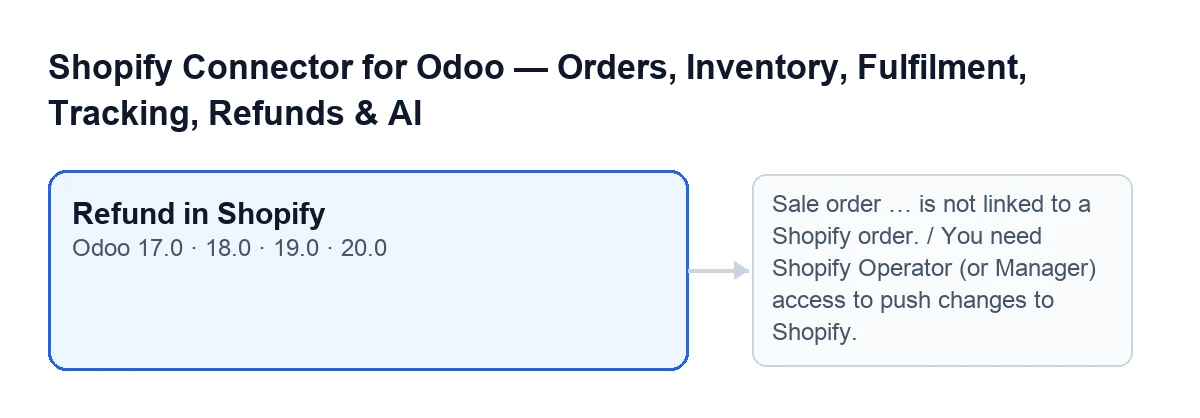
The Refund in Shopify button is on the sales order view and is hidden when the Shopify Order Ref field is empty. With the default values that field is empty, so on an order with no Shopify link you will not see the button. That field and Shopify Instance sit on the order form, in the Shopify group; they are read-only and stay hidden while the reference is empty. The same view condition applies to Odoo 17, 18, 19 and 20.
Second: the confirmation
When you click the button, Odoo asks Create a full refund of this order in Shopify?. If you accept, Odoo runs the button's action.
Third: what it checks, in this order
- Permissions. The first thing the action does is check that your user has Shopify Operator or Manager access. If not, it stops with
You need Shopify Operator (or Manager) access to push changes to Shopify.The code comment gives the reason: otherwise a user with ordinary Sales access and no Shopify role could trigger a real call to Shopify using the shop's credentials. That is why the check lives in the action itself and does not depend on whether the button is visible. - Link to Shopify. For each order, the action requires both the Shopify reference and the instance to be filled in. If either is missing, it stops with
Sale order … is not linked to a Shopify order., with the order name in place of the ellipsis. Since the button only shows when the reference is filled in, if you click it from the form and get this message, look in theShopifygroup to see whetherShopify Instancehas a value.
When a message stops the action, the process ends there and does not get as far as requesting that order's refund.
Fourth: what it asks Shopify for
If the order passes those checks, its Shopify instance is told to create the refund. According to the code:
- Lines. Every imported line is refunded: those that are not section or note lines, are not delivery lines and carry a Shopify line item identifier. The quantity is the line's quantity, rounded to a whole number.
- Shipping. Delivery lines are left out and the request does not ask for shipping costs to be refunded.
- Note. Unless another is given, the note sent to Shopify is
Refunded from Odoo. - Customer notification and store credit. Both come from the instance's options: notifying the customer of the refund, and refunding as store credit instead of to the original payment method.
- Currency. The module asks Shopify for the suggested refund and, if Shopify returns a currency, includes it in the request.
- Retries. The request carries a key describing exactly that refund (order, lines, quantities, shipping and method). If it is repeated, because a response was lost or someone clicked twice, it carries the same key and Shopify refunds once, according to the code comment.
If Ana does not have the role
If Ana sees the permissions message, no refund has been requested. She needs whoever administers Odoo to give her Shopify Operator (or Manager) access, as the message itself says, and then click the button again.

What to take from the example
- The button is not for every order: it depends on
Shopify Order Ref, and you cannot type that reference in because the field is read-only. - Your permissions and the order link (reference and instance) are checked before anything goes to Shopify, and if either fails the action stops.
- The refund it requests covers the imported lines in full, leaving out delivery lines and shipping costs.
- Customer notification and refunding as store credit are not chosen when you click: they come from the instance's options.
- An identical retry does not duplicate the refund in Shopify, because of the key the request carries.
Before trying it in your Odoo
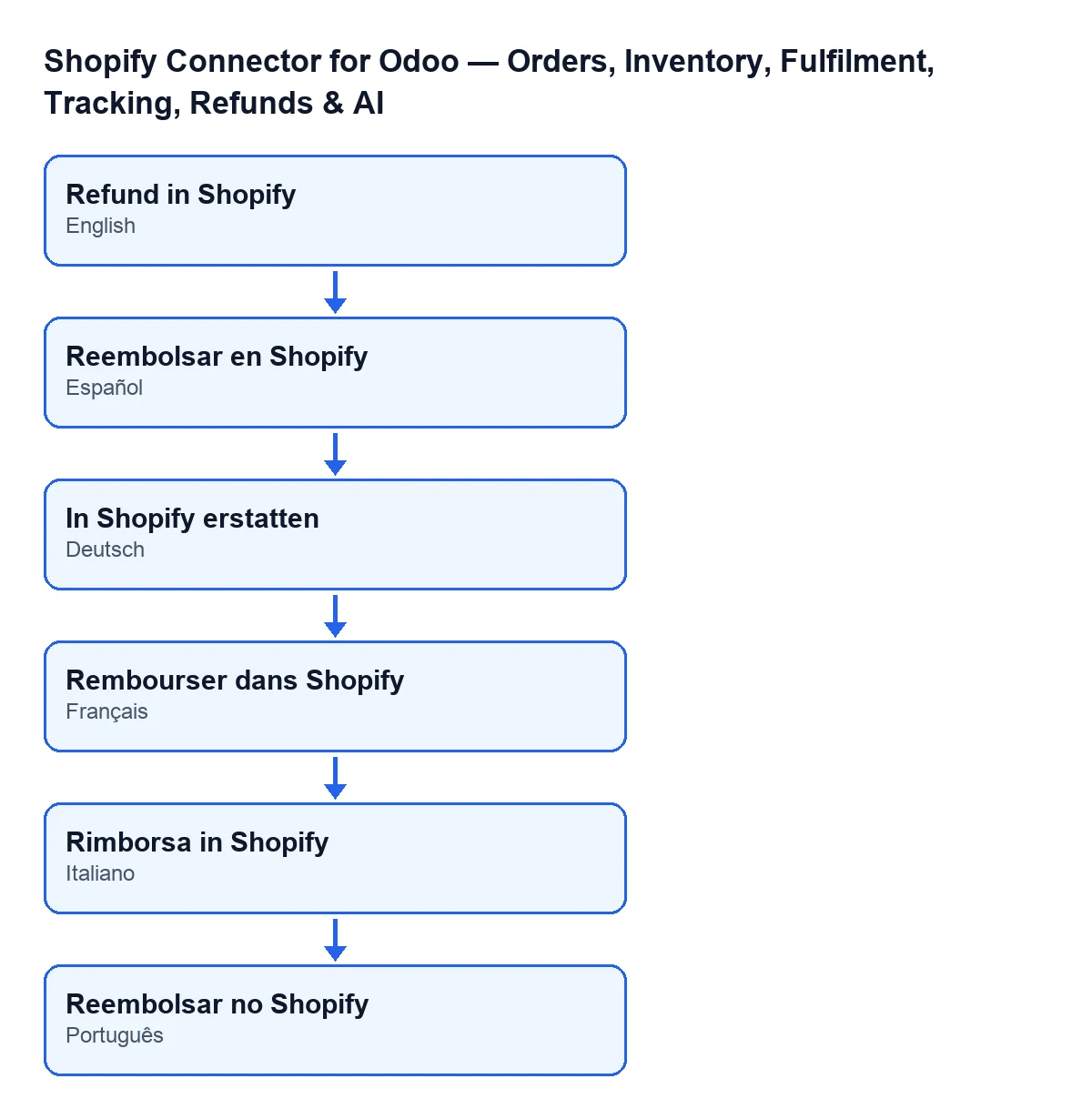
The button is in the Odoo 17, 18, 19 and 20 branches, the versions the module is published for on Odoo Apps; the code described here is Odoo 20's. With Odoo in English it is called Refund in Shopify; in other languages the label changes, as the diagram shows.
The module is a one-off payment per Odoo version and needs the FlexigoTech Cloud subscription, Connector plan: €49 a month or €490 a year, excluding VAT. The connection goes through FlexigoTech Cloud, which stores the credentials encrypted, watches the synchronisation and emails you if it fails. You will find everything on the Odoo Apps listing and on the module page.
If your question is about another part of orders, see the message about Shopify data for creating the sales order. And if you are implementing Odoo with Shopify and want to review permissions, instances or a custom returns flow, FlexigoTech implements Odoo 17, 18, 19 and 20 and builds connectors and custom integrations.
Quick questions
Why can't I see the button on an order?
Because the button is hidden when Shopify Order Ref is empty, and with the default values it is.
Does it ask for confirmation?
Yes: Create a full refund of this order in Shopify?.
Keep reading
Checked in the connector's source code (version 20.0) and the linked sources
Sources
- Module source code: flexigobe_shopify_seller_connector 20.0 (d7e627b4): views/sale_order_views.xml
- Module source code: flexigobe_shopify_seller_connector 20.0 (d7e627b4): models/sale_order.py
- apps.odoo.com/apps/modules/20.0/flexigobe_shopify_seller_connector
- flexigotech.com/precios.html
- flexigotech.com/en/services.html