

 Español
 Català
 Deutsch
 Français
 Português
 Italiano
 Nederlands
 Polski
Before the first transfer
The journey starts with a connection that has been tested and shows Connected, for the Odoo warehouse that Easy WMS runs. With Send transfers automatically on, which is how it comes, there is nothing else to do: confirming the transfer is enough. If you switch it off, each transfer goes to the queue with the Send to Easy WMS button on the transfer itself.
Every announced transfer carries four connector fields: Easy WMS status, Easy WMS reference (the identifier Easy WMS gives the order on its side), Easy WMS connection and the confirmation date. Only the connector's integration managers see Easy WMS connection; a regular user sees the other three. How Odoo and Easy WMS split the work is explained in Odoo WMS integration.
A delivery, from confirmation in Odoo to goods shipped
- You confirm the delivery in Odoo. Its exit order joins the queue. If an item on the delivery is not in Easy WMS yet, its item master goes out before the order.
- The
Easy WMS: send queued documentsscheduled action sends it on its next run, every 5 minutes. An integration manager can bring it forward withSend queue now, on the control panel. If you switched automatic sending off,Send to Easy WMSputs the order in the queue. The transfer showsSent to Easy WMSfrom the moment it enters the queue.
- Easy WMS acknowledges the order and the transfer moves to
Acknowledged. If Easy WMS rejects it, it stays inRejected by Easy WMS.
- Easy WMS picks and ships the goods, and sends the exit confirmation. The
Easy WMS: poll for answersscheduled action collects it every 10 minutes.
- Odoo writes on the delivery the quantities, lots and pallets the warehouse counted, and validates it if
Validate transfers on WMS confirmationis on. The transfer ends inConfirmed by Easy WMS.
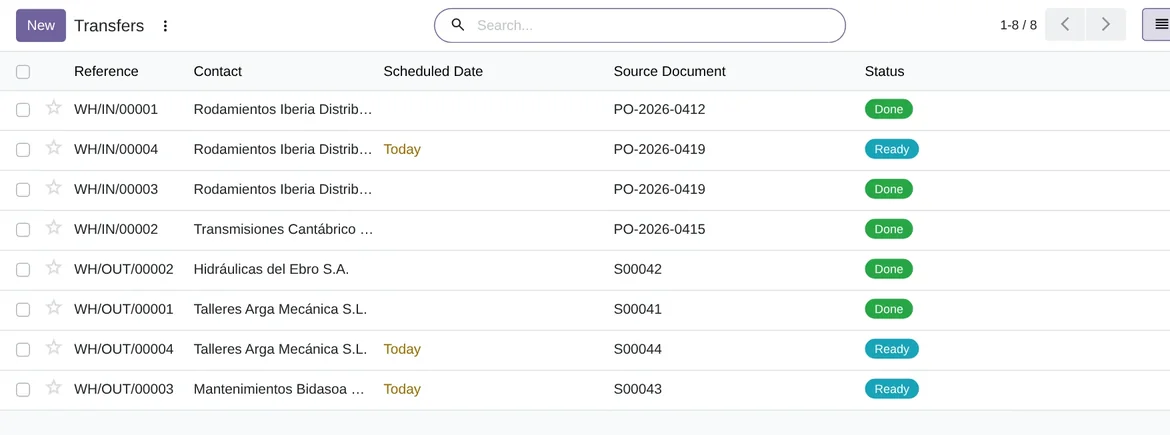
A receipt: what Easy WMS counts on arrival
The receipt makes the same journey with its entry order. When the goods reach the warehouse, Easy WMS sends the entry confirmation with what was really received, and Odoo writes it on the receipt.
Two details depend on what you have installed in Odoo. The expiry date is stored on the lot only if Odoo's expiry date management is installed; on the item, Expiry controlled tells Easy WMS to ask for it and return it. The carrier tracking number is stored only if the shipping modules are installed.
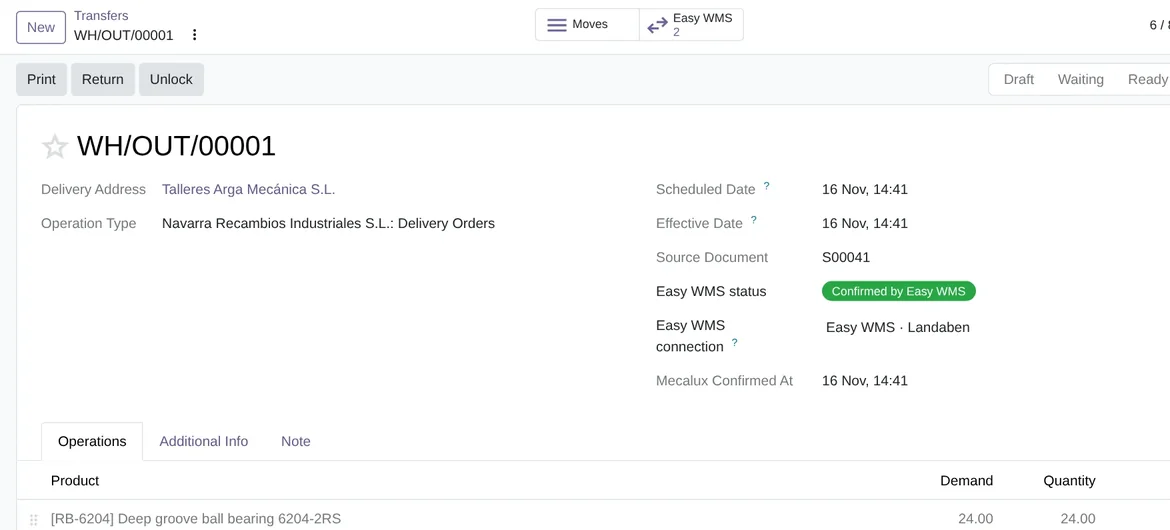
Easy WMS status, in Odoo 20 with demo data.When Easy WMS confirms less than ordered
With Validate transfers on WMS confirmation on, the outcome depends on Accept partial confirmations. With both on, which is how they come, Odoo validates what moved and creates a backorder for the rest. That backorder then makes its own journey. If you switch that option off, a partial confirmation ends in error and the message tells you that Easy WMS confirmed less than ordered and that partials are disabled for that connection. With validation off, Odoo writes what arrived and leaves the transfer unvalidated for you to review.
When you cancel a transfer that has already gone out
If you cancel in Odoo a receipt or a delivery in Sent to Easy WMS or Acknowledged, the connector sends Easy WMS the order cancellation. The transfer moves to Cancelled in Easy WMS. If Easy WMS later confirms a transfer that is cancelled in Odoo, the confirmation is not applied and the message says so.
When a confirmation does not fit
Odoo looks for the transfer by its reference, inside the warehouse of the connection. If there is none, the message ends in error: Easy WMS confirmed an order with no matching transfer. It also stops when an entry confirmation arrives for a delivery, or the other way round. What to do with each failed message is in Easy WMS messages and errors.
If you validated the transfer by hand before the confirmation arrived, Odoo leaves it alone and records it in the log.
Frequently asked questions about receipts and deliveries with Easy WMS
Does it need the FlexigoTech Cloud subscription?
Yes. The command API, SOAP and SFTP go through FlexigoTech Cloud. You can get the connector on Odoo Apps and read its details on the Mecalux Easy WMS connector page.
Can I see which transfers are waiting for Easy WMS?
Yes. The transfer list has the Awaiting Easy WMS and Rejected by Easy WMS filters, and the connector's control panel counts the transfers awaiting confirmation.
How long does the confirmation take?
That depends on how long the warehouse takes to do the work. On the Odoo side, the queue goes out every 5 minutes and the answers are collected every 10.
Has it been tested with a live Easy WMS?
Not yet. The automated tests run against an Easy WMS simulator that follows the published screenshot of Mecalux's own connector. FlexigoTech has no Easy WMS installation to test with, and Mecalux does not publish the layout of its documents.
Keep reading
Checked in the connector's source code (version 20.0) and the linked sources
Sources
- flexigotech.com/en/mecalux-connector-odoo.html
- Module source code: flexigo_mecalux_connector 20.0 (05a27c9c): data/mecalux_data.xml
- Module source code: flexigo_mecalux_connector 20.0 (05a27c9c): models/stock_picking.py
- Module source code: flexigo_mecalux_connector 20.0 (05a27c9c): models/mecalux_backend.py
- Module source code: flexigo_mecalux_connector 20.0 (05a27c9c): models/mecalux_item.py
- Module source code: flexigo_mecalux_connector 20.0 (05a27c9c): models/mecalux_inbound.py
- Module source code: flexigo_mecalux_connector 20.0 (05a27c9c): static/description/index.html
- Module source code: flexigo_mecalux_connector 20.0 (05a27c9c): views/mecalux_dashboard_views.xml
- Module source code: flexigo_mecalux_connector 20.0 (05a27c9c): views/stock_picking_views.xml