

 Español
 Català
 Deutsch
 Français
 Português
 Italiano
 Nederlands
 Polski
The Publish Catalog button is in Odoo 17, 18, 19 and 20. Its behaviour is described here using the published Odoo 20 code.
Who sees it and who can run it
Myth: "If I can see the menu, I can publish"
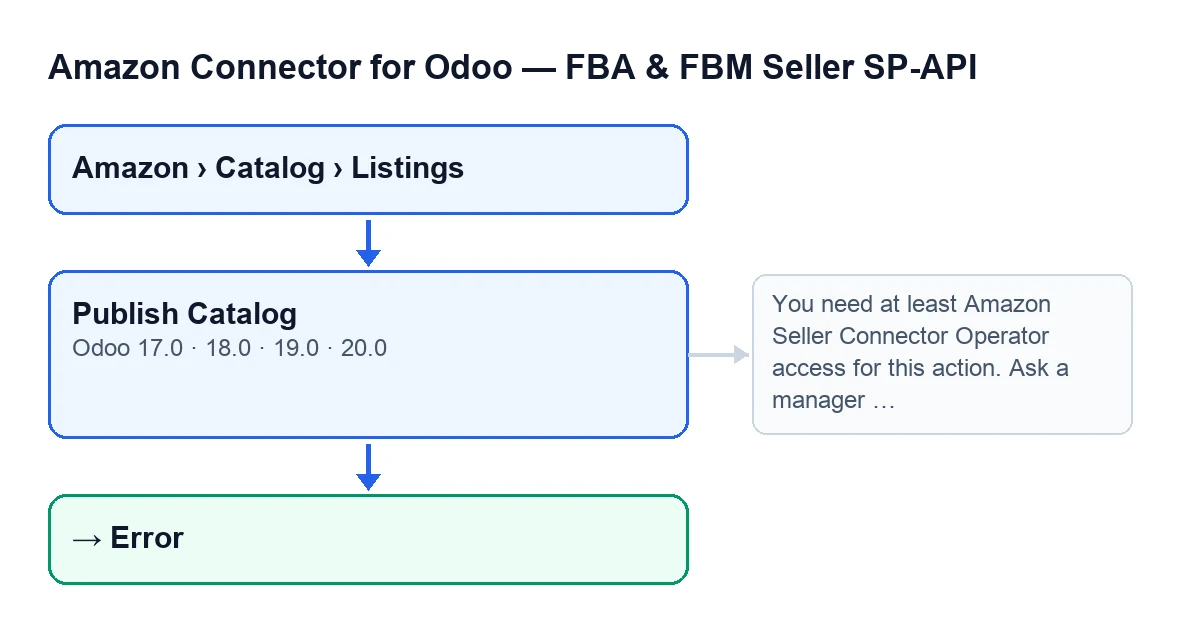
Reality. The records open from Amazon › Catalog › Listings, and every segment of that menu asks for the Viewer permission. With it you reach the record, and the Publish Catalog button is never hidden: its view condition says it is always shown, in Odoo 17, 18, 19 and 20.
Seeing it is not the same as being able to use it. The first thing the code does when you click is check your access. If you are not acting as superuser and you do not have at least the connector's Operator access, the action stops with this message:
You need at least Amazon Seller Connector Operator access for this action. Ask a manager to grant Operator or Manager access.
The message itself gives the fix: ask a manager to grant you Operator or Manager access. The code also checks that you have write permission on the record, so having the group is not enough if that permission is missing.

What happens when you click
Myth: "It is a harmless click"
Reality. Before doing anything, Odoo asks you to confirm with this text: This sends a full putListingsItem payload to Amazon and can replace existing catalog attributes. Continue?
The warning is literal: the full payload is sent and attributes Amazon already held can be replaced.
Myth: "It only sends what changed"
Reality. It sends the full payload. Before sending it, the code carries out several checks and adjustments on the listing attributes; if cleaning compliance media rows on Amazon fails, it leaves a warning in the server log and carries on. The submission uses the account's seller ID and the record's SKU and marketplace.
Afterwards, the code reads the status, the submission ID and the issues from Amazon's response. The failures Amazon returns inside its response are sorted as issues (errors, warnings and information). Depending on Amazon's answer, the code may also adjust attributes and send again.
That is why it pays to look at what was sent and what Amazon replied. Last Payload and Last Response are on the Technical tab, in the Diagnostics group. This submission routine fills them in, they are read-only, only system administrators see them and they may be hidden depending on the technical display setting.
Myth: "It is the same as the preview"
Reality. The record also has a Preview Catalog button, and both reach the same full-submission routine. Publish Catalog calls that routine as a real submission (not in validation mode). Only in that case does the code note the date of the catalogue push and, if it cleans up compliance media rows, try to clean them on Amazon too.
If you want to know more about another preview button, there is an article on the preview on Amazon.
What is left afterwards, and what if it fails
Myth: "If it fails, there is no trace"
Reality. After a successful submission, the module stores an action log entry with the message Full catalog submission sent to Amazon successfully. The entry includes the user, the status, the duration, the payload sent and the response.
If the submission routine fails, the code writes the Error state on the record together with the text of the failure, stores another log entry with an error status, the payload and the last response, and raises the error again. That is why the action is interrupted and you see the message on screen.
Myth: "Only this button reaches that routine"
Reality. The full-submission routine that this button uses is also reached from:
- The
Create on AmazonandCreate family on Amazonbuttons. For the latter there is an article on what the create-family button does. - The
Preview Catalogbutton and theRun Auto-repair Errorsbutton. - The scheduled task
Amazon SP-API - Auto-repair queue v2, which runs every three minutes and is active on installation.
There is also a related checkbox, Auto Repair Retry Pending, which is read-only. You will find it on the Listings record, in the Issues tab, Repair Queue group. It is off by default, the code fills it in, and clicking Publish Catalog is one of the routes that clear it.
Versions, price and help
The module is published on Odoo Apps for Odoo 17, 18, 19 and 20. It is a one-off purchase per Odoo version and needs the FlexigoTech Cloud subscription, Connector plan: €49 a month or €490 a year, excluding VAT. The connection goes through that service, which stores the credentials encrypted, watches the synchronisation and emails you if it fails. You can see the module on its Odoo Apps page or on the flexigotech.com page.
If you are implementing Odoo and want the Amazon catalogue to go out right from the first submission, FlexigoTech implements Odoo 17, 18, 19 and 20 and builds custom connectors and integrations.
Keep reading
Checked in the connector's source code (version 20.0) and the linked sources
Sources
- Module source code: flexigobe_amazon_seller_connector 20.0 (88c7e241): views/amazon_spapi_product_binding_views.xml
- Module source code: flexigobe_amazon_seller_connector 20.0 (88c7e241): models/amazon_spapi_product_binding.py
- Module source code: flexigobe_amazon_seller_connector 20.0 (88c7e241): models/amazon_spapi_new_product.py
- apps.odoo.com/apps/modules/20.0/flexigobe_amazon_seller_connector
- flexigotech.com/en/services.html
- flexigotech.com/precios.html