

 Español
 Català
 Deutsch
 Français
 Português
 Italiano
 Nederlands
 Polski
How to read the module's messages
We quote the module's messages here exactly, in backticks, so you can match them on screen. The messages about computing, consulting, confirming, submitting and publishing name the report state from which the action is allowed: Draft, Calculating, Review, Consulting, Confirmed and Submitted. The reset message, by contrast, names the states from which the action is not allowed. In the first group, that name is the main clue: it tells you where the report needs to be for the action to work.
If you would first like to see which menus the module adds and what a report goes through, see how Pay Equity Reporting works under the hood. Here we focus only on the messages.
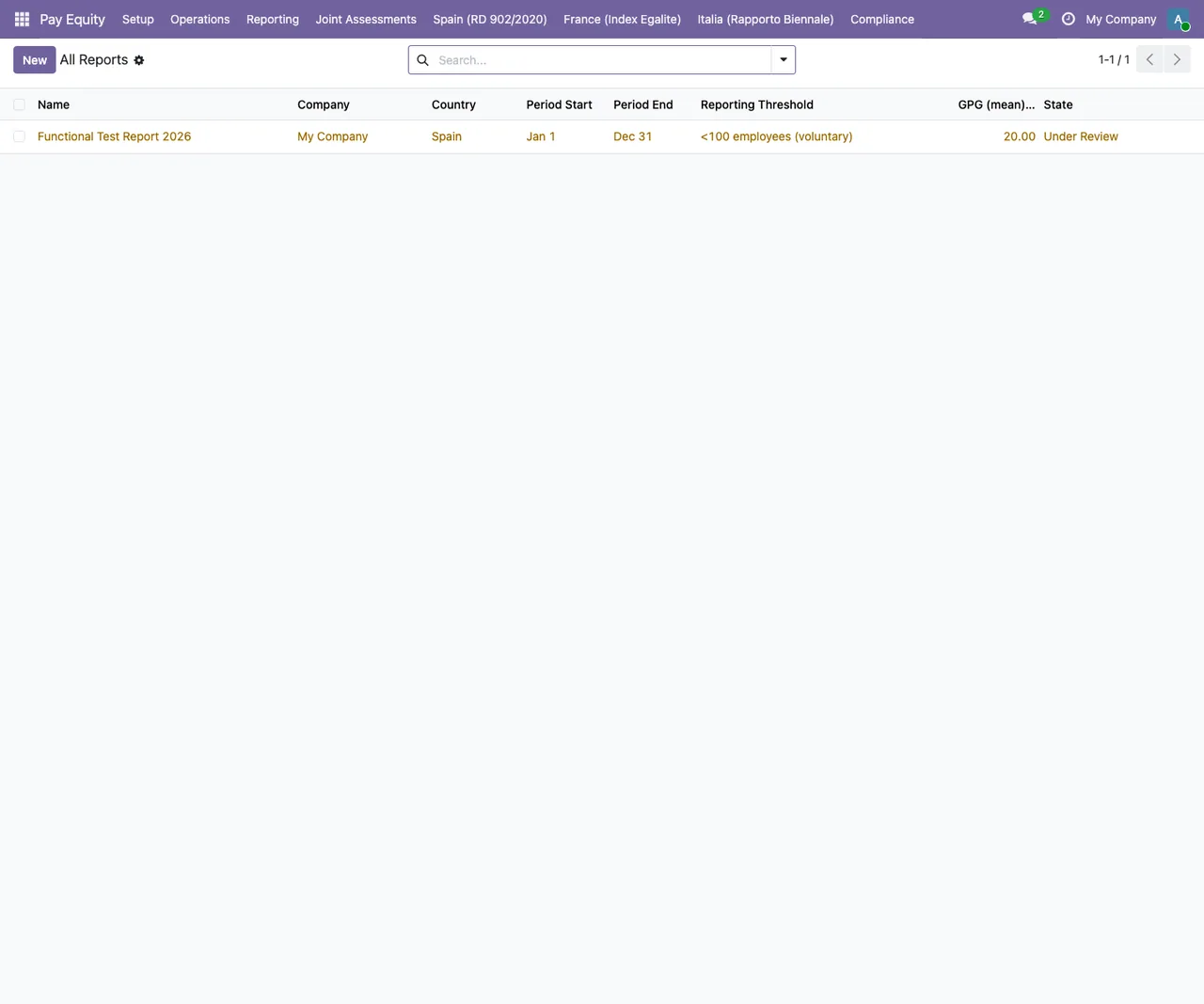
Pay Equity › All Reports list with test data: a single report for My Company, Spain, in Under Review state.The messages, one by one
The period cannot end before it starts
Message: Period end must be on or after period start.
It appears when the report period's end date is earlier than its start date. What to do: correct one of the two dates. Note the wording: it says on or after, so the end may match the start but cannot fall before it. In the screenshot above, the test report runs from January to December.
Computing only works from Draft or Calculating
Message: Can only compute from Draft or Calculating state.
It shows up if you run the computation while the report is in any other state. What to do: check the state column in Pay Equity › All Reports. If the report is in Draft or Calculating, computing is allowed; in any other state the module rejects it with this text. If the report has also been submitted or published, read the detail below on reports that cannot go back.
Each action has a single starting state
Four report actions check the state before they run. If the state does not match, you get one of these messages:
| Action | Required state | Literal message |
|---|---|---|
| Consult workers | Review | Can only consult workers from Review state. |
| Confirm | Consulting | Can only confirm from Consulting state (Art. 9(7)). |
| Submit | Confirmed | Can only submit from Confirmed state. |
| Publish | Submitted | Can only publish from Submitted state. |
What to do: check the report's current state and compare it with the one the message names. As long as the report is not in that state, the module will not accept the action.
The workers' representatives consultation cannot be skipped
Two further messages revolve around consulting the workers' representatives:
Workers representatives consultation date is required (Art. 9(7)).- Another message that opens by citing
Art. 9(7) Directive 2023/970and continues withworkers' representatives must be consulted before management confirmation.
The first shows that the module requires a consultation date for the representatives. The second shows that the module will not allow management confirmation without that prior consultation. Together with the message about confirming from Consulting, all three point to the same thing. What to do: record the consultation date the message asks for and try the confirmation again.
The module cites Article 9(7) of Directive 2023/970 in these messages. Here we describe what the module checks according to its texts; what that legislation requires in your particular case is something your adviser needs to confirm.
A submitted or published report cannot go back
Message: Cannot reset submitted/published reports. Create a new report instead.
It appears if you try to reset a report that has already been submitted or published. The message itself gives the way out: create a new report. Bear this in mind before submitting, because a submitted or published report can no longer be reset.
The server needs xlsxwriter
Message: xlsxwriter is not installed on this server.
This warning is about the server, not your data or the report state. What to do: ask whoever manages the server or hosting to install the xlsxwriter library on that server, then try again.
If the wizard has no report, start again
Message: No report record. Restart the wizard.
The text indicates that the wizard has no report record. What to do: exactly what the message says, restart the wizard.
Other screens in the module
The messages in this article are about the report, the period, the consultation, the server and the wizard. The module's menu has more lists, and none of these messages mention them, but they help you find your bearings while you review a report.
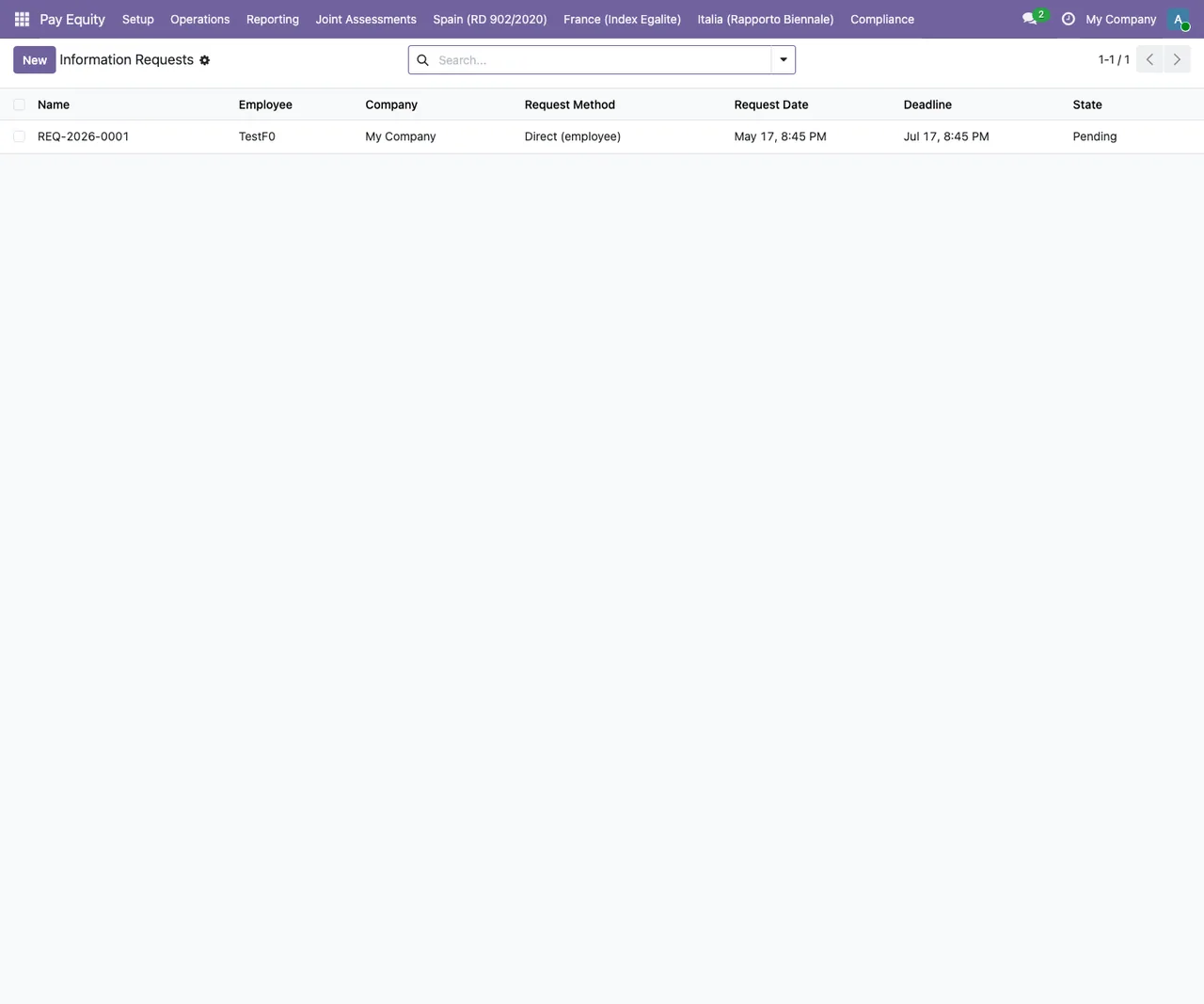
Pay Equity › Information Requests with test data: one request from an employee via Direct (employee), in Pending state.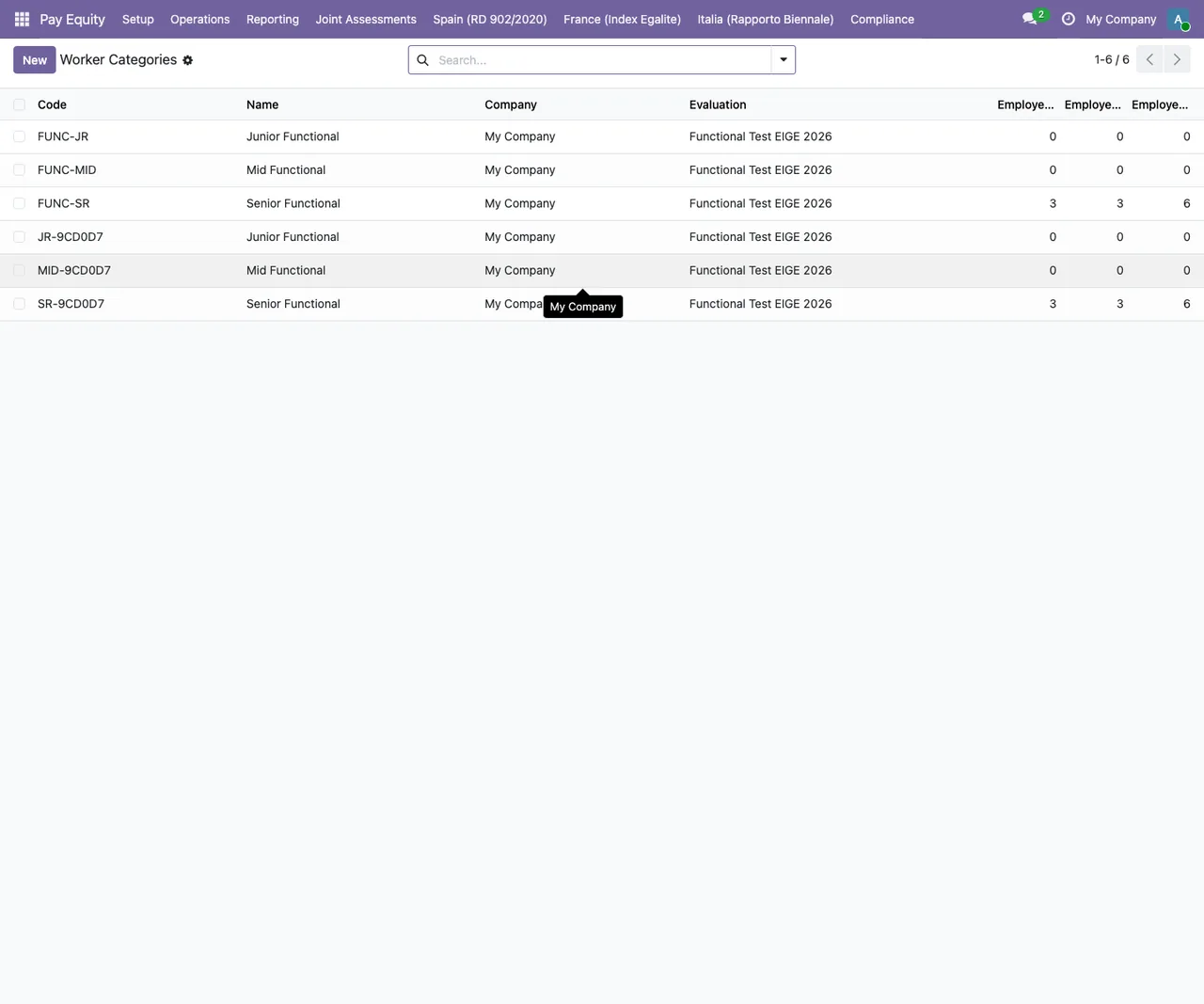
Pay Equity › Worker Categories with test data: six categories with code, name, company and evaluation.How FlexigoTech can help
The module is published on Odoo Apps for Odoo 19.0; you will find it on the Odoo Apps listing. If you are implementing Odoo or need the module to fit in with other processes in your company, FlexigoTech implements Odoo and builds bespoke connectors and integrations. If you see a message that is not on this list, send us the exact text and the report's state.
Keep reading
Checked in the module's source code (version 19.0) and the linked sources
Sources
- Module source code: flexigobe_pay_equity_reporting 19.0 (68808faf): models/paytrans_report.py
- Module source code: flexigobe_pay_equity_reporting 19.0 (68808faf): wizard/generate_report_wizard.py
- apps.odoo.com/apps/modules/19.0/flexigobe_pay_equity_reporting
- flexigotech.com/en/services.html