

 Español
 Català
 Deutsch
 Français
 Português
 Italiano
 Nederlands
 Polski
What this case covers and what it doesn't
The article follows a made-up company setting up the module in Odoo 20. The order of the steps is the order of the case, not one the module enforces. Everything named here (fields, lists, statuses) comes from the module itself; if you want to see how it fits together, read how the module works inside.
The screens shown sit under the Whistleblowing menu: Reports, Libro Registro, the channel list, Responsables and Audit Packs.
The Albada Hardware case, from installation to the first report
Example Illustrative case: the company and its figures are made up to explain the flow.
Albada Hardware is a fictional distributor finishing its Odoo 20 implementation. Lucía, its compliance lead, has to get the internal reporting channel ready before announcing it to staff. She prepares it in an afternoon and notes down what she will check the following week.
The four fields Lucía decides first
Lucía starts with these module fields, each with its label exactly as it appears on screen:
Enable Anti-Virus Scanning of Attachments(wb_av_enabled, a yes or no tick box): according to its label, it turns on anti-virus scanning of attachments.DKIM Selector(wb_dkim_selector, a text field): Lucía leaves it pending until she gets the value from whoever runs her systems.Sentry DSN (optional)(wb_sentry_dsn, a text field): the label itself marks it as optional, and Lucía leaves it empty.Detect Tor Exit Nodes (opt-in)(wb_tor_detection_enabled, a tick box): the label says it is something you have to switch on (opt-in). Lucía checks with her adviser before ticking it.
Who handles reports: the Responsables list
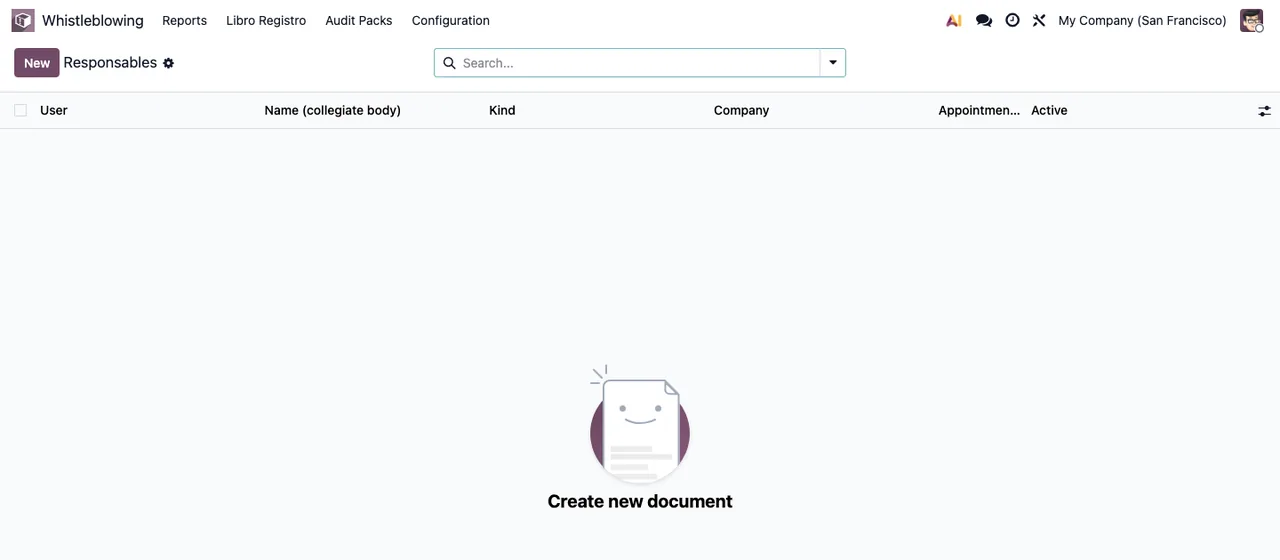
Responsables list, still with no records: columns, New button and search bar.Under Whistleblowing › Responsables the list is empty at the start. Its columns are User, Name (collegiate body), Kind, Company, Appointment and Active. The Name (collegiate body) column shows that the name of a collegiate body can go there. Lucía clicks New and adds the person who will handle the channel, with their Odoo user and company.
The channel: name, slug and status
In the channel list each channel has a name, a slug, a company and a status. Among the statuses in the code there is a list with Draft, Published and Archived. Lucía creates her company's internal channel and checks that it ends up as Published, like the test channel shown in the animated walkthrough further down.
A test report from the website
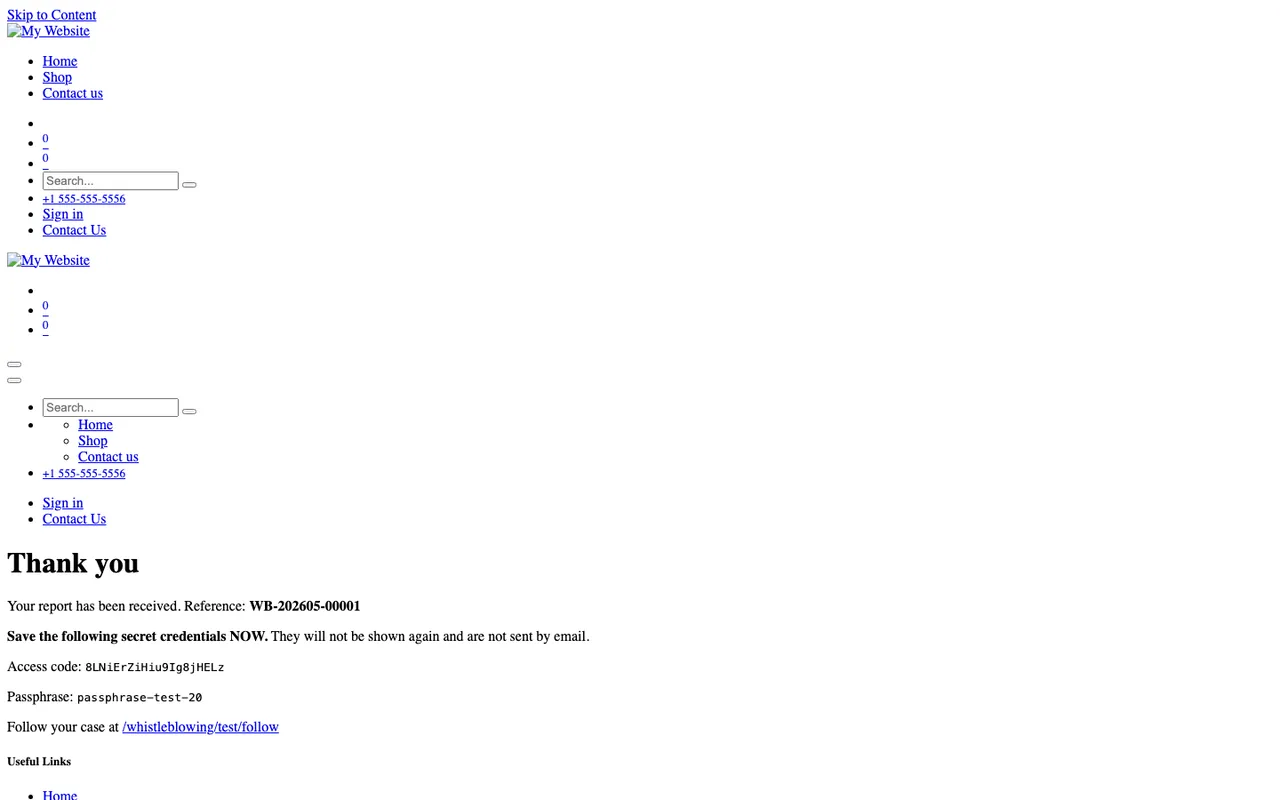
Lucía sends a test report from the website. Once submitted, the «Thank you» page shows the report reference, a secret access code and passphrase, and a follow-up link. This is what the reporting person sees; during the test, Lucía notes them down and opens the follow-up link to check it works. In the screenshot the page appears without styling.
Where the report shows up inside Odoo
In Reports, with the Open filter, reports are grouped into columns such as Received and Acknowledged, with cards showing the reference and title. In Libro Registro each entry has the type Received and the summary Report received.; the Outcome and Category Code columns are still empty. Opening a report, the form shows the channel, priority, deadlines and the status bar at Received, plus the Report content tab with the description of the facts and the outcome.
The outcomes a report is closed with
The outcome_state field has these values: Founded, Partially founded, Unfounded, Inadmissible and Forwarded to authority. Lucía goes through them with her adviser so she knows what each one means in her internal procedure before closing any real report.
The audit pack
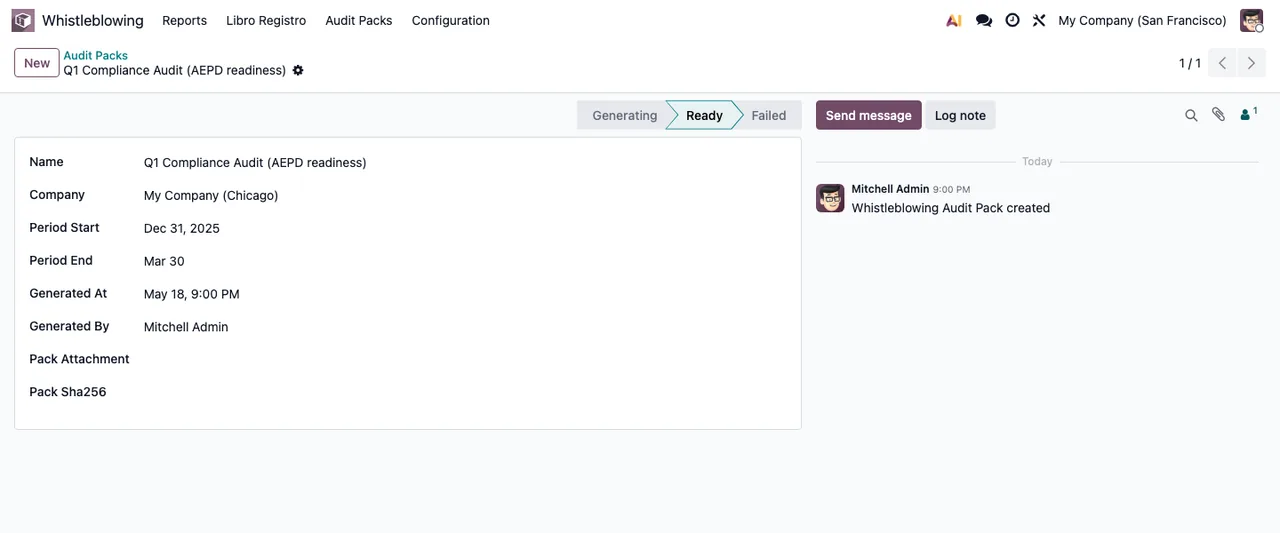
Ready, with no content yet: Pack Attachment and the hash field are empty.Under Whistleblowing › Audit Packs Lucía opens a test pack. The form holds the name, company, period, generation date and user, and the chatter keeps the creation message. The code has a status list with Generating, Ready and Failed.
What Lucía checks in the first week
- That
Responsablesis no longer empty and that each person has theActivecolumn ticked. - That the channel is still
Published. - That the test report appears in
Reportswith theOpenfilter and has its entry inLibro Registro. - That she has decided on
Detect Tor Exit Nodes (opt-in)and whether to fill inSentry DSN (optional). - That
DKIM Selectornow holds the value she was given. - The
scan_statefield, with the valuesQueued,Scanning,DoneandFailed. If she seesFailedon a record, or a warning she doesn't understand, she looks it up in the module's error messages. - The status of the Audit Packs:
Generating,ReadyorFailed.
What to take from the case
Lucía doesn't improvise: she settles the fields before opening the channel, adds the responsible persons before announcing it and tests the whole journey with a fictitious report. She also reads each status by its literal name (Received, Published, Ready) rather than guessing what it means, and writes down how she will tell test reports apart from real ones.
Send your own test report and follow it through Reports, Libro Registro and its form before you announce the channel.
Price, versions and subscription
The module is published on Odoo Apps for 17, 18, 19 and 20, at €9 per Odoo version, one-off payment, excluding VAT. The FlexigoTech Cloud local service costs €29/month or €290/year excluding VAT (Pro: €58/month or €580/year); without a subscription, or with the service suspended, whatever the subscription provides stops and your data stays in your Odoo.
With the subscription, the module for new Odoo versions is included if you bought it on flexigotech.com; on the Odoo App Store, each version is bought on its listing.
How FlexigoTech can help
FlexigoTech implements Odoo 17, 18, 19 and 20 and builds custom connectors and integrations. If you are setting up the reporting channel as part of an implementation, we can go through the fields, the responsible persons and the full test with you before it opens to staff.
Keep reading
Checked in the module's source code (version 20.0) and the linked sources
Sources
- Module source code: flexigo_whistleblowing 20.0 (8dfc517f): models/res_config_settings.py
- Module source code: flexigo_whistleblowing 20.0 (8dfc517f): models/wb_audit_pack.py
- Module source code: flexigo_whistleblowing 20.0 (8dfc517f): models/wb_channel.py
- Module source code: flexigo_whistleblowing 20.0 (8dfc517f): models/wb_report_attachment.py
- Module source code: flexigo_whistleblowing 20.0 (8dfc517f): wizards/wb_closure_wizard.py
- apps.odoo.com/apps/modules/20.0/flexigo_whistleblowing
- apps.odoo.com/apps/modules/17.0/flexigo_whistleblowing
- apps.odoo.com/apps/modules/18.0/flexigo_whistleblowing
- apps.odoo.com/apps/modules/19.0/flexigo_whistleblowing
- flexigotech.com/en/services.html
- flexigotech.com/precios.html