

 Español
 Català
 Deutsch
 Français
 Português
 Italiano
 Nederlands
 Polski
What it means and when it appears
It is a validation error. A check that runs when you save the Octopia account record raises it. If the check fails, the action stops and the record is not saved.
The condition in plain words: the Octopia Seller ID field has something written in it and, once the spaces at the start and end are removed, what is left is not made up of digits only.
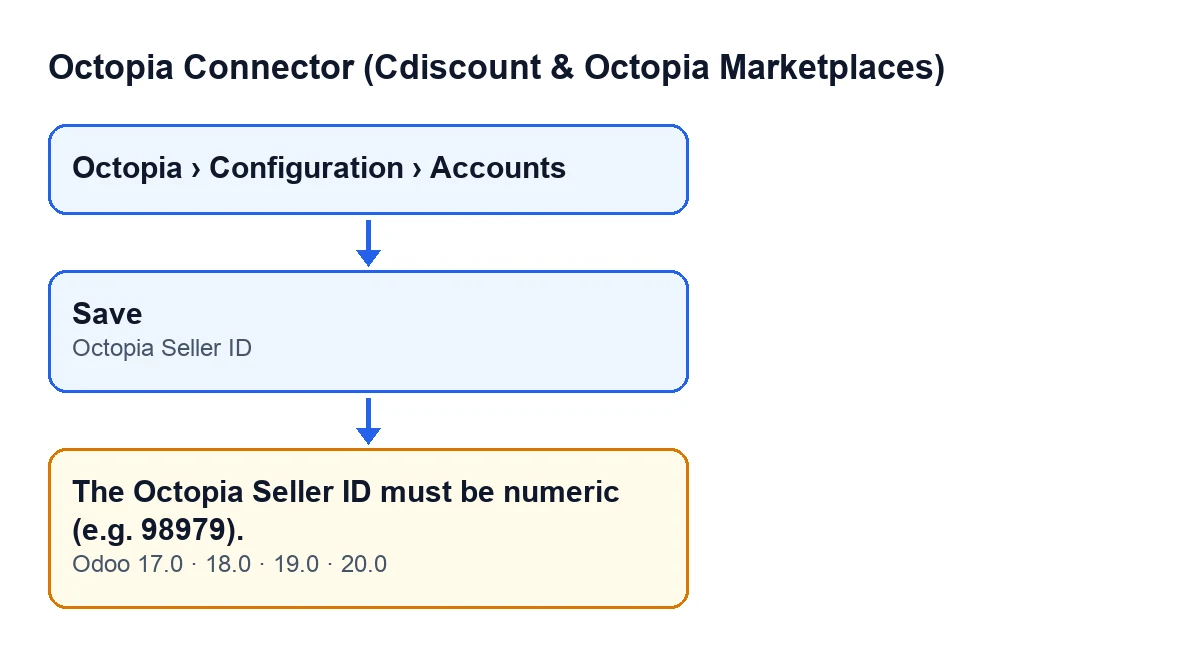
The field sits in the Octopia Accounts form, in the Credentials group. Only users with the Odoo system administration permission can see it. The records open from the menu Octopia › Configuration › Accounts, and each part of the menu asks for a permission: Octopia asks for Octopia User, Configuration asks for Octopia Manager and Accounts asks for Octopia Admin. If you do not hold one of them, you do not see that part of the menu.

A case to see it in action
Example Illustrative case: the company and its figures are made up to explain the flow.
Picture an invented shop, Menaje Costa Azul, setting up its Octopia account in Odoo. Marta, who handles administration and holds the Odoo system administration permission, goes to Octopia › Configuration › Accounts, opens the account record and goes to the Credentials group.
In the Octopia Seller ID field she types the shop's trading name, because it seems the natural way to identify the seller. When she saves, Odoo shows The Octopia Seller ID must be numeric (e.g. 98979). and the record is not saved.
She tries again and puts a letter in front of the number. She saves and gets the same message: with a single letter, what is left is no longer digits only.
On the third attempt she leaves just the numeric value of the SellerId header. This check no longer stops her from saving. Had a space been left at the start or the end, it would not have fired either, because the code strips them before checking.
What the code does, in order
- It goes through each account being saved.
- It looks at whether the
Octopia Seller IDfield has anything in it. If it is empty, this check does nothing. - If there is content, it removes the spaces at the start and end and checks that what remains is digits only.
- If it is not, it stops the action with the message. Nothing that action was going to save is saved.
So the message does not come from an empty field but from a field holding something that is not a number: letters, hyphens, dots or spaces between digits.
How to fix it
- Open
Octopia › Configuration › Accounts. If a part of the menu is missing, you lack the permission for that part (Octopia User,Octopia ManagerorOctopia Admin). - Open the account record and find
Octopia Seller IDin theCredentialsgroup. If you cannot see it, your user does not have the Odoo system administration permission, and someone who does must make the change. - Leave only the numeric value in the field. The field's help describes it like this: «The numeric SellerId header value, e.g. 98979. The seller must have accepted this Client ID in their Octopia back office.». Delete letters, prefixes and symbols.
- Save the record. If the value is digits only, this check stops firing.
A word on the reach of this message: the check only looks at whether the value is digits. Whether the seller has accepted the Client ID in their back office, as the help says, is something else that this message does not verify.
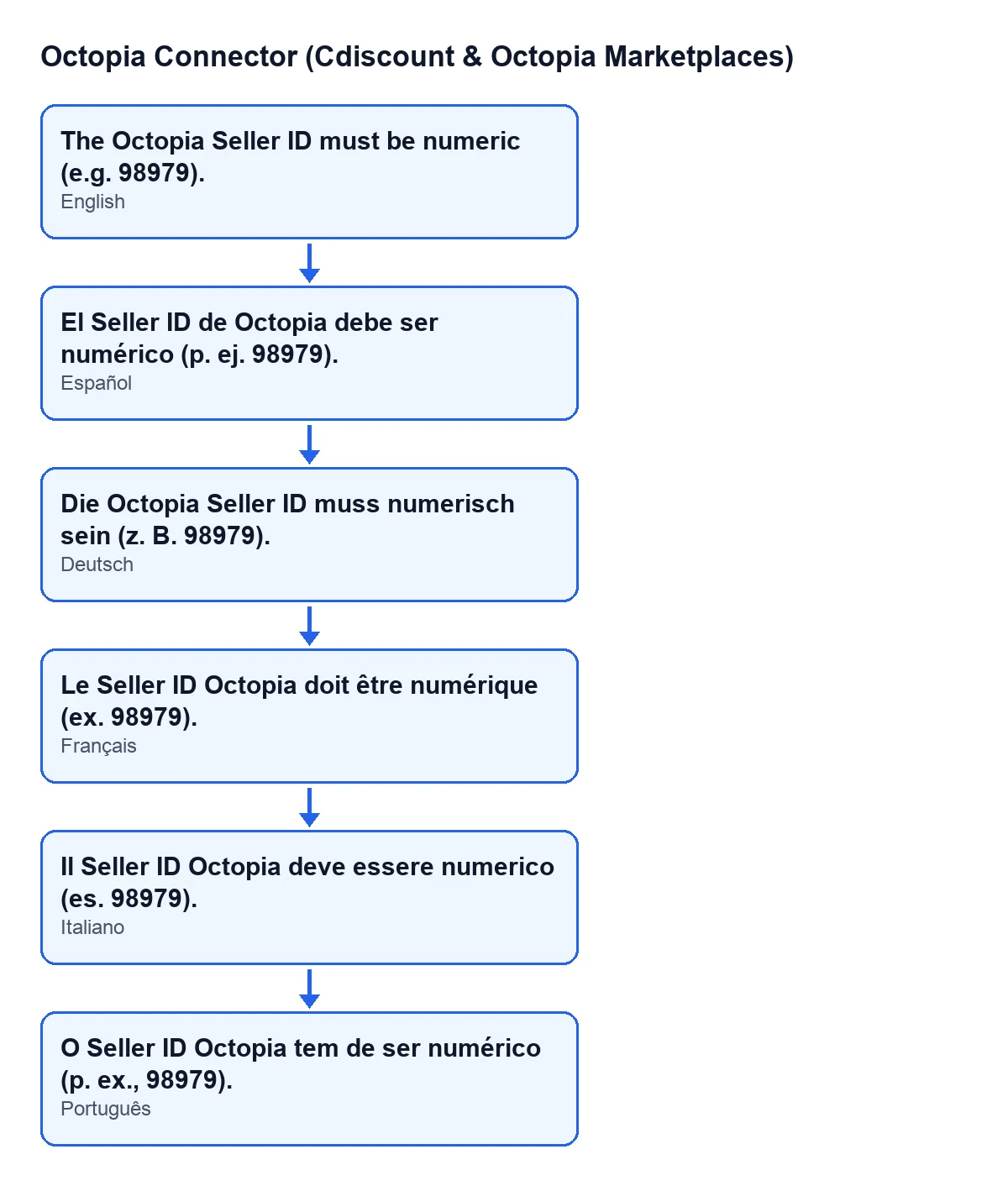
With Odoo in English you see The Octopia Seller ID must be numeric (e.g. 98979).; the diagram below shows the same text in Spanish, German, French, Italian and Portuguese, as it comes from the module's published translations.
Versions
The message is in the published code of every published branch: 17.0, 18.0, 19.0 and 20.0. The module is published on Odoo Apps for those same versions.
What the case teaches
- The message appears when you save the record, not before: nothing is checked until you save.
- An empty field does not trigger this error; a field with non-numeric text does.
- Spaces at the start and end do not count, but any other character that is not a digit does.
- Only users with the Odoo system administration permission can see the field, so one of them has to correct it.
- Correcting the value and saving again is all this error asks for.
If you need help with Octopia and Odoo
FlexigoTech implements Odoo 17, 18, 19 and 20 and builds connectors and custom integrations. If you are setting up the Octopia connection and would like someone to go through the configuration with you, get in touch.
Keep reading
Checked in the connector's source code (version 20.0) and the linked sources
Sources
- Module source code: flexigobe_octopia_connector 20.0 (4848da6a): models/octopia_account.py
- apps.odoo.com/apps/modules/20.0/flexigobe_octopia_connector
- flexigotech.com/en/services.html