

 Español
 Català
 Deutsch
 Français
 Português
 Italiano
 Nederlands
 Polski
Mirakl Connector is published on Odoo Apps for 17.0, 18.0, 19.0 and 20.0. What follows corresponds to the menus and fields of Mirakl Connector for Odoo 20.0.
Where the fields are
The forms open from the menu Mirakl › Operations › Orders. If you cannot see the Mirakl menu, you are missing the permission that this branch of the menu requires.
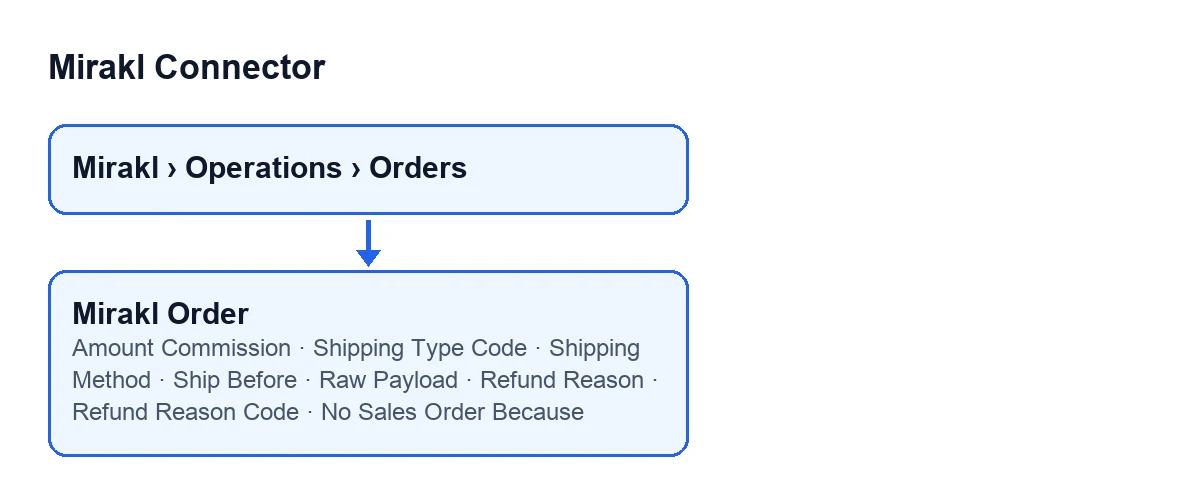
Mirakl Orders- The form and list of Mirakl orders. Some fields appear only on the form, others also in the list, and one is visible only to users with a specific permission.

Commission and shipping
Amount Commission- A monetary field. It appears on the
Mirakl Ordersform and also in the pivot view of that model. Its help text says: «Marketplace commission charged by the operator on this order (seller cost). Read from the Mirakl payload (commission_fee / total_commission).». What to do: treat it as the seller cost reported by the operator and, if a figure does not add up, check it against theRaw Payload(below).
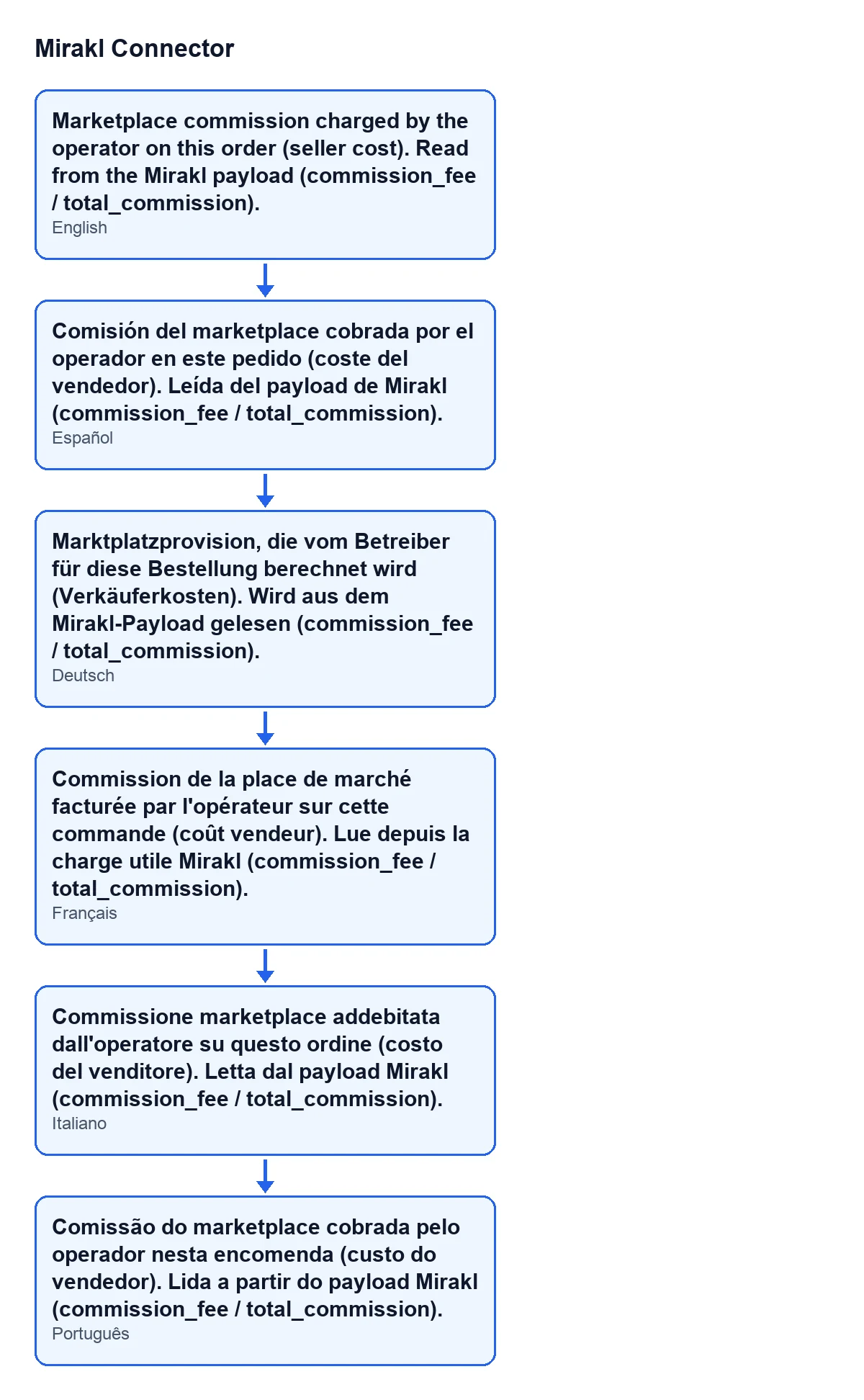
Amount Commission as it appears depending on the language of Odoo.Shipping Type Code- A short text field on the form, inside the
Shipping Methodgroup. Its help text says: «Mirakl shipping method code chosen by the buyer (e.g. STD, EXPRESS).». What to do: read it as the key Mirakl uses; the text meant for people is in the next field.
Shipping Method- A short text field on the form, in the same
Shipping Methodgroup, and also in theMirakl Orderslist. Its help text says: «Shipping method chosen by the buyer, as shown by the marketplace (e.g. 'Standard home delivery', 'Next day').». What to do: use it to see what the buyer chose without having to interpret the code.
Ship Before- A date and time shown on the form, in the
Shipping Datesgroup, and also in the list. Its help text says: «Mirakl deadline to hand the parcel to the carrier. Shipping after this date hurts your marketplace quality score.». What to do: keep this date in mind when preparing the shipment, because the help text itself warns that missing it affects your score.
Refund
Both fields are in the Refund group of the form. Their names are similar, but they do different jobs.
Refund Reason- Short text. Its help text says: «Internal note about the refund. What Mirakl actually requires is the operator's reason CODE below.». What to do: write it as a note for your team, knowing that it does not replace the code.
Refund Reason Code- Short text. Its help text says: «Operator-defined reason code required by the Mirakl refund API (OR28), e.g. Decathlon publishes codes like 'RET' or '11'. Use 'Fetch Refund Reasons' on the marketplace instance to list the codes your operator accepts.». What to do: enter one of the codes your operator accepts, not a description; the help text says where to look them up.
When there is no sales order
No Sales Order Because- A selection field that explains why the connector does not create a sales order for that Mirakl order. It appears only if the order has no sales order and the field holds a reason; on a normal order you will not see it. It also appears in the list, read-only. The module fills it in, not the user, and it is emptied when the sales order is created with the
Create Sales Orderbutton. Its help text says: «Why the connector does not create a sales order for this Mirakl order. Use the 'Create Sales Order' button to create it anyway.». What to do: read the reason before deciding whether to create the order anyway.
The possible values are these:
Its sales order was deleted in Odoo- The sales order for that Mirakl order was deleted in Odoo.
Already shipped, closed or refunded in Mirakl when imported- When the order was imported, it was already shipped, closed or refunded in Mirakl.
Created before 'Create Sales Orders From'- The Mirakl order was created before the date of 'Create Sales Orders From'. If you see it and want the sales order, the field's help text points to the
Create Sales Orderbutton.
Technical data
Raw Payload- A long text field inside the
Payload Raw (Technical)group of the form. Only users with a specific administration permission can see it, and it is read-only. Its help text says: «The marketplace payload exactly as received, formatted for reading. This is what to attach when reporting an import problem.». What to do: do not try to edit it (it is read-only) and copy it in full when you need to report an import problem.
How FlexigoTech can help
If you are implementing Odoo and want to connect Mirakl, FlexigoTech implements Odoo 17, 18, 19 and 20 and develops custom connectors and integrations. The module is a one-off purchase per version and needs a FlexigoTech Cloud subscription, Connector plan: €49 a month or €490 a year excluding VAT, with up to 3 marketplace accounts. The connection goes through FlexigoTech Cloud, which stores the credentials encrypted, monitors synchronisation and emails you if it fails. The module price for each version is on the Odoo Apps listing and you can buy it on the module page.
If you are still connecting the account, before looking at orders you may find what the Test connection button does, step by step useful.
Keep reading
Checked in the connector's source code (version 20.0) and the linked sources
Sources
- Module source code: flexigobe_mirakl_connector 20.0 (aa05e537): models/mirakl_order.py
- apps.odoo.com/apps/modules/20.0/flexigobe_mirakl_connector
- flexigotech.com/en/services.html
- flexigotech.com/precios.html