

 Español
 Català
 Deutsch
 Français
 Português
 Italiano
 Nederlands
 Polski
The message, word for word
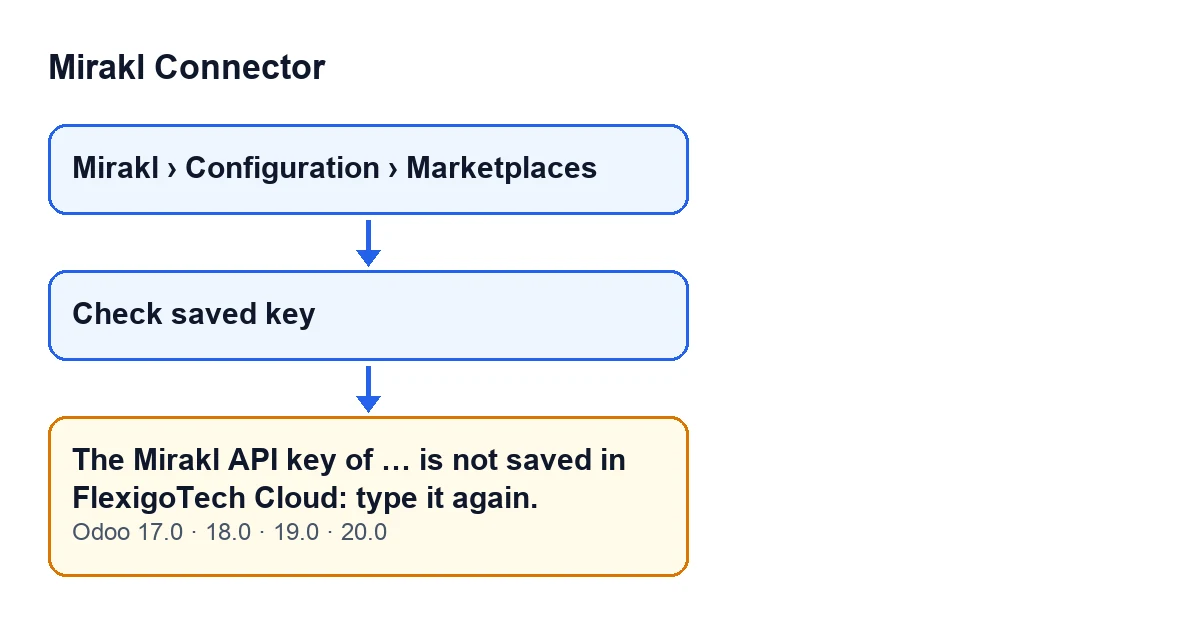
You see The Mirakl API key of … is not saved in FlexigoTech Cloud: type it again. In place of the ellipsis, Odoo shows the name it displays for that marketplace. The message is in the published code for Odoo 17, 18, 19 and 20.
It appears when you press the Check saved key button, which sits on the marketplace form. The forms open from the menu Mirakl › Configuration › Marketplaces.

The condition, as the module evaluates it
The method behind the button does the following, in this order (the code I describe is that of Odoo 20.0):
- It asks FlexigoTech Cloud what it holds for that marketplace. The account belongs to each marketplace: two marketplaces of the same operator in one database keep one key each.
- If the answer does not say the key is saved, the action stops and the message above appears, with the marketplace name.
- If the answer does say it is saved, there is no error: a success notice appears with the title
FlexigoTech Cloud.
The check does not bring the key back: the code itself describes it as what FlexigoTech Cloud keeps for that marketplace, without the key, and adds that it also works without the service.
The success notice reads Mirakl API key saved in FlexigoTech Cloud since …. The date is the update date or, failing that, the creation date; if neither exists, a dash appears instead. When there is a deletion date, the notice adds It will be deleted on … unless the subscription is renewed.
When the button is visible
The Check saved key button is not always on screen. In Odoo 17, 18, 19 and 20 it is hidden in two cases: when the Mirakl connection field is not on the option that uses FlexigoTech Cloud, or when the Saved in FlexigoTech Cloud field is empty. With the default values that field is empty, so the button is not visible.
So if you cannot find it on a new form, that is not a fault: look at those two fields. And if you can see it and the message still appears, what is happening is that FlexigoTech Cloud does not say it holds the key at that moment.
An illustrative case: the key that was "already in"
Example Illustrative case: the company and its figures are made up to explain the flow.
Casa Aldea is an invented homeware shop with one Mirakl marketplace set up in Odoo. Lucía, who runs the admin, wants to confirm that everything is in order before getting on with the week. She opens Mirakl › Configuration › Marketplaces and goes into the marketplace form. The Check saved key button is on screen: the Saved in FlexigoTech Cloud field has a value and the connection is on the FlexigoTech Cloud option.
She presses it and, instead of the green notice, she gets The Mirakl API key of … is not saved in FlexigoTech Cloud: type it again., with the name of her marketplace where the ellipsis is. The action stops. The message asks for nothing else: Lucía types the key again and presses the button once more.
What the case teaches:
- The message is about what FlexigoTech Cloud says regarding that marketplace's key. The check queries that information; it does not give you the key back.
- A visible button does not guarantee that the check will pass: the button depends on two fields on the form, and the error on FlexigoTech Cloud's answer.
- With several marketplaces, the name in the message tells you which one to fix, because each has its own account and its own key.
What to do when it appears
- Open
Mirakl › Configuration › Marketplacesand go into the form of the marketplace named in the message. - Type that marketplace's Mirakl API key again, as the message asks.
- Press
Check saved keyagain. If the button does not appear, go back over the condition in the previous section. - If FlexigoTech Cloud now says the key is saved, you will see the success notice with its date. If the error comes back, repeat from the second step with the right marketplace.
The Mirakl API key of … is not saved in FlexigoTech Cloud: type it again.Subscription and versions, briefly
Mirakl Connector is a one-off purchase per version and needs the FlexigoTech Cloud subscription (Connector plan: €49 a month or €490 a year, excluding VAT, with up to 3 accounts of the platform). It is published on the Odoo Apps listing for Odoo 17, 18, 19 and 20. Without a subscription, or with the service suspended, whatever the subscription provides stops; your data stays in your Odoo.
If you need help with the implementation
FlexigoTech implements Odoo 17, 18, 19 and 20 and builds custom connectors and integrations. If you are setting up Mirakl in your Odoo and want to review how your marketplaces are configured, see the module page or get in touch.
Keep reading
Checked in the connector's source code (version 20.0) and the linked sources
Sources
- Module source code: flexigobe_mirakl_connector 20.0 (aa05e537): models/mirakl_fgt_cloud.py
- Module source code: flexigobe_mirakl_connector 20.0 (aa05e537): views/mirakl_instance_views.xml
- Module source code: flexigobe_mirakl_connector 20.0 (aa05e537): models/mirakl_ai.py
- apps.odoo.com/apps/modules/20.0/flexigobe_mirakl_connector
- flexigotech.com/precios.html
- flexigotech.com/en/services.html