

 Español
 Català
 Deutsch
 Français
 Português
 Italiano
 Nederlands
 Polski
Where the button is and what it does from start to finish
The Exchange Auth Code button is on the Shopify Instances screen, in the 17, 18, 19 and 20 branches of Odoo. Store records open from the menu Shopify › Configuration › Stores. To see the Configuration part of the menu you need the Operator permission; for the Shopify part, Viewer.
In Odoo 20.0, when you press it, the module goes through the selected stores and runs the exchange on each one. It checks that the store has an authorisation code stored; it sends Shopify that code together with the application's API key and secret; it checks that the reply contains an access token; and only then does it save the changes.
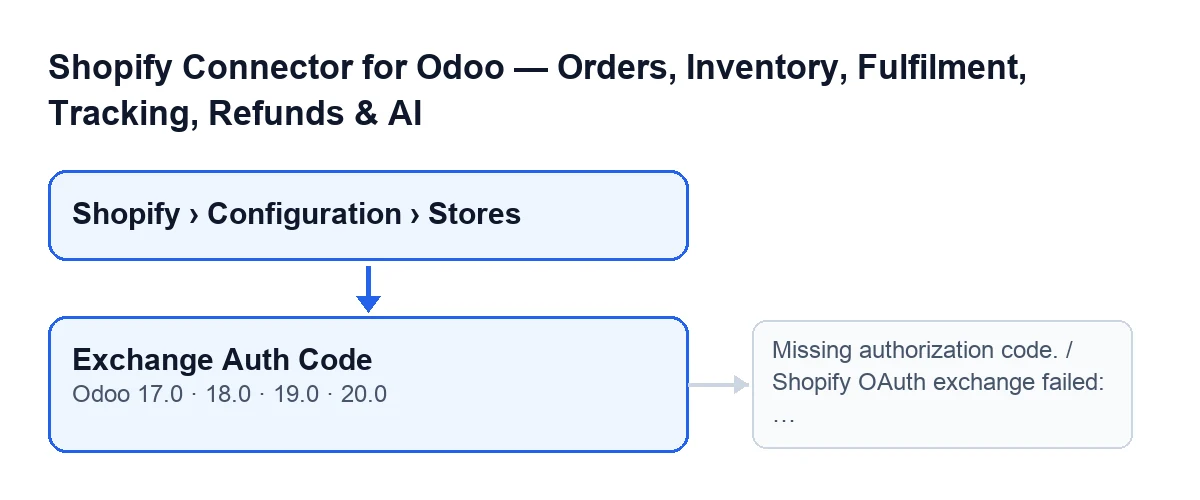
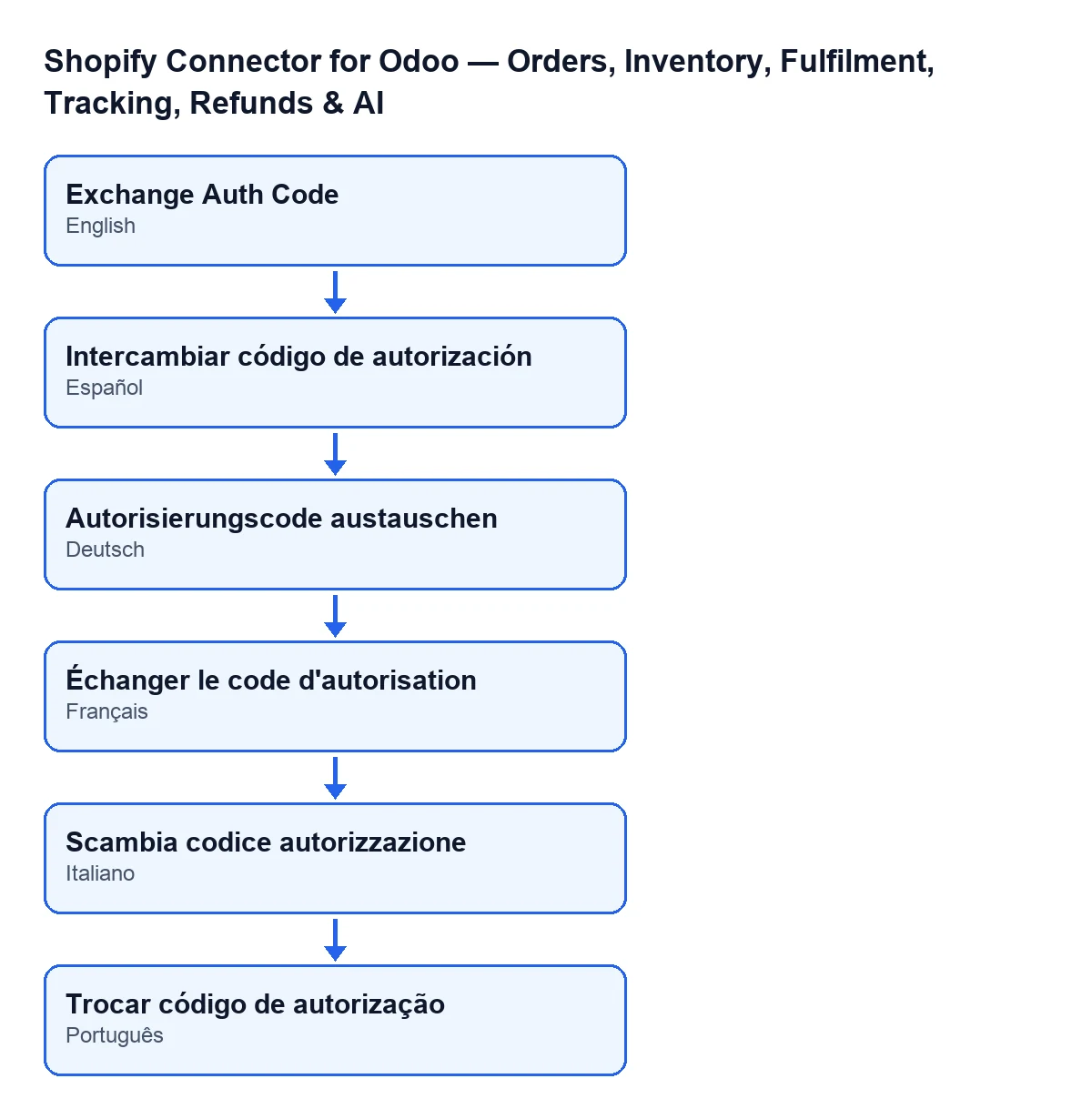
With Odoo in English the button is called Exchange Auth Code. The next diagram shows its name in other languages.

Wrong ideas about the exchange button
«The button shows on every store record»
The view hides the button when the Shopify connection field holds its out-of-the-box value, so with the default values it is not visible. That field does not appear in any view. The button shows when that field holds a value other than the default. The condition is the same in Odoo 17, 18, 19 and 20.
«Pressing it opens the authorisation in Shopify»
When you press it, the module works with the authorisation code already stored on the store. If that code is empty, in Odoo 20.0 the button stops with Missing authorization code. and changes nothing.
«If Shopify rejects the exchange, the store is left half done»
When the button stops with a message, the action halts and nothing it was about to change is saved. Besides the message above, the button can stop with these:
Shopify OAuth exchange failed: …. It appears when Shopify answers with an error status code. In place of the dots comes the start of the text Shopify replied with: read it to see what Shopify said.Shopify OAuth exchange response did not include an access token.. It appears when Shopify's reply carries no access token.
«The token it saves is permanent»
In Odoo 20.0, the module asks Shopify for the pair of a short-lived access token and a refresh token; the code comment mentions a 90-day refresh token. The refresh token is saved only if Shopify returns it, and the expiry date of the access token only if Shopify says how many seconds it lasts. The module also saves the time of the exchange as the last refresh and the granted permissions: those of the token itself or, if none come back, those of the associated user; if there are none, it stays empty.
«After the exchange, the code can be used again»
When saving, the module empties the authorisation code and the pending OAuth state value. According to the code comment, that value is single-use: it is consumed there so that a replayed callback cannot complete a second time. At the same time the store moves to the connected state and the last connection error is cleared. If you press the button again with the code already emptied, it stops with Missing authorization code..
«Buying the module is all it takes»
The button belongs to a one-off-payment-per-version module that needs the FlexigoTech Cloud subscription (Connector plan): €49 a month or €490 a year, excluding VAT. The connection goes through FlexigoTech Cloud, which stores the credentials encrypted, watches the synchronisation and emails you if it fails. Without a subscription, or with the service suspended, what the subscription provides stops; your data stays in your Odoo.
The module is published on Odoo Apps for 17.0, 18.0, 19.0 and 20.0. With the subscription, the module for newer Odoo versions is included if you bought it on flexigotech.com; on the Odoo App Store, each Odoo version is bought there. You have the Odoo Apps listing and the module page.
What to look at when the button stops with a message
- With
Missing authorization code., the store had no authorisation code stored at that moment (or it had already been emptied by an earlier exchange). - With
Shopify OAuth exchange failed: …, read the text after the colon: it is Shopify's reply. - With
Shopify OAuth exchange response did not include an access token., Shopify answered without returning the token.
In each of these cases the action stops and nothing the button was about to change is saved.
If you are looking for another button in the module
The connector has other buttons with their own story. If stock is what interests you, there is another article on the connector's stock button.
How FlexigoTech can help
FlexigoTech implements Odoo 17, 18, 19 and 20 and builds custom connectors and integrations. If you hit one of these messages while connecting your store and are not sure where to go next, tell us what text appears after the colon and we will look at it with you.
Keep reading
Checked in the connector's source code (version 20.0) and the linked sources
Sources
- Module source code: flexigobe_shopify_seller_connector 20.0 (d7e627b4): views/shopify_instance_views.xml
- Module source code: flexigobe_shopify_seller_connector 20.0 (d7e627b4): models/shopify_instance.py
- Module source code: flexigobe_shopify_seller_connector 20.0 (d7e627b4): models/fgt_cloud.py
- apps.odoo.com/apps/modules/20.0/flexigobe_shopify_seller_connector
- flexigotech.com/en/services.html
- flexigotech.com/precios.html