

 Español
 Català
 Deutsch
 Français
 Português
 Italiano
 Nederlands
 Polski
The six pt_ fields you need to understand
Which pt_ fields does the module define?
The module defines six fields with the pt_ prefix. Here they are with their technical name, label and type:
pt_anonymisation_threshold, labelAnonymisation Cell Threshold, whole number (Integer).pt_rti_cooldown_months, labelRTI Cooldown (months), whole number (Integer).pt_use_external_payroll, labelUse External Payroll (CSV Import), checkbox (Boolean).pt_portal_rate_limit_per_minute, labelPortal Rate Limit (per minute), whole number (Integer).pt_portal_rate_limit_per_hour, labelPortal Rate Limit (per hour), whole number (Integer).pt_clamav_socket, labelClamAV Socket Path, text (Char).
The technical name lets you and your consultant or IT team refer to the same field; the label is what you will see on screen.
What value do I put in each one?
Four of the fields are whole numbers: Anonymisation Cell Threshold, RTI Cooldown (months), Portal Rate Limit (per minute) and Portal Rate Limit (per hour). The RTI cooldown is expressed in months, as its own label says, and the two portal limits are one per minute and one per hour. ClamAV Socket Path is a text field holding a path. Agree these values with whoever runs HR and whoever administers your Odoo before saving, and write down what you chose and why, so you can review it later.
When should I tick Use External Payroll (CSV Import)?
The label describes the option: using an external payroll through a CSV import. If your payroll is calculated outside Odoo, this is the box to review when you configure the module. If you run payroll inside Odoo, check with your team whether it should stay unticked.
The module's state lists
The module defines several value lists for state fields. Here they are grouped so you can recognise each value when it shows up in a list or a filter.
Which state lists start at Draft?
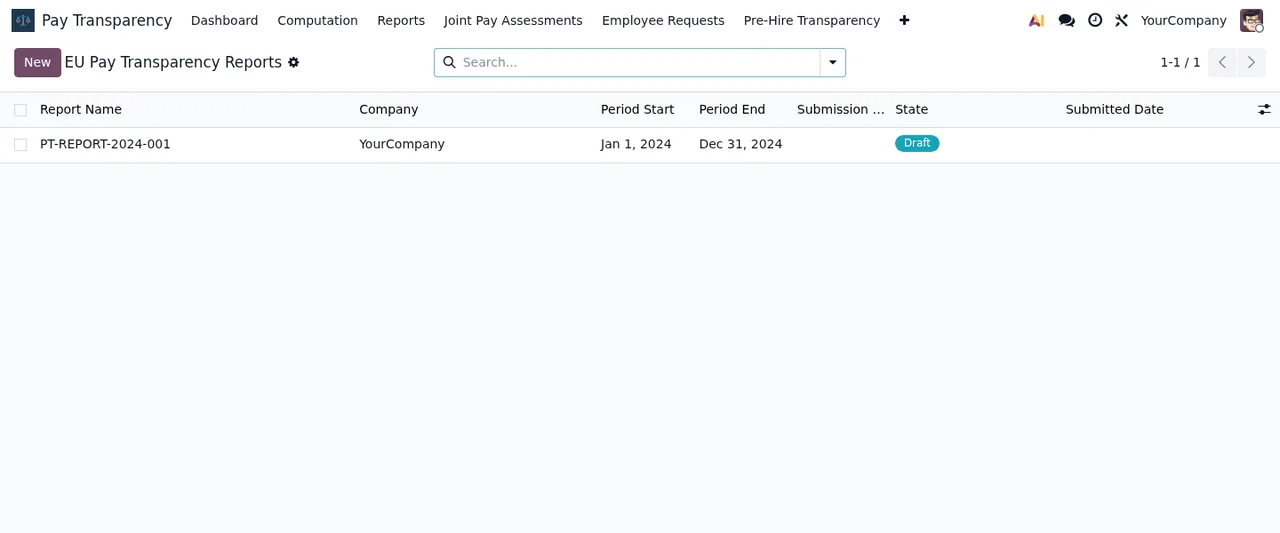
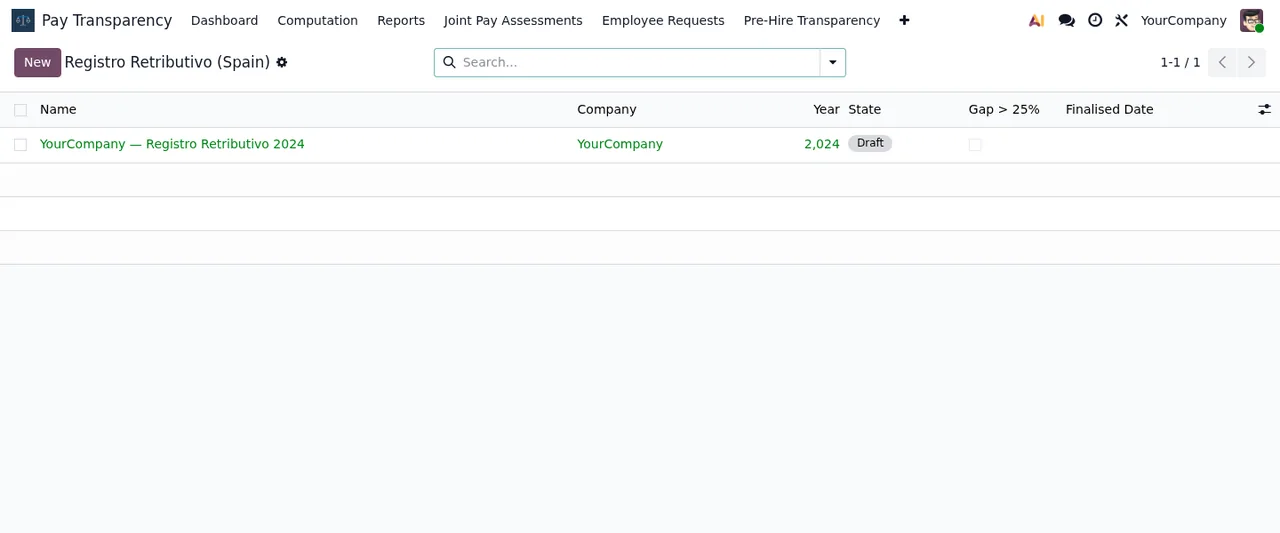
The shortest lists have two values: Draft and Approved; Draft and Done; and Draft and Finalised. Another has Draft, Approved and Delivered. Another runs through Draft, Computing, Ready for Review, Approved and Cancelled. And another has Draft, HR Review, Legal Review and Submitted. In the animation further down, the reporting cycles show as Draft or Approved, and in the screenshots the report and the pay register are still in draft.
Which state lists include review stages?
Three. One includes Ready for Review between Computing and Approved. Another has Draft, HR Review, Legal Review and Submitted. And the list that includes Registered in REGCON ends with Under Periodic Review. If both HR and legal advisers are involved in your company, agree with them who handles records in HR Review and in Legal Review.
Which lists include the Overdue state?
The Overdue value appears in four of the module's state lists. One is Pending, Fulfilled, Refused and Overdue. Another is Open, In Progress, Agreed with Works Council, Closed and Overdue. Another is Planned, In Progress, Completed and Overdue. And the fourth is Pending, Draft Response, Answered and Overdue. In the animation you will also see a joint pay assessment in Open state with the Overdue box ticked.
What is the Registered in REGCON state?
It is one of the values in a list that also includes Not Started, Diagnostic Phase, Negotiation, Approved and Under Periodic Review. If you want to see how each list fits into the journey of a record, it is covered in how the module works under the bonnet.
What to check in your first week
Where do I start checking?
Go through the module's lists one at a time and look at what each one holds:
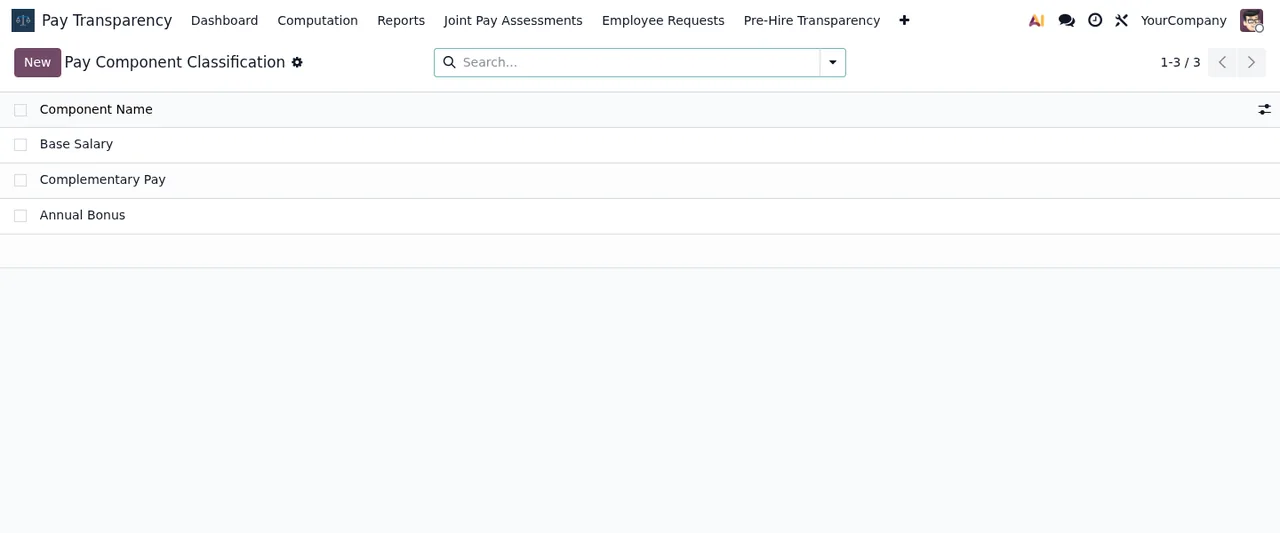
Pay Component Classification: which pay components you have set up.Reporting Cycles: which cycles are inDraftand which inApproved.EU Pay Transparency Reports: which reports are still in draft.Registro Retributivo (Spain): the state of each record.- Joint pay assessments: which records have the
Overduebox ticked. Pay Gap Dashboard: the dashboard cards and the list of periods with their state.
Where do I look if an error message appears?
The exact wording of the module's error messages and warnings, when each one appears and what to do, is collected in the EU Pay Transparency errors article.
How FlexigoTech can help
The module is published on Odoo Apps for Odoo 17, 18, 19 and 20, and costs €9 excluding VAT on each of those versions, as a one-off payment per version. You can see it on the Odoo Apps listing or on the module page at flexigotech.com.
If you are implementing Odoo or need to connect the module to other systems, at FlexigoTech we implement Odoo 17, 18, 19 and 20 and build bespoke connectors and integrations.
Keep reading
Checked in the module's source code (version 20.0) and the linked sources
Sources
- Module source code: flexigo_paytransparency 20.0 (a4edd772): models/res_config_settings.py
- Module source code: flexigo_paytransparency 20.0 (a4edd772): models/pt_budget_sim.py
- Module source code: flexigo_paytransparency 20.0 (a4edd772): models/pt_computation_run.py
- Module source code: flexigo_paytransparency 20.0 (a4edd772): models/pt_dsar_request.py
- Module source code: flexigo_paytransparency 20.0 (a4edd772): models/pt_import_wizard.py
- Module source code: flexigo_paytransparency 20.0 (a4edd772): models/pt_jpa.py
- Module source code: flexigo_paytransparency 20.0 (a4edd772): models/pt_jpa_measure.py
- Module source code: flexigo_paytransparency 20.0 (a4edd772): models/pt_plan_igualdad.py
- Module source code: flexigo_paytransparency 20.0 (a4edd772): models/pt_registro.py
- Module source code: flexigo_paytransparency 20.0 (a4edd772): models/pt_report.py
- Module source code: flexigo_paytransparency 20.0 (a4edd772): models/pt_rti_request.py
- Module source code: flexigo_paytransparency 20.0 (a4edd772): models/pt_rti_response.py
- apps.odoo.com/apps/modules/20.0/flexigo_paytransparency
- apps.odoo.com/apps/modules/17.0/flexigo_paytransparency
- apps.odoo.com/apps/modules/18.0/flexigo_paytransparency
- apps.odoo.com/apps/modules/19.0/flexigo_paytransparency
- flexigotech.com/en/services.html