

 Español
 Català
 Deutsch
 Français
 Português
 Italiano
 Nederlands
 Polski
When exactly it appears
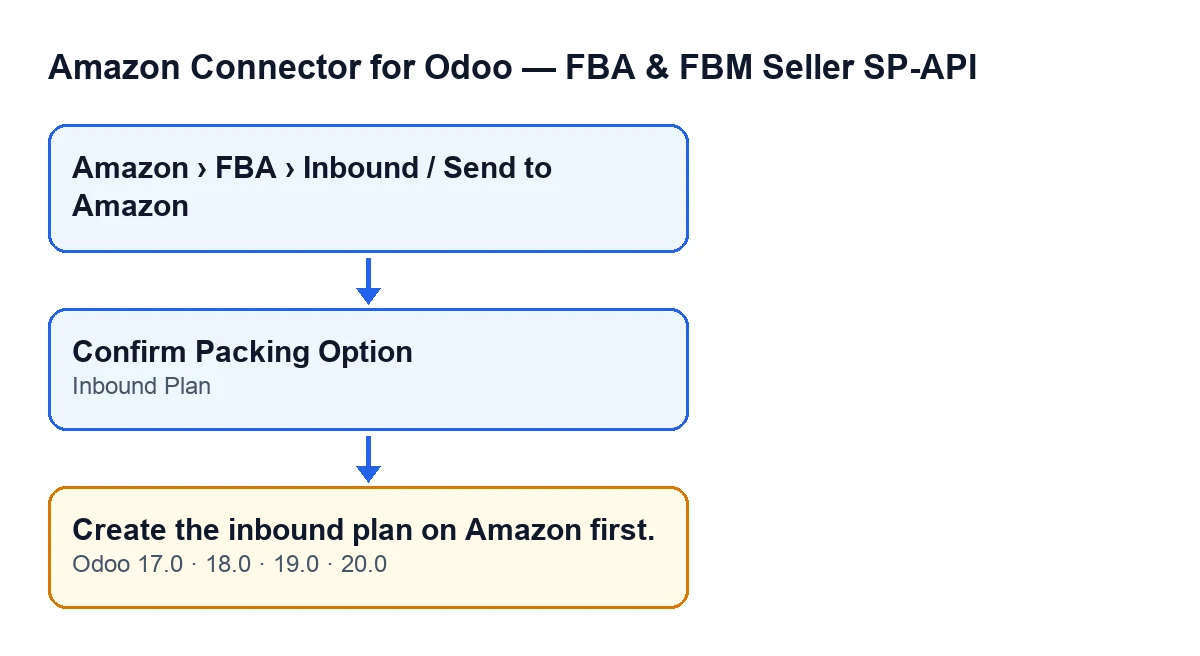
The message Create the inbound plan on Amazon first. appears when you press the Confirm Packing Option button and the Inbound Plan field of the plan is empty. That is the condition in the Odoo 20.0 code: if the field is empty, the action stops with the message and nothing it was about to change is saved.
The text of the message is in the published code for Odoo 17, 18, 19 and 20. The condition of the code quoted here is the one in Odoo 20.0.

Where each piece lives
The plan records open from the menu Amazon › FBA › Inbound / Send to Amazon. Every level of that menu requires the Viewer permission.
The Inbound Plan field appears on the Send to Amazon form and in its list, read-only: the code writes it, not the user. What fills it in is the Create Inbound Plan button, which only appears while the plan is in draft and the Inbound Plan field is still empty.
The Confirm Packing Option button is hidden when the Selected Packing Option field is empty; with the default values you do not see it. The condition is the same in Odoo 17, 18, 19 and 20.
A worked example
Example Illustrative case: the company and its figures are made up to explain the flow.
Droguería Mirador is an invented company that sells on Amazon and is preparing an FBA shipment. Lucía, who works in logistics, opens the menu Amazon › FBA › Inbound / Send to Amazon, goes into the plan and sees the Confirm Packing Option button. She presses it and Odoo answers Create the inbound plan on Amazon first.
Lucía then looks at the Inbound Plan field on the same form: it is empty. That is the only thing the code checks at this point, so she knows what is missing: the plan has not yet been created on Amazon from Odoo. She tries to type in the field and cannot, because it is read-only.
The plan is still in draft and the field is empty, so the form shows the Create Inbound Plan button, which is what fills the field. Lucía presses it and, once it finishes, the Inbound Plan field has a value. She presses Confirm Packing Option again and this time the action gets past the plan check.
What to take from the example
- The message is about the inbound plan, not the packing option: the field to look at is
Inbound Plan. - Seeing the button says nothing about whether the plan exists: its visibility depends on
Selected Packing Option, not onInbound Plan. - There is nothing to type by hand: the field is read-only and the
Create Inbound Planbutton fills it in.
What the action does, in order
Reading the order helps you understand what has happened when you see the message:
- It checks your permissions. The code requires at least Amazon connector operator access, because these actions work on real FBA inbound shipping plans at Amazon. Seeing the menu with the
Viewerpermission is not enough to run them: the code itself says that profile is read-only. - It checks the
Inbound Planfield. If it is empty, it stops withCreate the inbound plan on Amazon first. - If it passes, the code goes on to other checks, each with its own message. Only then does it ask Amazon to confirm the packing option, store the operation identifier, move the plan to a confirmed-packing state, wait for the operation result on Amazon and reload the packing options.
Because the plan check comes before all of that, when this message appears the action has not asked Amazon for anything or saved any change to the plan.
Two other methods on the same plan also raise this message; the condition above is the one for the Confirm Packing Option button.
How to fix it
- Open the plan from
Amazon › FBA › Inbound / Send to Amazon. - Look at the
Inbound Planfield, on the form or in the list. If it is empty, that is the cause. - Fill it in with the
Create Inbound Planbutton, which only appears while the plan is in draft and theInbound Planfield is still empty; you cannot type it, because it is read-only. - With the field filled, press
Confirm Packing Optionagain. - If the action stops again, it is no longer this check that stops it: the message will be different. Also check that your user has at least operator access, and not only
Viewer.
What to check afterwards
Before confirming again, open the form once more and check that Inbound Plan has a value. If it does and the action stops again, the reason is a different one and the message will tell you which.
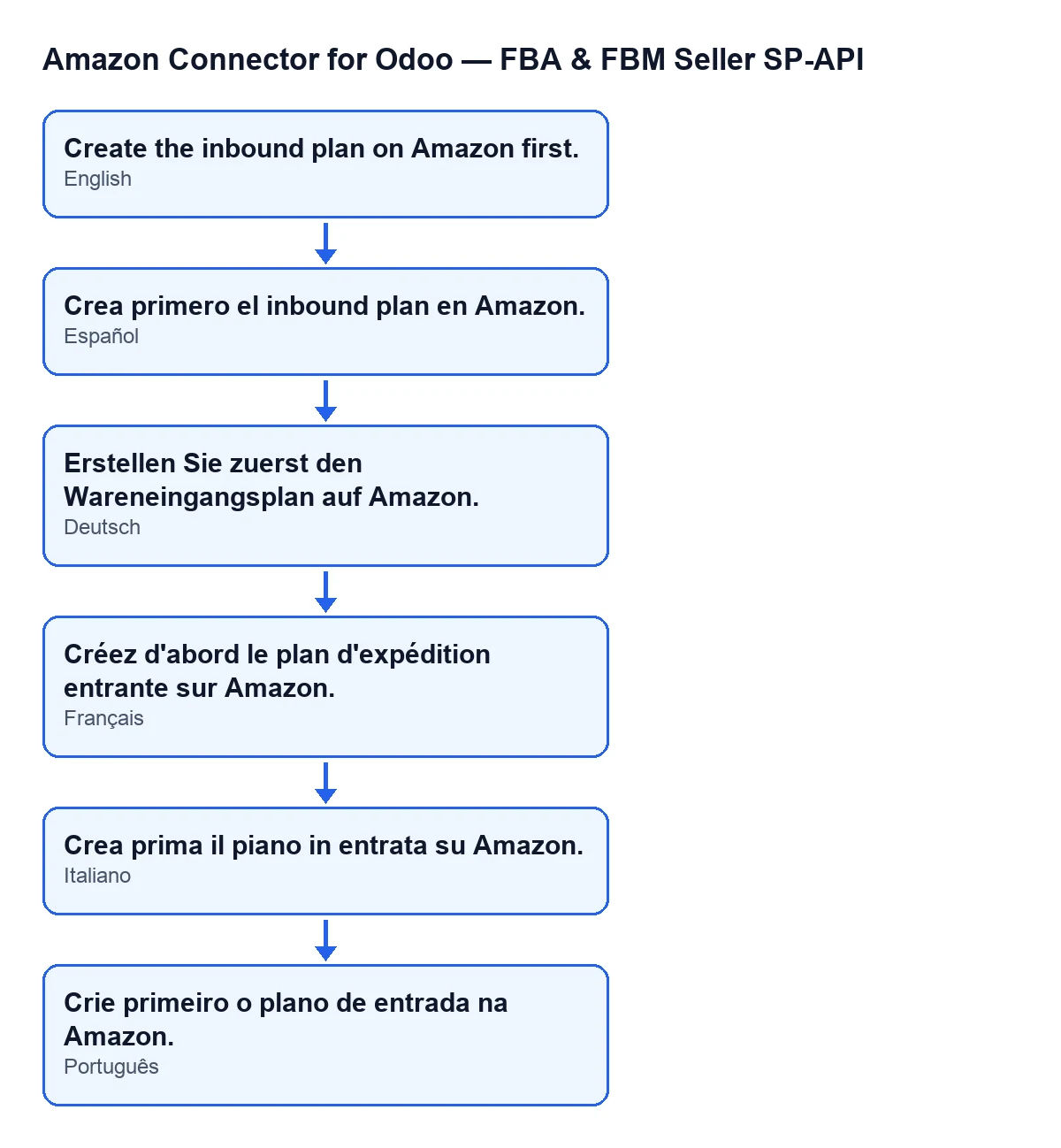
Here is the same message in other languages, so you can recognise it if colleagues use Odoo in another language:
How FlexigoTech can help
If you are implementing Odoo and want to connect Amazon, FlexigoTech implements Odoo 17, 18, 19 and 20 and builds custom connectors and integrations. The module is a one-off payment per version and needs a FlexigoTech Cloud subscription (Connector plan: €49 a month or €490 a year, excluding VAT). It is published on Odoo Apps for 17.0, 18.0, 19.0 and 20.0; you can see the Odoo Apps page and the module page on flexigotech.com.
Keep reading
Checked in the connector's source code (version 20.0) and the linked sources
Sources
- Module source code: flexigobe_amazon_seller_connector 20.0 (8576afa5): models/amazon_spapi_inbound_plan.py
- Module source code: flexigobe_amazon_seller_connector 20.0 (8576afa5): views/amazon_spapi_inbound_plan_views.xml
- apps.odoo.com/apps/modules/20.0/flexigobe_amazon_seller_connector
- flexigotech.com/en/services.html
- flexigotech.com/precios.html