

 Español
 Català
 Deutsch
 Français
 Português
 Italiano
 Nederlands
 Polski
Before you press: where the button is and what the plan needs
The Confirm Placement button is on the Send to Amazon form, opened from Amazon › FBA › Inbound / Send to Amazon. Every level of that menu asks for the Viewer permission; if you do not have it, you do not see that level. The button exists in Odoo 17, 18, 19 and 20.
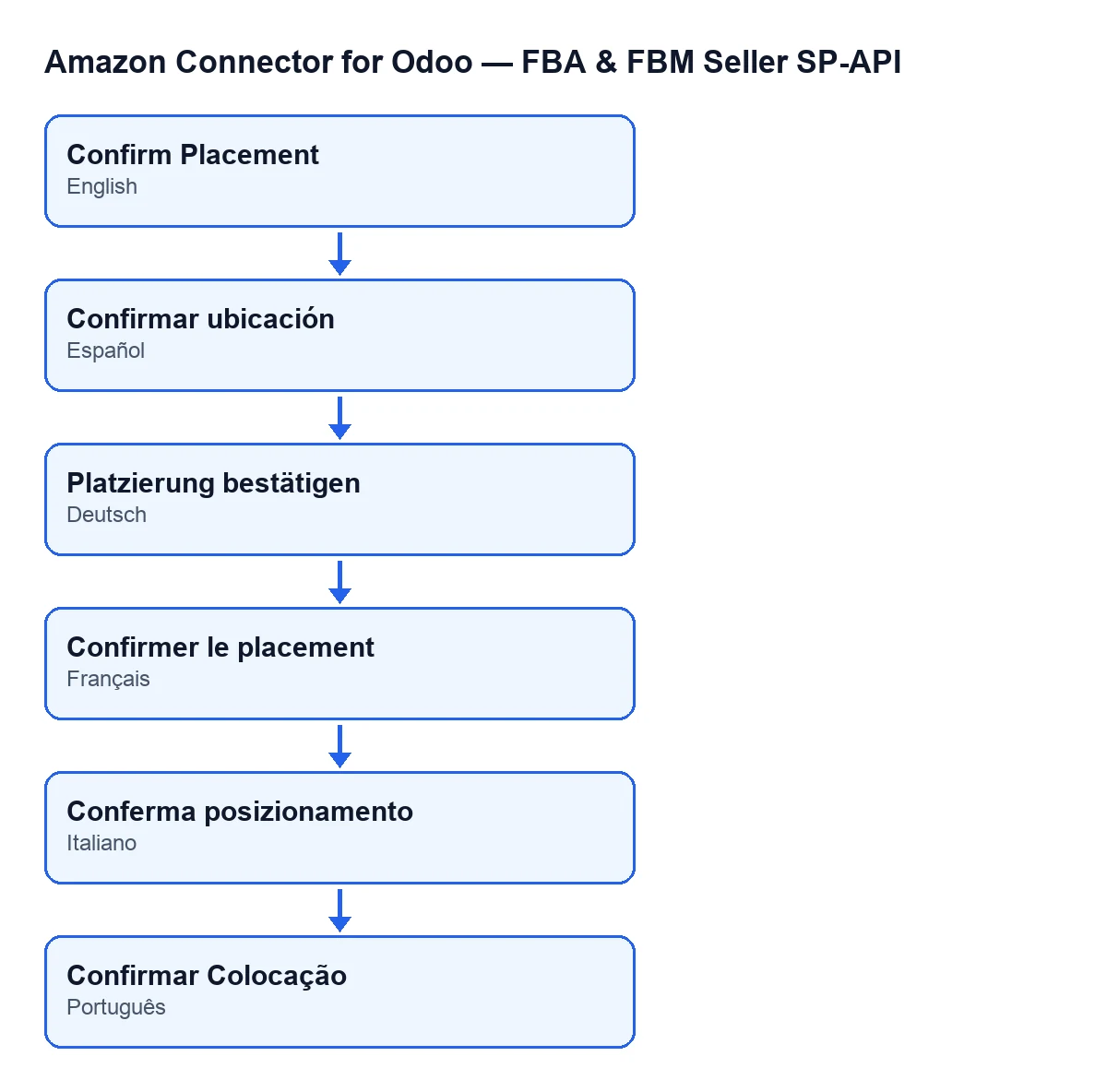
Confirm Placement in English, Confirm Placement in Spanish, Platzierung bestätigen in German, Confirmer le placement in French, Conferma posizionamento in Italian and Confirmar Colocação in Portuguese.- Open the plan from that menu and look at its
Account, shown on the form and in the list. It is the account Odoo uses to talk to Amazon when confirming. - Check that
Inbound Planhas a value. It is read-only and not typed by hand: theCreate Inbound Planbutton fills it in. With the field empty, confirming givesCreate the inbound plan on Amazon first. - Open the
Placement & Transportationtab and look atSelected Placement Option; it also appears in the list. With the field empty, which is the default, the button is hidden in Odoo 17, 18, 19 and 20. - Check your access. Seeing the menu needs
Viewer, but a viewer is read-only: when you press, the module checks on the server that you have at least Amazon Seller Connector Operator access and write permission on the plan.

What the button does when pressed, in order
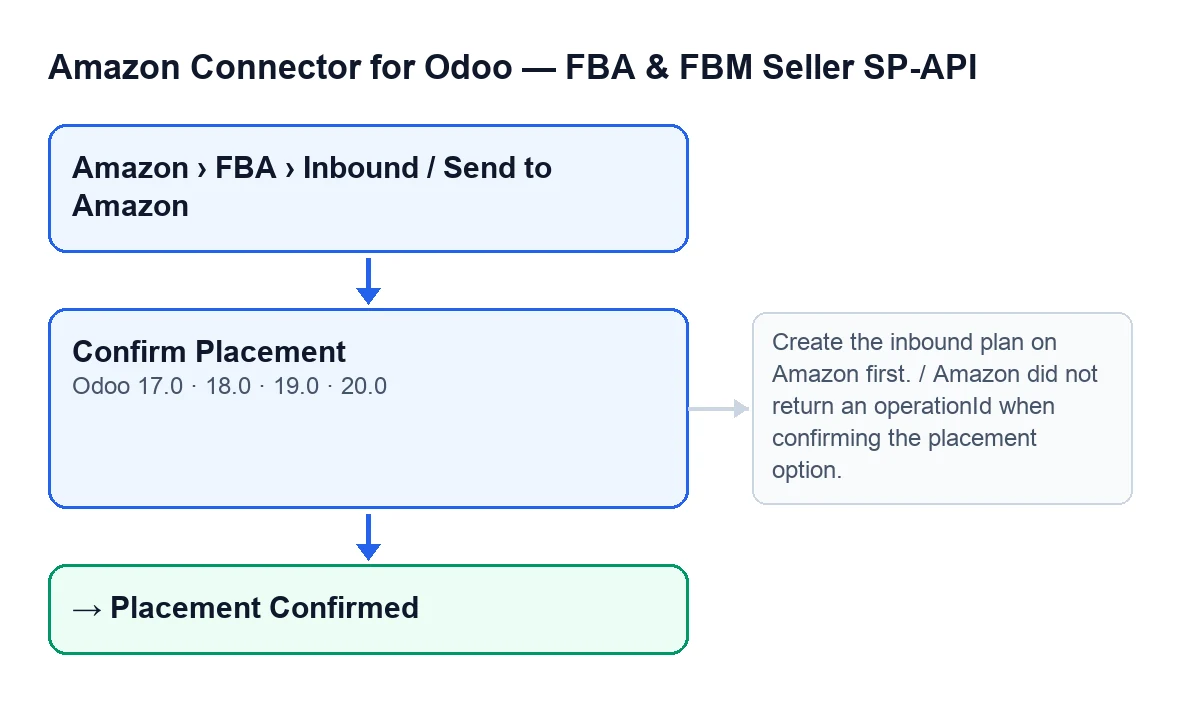
Confirm Placement button with the messages that can stop it alongside, and the Placement Confirmed state it leaves the record in.- First it checks the permission described above. If you do not meet it, it stops.
- Then it checks that the plan has an
Inbound Planand a selected option. Without a plan, it stops withCreate the inbound plan on Amazon first. - With both in place, it asks Amazon, through the plan's account, to confirm that placement option.
- If Amazon returns no operation identifier, it stops with
Amazon did not return an operationId when confirming the placement option.If it does, the record stores that identifier and moves toPlacement Confirmed. - Next it waits for Amazon to resolve the operation by polling its status. If Amazon reports success, it carries on. If it reports
FAILED,ERRORorCANCELLED, it stops. If the waiting attempts run out, it stops too. - Once that finishes well, it reads the plan back from Amazon and updates its shipments.
If the message appears after the confirmation has been sent (Amazon returns no operation identifier, the operation fails on Amazon or the wait runs out), the request has already reached Amazon: check the plan's status before pressing again.
What to check after confirming
- The record is in the
Placement Confirmedstate. - The plan has been read back from Amazon: the record stores the status Amazon gives the plan, its creation and last update dates, the full result of the query and the time of the sync. If Amazon reports the plan as shipped, the record moves to the shipped state.
- The plan's shipments are up to date: for each shipment Amazon lists, Odoo creates or updates its line with the name, status, destination warehouse, contact details, freight details and tracking numbers Amazon returns. Shipment lines Amazon no longer lists are archived, not deleted.
- You know that this reading back does not depend on the button: the scheduled task
Amazon SP-API - Refresh open FBA inbound plansruns every hour, active on install, and reads the plan and its shipments in the same way.
If an error appears: what to do with each message
You need at least Amazon Seller Connector Operator access for this action. Ask a manager to grant Operator or Manager access.It appears when you press the button without the required access. Ask whoever administers your Odoo to grant you Operator or Manager access.Create the inbound plan on Amazon first.The plan has noInbound Plan. TheCreate Inbound Planbutton fills that field; check it has completed before confirming.Amazon did not return an operationId when confirming the placement option.Amazon answered without an operation identifier. The confirmation request had already been sent: check the plan's status before pressing again.… failed on Amazon (…): …Amazon reported the operation as failed. The first gap isConfirm placement option, the second is the status Amazon returned and the last holds the problems Amazon lists. The request has already reached Amazon: read those problems and check the plan's status before pressing again.… is still pending after … attempts. Last status: …Amazon did not resolve the operation while the button was waiting. The first gap isConfirm placement option; the last is the last status received, orno status. The request has already reached Amazon: note that status and check the plan before pressing again.
What the module needs and how we can help
The module is a one-off purchase per version and is published on Odoo Apps for 17, 18, 19 and 20 (see the Odoo Apps listing or the module page). It also needs a FlexigoTech Cloud subscription, Connector plan: €49 a month or €490 a year excluding VAT, up to 3 platform accounts. The connection goes through FlexigoTech Cloud, which stores the credentials encrypted, watches the sync and emails you if it fails.
If you are implementing Odoo and want to review your FBA shipping flow with your team, FlexigoTech implements Odoo 17, 18, 19 and 20 and builds custom connectors and integrations.
Keep reading
Checked in the connector's source code (version 20.0) and the linked sources
Sources
- Module source code: flexigobe_amazon_seller_connector 20.0 (8576afa5): views/amazon_spapi_inbound_plan_views.xml
- Module source code: flexigobe_amazon_seller_connector 20.0 (8576afa5): models/amazon_spapi_inbound_plan.py
- apps.odoo.com/apps/modules/20.0/flexigobe_amazon_seller_connector
- flexigotech.com/precios.html
- flexigotech.com/en/services.html