

 Español
 Català
 Deutsch
 Français
 Português
 Italiano
 Nederlands
 Polski
When the button appears
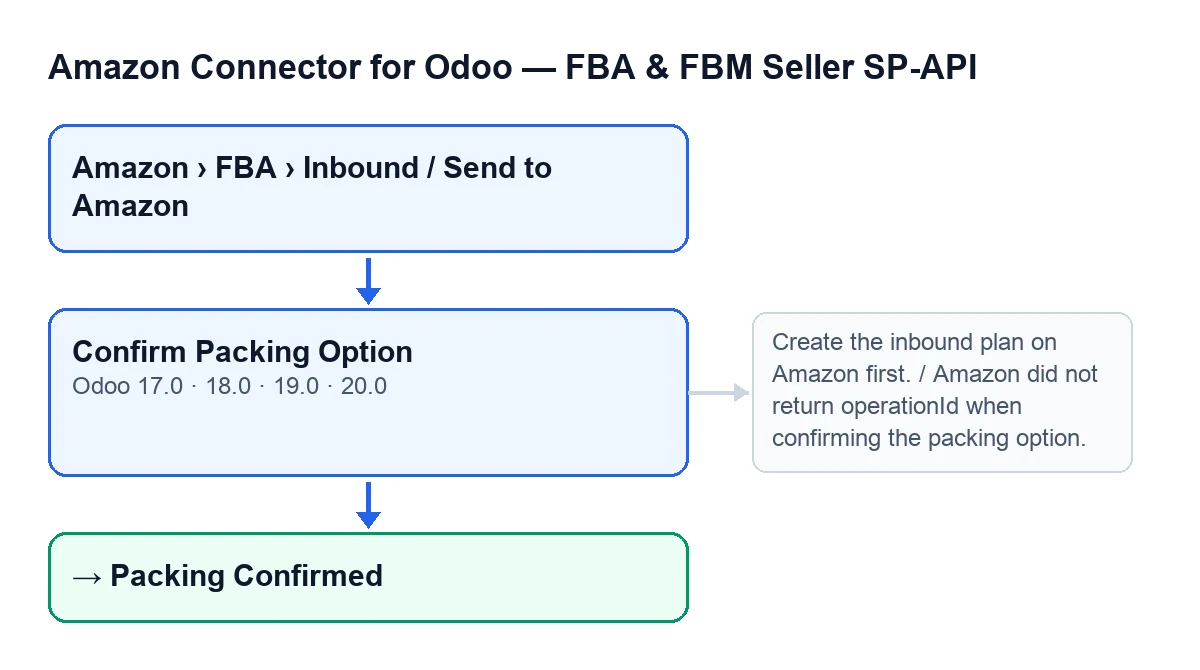
The Confirm Packing Option button is on the Send to Amazon form and exists in every published version of the module: Odoo 17, 18, 19 and 20. You reach the form from the menu Amazon › FBA › Inbound / Send to Amazon. Each step of the menu asks for the Viewer permission; without it, you do not see that step.
The button is hidden when the Selected Packing Option field is empty. With the default values it is empty, so on a newly created form you will not see the button. That field is shown on the Packing tab of the form and also in the Send to Amazon list.
Confirm Packing Option.In Odoo 20.0 the button does the following when you press it; the condition for it to show is the same in 17, 18, 19 and 20.

Step by step: what happens when you press it
- Open the plan from
Amazon › FBA › Inbound / Send to Amazon. TheViewerpermission is enough to see the menu, but running the button needs more (step three). - On the form, look at the
Accountfield and theInbound Planfield. The second is read-only and you do not write it yourself: theCreate Inbound Planbutton fills it in. On thePackingtab, check thatSelected Packing Optionhas a value; if it is empty, the button is not shown. - Press
Confirm Packing Option. The first thing the module does is check your permission on the server: it requires at least Operator access to the connector and, in addition, that you can write to the record. If you do not have that access, it stops with the message in the error table below. - It checks that
Inbound Planhas a value. If it is empty, it stops withCreate the inbound plan on Amazon first. - It sends Amazon, using the account on the form, the request to confirm the selected packing option of that plan. Amazon has to return an operation identifier; if it does not, the action stops with
Amazon did not return operationId when confirming the packing option. - It writes that identifier on the form and sets the state to
Packing Confirmed. - It waits for Amazon to finish the operation: it asks for the operation status again and again, with a pause between requests, and records on the form the status and any problems Amazon returns. If the status is
SUCCESS, it carries on. If it isFAILED,ERRORorCANCELLED, it stops with the «failed on Amazon» message. If the requests run out with no result, it stops with the «still pending» one. - It reads the plan's packing options from Amazon again. It fills
Selected Packing Optiononce more with the option the module selects from that list (if it selects none, the field is left empty and the button is hidden), stores on the form a summary of the options, Amazon's response and the synchronisation date, and leaves the state atPacking Confirmed. - Check the result on the form: the
Packing Confirmedstate and the value ofSelected Packing Option.
Errors it can give and what to do
| Message | When it appears | What to do |
|---|---|---|
You need at least Amazon Seller Connector Operator access for this action. Ask a manager to grant Operator or Manager access. | When you press the button and your user has neither Operator nor Manager access to the connector | Ask a manager to grant you Operator or Manager access |
Create the inbound plan on Amazon first. | When you press the button and Inbound Plan is empty | That field is filled in by the Create Inbound Plan button |
Amazon did not return operationId when confirming the packing option. | Amazon answered the confirmation request without an operation identifier | You can press again; the confirmation request is sent to Amazon once more |
… failed on Amazon (…): … | The operation at Amazon ended with the status FAILED, ERROR or CANCELLED | The first gap is Confirm packing option, the second the status and the third the problems Amazon returned: read them before trying again |
… is still pending after … attempts. Last status: … | The requests ran out before Amazon answered with success or failure | The last status can be no status. When you press again, the confirmation request is sent to Amazon once more |
The same permission check in the scheduled task
The button's permission check is not exclusive to the button. The scheduled task Amazon SP-API - Refresh open FBA inbound plans, which runs every hour and is active on installation, reaches the same check through the action that refreshes the plan from Amazon. The check always lets the superuser through.
For whoever manages users, the practical consequence is this: the module does not rely only on the button being hidden or shown on screen, but checks the permission again when the action runs. A user with the Viewer permission can open the form, but to confirm the packing option they need Operator or Manager access to the connector.
What the module needs and how FlexigoTech can help
The module is a one-off purchase per Odoo version (17, 18, 19 and 20; the price is on the Odoo Apps listing) and needs a FlexigoTech Cloud subscription, Connector plan: €49 a month or €490 a year, excluding VAT. The connection goes through FlexigoTech Cloud, which stores the credentials encrypted, watches the synchronisation and emails you if it fails.
FlexigoTech implements Odoo 17, 18, 19 and 20 and builds connectors and custom integrations. If you are setting up the FBA inbound flow in your Odoo, the module page has the purchase and contact details.
Keep reading
Checked in the connector's source code (version 20.0) and the linked sources
Sources
- Module source code: flexigobe_amazon_seller_connector 20.0 (8576afa5): views/amazon_spapi_inbound_plan_views.xml
- Module source code: flexigobe_amazon_seller_connector 20.0 (8576afa5): models/amazon_spapi_inbound_plan.py
- apps.odoo.com/apps/modules/20.0/flexigobe_amazon_seller_connector
- flexigotech.com/en/services.html
- flexigotech.com/precios.html